
0x00 Preface
---
Previously in 'Technical Summary of Exporting All User Hashes in the Current Domain', we explored how to copy the ntds.dit file via Volume Shadow Copy to export all user hashes within the domain. Recently, I learned some new exploitation techniques from a Carbon Black blog post, which I have compiled into this article.
Reference link:
https://www.carbonblack.com/2015/08/05/bit9-carbon-black-threat-research-team-unveils-nefarious-intents-of-volume-shadows-copies/
0x01 Introduction
---
This article will detail the following two aspects:
- Recovering files saved in system automatic restore points via Volume Shadow Copy
- Creating a fileless process via Volume Shadow Copy
The process is as follows:
- Create a current volume shadow copy
- Launch programs within the shadow copy
- Delete the volume shadow copy files
- Program source files have been deleted
- This process achieves fileless execution
0x02 Background Knowledge
---
Volume Shadow Copy Service
- Used for data backup
- Supports Windows Server 2003 and later operating systems
- The system automatically creates data backups under specific conditions by default, such as after patch installation. On Windows 7 systems, backups are automatically created approximately every week, though this timing is not guaranteed
- Disabling VSS will affect normal system functions, such as System Restore and Windows Server Backup
- VShadow can be used to manually create volume shadow copies via the command line
- VShadow is not supported by default in the system; this tool can be obtained from the Microsoft Windows Software Development Kit (SDK)
Note:
Windows Server 2003 and XP systems require the Volume Shadow Copy Service SDK 7.2. Download link is as follows:
https://www.microsoft.com/en-us/download/details.aspx?id=23490
Windows Server 2008 R2 and Windows 7 systems require the corresponding SDK version (this version is also applicable to Windows 8). Download link is as follows:
https://www.microsoft.com/en-us/download/details.aspx?id=3138
0x03 Restore files saved in system automatic restore points
---
Common Commands
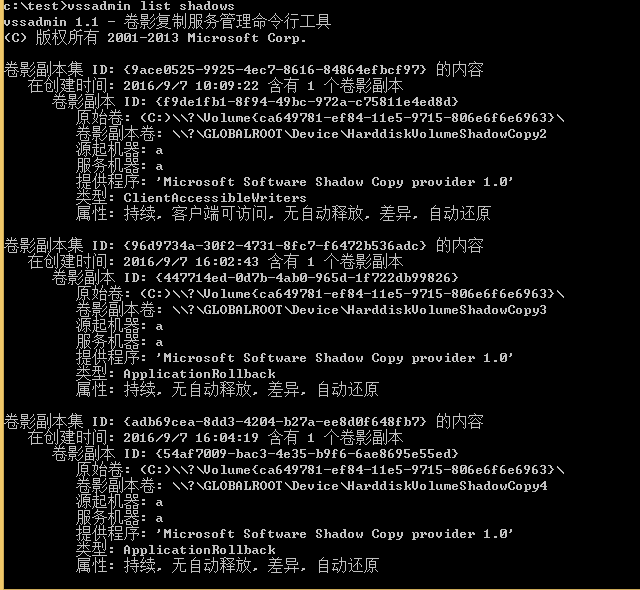
View volume shadow copies via vssadmin:
vssadmin list shadows |
Note:
vssadmin is built into the system
As shown in the figure
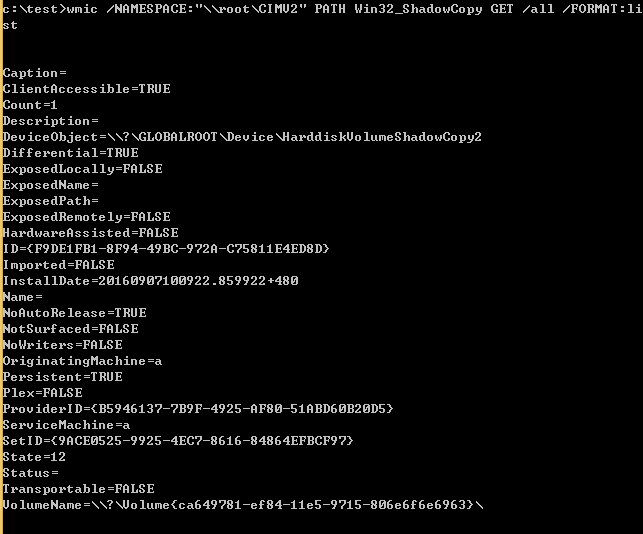
View volume shadow copies via wmic:
wmic /NAMESPACE:"\\root\CIMV2" PATH Win32_ShadowCopy GET /all /FORMAT:list |
As shown in the figure
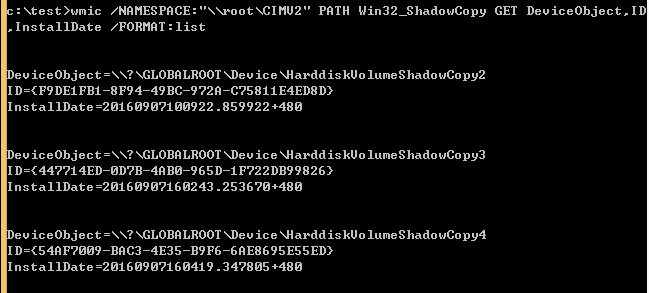
Extract key information: DeviceObject, ID, and InstallDate. The corresponding wmic command is:
wmic /NAMESPACE:"\\root\CIMV2" PATH Win32_ShadowCopy GET DeviceObject,ID,InstallDate /FORMAT:list |
As shown in the figure
Note:
When deleting a specific shadow copy, the ID of that shadow copy must be entered
Create symbolic link
Establish a virtual association between the shadow copy and a folder, similar to accessing files saved in the shadow copy via a shortcut. Use the mklink command, which is built into the system and requires administrator privileges
Format is as follows:
mklink /d Specify the shortcut path [Shadow copy device name]\ |
Note:
A \ must be appended after [Shadow copy device name]
If the \ is accidentally omitted, subsequent operations cannot be performed after establishing the association. You can directly delete the association and recreate it
For example, selecting \\?\GLOBALROOT\Device\HarddiskVolumeShadowCopy4, the corresponding command is as follows:
mklink /d c:\testvsc \\?\GLOBALROOT\Device\HarddiskVolumeShadowCopy4\ |
As shown in the figure, successfully created

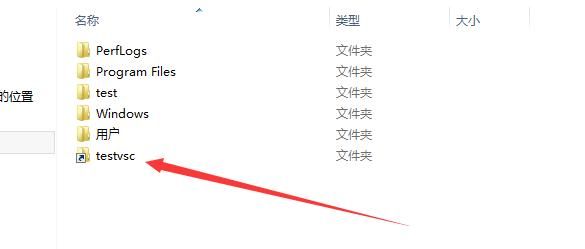
The time point corresponding to \\?\GLOBALROOT\Device\HarddiskVolumeShadowCopy4 is InstallDate=20160907160419.347805+480, thus the files saved in c:\testvsc are those stored in the system at this time point.
0x04 Create a fileless process
---
Test system: Win 8.1 x86
Test exe: Win32Project1.exe
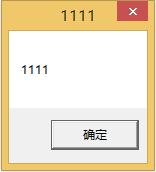
After execution, a dialog box pops up, as shown in the figure
1. Create a volume shadow copy
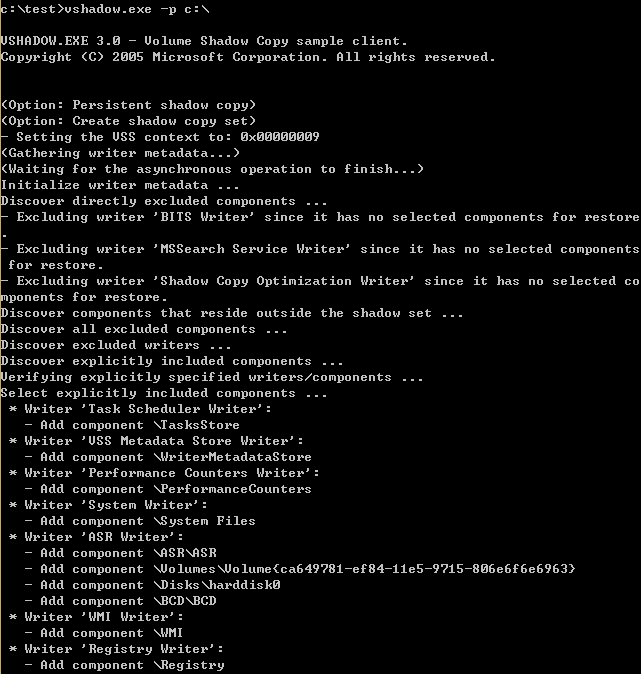
Upload Win32Project1.exe and VShadow.exe, create a volume shadow copy for the current system, and execute the following command with administrator privileges:
vshadow.exe -p c:\ |
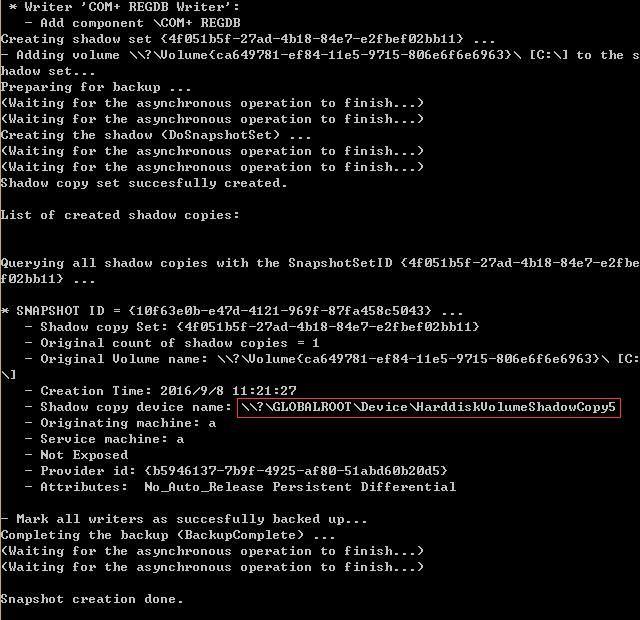
As shown in the figure, create a volume shadow copy for the C drive, with DeviceName as \\?\GLOBALROOT\Device\HarddiskVolumeShadowCopy5 and ID as {10f63e0b-e47d-4121-969f-87fa458c5043}
2. Create symbolic link
Execute command line:
mklink /d c:\vscfiletest \\?\GLOBALROOT\Device\HarddiskVolumeShadowCopy5\ |
Create folder c:\vscfiletest, execute the test file Win32Project1.exe inside it
As shown in figure
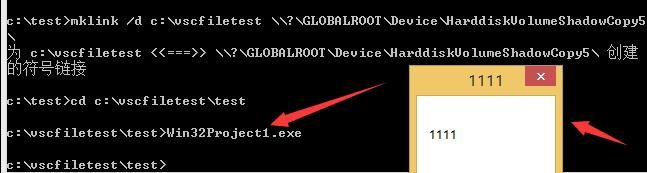
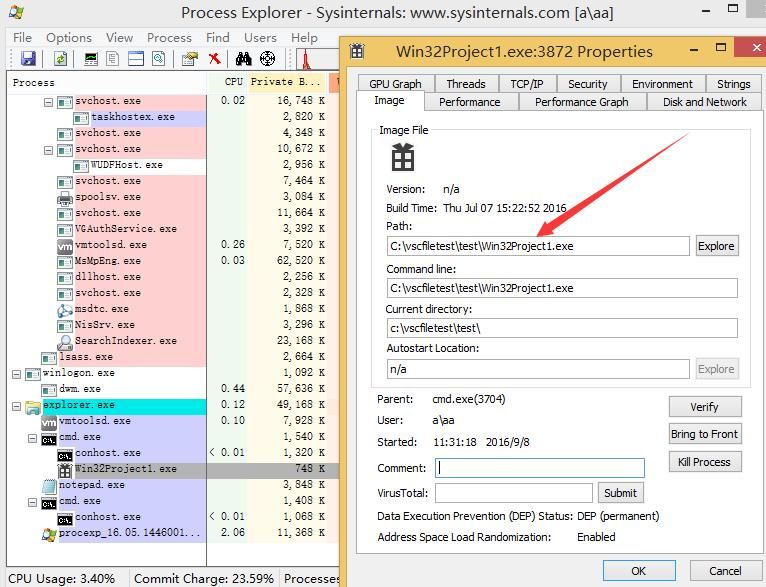
Use Process Explorer to view Win32Project1.exe, the path displays as c:\vscfiletest\test\Win32Project1.exe
As shown in figure
3. Delete symbolic link
Simply delete the shortcut folder, command line parameters as follows:
rmdir c:\vscfiletest\ |
Note:
Even if Win32Project1.exe in the folder is running, it can still be deleted
4. Delete volume shadow copy
Find the ID corresponding to the shadow copy via wmic:
wmic /NAMESPACE:"\\root\CIMV2" PATH Win32_ShadowCopy GET DeviceObject,ID,InstallDate /FORMAT:list |
The ID corresponding to \\?\GLOBALROOT\Device\HarddiskVolumeShadowCopy5\ is {10f63e0b-e47d-4121-969f-87fa458c5043}
The complete deletion command is:
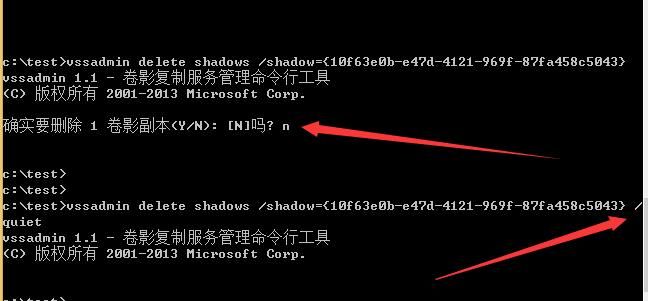
vssadmin delete shadows /shadow={10f63e0b-e47d-4121-969f-87fa458c5043} /quiet |
Note:
/quiet is added to force deletion, skipping the 'Y' confirmation prompt
As shown in the figure
Additional note:
The command to delete all shadow copies is:
vssadmin delete shadows /all /quiet |
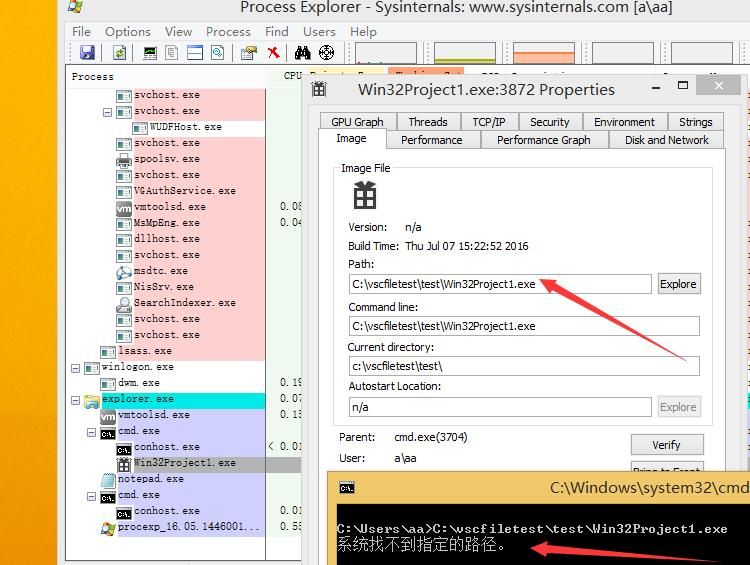
At this point, Win32Project1.exe is still running in the background, while the source file c:\vscfiletest\test\Win32Project1.exe no longer exists
As shown in the figure
0x05 Defense
---
- The prerequisite for utilizing Volume Shadow Copy is obtaining administrator privileges, so the first step is to prevent attackers from gaining administrator access.
- For individual user hosts, it is recommended to directly disable the Volume Shadow Copy service.
- The defense methods provided on Carbon Black's blog are as follows:
Search by hashes:
process_md5:3e1360a23ea5f9caf4987ccf35f2fcaf OR
process_md5:576b379a59d094fb7b06c261a96034a6 OR
process_md5:d0cd7ad91b2ff568275d497214ff185c OR
process_md5:97fd0f3c05f1707544a9a6a0c896b43e OR
process_md5:d560c155b68121d98f8370e7deafbc4d OR
process_md5:c5d2992c8cba0771f71fe4d7625a0b8b OR
process_md5:53d3e33ad31af6716559f29e889aca49
Search for Vshadow being executed:
modload:vss_ps.dll cmdline:"-p C:\"
modload:vss_ps.dll cmdline:"-p" -path:System32\werfault.exe
Search for mklink being executed via a shell out:
cmdline:"C:\Windows\system32\cmd.exe" /c mklink /D
Search for processes being executed from the volume shadow copy
locations:
path:device/harddiskvolumeshadowcopy*
path:device/harddiskvolume*
The above is quoted from https://www.carbonblack.com/2015/08/05/bit9-carbon-black-threat-research-team-unveils-nefarious-intents-of-volume-shadows-copies/
0x06 Summary
---
Summarizing the role of Volume Shadow Copy in penetration testing:
- Restore files saved in system automatic restore points via Volume Shadow Copy
- Create a fileless process via Volume Shadow Copy
- Copy files occupied by programs, such as ntds.dit. The PowerShell version of NinjaCopy can also achieve the same functionality, refer to an open-source project
More learning materials:
https://www.carbonblack.com/2015/08/03/new-crypto-ransomware-lurks-in-the-shadows/
http://securityweekly.com/2012/10/15/volume-shadow-copies-the-los/
https://technet.microsoft.com/en-us/library/ee923636.aspx


