
0x00 Preface
---
This article details the process of setting up a VMware Workspace ONE Access vulnerability debugging environment from scratch.
0x01 Introduction
---
This article will cover the following topics:
- VMware Workspace ONE Access Installation
- VMware Workspace ONE Access Vulnerability Debugging Environment Configuration
- Common Knowledge
0x02 VMware Workspace ONE Access Installation
---
Reference Materials:
https://docs.vmware.com/en/VMware-Workspace-ONE-Access/20.01/workspace_one_access_install.pdf
1. Download the OVA File
Download page:
https://customerconnect.vmware.com/downloads/search?query=workspace%20one%20access
Registration is required before downloading, then select the desired version to download
Download page for VMware Workspace ONE Access 21.08.0.1: https://customerconnect.vmware.com/downloads/details?downloadGroup=WS1A_ONPREM_210801&productId=1269
Download file identity-manager-21.08.0.1-19010796_OVF10.ova
2. Installation
(1) Import the OVA file in VMware Workstation
Note:
VMware Workstation version must be greater than 14, otherwise an error will occur indicating inability to import
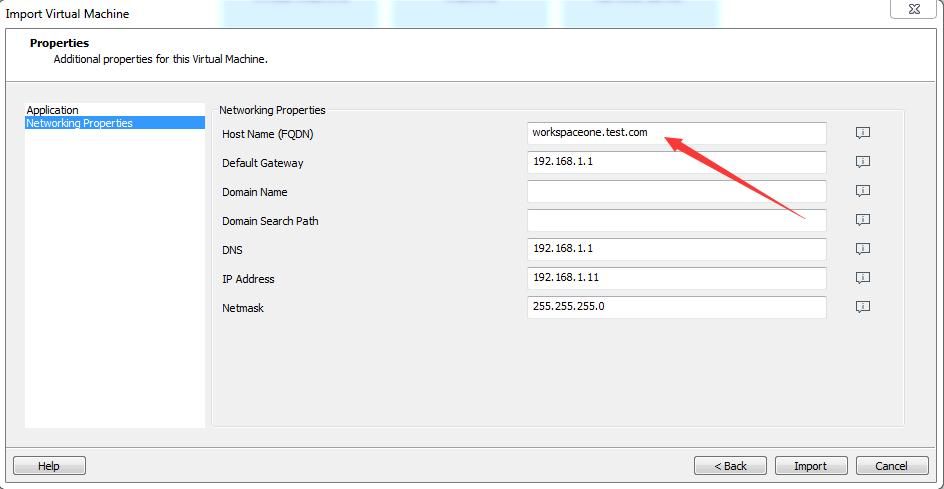
Set the Host Name on the installation page. If DHCP is configured, other options do not need to be set. My configuration uses a static IP, configured as shown in the image below
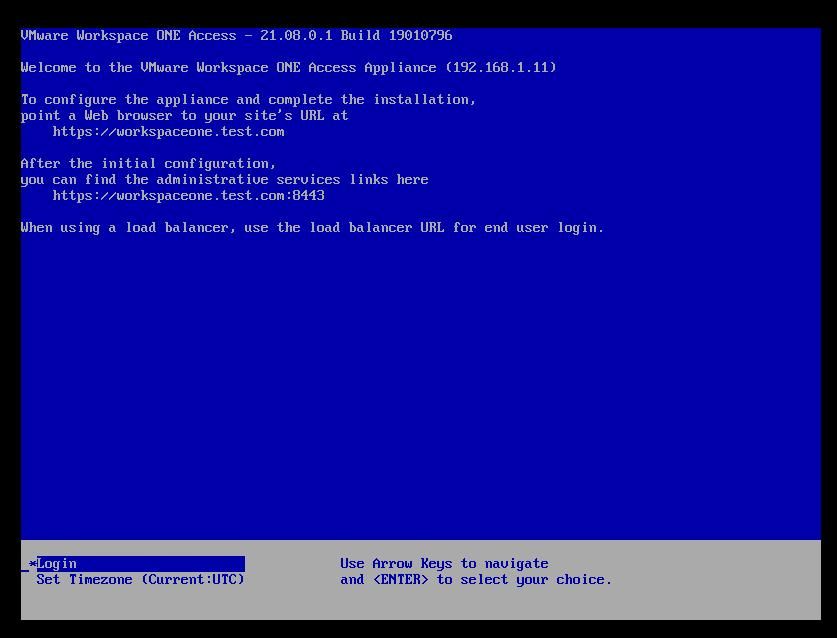
After the OVA file import is complete, it will automatically power on for initialization. After initialization is complete, it will appear as shown below
(2) Configuration
Modify the local hosts file to point 192.168.1.11 to workspaceone.test.com
Access the configuration page at https://workspaceone.test.com:8443
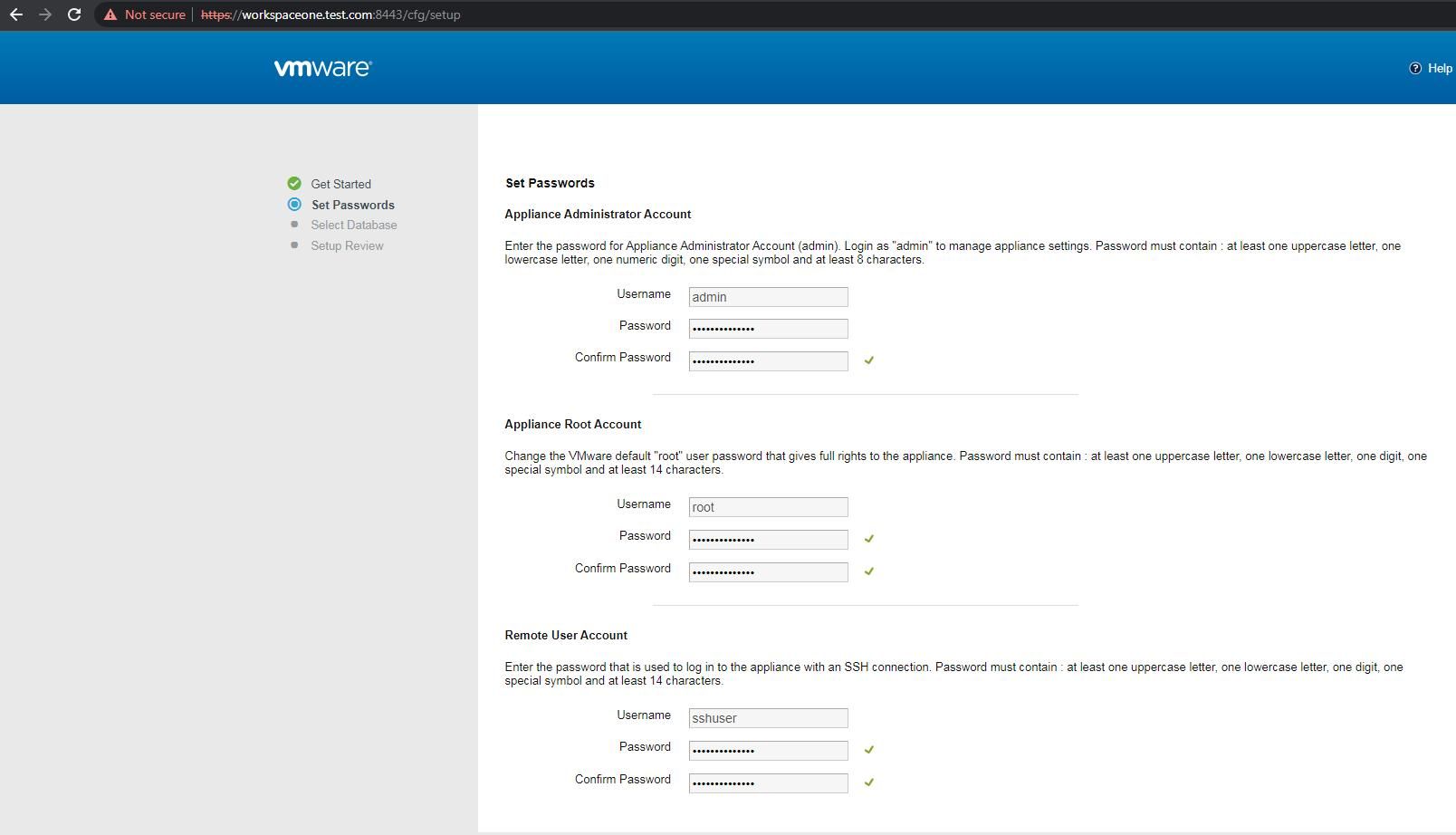
Set passwords for admin, root, and sshuser users; passwords must include uppercase letters, lowercase letters, numbers, and special characters
Note:
My test results show that the password length must be set to 14, otherwise root and sshuser users cannot log in
In my test environment, the password is set to Password@12345, as shown below
Set up the database; for ease of environment setup, select Internal Database here
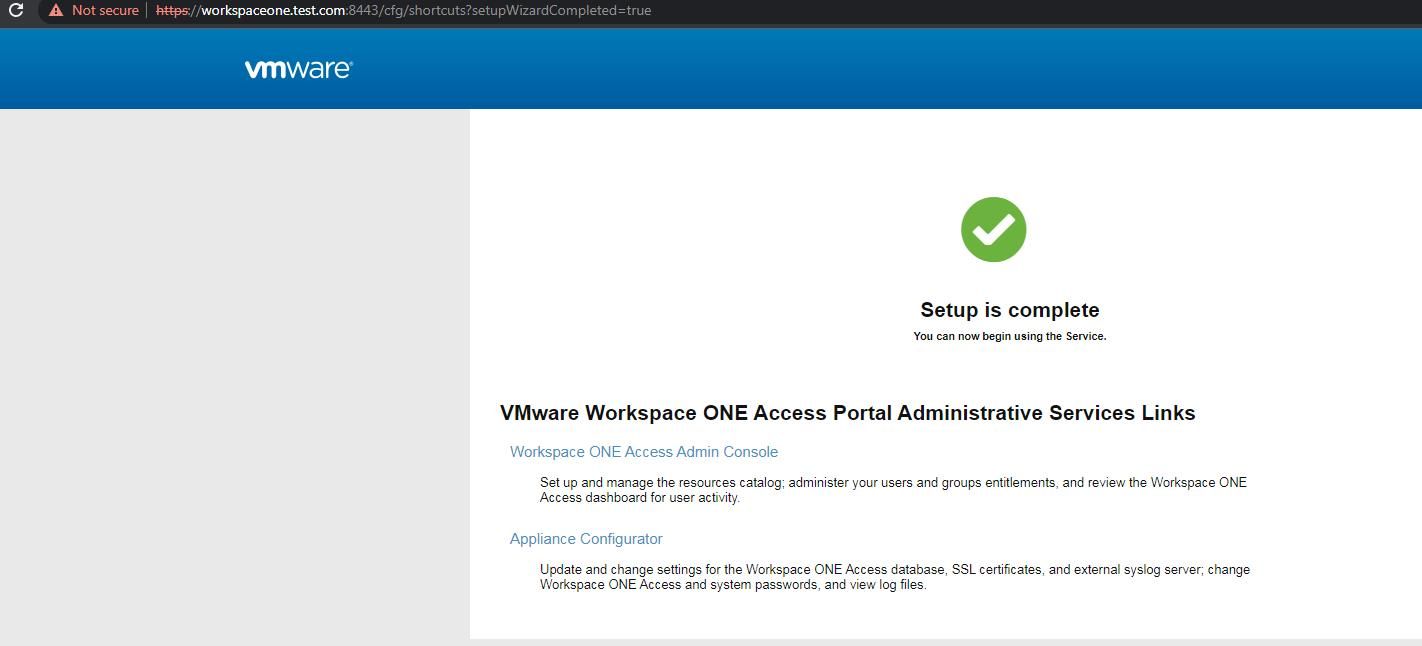
Wait for the installation to complete, as shown below
3. Enable remote SSH login for the root user
To log in to VMware Workspace ONE Access and modify the system configuration file, there are two login methods:
(1) Log in directly as the root user in the virtual machine
Select Login, enter root and the password Password@12345
(2) Log in via SSH as the sshuser user
After logging in, switch to the root user
After switching to the root user, execute the following commands in sequence:
- vi /etc/ssh/sshd_config
- Change PermitRootLogin from no to yes
- systemctl restart sshd
4. Enable remote debugging function
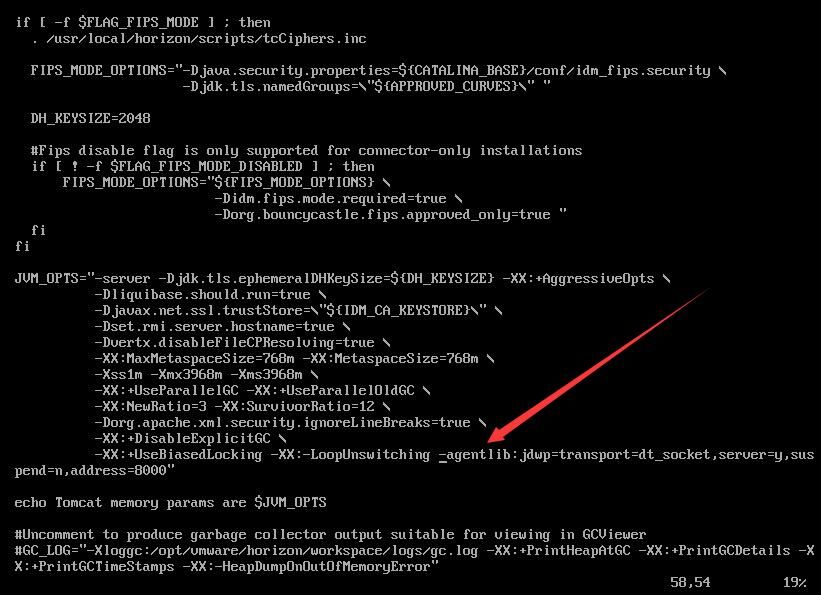
Modify the file: /opt/vmware/horizon/workspace/bin/setenv.sh
Modify the JVM_OPTS parameter, add: -agentlib:jdwp=transport=dt_socket,server=y,suspend=n,address=8000
As shown in the figure below
Restart the system
Open the firewall: iptables -P INPUT ACCEPT && iptables -P OUTPUT ACCEPT
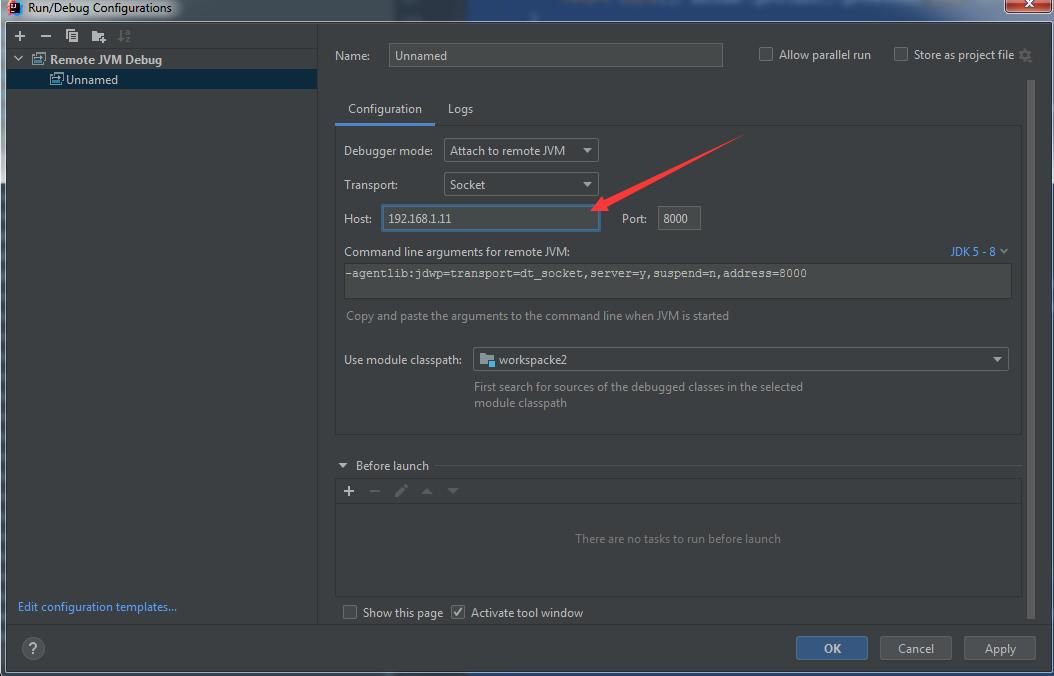
Set remote debugging parameters in IDEA, as shown in the figure below
Note:
For the complete configuration method of IDEA, please refer to the previous article 'Setting Up Zimbra Vulnerability Debugging Environment'
0x03 Common Knowledge
---
1. Common Commands
Check system service status: chkconfig --list
Check all service status: systemctl status
Check IP address: ip addr show
Check Host Name: hostname
Log path: /opt/vmware/horizon/workspace/logs/
2. Check System Version
Requires root privileges to execute command: vamicli version --appliance
Implementation details for checking system version:
#!/usr/bin/env python2 |
Root privileges are required because accessing the files /opt/vmware/etc/sfcb/client.pem and /opt/vmware/etc/sfcb/file.pem requires root permissions.
3. Database Connection Password
The plaintext password for connecting to the database is located at: /usr/local/horizon/conf/db.pwd
The encrypted password for connecting to the database is stored in the file /usr/local/horizon/conf/runtime-config.properties. Example file content:
datastore.jdbc.url=jdbc:postgresql://localhost/saas?stringtype=unspecified |
Here, BAACs8MW1xyMe7/8ONd2QwtG3mw37wF1/1pQ6D09xXqf56ncfRtCun6y8A1XFtjajhU60V1QNYnCOxk3t1m0dV0JvA== is the encrypted password.
The following files are required as decryption keys:
- /usr/local/horizon/conf/configkeystore.pass
- /usr/local/horizon/conf/configkeystore.bcfks
4. Encrypted information in the database
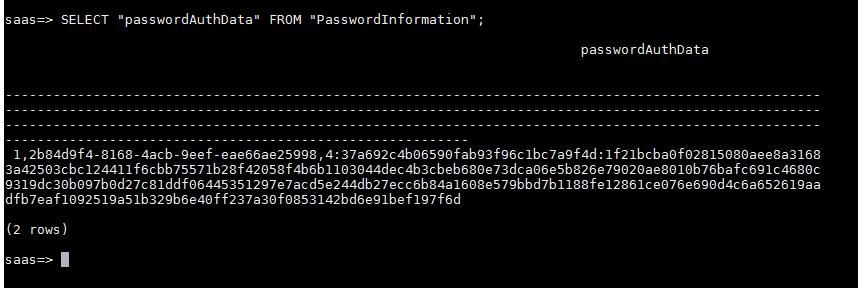
The password of the admin user is encrypted and stored in the database
Query command: saas=> SELECT "passwordAuthData" FROM "PasswordInformation";
Query result as shown in the figure below
Main implementation code for encryption 1:
private String AES_encrypt(@Nonnull byte[] clearData, @Nonnull byte[] key, @Nonnull EncryptionAlgorithms encAlg) throws EncryptionServiceException { |
Main implementation code for encryption 2:
String encryptedData = Integer.toString(1) + "," + encKey.getSafeUuid().toString() + "," + this.AES_encrypt(clearData, aesKey, encAlg); |
Port 5.8443 login password
Login password is encrypted and saved in the file /usr/local/horizon/conf/config-admin.json
Main implementation code for encryption:
private void setPassword(String newPassword, boolean isSet) throws AdminAuthException { |
0x04 Summary
---
After setting up the VMware Workspace ONE Access vulnerability debugging environment, we can proceed to study the vulnerability and the method for decrypting database credentials.


