
About:
- Use odbcconf to load dll
- Use powershell to get dll exports
- Use Event Tracing for Windows to log keystrokes from USB keyboards
Contents:
- Introduction to bypassing regsvr32 command-line interception via odbcconf dll loading
- ExportsToC++ - A more convenient tool than ExportsToC++ for batch exporting dll functions
- Implementing USB keyboard keystroke logging via ETW, with testing insights
0x01 Use odbcconf to load dll
---
Reference:
https://twitter.com/subTee/status/789459826367606784
Introduction
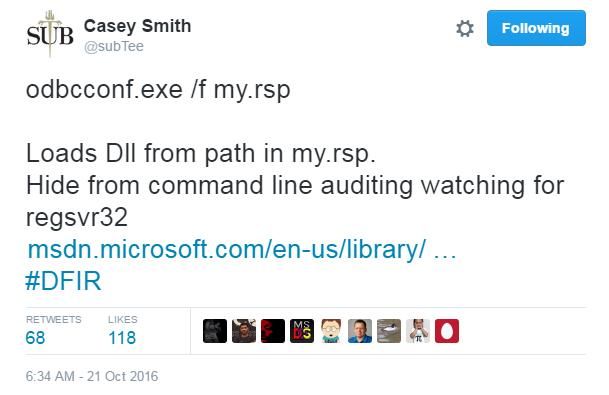
As shown in the figure, a technique shared by Casey Smith on Twitter: if the code for executing regsvr32 to load a DLL is written in an .rsp file and then invoked via odbcconf.exe, it can bypass the interception of regsvr32 in the command line. This article will explain why this method can bypass the interception of regsvr32 in the command line.
odbcconf:
Used to configure ODBC drivers and data sources
For detailed instructions, see the following link:
https://msdn.microsoft.com/en-us/library/ee388579(v=vs.85).aspx
Usage as shown in the figure
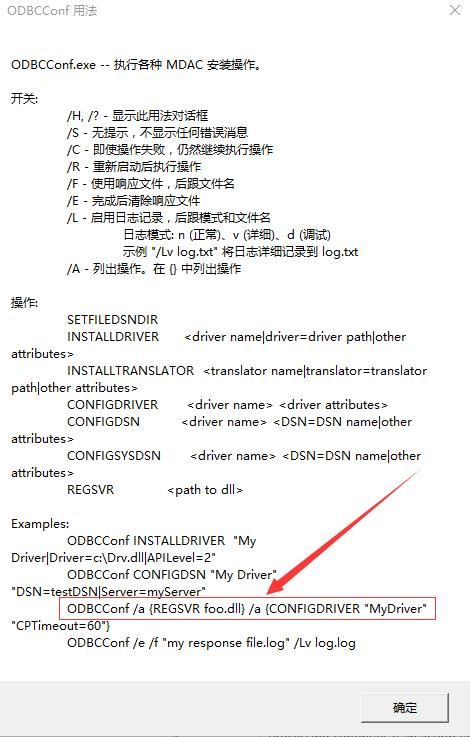
It is worth noting that odbcconf includes a function to register DLLs. I have previously introduced in the article 'Code Execution of Regsvr32.exe' how to develop a DLL that can be called by regsvr32. A test DLL was written for testing (details omitted here, not repeated).
Run in cmd:
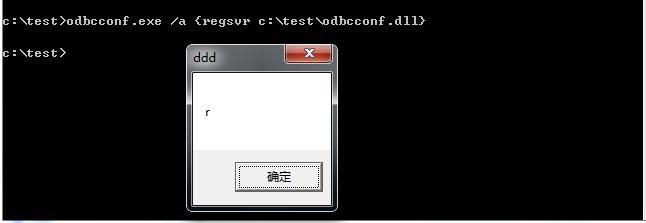
odbcconf.exe /a {regsvr c:\test\odbcconf.dll} |
As shown in the figure, the DLL is successfully called, and a dialog box pops up
From a defender's perspective, to prevent the abuse of using regsvr32 to call DLLs, monitoring command line inputs (e.g., creating rules via EMET) is often chosen. If the command line includes the string 'regsvr', it will be intercepted.
Of course, the above operation contains the string 'regsvr' and will be intercepted.
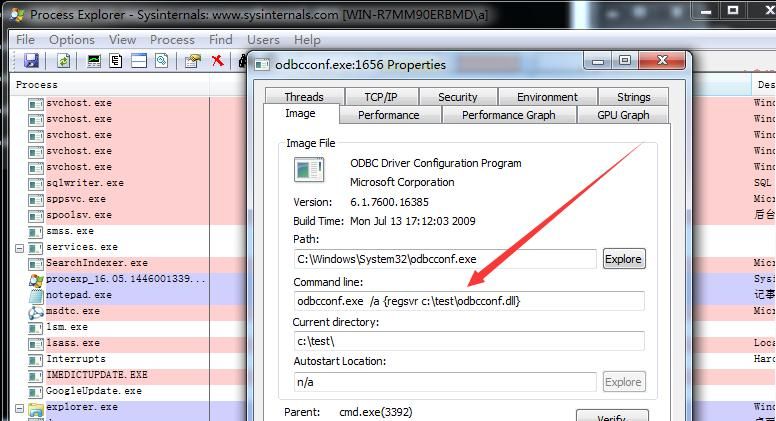
Using Process Explorer to view the command line of the odbcconf process, it contains the string 'regsvr'
As shown in the figure
However, another feature of odbcconf can be used to bypass this, which is the /F parameter
Usage:
odbcconf.exe /f my.rsp |
my.rsp is the response file, which contains the operation to be executed:
REGSVR c:\test\odbcconf.dll |
Note:
The absolute path of the DLL must be provided here
As shown in the figure, the DLL is successfully called and a dialog box pops up
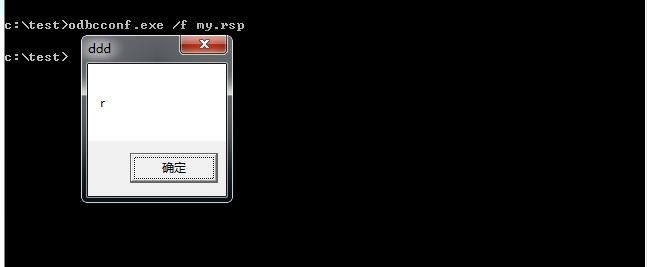
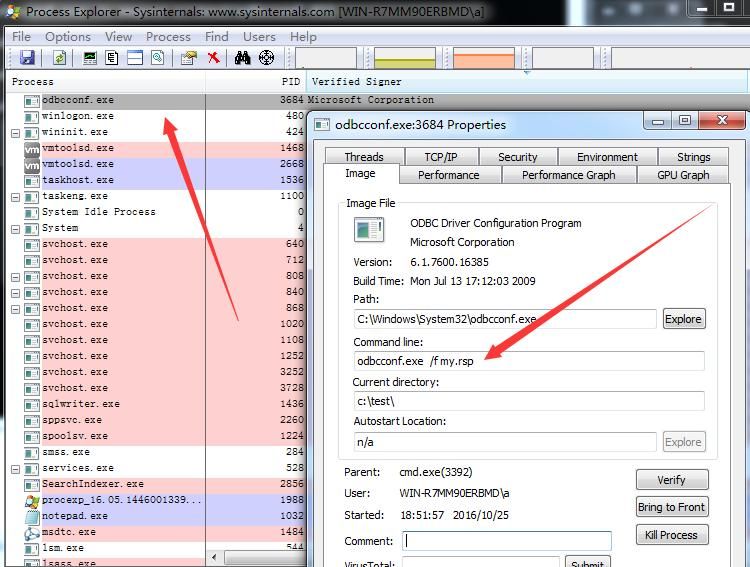
Using Process Explorer to view the command line again shows no regsvr characters
As shown in the figure
NickTyrer shared his code based on this method, achieving the execution of PowerShell commands within the DLL. The address is as follows:
https://gist.github.com/NickTyrer/6ef02ce3fd623483137b45f65017352b
Before compiling the project, the following settings are required:
- Set the compilation platform to x86 or x64
- Install UnmanagedExports and System.Management.Automation
In the Visual Studio control panel, select TOOLS-Library Package Manager-Package Manager Console, and enter:
Install-Package UnmanagedExports
Install-Package System.Management.Automation
0x02 Use powershell to get dll exports
---
Reference:
https://github.com/FuzzySecurity/PowerShell-Suite/blob/master/Get-Exports.ps1
Introduction
In "Study-Notes-Weekly-No.1(Monitor-WMI-ExportsToC++-Use-DiskCleanup-bypass-UAC)", a tool for batch exporting DLL functions was introduced—ExportsToC++. Its operation requires .NET Framework 2.0 and the installation of Microsoft Visual Studio.
b33f@FuzzySecurity has improved upon this and open-sourced Get-Exports for PowerShell. Its features include no longer requiring the Microsoft Visual Studio development environment, being more convenient and faster, and supporting both 32-bit and 64-bit DLLs.
The test code is as follows:
Get-Exports -DllPath c:\Windows\system32\dimsjob.dll -ExportsToCpp C:\test\export.txt |
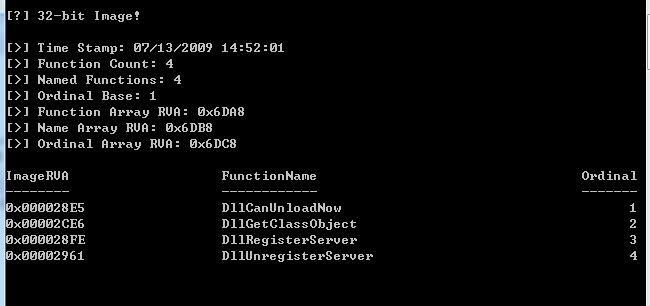
After execution, as shown in the figure, it displays the exported function information
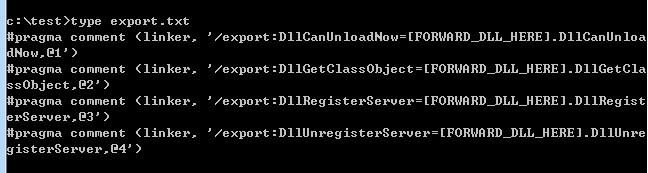
Simultaneously generates usable C++ code and saves it under C:\test\export.txt, as shown in the figure
0x03 Use Event Tracing for Windows to log keystrokes from USB keyboards
---
Reference:
https://www.cyberpointllc.com/srt/posts/srt-logging-keystrokes-with-event-tracing-for-windows-etw.html
Introduction
CyberPoint SRT introduced their novel application of ETW at Ruxcon, achieving keystroke logging from USB keyboards and releasing a test POC. This article will test it and analyze the testing insights.
ETW:
- Abbreviation for Event Tracing for Windows
- Provides a mechanism for tracing and recording event objects created by user-mode applications and kernel-mode drivers
- Typically used to assist administrators and developers in troubleshooting and measuring system and application performance
- Public information shows there is currently no known method to implement keylogging using ETW
Some learning materials about ETW:
https://randomascii.wordpress.com/2015/09/24/etw-central/
POC download address:
https://github.com/CyberPoint/Ruxcon2016ETW/tree/master/KeyloggerPOC
Note:
This POC has been detected by antivirus software, testing requires whitelisting
Requirements:
- Windows 7 (USB 2.0)
- Windows 8+ (USB 2.0 and USB 3.0)
- Run with administrator privileges
Note:
Does not support PS/2 interface keyboards
Test environment:
- Win8.1 x86
- vs2013
- Install .NET Framework 4.5.2
- Install-Package Microsoft.Diagnostics.Tracing.TraceEvent
- USB 2.0 keyboard
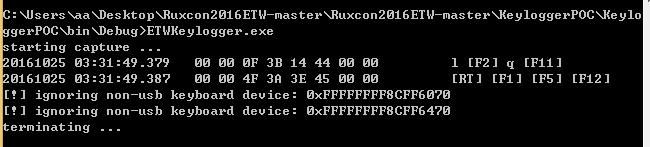
Run exe with administrator privileges, record test as shown in figure
The biggest shortcoming of the POC:
- Recording has latency
- Unstable, often reports error [!] ignoring non-usb keyboard device: 0xFFFFFFFF8CFF6070
There is still a long way from POC to tool, but this approach is worth learning, the ETW utilization method is worth summarizing, looking forward to CyberPoint SRT's follow-up articles


