
0x00 Preface
---
There is limited documentation on exploitation methods for Sophos UTM devices. This article will introduce the process of researching configuration file export from scratch, record details, and open-source exploitation scripts.
0x01 Introduction
---
This article will cover the following:
- Sophos UTM test environment setup
- Research process for exporting configuration files
- Open-source scripts
0x02 Sophos UTM Test Environment Setup
---
1. Download the image
Download page: https://www.sophos.com/en-us/support/downloads/utm-downloads
Here, version 9.711-5.1 is selected, with the following two image files:
- ssi-9.711-5.1.iso, must be installed on Sophos hardware appliances. If installed directly in a VM, it will prompt "No appliance hardware has been detected" on appliance hardware
- asg-9.711-5.1.iso, can be installed in a VM
The test environment is built using VMware, so download asg-9.711-5.1.iso
2. Install the image
After configuration, wait for the system to reboot, then access the configuration page: https://
Set the admin account password, which will be used as the username and password to log into the configuration page
3. Configuration
License needs to be entered
4. Enable SSH login
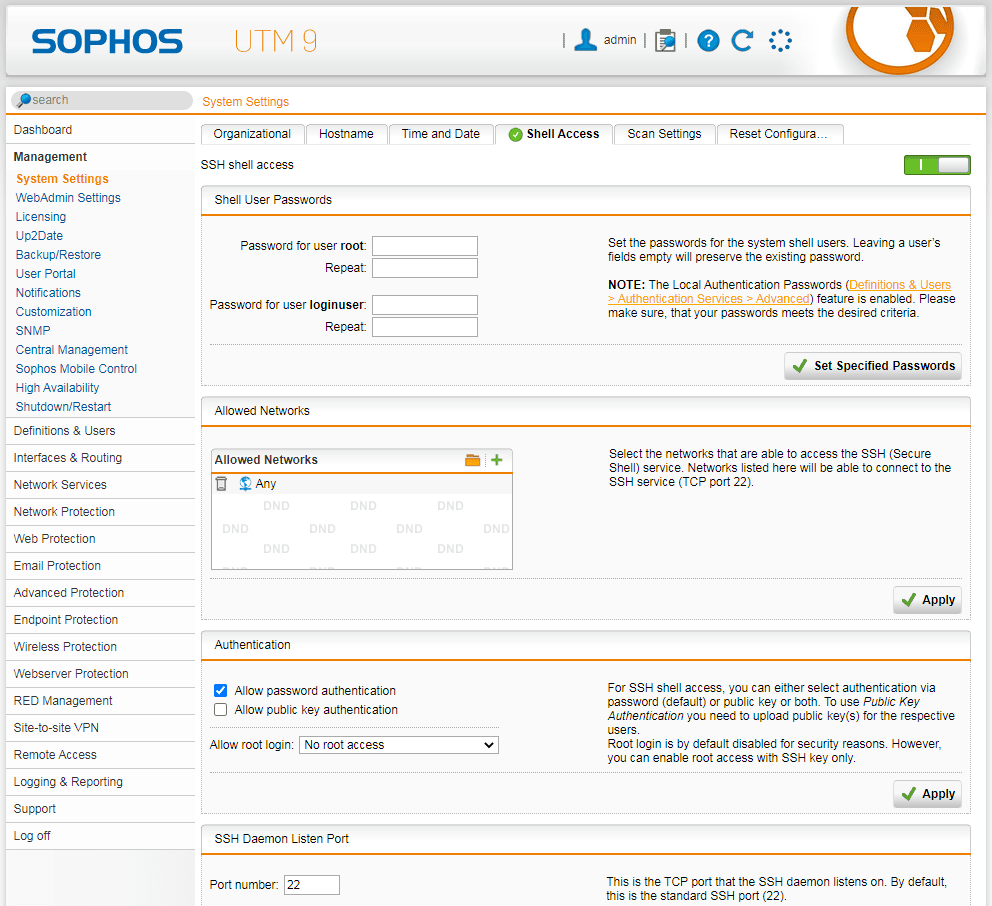
After entering the configuration page, navigate to Management->System Settings->Shell Access, and set passwords for the root user and loginuser user respectively
As shown in the figure below
5. Allow root user password login via SSH
sed -i "s/PermitRootLogin no/PermitRootLogin yes /g" /etc/ssh/sshd_config |
0x03 Research process of exporting configuration files
---
1. Query the PostgreSQL database
Location of configuration file: /var/storage/pgsql92/data/postgresql.conf
Under default configuration, no password is required to connect to the database
Connection command:
psql -h localhost -U postgres |
Database content as shown in the figure below
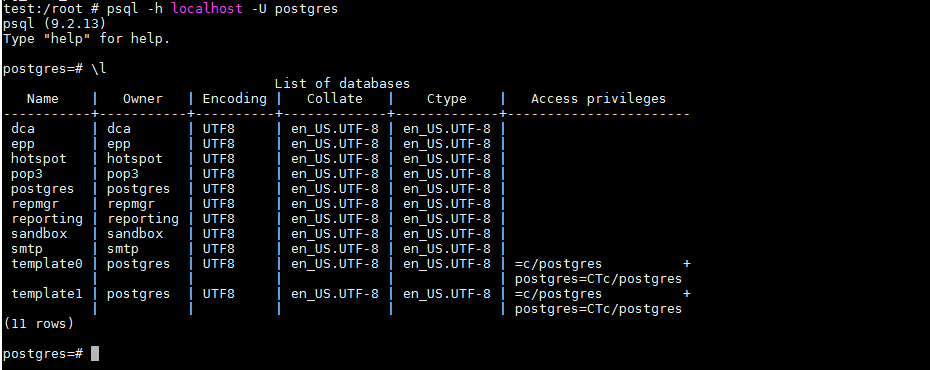
But I did not find configuration information in the database
2. Obtain ideas for viewing configuration by querying documentation
Execute the following commands in sequence:
cc |
Obtained the port information for webadmin, as shown in the figure below
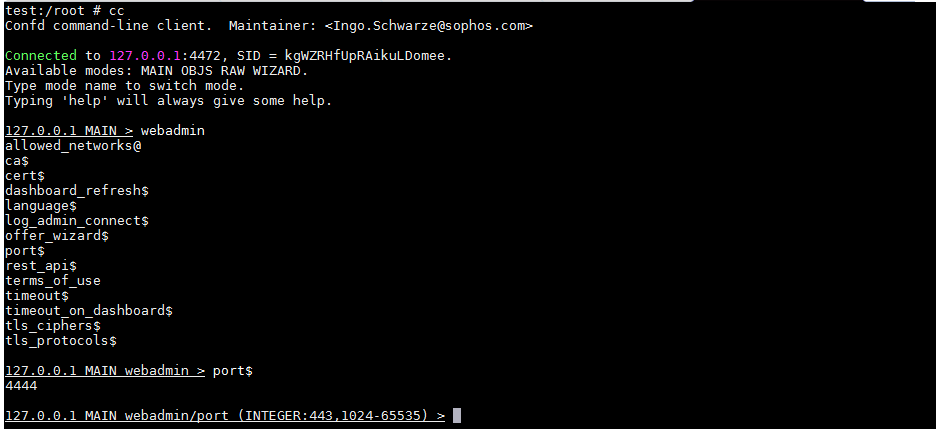
From the output content, it was found that the cc command connected to port 4472 of 127.0.0.1. Next, we plan to proceed from the port.
3. Locate processes related to port 4472
Obtain the process pid corresponding to port 4472:
netstat -ltp | grep 4472 |
The returned content is as shown in the figure below

From the returned content, it can be seen that the corresponding process pid is 4407
4. View process information for pid 4407
Execute the following commands in sequence:
cd /proc/4407/cwd |
The returned content is as shown in the figure below

From the returned content, the following information is obtained:
- The directory is /var/confd
- The configuration file is config.pm
- The main program is confd.plx, and the source code cannot be viewed directly
5. Decompile confd.plx
After searching, a hint was obtained from 'Network Device Analysis Practice: Decompiling Perl Source Code in Sophos UTM Firmware': .plx files are compiled by the PerlAPP tool and can be decompiled into source code using IDA through dynamic debugging methods
After searching, a simpler decompilation method was obtained from 'Sophos UTM Preauth RCE: A Deep Dive into CVE-2020-25223': static decompilation implemented via Python
Following the method in 'Sophos UTM Preauth RCE: A Deep Dive into CVE-2020-25223', bugs are encountered during the decompilation of confd.plx. We need to modify bfs_extract.py mentioned in 'Sophos UTM Preauth RCE: A Deep Dive into CVE-2020-25223'
Integrate yank.py and bfs.py, fix the bug in bfs_extract.py. The complete code has been uploaded to GitHub, with the address as follows:
An open-source project
Using SophosUTM_plxDecrypter.py, the decompiled code of confd.plx can be obtained
6. Code Analysis
After analysis, it is learned that Export-confd.plx\confd.pl is the main functionality. In the code, the location of the configuration file is found to be $config::storage_dir/cfg
As shown in the figure below
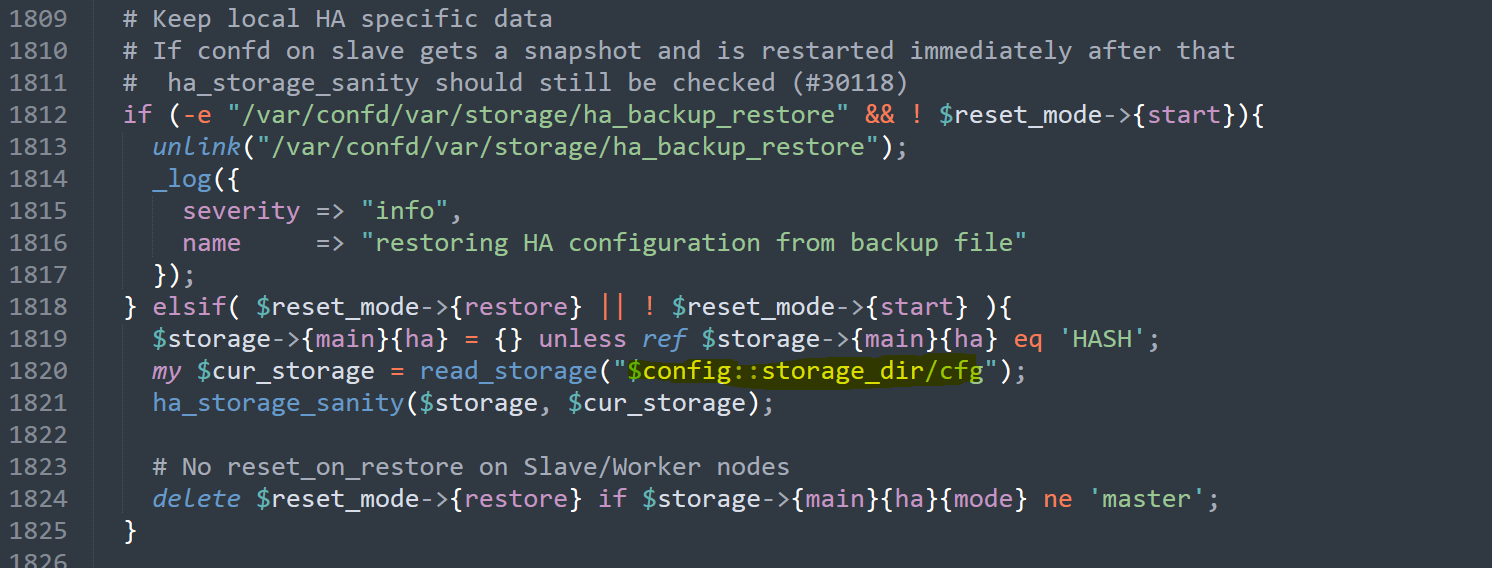
The corresponding absolute path is /var/confd/var/storage/cfg
7. File Format Analysis
Check the file format of cfg:
file /var/confd/var/storage/cfg |
Return result:
/var/confd/var/storage/cfg: perl Storable (v0.7) data (major 2) (minor 7) |
The format is identified as perl Storable data, which is binary data generated through serialization (referred to as freezing in Perl) in Perl
8. File Format Parsing
(1) File Extraction
Here, the storable module in Python can be used to extract the data
Install the storable module:
pip install storable |
Simple usage:
from storable import retrieve |
The output result is JSON data
(2) File Analysis
To facilitate the analysis of JSON data, the Pretty JSON plugin for Sublime Text is used here. The installation method is as follows:
In Sublime Text, select Tools -> Command Palette... to open the panel, enter pci, select Package Control: Install Package, and then enter pretty json in the pop-up output box.
Set the shortcut key for calling the Pretty JSON plugin to ctrl+alt+j:
In Sublime Text, select Preferences -> Key Bindings, and add the following content in the pop-up right window:
[ |
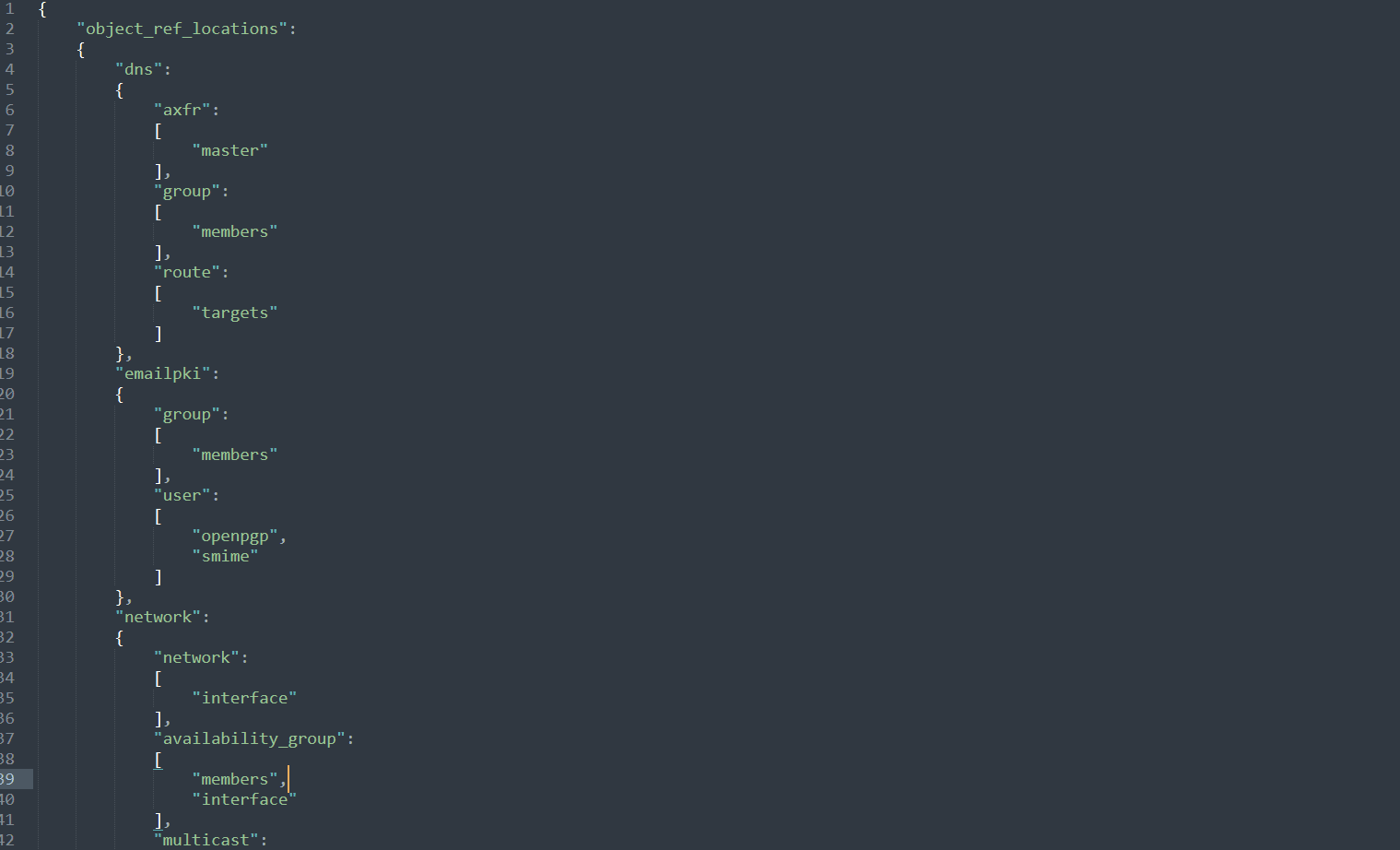
When using Pretty JSON to parse JSON, format errors may be prompted. Fix them one by one according to the prompts.
The final displayed format is shown in the figure below.
9. Data Extraction
To improve efficiency, Python can be used here to extract key data. The development details are as follows:
(1) Extract user information
By analyzing the json file, it is found that the key in data['exclusive'][b'email_user']['u2v'] serves as the identifier for each user's information, e.g., user: REF_AaaUseVpn1
Then, the complete user information can be obtained through the key-value at the corresponding identifier position, located at data['objects'][
Implementation code:
def GetUserDataFull(file): |
(2) Extract network configuration information
By analyzing the json file, it is found that the value in data['index']['network'] serves as the identifier for each network configuration, e.g., REF_DefaultInternalNetwork
Then read the complete information through the key value corresponding to the flag position, which is data['objects'][
Implementation code:
def GetNetworkConfig(file): |
(3) Extract LastChange information
Location: data['lastchange']
Note the time format, which defaults to numeric form, e.g., 1652930086, and needs to be converted
Implementation code:
def GetLastChange(file): |
The complete code has been uploaded to GitHub, the address is as follows:
An open-source project
The code supports the following features:
- GetAdminDataFull, extracts complete information of administrator users
- GetAdminHash, extract the md4 hash of the administrator user
- GetLastChange, extract the LastChange information
- GetNetworkConfig, extract the network configuration information
- GetRemoteAccess, extract the VPN configuration information
- GetSSHConfig, extract the SSH connection information
- GetUserDataFull, extract the user's complete information
- GetUserHash, extract the user's md4 hash
- Parsefile, extract the complete information
0x04 Summary
---
This article introduces the research process of exporting Sophos UTM configuration files and open-sources the exploitation script to improve analysis efficiency.


