
0x00 Preface
---
This article documents the details of setting up a VMware vCenter Server vulnerability debugging environment from scratch.
0x01 Introduction
---
This article will cover the following:
- Downloading files from vCenter
- Enabling debug mode on the vCenter server
- Remote debugging using IDEA locally
0x02 Downloading files from vCenter
---
To download files from vCenter, we choose to implement file download via SSH connection.
1. Enabling SSH
Typically, you can choose one of the following two methods:
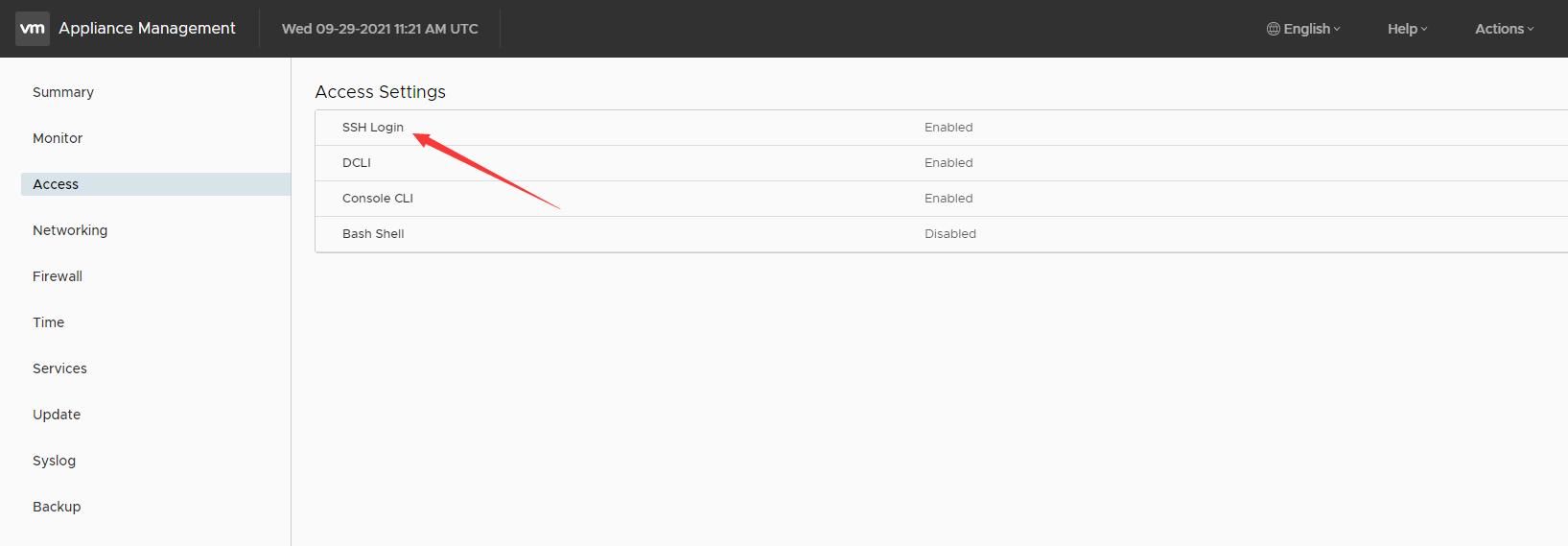
(1) Via browser configuration
Access https://
Enable under the Access page, as shown below
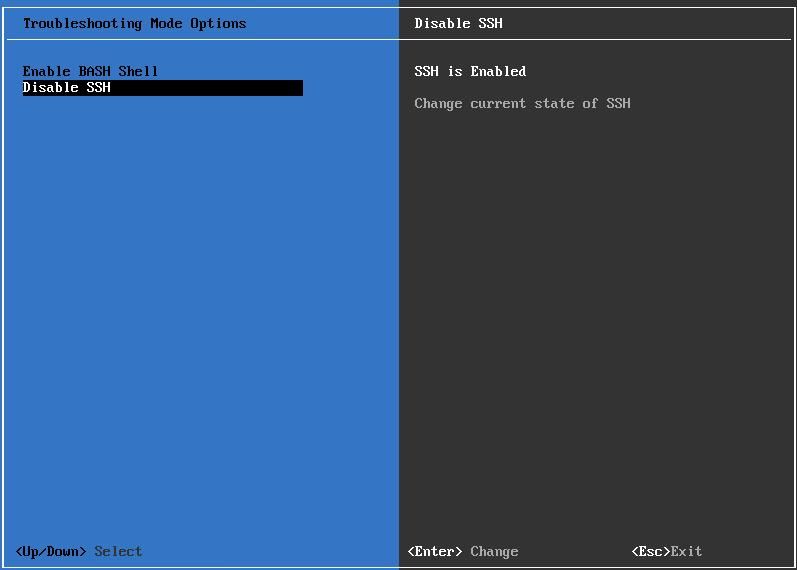
(2) Via virtual machine configuration
Access the virtual machine login page, press F2 to enter the configuration page, enable under Troubleshooting Mode Options, as shown below
2. Switch to Bash shell
When logging into vCenter via SSH, the default is Appliance Shell, and you need to enter the shell command to enter Bash shell
As shown below
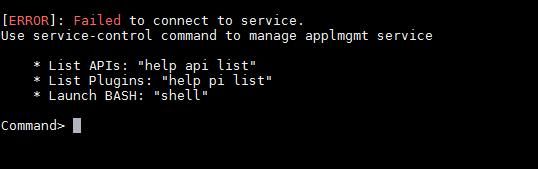
This makes it impossible to directly use commands like scp for file upload and download
Here, you need to switch the default Appliance Shell to Bash shell, as follows:
(1) Log into vCenter via SSH
(2) Enter the shell command to enter Bash shell
(3) Enter the following command to set the default environment:
chsh -s /bin/bash root |
If the result returned is as follows:
You are required to change your password immediately (password expired) |
Indicates that the root password has expired
You can use the passwd command to change the root password, as follows:
passwd root |
Note:
The command to set the default to Appliance Shell is as follows:
chsh -s /bin/appliancesh root |
At this point, file upload and download can be achieved via SSH connection
0x03 vCenter Server Enabling Debug Mode
---
First, it is necessary to determine the process to be debugged, as different vulnerabilities correspond to different processes, for example
The process corresponding to CVE-2021-21985 is vsphere-ui.launcher, and the process corresponding to CVE-2021-22005 is vmware-analytics.launcher.
The following describes two methods to enable debugging.
(1) Debugging vsphere-ui.launcher
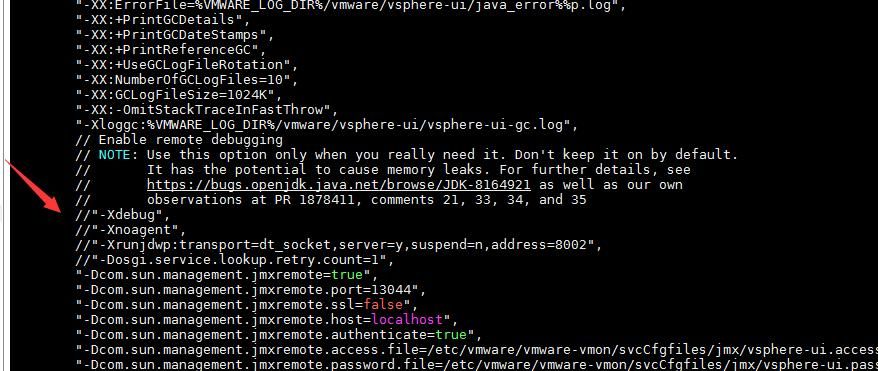
Modify the file /etc/vmware/vmware-vmon/svcCfgfiles/vsphere-ui.json
Uncomment the following lines:
//"-Xdebug", |
As shown in the figure below
Restart the vsphere-ui service:
service-control --restart vsphere-ui |
Open the firewall:
iptables -P INPUT ACCEPT |
To verify whether the vsphere-ui startup parameters have been successfully modified, execute the command:
ps -aux | grep vsphere-ui.launcher |
The output is:
/usr/java/jre-vmware/bin/vsphere-ui.launcher -Xmx854m -XX:CompressedClassSpaceSize=256m -Xss320k -XX:ParallelGCThreads=1 -Djava.io.tmpdir=/usr/lib/vmware-vsphere-ui/server/work/tmp -Dorg.eclipse.virgo.kernel.home=/usr/lib/vmware-vsphere-ui/server -DPS_BASEDIR=/storage/vsphere-ui/ -Declipse.ignoreApp=true -Dcatalina.base=/usr/lib/vmware-vsphere-ui/server -XX:+HeapDumpOnOutOfMemoryError -XX:HeapDumpPath=/var/log/vmware/vsphere-ui/ -XX:ErrorFile=/var/log/vmware/vsphere-ui/java_error%p.log -XX:+PrintGCDetails -XX:+PrintGCDateStamps -XX:+PrintReferenceGC -XX:+UseGCLogFileRotation -XX:NumberOfGCLogFiles=10 -XX:GCLogFileSize=1024K -XX:-OmitStackTraceInFastThrow -Xloggc:/var/log/vmware/vsphere-ui/vsphere-ui-gc.log -Xdebug -Xnoagent -Xrunjdwp:transport=dt_socket,server=y,suspend=n,address=8002 -Dcom.sun.management.jmxremote -Dcom.sun.management.jmxremote.port=9876 -Dcom.sun.management.jmxremote.local.only=false -Dcom.sun.management.jmxremote.authenticate=false -Dcom.sun.management.jmxremote.ssl=false -Dosgi.service.lookup.retry.count=1 -Djava.security.properties=/etc/vmware/java/vmware-override-java.security -Djava.ext.dirs=/usr/java/jre-vmware/lib/ext:/usr/java/packages/lib/ext:/opt/vmware/jre_ext/ -Dorg.osgi.framework.system.packages.extra=sun.misc -Dsun.zip.disableMemoryMapping=true -Dui.component.name=vsphere-ui -Dvlsi.client.vecs.certstore=false -DisFling=false -Dorg.apache.tomcat.websocket.DISABLE_BUILTIN_EXTENSIONS=true -Dlogback.configurationFile=/usr/lib/vmware-vsphere-ui/server/conf/serviceability.xml -Dlogs.dir=/var/log/vmware/vsphere-ui/logs/ -Dhttps.port=5443 -Dhttp.port=5090 -Dshutdown.port=-1 -classpath /usr/lib/vmware-vsphere-ui/server/bootstrap/server-launcher.jar:/usr/lib/vmware-vsphere-ui/server/bin/bootstrap.jar:/usr/lib/vmware-vsphere-ui/server/bin/tomcat-juli.jar com.vmware.vise.launcher.tomcat.TomcatLauncher start |
This confirms that the vsphere-ui startup parameters have been successfully modified.
(2) Debugging vmware-analytics.launcher
Locate vmware-analytics.launcher by executing the command:
ps -aux | grep vmware-analytics.launcher |
The default startup parameters obtained are:
root 2434 12.9 2.5 2730380 420720 ? Sl 07:41 1:07 /usr/java/jre-vmware/bin/vmware-analytics.launcher -Xmx139m -XX:CompressedClassSpaceSize=64m -Xss256k -XX:ParallelGCThreads=1 -Dorg.apache.catalina.startup.EXIT_ON_INIT_FAILURE=TRUE -Danalytics.logDir=/var/log/vmware/analytics -Danalytics.dataDir=/storage/analytics -Danalytics.deploymentNodeTypeFile=/etc/vmware/deployment.node.type -Danalytics.buildInfoFile=/etc/vmware/.buildInfo -Danalytics.agentsDir=/etc/vmware-analytics/agents -XX:+HeapDumpOnOutOfMemoryError -XX:HeapDumpPath=/var/log/vmware/analytics -XX:ErrorFile=/var/log/vmware/analytics/java_error%p.log -XX:+PrintGCDetails -XX:+PrintGCDateStamps -XX:+PrintReferenceGC -XX:+UseGCLogFileRotation -XX:NumberOfGCLogFiles=10 -XX:GCLogFileSize=1024K -Xloggc:/var/log/vmware/analytics/vmware-analytics-gc.log -Djava.security.properties=/etc/vmware/java/vmware-override-java.security -Djava.ext.dirs=/usr/java/jre-vmware/lib/ext:/usr/java/packages/lib/ext:/opt/vmware/jre_ext/ -classpath /etc/vmware-analytics:/usr/lib/vmware-analytics/lib/*:/usr/lib/vmware-analytics/lib:/usr/lib/vmware/common-jars/tomcat-embed-core-8.5.37.jar:/usr/lib/vmware/common-jars/tomcat-annotations-api-8.5.37.jar:/usr/lib/vmware/common-jars/antlr-2.7.7.jar:/usr/lib/vmware/common-jars/antlr-runtime.jar:/usr/lib/vmware/common-jars/aspectjrt.jar:/usr/lib/vmware/common-jars/bcprov-jdk16-145.jar:/usr/lib/vmware/common-jars/commons-codec-1.6.jar:/usr/lib/vmware/common-jars/commons-collections-3.2.2.jar:/usr/lib/vmware/common-jars/commons-collections4-4.1.jar:/usr/lib/vmware/common-jars/commons-compress-1.8.jar:/usr/lib/vmware/common-jars/commons-io-2.1.jar:/usr/lib/vmware/common-jars/commons-lang-2.6.jar:/usr/lib/vmware/common-jars/commons-lang3-3.4.jar:/usr/lib/vmware/common-jars/commons-logging-1.1.3.jar:/usr/lib/vmware/common-jars/commons-pool-1.6.jar:/usr/lib/vmware/common-jars/custom-rolling-file-appender-1.0.jar:/usr/lib/vmware/common-jars/featureStateSwitch-1.0.0.jar:/usr/lib/vmware/common-jars/guava-18.0.jar:/usr/lib/vmware/common-jars/httpasyncclient-4.1.3.jar:/usr/lib/vmware/common-jars/httpclient-4.5.3.jar:/usr/lib/vmware/common-jars/httpcore-4.4.6.jar:/usr/lib/vmware/common-jars/httpcore-nio-4.4.6.jar:/usr/lib/vmware/common-jars/httpmime-4.5.3.jar:/usr/lib/vmware/common-jars/jackson-annotations-2.9.5.jar:/usr/lib/vmware/common-jars/jackson-core-2.9.5.jar:/usr/lib/vmware/common-jars/jackson-databind-2.9.5.jar:/usr/lib/vmware/common-jars/jna.jar:/usr/lib/vmware/common-jars/log4j-1.2.16.jar:/usr/lib/vmware/common-jars/log4j-core-2.8.2.jar:/usr/lib/vmware/common-jars/log4j-api-2.8.2.jar:/usr/lib/vmware/common-jars/platform.jar:/usr/lib/vmware/common-jars/slf4j-api-1.7.2.jar:/usr/lib/vmware/common-jars/slf4j-log4j12-1.7.2.jar:/usr/lib/vmware/common-jars/spring-aop-4.3.20.RELEASE.jar:/usr/lib/vmware/common-jars/spring-beans-4.3.20.RELEASE.jar:/usr/lib/vmware/common-jars/spring-context-4.3.20.RELEASE.jar:/usr/lib/vmware/common-jars/spring-core-4.3.20.RELEASE.jar:/usr/lib/vmware/common-jars/spring-expression-4.3.20.RELEASE.jar:/usr/lib/vmware/common-jars/spring-web-4.3.20.RELEASE.jar:/usr/lib/vmware/common-jars/spring-webmvc-4.3.20.RELEASE.jar:/usr/lib/vmware/common-jars/velocity-1.7.jar com.vmware.ph.phservice.service.Main ph-properties-loader.xml ph-featurestate.xml phservice.xml ph-web.xml |
Modify the startup parameters by adding debugging parameters:
-Xdebug -Xrunjdwp:transport=dt_socket,server=y,suspend=n,address=8003 |
Use & at the end to run the process in the background.
Before restarting, it is necessary to first stop the vmware-analytics service:
service-control --stop vmware-analytics |
Start vmware-analytics.launcher with new parameters:
/usr/java/jre-vmware/bin/vmware-analytics.launcher -Xdebug -Xrunjdwp:transport=dt_socket,server=y,suspend=n,address=8003 -Xmx139m -XX:CompressedClassSpaceSize=64m -Xss256k -XX:ParallelGCThreads=1 -Dorg.apache.catalina.startup.EXIT_ON_INIT_FAILURE=TRUE -Danalytics.logDir=/var/log/vmware/analytics -Danalytics.dataDir=/storage/analytics -Danalytics.deploymentNodeTypeFile=/etc/vmware/deployment.node.type -Danalytics.buildInfoFile=/etc/vmware/.buildInfo -Danalytics.agentsDir=/etc/vmware-analytics/agents -XX:+HeapDumpOnOutOfMemoryError -XX:HeapDumpPath=/var/log/vmware/analytics -XX:ErrorFile=/var/log/vmware/analytics/java_error%p.log -XX:+PrintGCDetails -XX:+PrintGCDateStamps -XX:+PrintReferenceGC -XX:+UseGCLogFileRotation -XX:NumberOfGCLogFiles=10 -XX:GCLogFileSize=1024K -Xloggc:/var/log/vmware/analytics/vmware-analytics-gc.log -Djava.security.properties=/etc/vmware/java/vmware-override-java.security -Djava.ext.dirs=/usr/java/jre-vmware/lib/ext:/usr/java/packages/lib/ext:/opt/vmware/jre_ext/ -classpath /etc/vmware-analytics:/usr/lib/vmware-analytics/lib/*:/usr/lib/vmware-analytics/lib:/usr/lib/vmware/common-jars/tomcat-embed-core-8.5.37.jar:/usr/lib/vmware/common-jars/tomcat-annotations-api-8.5.37.jar:/usr/lib/vmware/common-jars/antlr-2.7.7.jar:/usr/lib/vmware/common-jars/antlr-runtime.jar:/usr/lib/vmware/common-jars/aspectjrt.jar:/usr/lib/vmware/common-jars/bcprov-jdk16-145.jar:/usr/lib/vmware/common-jars/commons-codec-1.6.jar:/usr/lib/vmware/common-jars/commons-collections-3.2.2.jar:/usr/lib/vmware/common-jars/commons-collections4-4.1.jar:/usr/lib/vmware/common-jars/commons-compress-1.8.jar:/usr/lib/vmware/common-jars/commons-io-2.1.jar:/usr/lib/vmware/common-jars/commons-lang-2.6.jar:/usr/lib/vmware/common-jars/commons-lang3-3.4.jar:/usr/lib/vmware/common-jars/commons-logging-1.1.3.jar:/usr/lib/vmware/common-jars/commons-pool-1.6.jar:/usr/lib/vmware/common-jars/custom-rolling-file-appender-1.0.jar:/usr/lib/vmware/common-jars/featureStateSwitch-1.0.0.jar:/usr/lib/vmware/common-jars/guava-18.0.jar:/usr/lib/vmware/common-jars/httpasyncclient-4.1.3.jar:/usr/lib/vmware/common-jars/httpclient-4.5.3.jar:/usr/lib/vmware/common-jars/httpcore-4.4.6.jar:/usr/lib/vmware/common-jars/httpcore-nio-4.4.6.jar:/usr/lib/vmware/common-jars/httpmime-4.5.3.jar:/usr/lib/vmware/common-jars/jackson-annotations-2.9.5.jar:/usr/lib/vmware/common-jars/jackson-core-2.9.5.jar:/usr/lib/vmware/common-jars/jackson-databind-2.9.5.jar:/usr/lib/vmware/common-jars/jna.jar:/usr/lib/vmware/common-jars/log4j-1.2.16.jar:/usr/lib/vmware/common-jars/log4j-core-2.8.2.jar:/usr/lib/vmware/common-jars/log4j-api-2.8.2.jar:/usr/lib/vmware/common-jars/platform.jar:/usr/lib/vmware/common-jars/slf4j-api-1.7.2.jar:/usr/lib/vmware/common-jars/slf4j-log4j12-1.7.2.jar:/usr/lib/vmware/common-jars/spring-aop-4.3.20.RELEASE.jar:/usr/lib/vmware/common-jars/spring-beans-4.3.20.RELEASE.jar:/usr/lib/vmware/common-jars/spring-context-4.3.20.RELEASE.jar:/usr/lib/vmware/common-jars/spring-core-4.3.20.RELEASE.jar:/usr/lib/vmware/common-jars/spring-expression-4.3.20.RELEASE.jar:/usr/lib/vmware/common-jars/spring-web-4.3.20.RELEASE.jar:/usr/lib/vmware/common-jars/spring-webmvc-4.3.20.RELEASE.jar:/usr/lib/vmware/common-jars/velocity-1.7.jar com.vmware.ph.phservice.service.Main ph-properties-loader.xml ph-featurestate.xml phservice.xml ph-web.xml & |
Note:
If you want to re-debug, perform the following operations:
- Stop the service: vmware-analytics: service-control --stop vmware-analytics
- Terminate the process: kill -KILL pid
- Start vmware-analytics.launcher with new parameters. To start with normal parameters, simply restart the service vmware-analytics: service-control --start vmware-analytics
0x04 Local Remote Debugging Using IDEA
---
1. Download jar files
When performing remote debugging locally with IDEA, the local and remote code must be consistent, meaning we need to obtain the jar files loaded by the process being debugged on the vCenter server.
The relevant jar files on the vCenter server are located in the following two paths:
- /etc
- /usr/lib
You can copy all vCenter server-related jar files to a single path using the following command, then download them collectively:
mkdir /tmp/jar |
Note:
To search for content across all JAR files, you can extract all vCenter server-related JAR files to the same directory using the following commands:
find /etc -name "*.jar" | xargs -n 1 unzip -d /tmp/data/ |
After downloading all vCenter server-related JAR files uniformly, save the folder as c:\testjar\
2. Batch import JAR files
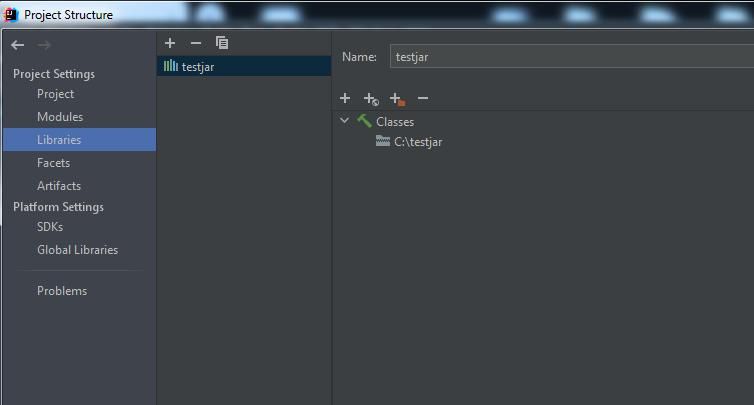
Create a new Java project, then select File->Project Structure..., under Libraries choose New Project Library->Java, set it to c:\testjar\, the configured result is shown in the figure below
3. Add breakpoints
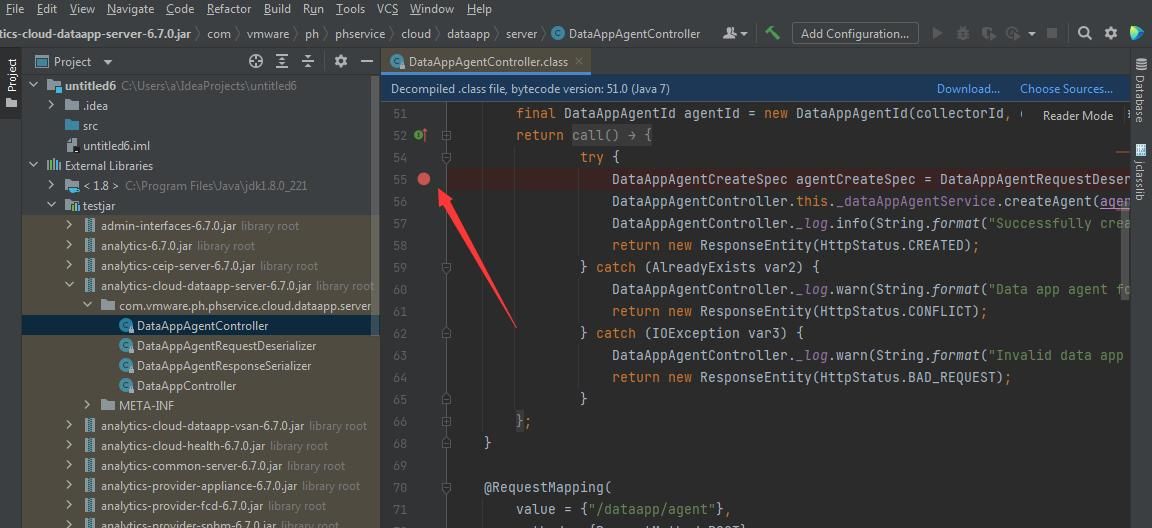
Open the .class file under External Libraries->testjar, add breakpoints at appropriate positions, an example is shown in the figure below
4. Set remote debugging parameters
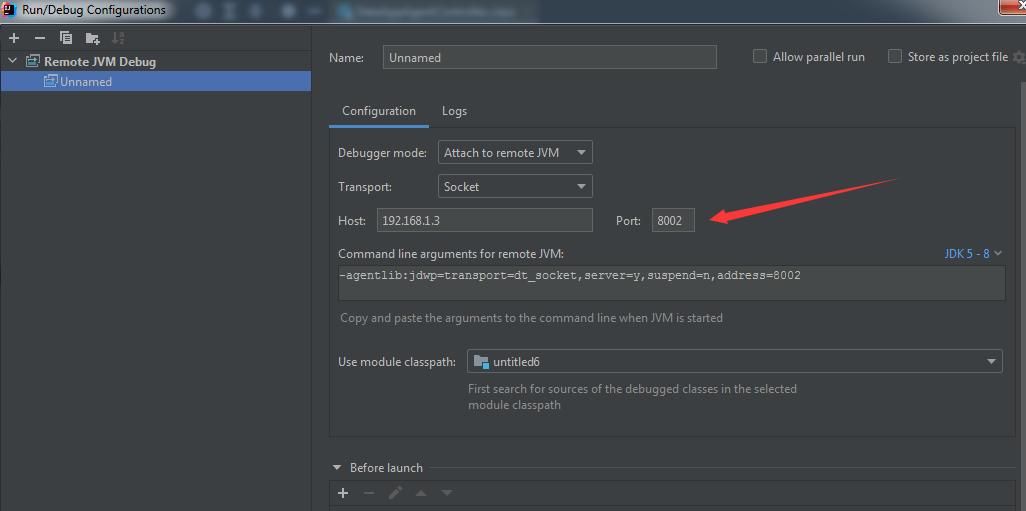
Select Add Configuration... from the top menu bar, choose Remote JVM Debug in the pop-up page, and fill in the remote debugging parameters. The following parameters need to be modified:
- Host
- Port
Select JDK 5-8 for the JDK to use
Example as shown in the figure below
5. Enable Debug mode
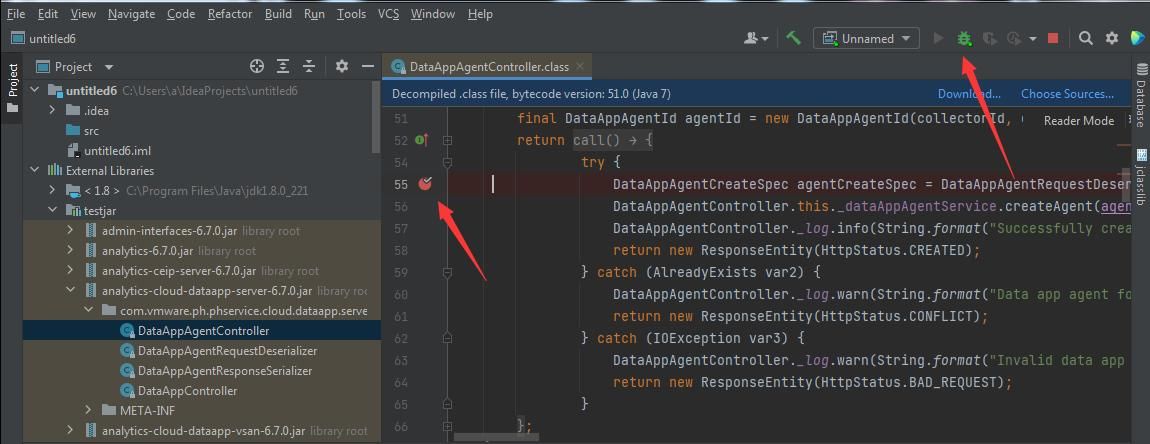
Return to the IDEA main page, select the configuration file just created, and click the Debug icon (shortcut Shift+F9)
If remote debugging executes successfully, the breakpoint icon will change, adding a checkmark. Example as shown in the figure below
At this point, the Console page displays the following:
Connected to the target VM, address: ' |
0x05 Summary
---
After setting up the VMware vCenter Server vulnerability debugging environment, we can proceed to study and learn about the vulnerability.


