
0x00 Preface
---
Pupy's post-exploitation modules on the Windows platform include a practical feature: screen control. This functionality not only allows viewing screen content but also enables sending mouse and keyboard messages. This article will analyze the implementation method of this feature and propose an alternative approach to achieve similar functionality, facilitating secondary development.
0x01 Introduction
---
This article will cover the following topics:
- Testing Pupy's screen control module
- Pupy's implementation method
- An alternative implementation method
0x02 Testing Pupy's Screen Control Module
---
For basic usage of Pupy, refer to the previous article "Pupy Exploitation Analysis - Features on Windows Platform"
After obtaining a session, enter 'rdesktop' to load the screen control module, as shown in the figure below

The browser can access the URL to view and operate the screen, as shown in the figure below
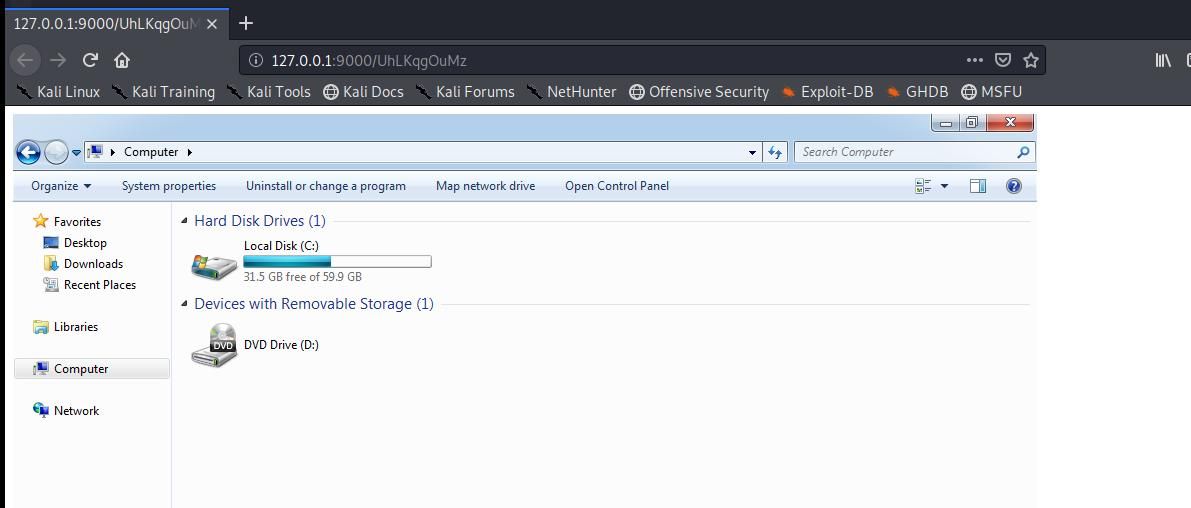
Here, input of keyboard messages and mouse clicks is supported
When operating with standard user permissions, be aware of UAC issues (cannot interact with UAC pop-ups)
When UAC pops up, the process consent.exe is created
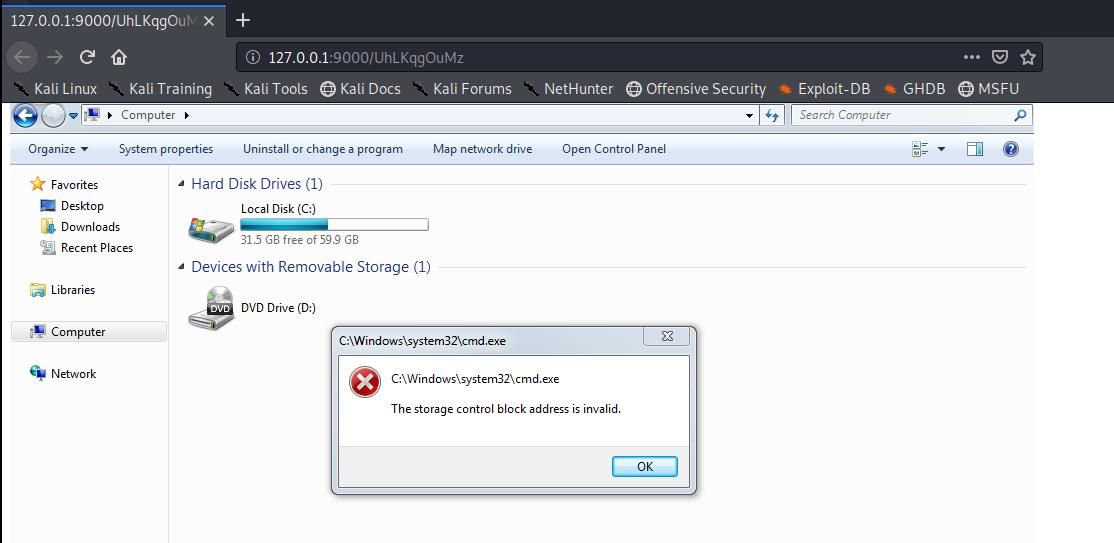
System permissions are required to close this process; after closing, a dialog box prompts: The storage control block address is invalid.
As shown in the figure below
Note:
CMD command to disable UAC pop-up prompts:
reg add HKLM\SOFTWARE\Microsoft\Windows\CurrentVersion\Policies\System /v ConsentPromptBehaviorAdmin /t REG_DWORD /d 0 /f |
CMD command to enable UAC pop-up prompts:
reg add HKLM\SOFTWARE\Microsoft\Windows\CurrentVersion\Policies\System /v ConsentPromptBehaviorAdmin /t REG_DWORD /d 5 /f |
0x03 Implementation Method of Pupy
---
Implementation code of the rdesktop module: https://github.com/n1nj4sec/pupy/blob/unstable/pupy/modules/rdesktop.py
The implementation is divided into the following three parts:
1. Client
Interacts with the target screen, including the following functions:
- Transmits the current screen content of the target
- Receives mouse and keyboard messages from the Server and executes them
Implementation code:
https://github.com/n1nj4sec/pupy/blob/unstable/pupy/packages/all/rdesktop.py
2. Transfer
Acts as a communication bridge between the Client and Server, including the following functions:
- Receives messages from the Client, decodes them, and forwards them to a specified local port for browser access
- Encodes mouse and keyboard messages from the browser and sends them to the Client
Implementation code:
https://github.com/n1nj4sec/pupy/blob/unstable/pupy/network/lib/transports/websocket.py
https://github.com/n1nj4sec/pupy/blob/unstable/pupy/network/transports/ws/conf.py
3.Server
Control the target screen through the browser, including the following functions:
- Display the Client's screen content in the browser
- Capture the current browser's mouse and keyboard messages and send them to transfer
Implementation code:
https://github.com/n1nj4sec/pupy/blob/unstable/pupy/webstatic/rdesktop/index.html
https://github.com/n1nj4sec/pupy/blob/unstable/pupy/webstatic/rdesktop/rdesktop.js
In Pupy's implementation, data between Client and Server is processed via transfer, using RSA+AES encryption, with the advantage of increasing the difficulty of restoring communication data
To intuitively read communication data and facilitate secondary development of screen control functions, this attempts to remove the transfer functionality and achieve direct communication between Client and Server
0x04 Another Implementation Method
---
Here, it is introduced based on HTTP-Remote-Desktop-Server
1. Environment Setup for HTTP-Remote-Desktop-Server
HTTP-Remote-Desktop-Server's run.py uses the PyGtk library under Python2 (import gtk.gdk)
while the latest PyGtk library no longer supports Python2, having switched to Python3
To compile the code, note the following issues:
(1) Install 32-bit Python2
64-bit systems also require 32-bit Python2; otherwise, the PyGtk library cannot be used
(2) Download the PyGtk library for Python2
Address:
http://ftp.gnome.org/pub/GNOME/binaries/win32/pygtk/2.24/pygtk-all-in-one-2.24.0.win32-py2.7.msi
(3) Install other packages
pip install -U wxPython |
2. Testing HTTP-Remote-Desktop-Server
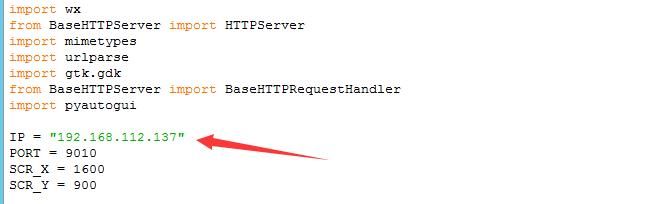
Modify the IP in run.py to the current operating system's IP, as shown below
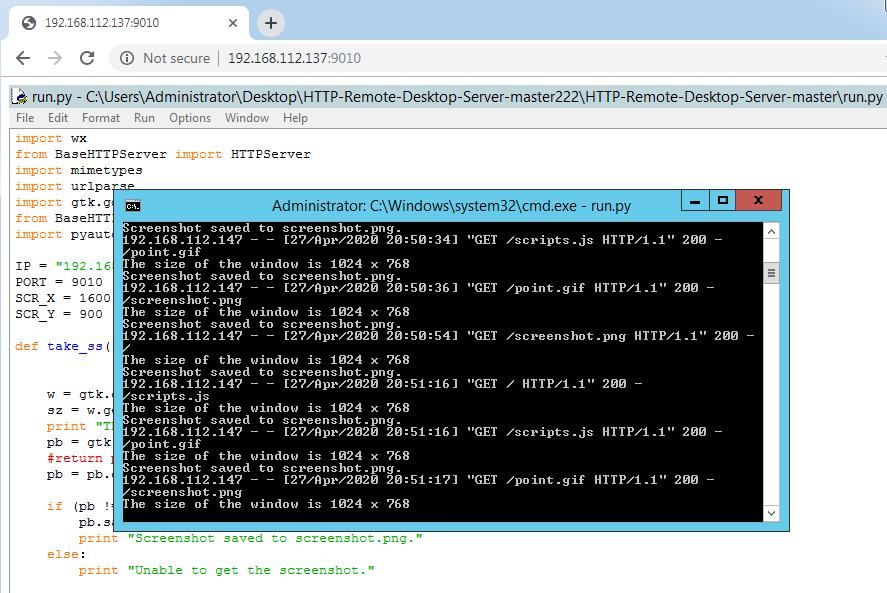
Start run.py
On another system, access the specified URL via a browser to obtain screen content, as shown below
Note:
When using, firewall rules need to be enabled. The corresponding cmd command is as follows:
netsh advfirewall firewall add rule name="test" protocol=TCP dir=in localport=9010 action=allow |
3. Implementation of HTTP-Remote-Desktop-Server
(1) Client
Interact with the target screen, including the following functions:
- Capture the current screen and save it as screenshot.png
- Receive mouse and keyboard messages from the Server and execute them
Implementation code:
https://github.com/BernardoGO/HTTP-Remote-Desktop-Server/blob/master/run.py
(2) Server
Control the target screen through the browser, including the following functions:
- Display screenshot.png in the browser
- Capture current mouse and keyboard messages from the browser and send them to the Client
Implementation code:
https://github.com/BernardoGO/HTTP-Remote-Desktop-Server/blob/master/index.html
https://github.com/BernardoGO/HTTP-Remote-Desktop-Server/blob/master/scripts.js
HTTP-Remote-Desktop-Server operates by capturing screens (screenshot.png) for display and sending commands, thus it cannot provide continuous display; a refresh is required to obtain new screen content.
Supports keyboard input, but a refresh is needed to obtain new screen content.
4. Optimization of HTTP-Remote-Desktop-Server
I forked the original code, and the modified code address is:
An open-source project
Optimizations are as follows:
(1) Changed the jQuery reference path in index.html to a relative path
(2) Modified run.py to accept listening IP and port via parameters
(3) Compiled the Python code into a standalone exe file
Using Pyinstaller, the command is as follows:
C:\Python27\Scripts\pyinstaller.exe -F run.py |
The compiled file address:
An open-source project
To support double-click operations, you can modify run.py by adding the following code:
pyautogui.click(clicks=2) |
The following issues need attention during secondary development:
(1) Communication data is not encoded; compression algorithms can be chosen to improve efficiency
(2) Access url:port/screenshot.png to obtain a screenshot
(3) Firewall rules need to be enabled during use. The corresponding example cmd command is as follows:
netsh advfirewall firewall add rule name="test" protocol=TCP dir=in localport=9010 action=allow |
0x05 Summary
---
This article analyzes the implementation method of Pupy and introduces the second implementation method using HTTP-Remote-Desktop-Server as a template, facilitating secondary development.


