
0x00 Preface
---
In penetration testing, situations often arise where it is necessary to change the startup privileges of a program (divided into privilege escalation and privilege reduction).
Privilege escalation includes moving from ordinary user privileges to administrator privileges and from administrator privileges to SYSTEM privileges. Privilege reduction in penetration testing typically refers to dropping from SYSTEM privileges to ordinary user privileges (dropping from administrator to ordinary user is relatively simple with many methods). This is often done to operate on the current user's files (such as capturing the desktop, manipulating the registry, etc.).
This article will introduce specific methods for privilege reduction (from SYSTEM to ordinary user), clarify key points, and open-source a small tool for determining process privileges.
0x01 Introduction
---
This article will cover the following:
- Why reduce privileges?
- Methods to drop from administrator to ordinary user privileges
- Methods to drop from SYSTEM to ordinary user privileges
- Using SelectMyParent to achieve privilege escalation and reduction
Note:
Test System: Win7
0x02 Why De-escalate Privileges
---
Processes running with system privileges may encounter the following issues:
1. Unable to access the current user's file content
For example, unable to capture the user's screen
2. Differences in environment variables
Such as the following environment variables:
- APPDATA
- Temp
- Tmp
- USERDOMAIN
- USERNAME
- USERPROFILE
In cmd, environment variables can be viewed using echo, for example, the command to view the APPDATA environment variable is:
echo %appdata%
Under SYSTEM privileges, the queried environment variable APPDATA is C:\Windows\system32\config\systemprofile\AppData\Roaming
Under administrator privileges, the queried environment variable APPDATA is C:\Users\a\AppData\Roaming
As shown in the figure below

Using the API SHGetSpecialFolderPath to retrieve specified system paths, such as APPDATA, also reveals differences caused by varying privileges
C++ code is as follows:
#include |
As shown in the figure below

Note:
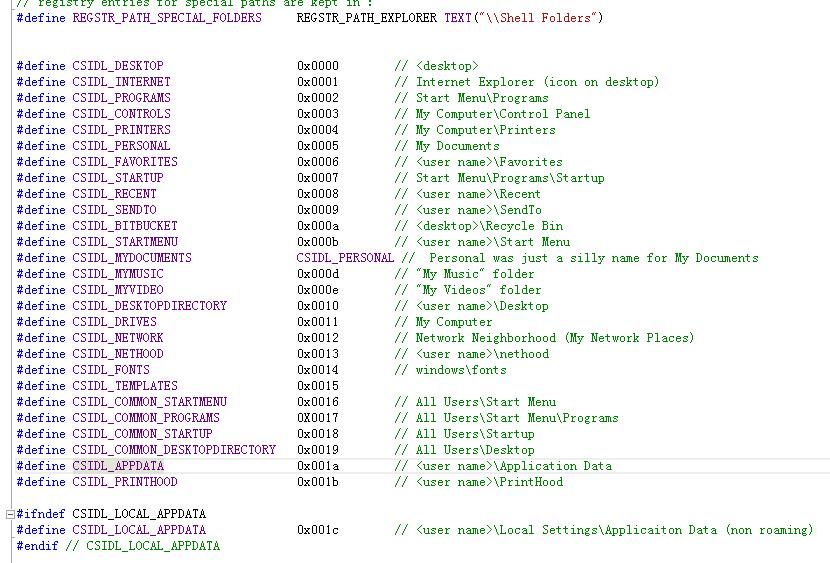
System paths supported by SHGetSpecialFolderPath can be obtained from Shlobj.h
As shown in the figure below
3. Registry differences
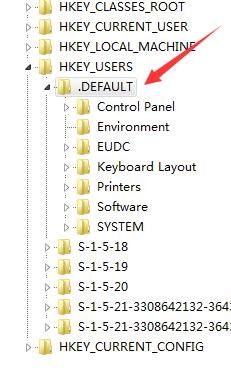
Some registry operations on HKCU will be redirected to HKEY_USERS\.DEFAULT
As shown in the figure below
0x03 Methods to downgrade from administrator to standard user privileges
---
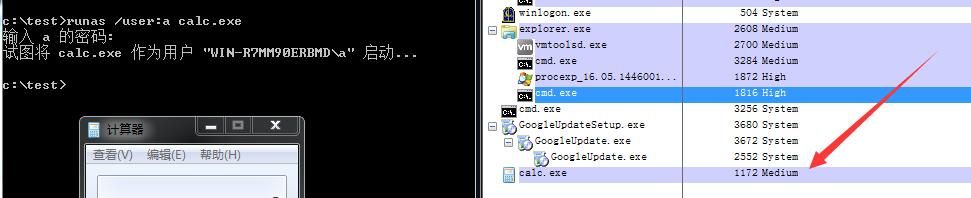
1. runas
cmd:
runas /user:a calc.exe
Then enter password: 123456
calc.exe runs with user a's privileges
As shown below
Disadvantages:
Requires waiting for manual password entry, lacks automation
However, automatic password input can be achieved via piping, requiring third-party tool Sanur (method not detailed here)
2. Third-party tool: lsrunas
Download link:
http://www.verydoc.com/exeshell.html
cmd:
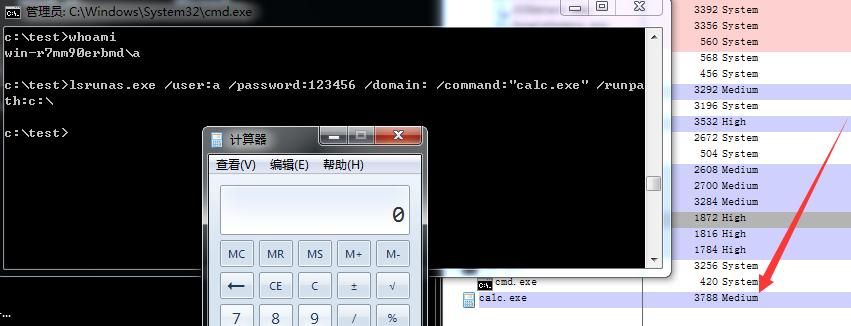
lsrunas.exe /user:a /password:123456 /domain: /command:"calc.exe" /runpath:c:\
Note:
/domain: Empty parameter indicates the local machine
Successfully downgraded from administrator privileges to standard user privileges, as shown in the figure below
3. Third-party tool: CPAU
Download address can be referenced from my GitHub:
An open-source project
cmd:
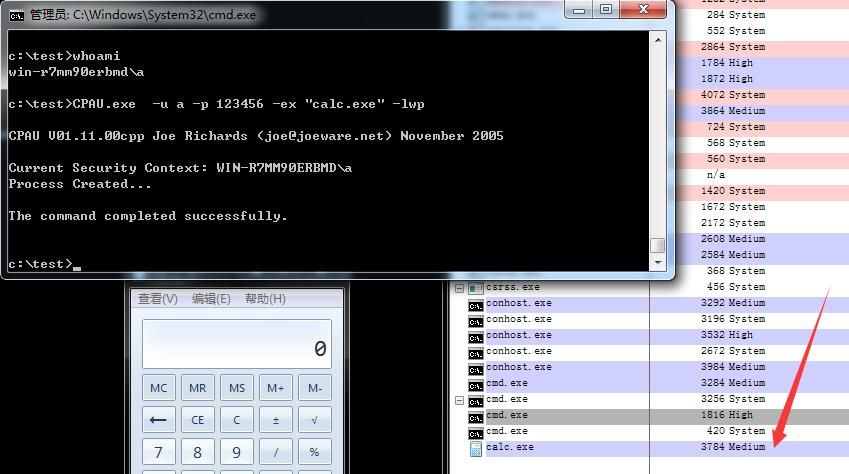
CPAU.exe -u a -p 123456 -ex "calc.exe" -cwd c:\windows\system32 -lwp
Note:
The parameter -lwp or -lwop must be added, otherwise privilege downgrade cannot be achieved
Successfully downgraded from administrator privileges to standard user privileges, as shown in the figure below
4. PowerShell
Code is as follows:
$uname="a" |
5、c++
Using API:
- CreateProcessAsUser
- CreateProcess
0x04 Methods to downgrade from system privileges to normal user privileges
---
Note:
The system privileges in this test were obtained through a vulnerability
1、runas
cmd:
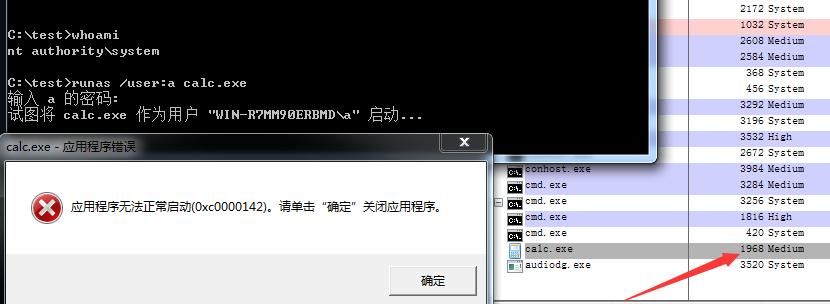
runas /user:a calc.exe
Then enter the password: 123456
Successfully downgraded privileges, but failed to start, as shown in the figure below
2. Third-party tool: lsrunas
cmd:
lsrunas.exe /user:a /password:123456 /domain: /command:"calc.exe" /runpath:c:\
Same as above, successfully downgraded privileges, but failed to start
3. Third-party tool: CPAU
cmd:
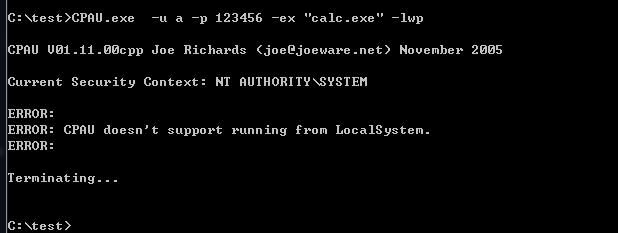
CPAU.exe -u a -p 123456 -ex "calc.exe" -lwp
CPAU does not support starting with system privileges, as shown in the figure below
4. powershell
Same as 1, successfully downgraded privileges, but failed to start
5. c++
Didier Stevens' tool SelectMyParent can be used
Note:
The code is not yet shared on GitHub, so I have uploaded it to my GitHub repository, crediting the author as Didier Stevens
Code address:
An open-source project
SelectMyParent:
Used to create a Windows process with a selected parent process
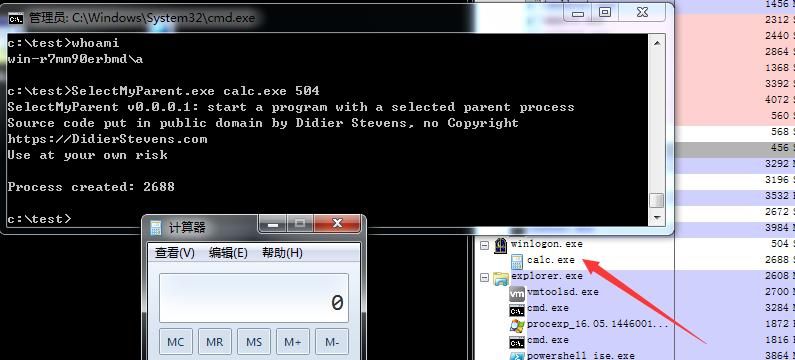
For example: When creating a new process calc.exe, using SelectMyParent allows setting the new process calc.exe as a child process of winlogon.exe
Usage steps:
1. Obtain the PID of process winlogon.exe
In my test system, the PID of process winlogon.exe is 504
2. Launch SelectMyParent
Parameters as follows:
SelectMyParent.exe calc.exe 504
Shows calc.exe as a child process of winlogon.exe, as shown in the figure below
This method can primarily be used to enhance process stealth and deceive users
Special aspects:
Since child processes inherit the permissions of the parent process, and winlogon.exe has system-level permissions, its child process calc.exe will also acquire system-level permissions
As shown in the figure below

That is to say, based on SelectMyParent, we can implement the following privilege escalation and de-escalation operations:
- Privilege escalation: From administrator privileges to system privileges
- Privilege de-escalation: From system privileges to admin privileges
- Privilege de-escalation: From system privileges to standard user privileges
Operation steps:
1. Obtain the process PID
Method to obtain process PID in cmd:
tasklist /v /fo list
Can retrieve the corresponding PID and permissions (indicated by the username value) for each process, as shown in the figure below
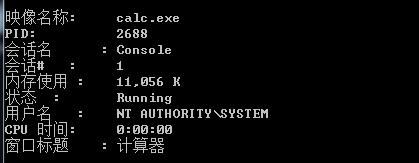
For testing convenience, filtering can be used to select processes with specific permissions, such as filtering NT AUTHORITY\SYSTEM.
The command is as follows:
tasklist /v /fo list /fi "USERNAME eq NT AUTHORITY\SYSTEM"
If obtaining processes with regular user permissions, the USERNAME filter can be set to the return result of whoami.
2. Using SelectMyParent.exe
From administrator permissions to system permissions:
As demonstrated earlier, no further introduction is needed.
From system permissions to admin permissions:
Using tasklist cannot distinguish whether a process has administrator or regular user permissions.
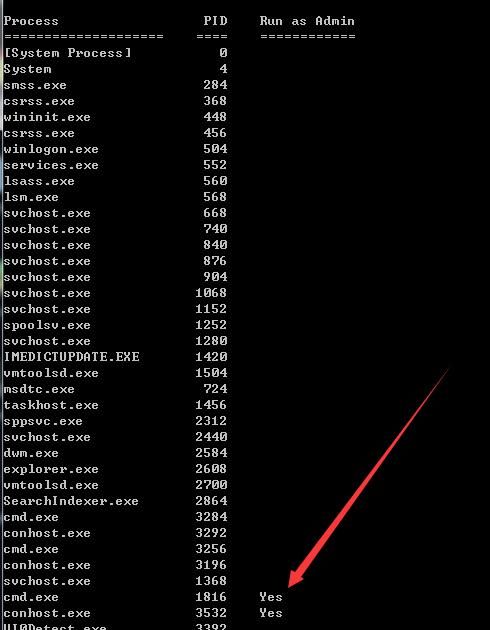
Therefore, I wrote a small tool in C++ with the following functions:
- Traverse processes
- Determine process permissions; if administrator permissions, mark them.
Code download address:
An open-source project
Tool usage is shown in the figure below.
From SYSTEM Privileges to Standard User Privileges:
Select a standard user privilege process with PID 3864; the created calc.exe will also have standard user privileges, as shown in the figure below
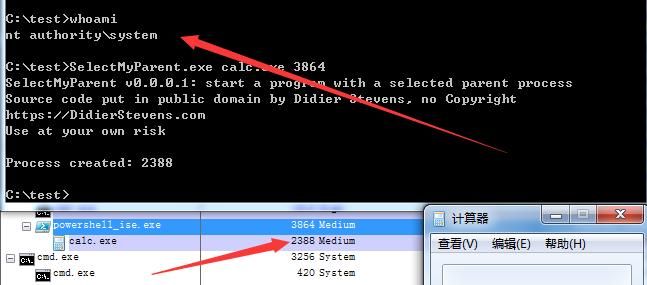
Successfully achieved privilege reduction from SYSTEM to standard user
0x05 Summary
---
This article tests common privilege reduction methods, concluding that some methods may fail under certain conditions. The universal approach is to use SelectMyParent for privilege reduction.
In practice, a small tool for traversing and judging process privileges has been open-sourced to improve efficiency.


