
0x00 Preface
---
In penetration testing, the history of Remote Desktop connections cannot be overlooked. Historical records often help locate critical servers.
A few days ago, an article explained how to clear these records. This article will introduce how to export the connection history.
The article on clearing records is available at:
http://woshub.com/how-to-clear-rdp-connections-history/#h2_3
The initial idea was to achieve this by enumerating the registry. However, further research revealed that to obtain the history of all users, it is necessary to acquire each user's NTUSER.DAT file, load the configuration unit via the registry, import the user configuration information, and then perform enumeration.
0x01 Introduction
---
This article will cover the following:
- Approach to obtaining historical records
- Exporting the history of the logged-in user
- Exporting the history of all users
- Implementation ideas and script writing details for both methods
0x02 Approach to Obtain Remote Desktop Connection History
---
1. Obtain the current user's history:
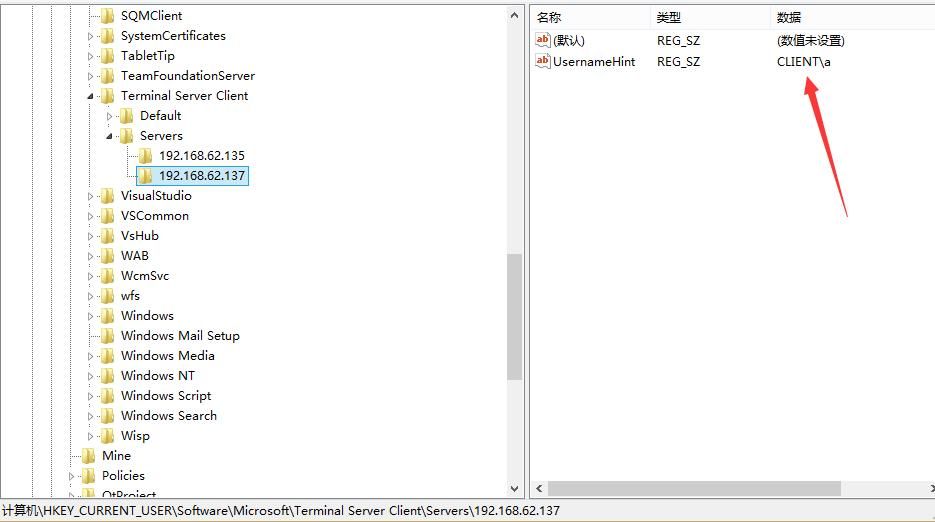
Enumerate registry key values at HKCU:\Software\Microsoft\Terminal Server Client\Servers
Each registry entry stores the connected server address, with the key value UsernameHint corresponding to the login username
As shown in the figure below
2. Obtain the history of logged-in users:
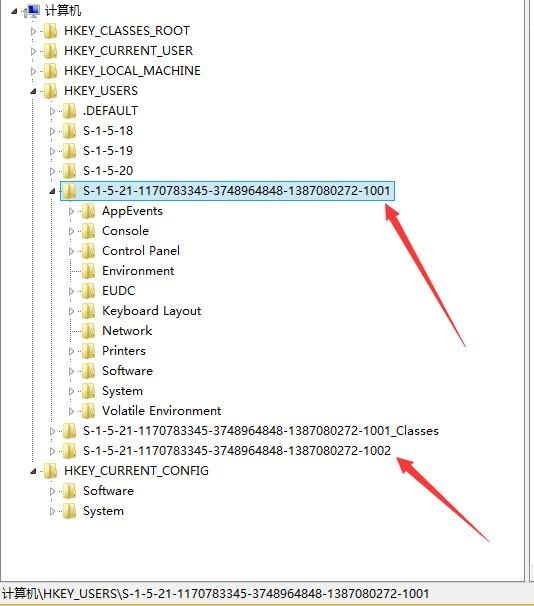
The registry information of logged-in users is synchronized under HKEY_USERS\SID, where SID corresponds to each user's SID
Currently, two users are logged into the system, each with two subkeys, as shown in the figure below
Note:
HKEY_USERS only contains default user settings and information of logged-in users; user settings are unavailable when the user is not logged in
That is, if two users are currently logged in, the registry information of both users will be stored under HKEY_USERS\SID. If a third user is not logged in, their registry information cannot be directly obtained, and thus the remote desktop connection history of that user cannot be exported
Therefore, by enumerating the registry key values at HKEY_USERS\SID\Software\Microsoft\Terminal Server Client\Servers, the remote desktop connection history of logged-in users can be obtained
3. Obtain all users' historical records:
For users who are not logged in, registry configuration information cannot be directly obtained. This can be resolved by loading a configuration unit.
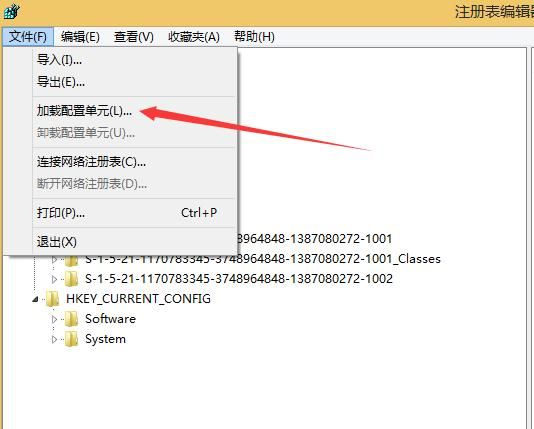
Select the HKEY_USERS item, go to File -> Load Hive, as shown in the figure below.
Open the user's NTUSER.DAT file, located at C:\Documents and Settings\Username\NTUSER.DAT.
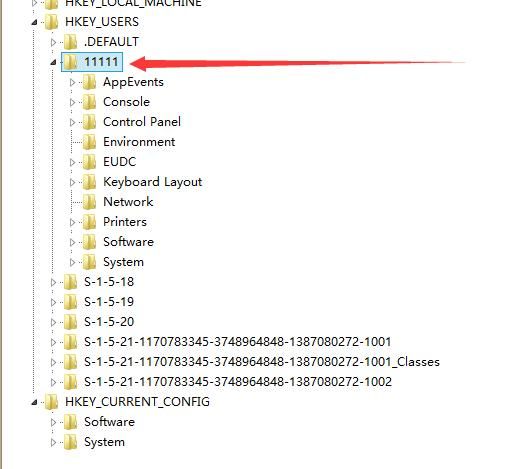
Then specify a key name to read the user's registry configuration information under HKEY_USERS, as shown in the figure below.
Note:
To delete this item, it must be cleared by unloading the configuration unit.
Therefore, to obtain all users' remote desktop connection history, first enumerate the registry key HKEY_USERS\SID\. For users not logged in, load the corresponding NTUSER.DAT file, enumerate again to obtain complete records, and finally unload the corresponding registry key.
Supplement:
Example of loading a configuration unit via command line:
Reg load HKEY_USERS\S-1-5-21-1170783345-3748964848-1387080272-1003 C:\Documents and Settings\c\NTUSER.DAT |
Example of unloading a configuration unit via command line:
Reg unload HKEY_USERS\S-1-5-21-1170783345-3748964848-1387080272-1003 |
0x03 PowerShell Implementation Details
---
1. Obtain the current user's history
Location: HKEY_CURRENT_USER\Software\Microsoft\Terminal Server Client\Servers
Enumerate subkeys under the specified registry key:
dir "Registry::HKEY_CURRENT_USER\Software\Microsoft\Terminal Server Client\Servers" -Name |
Query registry key values for the specified registry key:
(Get-ItemProperty -Path "Registry::HKEY_CURRENT_USER\Software\Microsoft\Terminal Server Client\Servers\192.168.62.137").UsernameHint |
Implement enumeration using a foreach loop:
$RegPath = "Registry::HKEY_CURRENT_USER\Software\Microsoft\Terminal Server Client\Servers\" |
Add exception handling, do not output error messages; if the registry key value cannot be found, return 'Unable to obtain'
Complete script:
$RegPath = "Registry::HKEY_CURRENT_USER\Software\Microsoft\Terminal Server Client\Servers\" |
2. Obtain the history of logged-in users
Location: HKEY_USERS\SID\Software\Microsoft\Terminal Server Client\Servers
Note:
SID corresponds to the SID of each user
First, enumerate all user SIDs
PowerShell:
Get-WmiObject -Class Win32_UserAccount |
WMI:
wmic /NAMESPACE:"\\root\CIMV2" PATH Win32_UserAccount GET /all /FORMAT:list |
Enumerate usernames and their corresponding SIDs:
$AllUser = Get-WmiObject -Class Win32_UserAccount |
Combine the above scripts: first enumerate user SIDs, query corresponding registry entries under HKEY_USERS, then enumerate registry key values to obtain complete results:
(Administrator privileges required)
$AllUser = Get-WmiObject -Class Win32_UserAccount |
Note:
$User.Status indicates the account status, which cannot be directly queried via Get-WmiObject -Class Win32_UserAccount; it can be obtained using the wmi command:
wmic /NAMESPACE:"\\root\CIMV2" PATH Win32_UserAccount GET /all /FORMAT:list
3、Obtain history records for all users
File location for loading the hive:
"C:\Documents and Settings\Username\NTUSER.DAT" |
Implementation approach:
- Obtain the SID corresponding to each user, concatenate the corresponding registry key value "Registry::HKEY_USERS\"+$User.SID+"\Software\Microsoft\Terminal Server Client\Servers\"
- If reading fails, it indicates that this user has not logged in; then attempt to load the hive
- Concatenate hive file location "C:\Documents and Settings\"+$User.Name+"\NTUSER.DAT"
- The registry key corresponding to the hive is named after the user's SID
- Enumerate the registry to obtain history records
- Unload registry key
Note:
A new process needs to be started to unload the hive, otherwise it will prompt failure
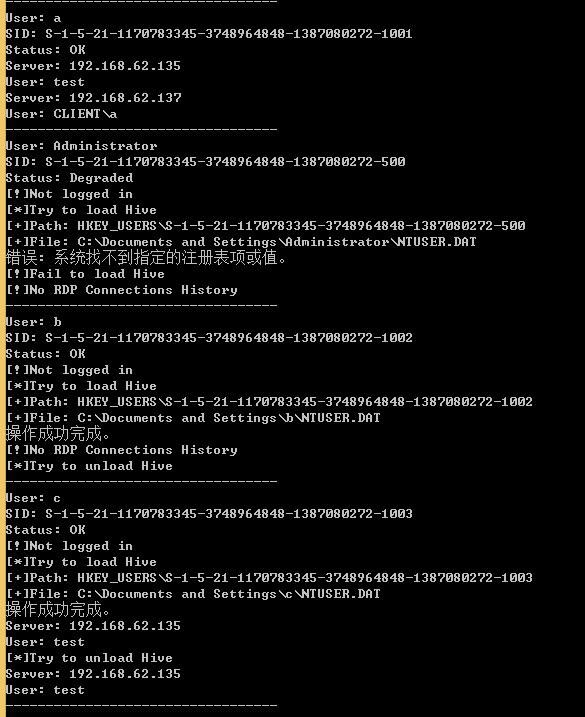
To avoid using multiple try-catch blocks to catch exceptions, the code structure has been changed to use If-Else for judgment. The complete implementation code can be referenced from:
An open-source project
Test results are shown in the figure below
0x04 Summary
---
This article introduces how to obtain the Remote Desktop connection history of a Windows system via PowerShell. It should be noted that registry configuration information for users who are not logged in cannot be obtained directly (this can be resolved by loading the hive). Based on the Remote Desktop connection history, critical servers can often be identified.


