
0x00 Preface
---
During my recent studies, I discovered that PowerShell command history sometimes contains sensitive system information, such as connection credentials for remote servers. Therefore, I conducted further research on PowerShell's history functionality, summarized common methods for exporting history in penetration testing, combined with exploitation ideas, and provided defense recommendations.
0x01 Introduction
---
This article will cover the following topics:
- Two types of PowerShell command history
- Methods for exporting PowerShell command history
- Defense recommendations
0x02 Two Types of PowerShell Command History
---
There are two ways to record PowerShell command history, which can be read using Get-History and Get-PSReadlineOption respectively.
1. Get-History
Reference documentation:
https://docs.microsoft.com/en-us/powershell/module/Microsoft.PowerShell.Core/Get-History?view=powershell-3.0
Default support for PowerShell v2 and above
Records commands entered in the current session, not shared between multiple PowerShell processes, all records are automatically cleared after the PowerShell process exits
1. Common Commands
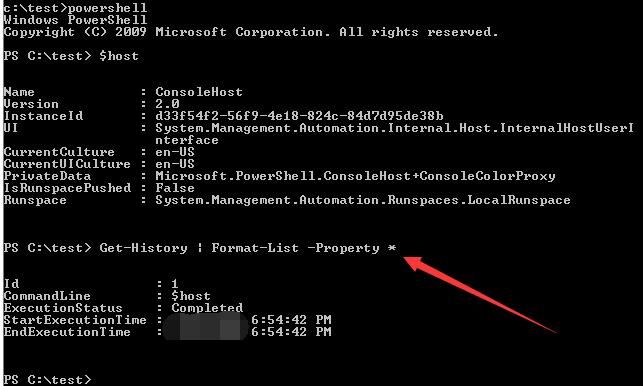
Get complete information of history records:
Get-History | Format-List -Property * |
Includes:
- Id
- CommandLine
- ExecutionStatus
- StartExecutionTime
- EndExecutionTime
Test as shown in the figure below
Delete all history records:
Clear-History |
Delete command by ID:
Clear-History -Id 3 |
2. Exploitation Approach
Gained access to a Windows system, discovered a PowerShell process running in the background, and wanted to read the command history from the PowerShell process
(1) PowerShell process cannot receive keyboard input commands
For example, PowerShell loaded a script running in the background: PowerShell -ep bypass -f 1.ps1
In this case, keyboard messages cannot be sent to the PowerShell process. Useful information can be obtained by reading the command-line arguments of the process. Open-source code:
An open-source project
The code implements reading command-line arguments of a specified process, often yielding useful information
(2) PowerShell process can receive keyboard input commands
Here, keyboard messages can be simulated to export the command history
Program implementation approach:
- By traversing and enumerating all windows
- Obtain PID from window (HWND) via GetWindowThreadProcessId
- Compare PIDs to find the qualifying window
- Send keyboard messages (PostMessage) to the qualifying window
Program details:
1. Virtual-Key Codes
Each keyboard input message corresponds to a Virtual-Key Code
Reference:
https://docs.microsoft.com/en-us/windows/desktop/inputdev/virtual-key-codes
Need to simulate both key press and key release operations, open-source test code:
An open-source project
The code implements searching for a process with a specified PID, sending keyboard messages to the process, with the content: whoami
2. Export history records
Command as follows:
Get-History|export-csv $env:temp"\history.csv" |
Special characters such as "|", "$", and """ need to be considered; the Shift key must be pressed when simulating keyboard input
The implementation method here is to first use keybd_event to press the Shift key, then use PostMessage to send the key letters, and finally release both keys
Open source test code:
An open-source project).cpp
The code implements searching for a process with a specified PID and sending keyboard messages to the process, with the content: Get-History|export-csv $env:temp"\history.csv"
3. Additional: View cmd.exe history
Command as follows:
doskey /h |
Clear:
doskey /reinstall |
It is also possible to export cmd.exe command history by sending keyboard messages
2. Get-PSReadlineOption
Reference documentation:
https://docs.microsoft.com/en-us/powershell/module/psreadline/?view=powershell-5.1
Default support for PowerShell v5
PowerShell v3 and PowerShell v4 require installation of Get-PSReadlineOption before use
After installation, all PowerShell command history is saved in the same location and can be viewed at any time
1. Installation and Usage of PowerShell v3 and PowerShell v4
Taking a 64-bit system as an example, the installation method is as follows:
(1) Install PowerShellGet
Download:
https://www.microsoft.com/en-us/download/details.aspx?id=51451
Note:
The PowerShell process must be closed before installation.
Stealth installation can be achieved via command line with the following command:
msiexec /q /i PackageManagement_x64.msi |
After successful installation, it will appear in the installed programs list (Control Panel\Programs\Programs and Features) as: Package Management Preview - x64
It can be hidden by deleting the corresponding registry entry. For more details, refer to 'Penetration Basics - Obtaining the List of Installed Programs on the Current System'.
The registry path for Package Management Preview - x64 is HKEY_LOCAL_MACHINE\SOFTWARE\Microsoft\Windows\CurrentVersion\Uninstall\{57E5A8BB-41EB-4F09-B332-B535C5954A28}
Simply delete this registry key and its subkeys to hide it from the installed programs list.
CMD command to delete the registry key:
reg delete HKLM\SOFTWARE\Microsoft\Windows\CurrentVersion\Uninstall\{57E5A8BB-41EB-4F09-B332-B535C5954A28} /f |
(2) Install PSReadLine
Install via Install-Module command
Install-Module -Name PSReadLine |
Prompt appears:
NuGet provider is required to continue |
Need to enter Y again for installation
To achieve one-click installation, you can first install NuGet, then install PSReadLine. The complete commands are as follows:
Install-PackageProvider -Name NuGet -MinimumVersion 2.8.5.201 -Force |
(3) Usage
All PowerShell commands will be saved at a fixed location: %appdata%\Microsoft\Windows\PowerShell\PSReadline\ConsoleHost_history.txt
View command history:
Get-Content (Get-PSReadlineOption).HistorySavePath |
Clear command history:
Remove-Item (Get-PSReadlineOption).HistorySavePath |
2. Exploitation Approach
After gaining access to a Windows system, first check the PowerShell version. If it is v5, you can obtain the history by reading the file %appdata%\Microsoft\Windows\PowerShell\PSReadline\ConsoleHost_history.txt
If the system uses PowerShell v3 or v4, you can install PSReadLine via the command line to record all subsequent PowerShell commands on the system
0x03 Defense Recommendations
---
If using a higher version of Windows, such as Win10, where the default PowerShell version is 5.0 and it records PowerShell commands, it is recommended to periodically clear the history. Location: %appdata%\Microsoft\Windows\PowerShell\PSReadline\ConsoleHost_history.txt
Clear command history:
Remove-Item (Get-PSReadlineOption).HistorySavePath |
For older versions of PowerShell, if commands contain sensitive information (such as remote connection passwords), they should be cleared promptly using the command: Clear-History
For cmd.exe, if commands contain sensitive information (such as remote connection passwords), they should be cleared promptly using the command: doskey /reinstall
0x04 Summary
---
This article introduces two types of PowerShell command history, summarizes common methods for exporting history records, combines exploitation ideas, and provides defense recommendations.


