
0x00 Preface
---
During penetration testing, we often encounter Windows server remote desktop services, managing servers through the interface. For regular Windows systems, interface operations are also required under certain conditions.
Although we can achieve interface operations by writing programs (capturing desktop information, compressing transmission, sending mouse and keyboard messages, etc.), wouldn't it be more convenient and efficient if we could use remote desktop services?
So, for non-server versions of Windows systems, what issues should be noted when using remote desktop services? This article will analyze and introduce them one by one.
0x01 Introduction
---
This article will cover the following topics:
- Methods to enable remote desktop
- Principles of using mimikatz to support multi-user remote desktop
- Improvement ideas
- Testing tool rdpwrap
0x02 Methods to enable remote desktop
---
1. Check if the system allows 3389 remote connection
REG QUERY "HKEY_LOCAL_MACHINE\SYSTEM\CurrentControlSet\Control\Terminal Server" /v fDenyTSConnections |
1 indicates disabled, 0 indicates enabled
Check the port for remote connection:
REG QUERY "HKEY_LOCAL_MACHINE\SYSTEM\CurrentControlSet\Control\Terminal Server\WinStations\RDP-Tcp" /v PortNumber |
Port format is hexadecimal, as shown below

0xd3d converted to decimal is 33389
2. Methods to enable 3389 remote connection on the local machine
Method 1: Via cmd
REG ADD "HKLM\SYSTEM\CurrentControlSet\Control\Terminal Server" /v fDenyTSConnections /t REG_DWORD /d 00000000 /f |
Method 2: Via reg file
Content as follows:
Windows Registry Editor Version 5.00 |
Import registry file:
regedit /s a.reg |
Note:
If the connection port is modified, it will take effect only after the system restarts.
Additional note:
If the remote desktop service has not been configured on the system, when enabling it for the first time, you also need to add a firewall rule to allow port 3389, as shown in the figure below.
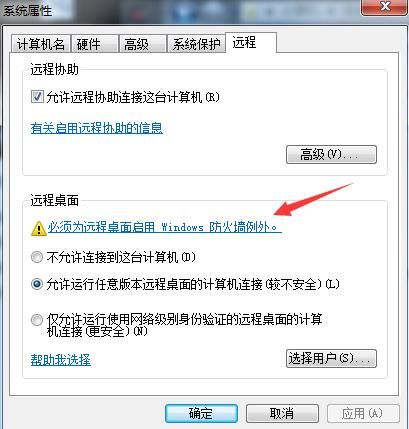
The command to modify firewall configuration and allow port 3389 is as follows:
netsh advfirewall firewall add rule name="Remote Desktop" protocol=TCP dir=in localport=3389 action=allow |
3. Remote connection method
Using Kali to connect remotely via 3389:
rdesktop 192.168.1.1:3389 |
Windows:
mstsc.exe |
0x03 Non-server versions of Windows systems by default only allow one account to log in
---
Specific manifestations are:
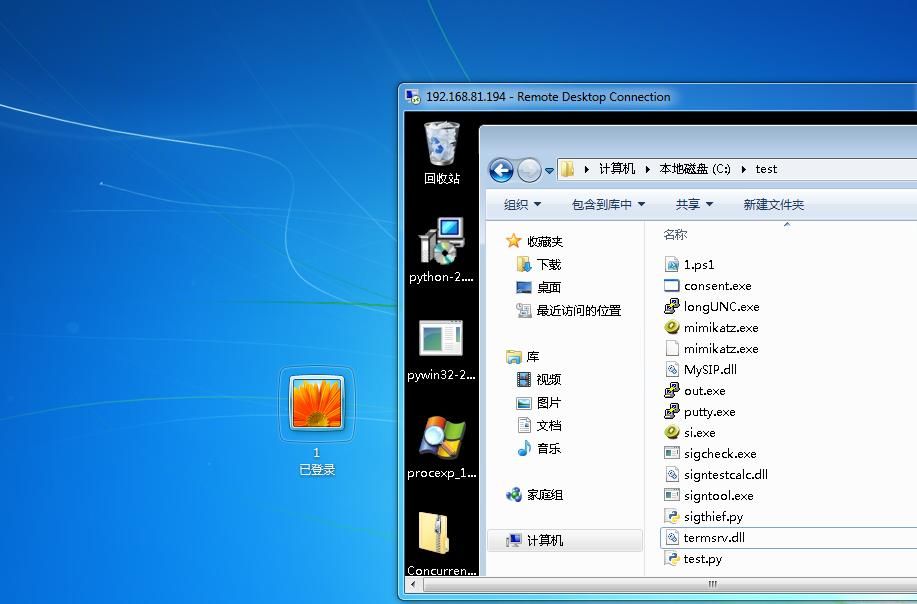
When logging in remotely using the same account as the original system, the original system will be switched to the login screen
As shown in the figure below
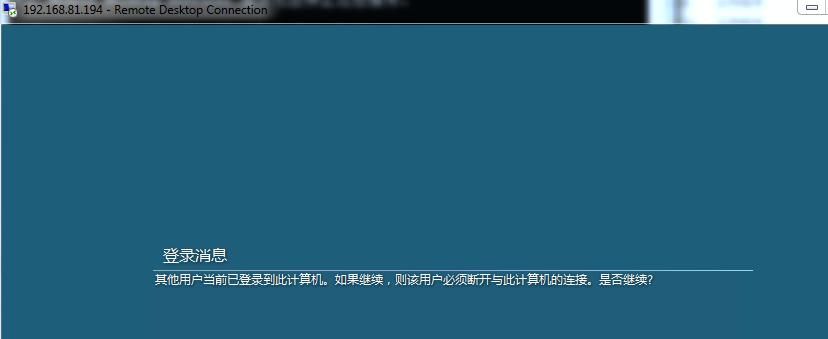
When using a different account, a prompt appears during login indicating that another user is already logged into this computer, as shown in the figure below
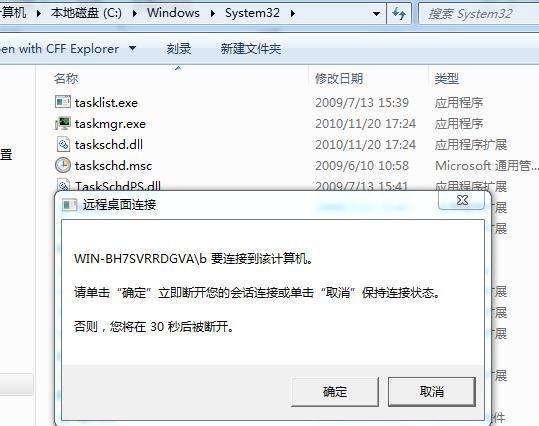
After selecting to continue, a dialog box will pop up on the original system desktop asking whether to disconnect the current connection (after 30 seconds, consent is selected by default, returning to the login screen)
As shown in the figure below
0x04 Methods for enabling multi-user login on non-server versions of Windows systems
---
1. Using mimikatz
privilege::debug |
Execute as shown in the figure below
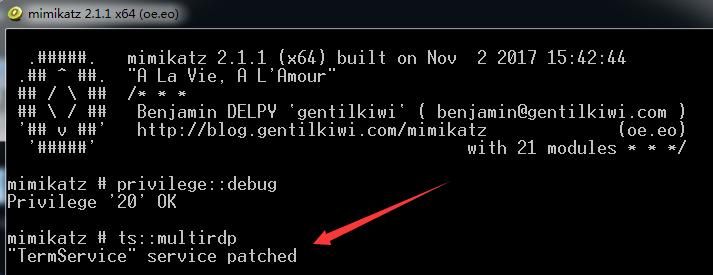
Enable multi-user login functionality, with support up to Windows 7
Using the same account as the original system, the original system will still be switched to the login screen
Using a different account than the original system, login successful, as shown below
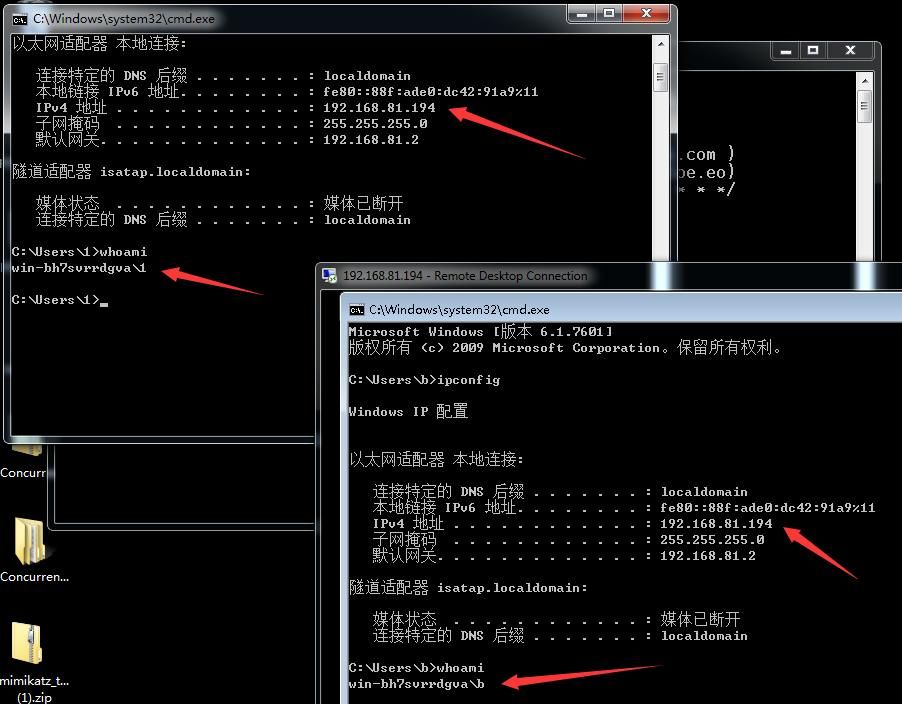
Find modification ideas by reviewing the source code of mimikatz, code location as follows:
https://github.com/gentilkiwi/mimikatz/blob/master/mimikatz/modules/kuhl_m_ts.c
When Windows enables the Remote Desktop Services service, it loads termsrv.dll, as shown below
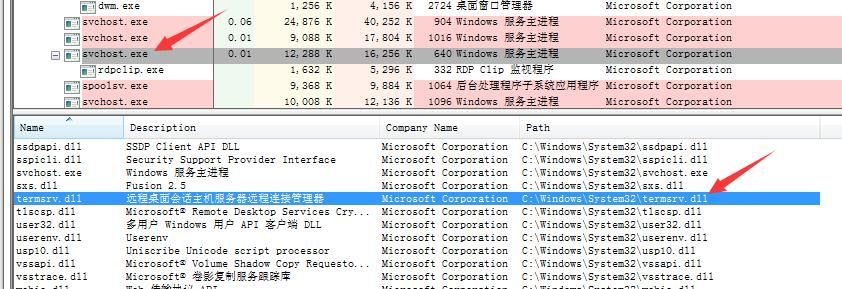
Enable multi-user functionality by modifying termsrv.dll in memory, specific operations as follows:
Win7 x86:
Find: 0x3B86200300000F84
Replace with: 0xC78620030000FFFFFF7F9090
Win7 x64:
Find: 0x39873C0600000F84
Replace with: 0xC7873C060000FFFFFF7F9090
However, this method becomes ineffective after a system reboot.
Further, if we directly modify the file termsrv.dll, can we achieve the permanent activation of multi-user login functionality?
Proceed with the following test.
2. Modify termsrv.dll
Recommended tool: CFF Explorer
Test system: Win7 x64
Open termsrv.dll located at c:\windows\system32
Hex Editor
View hexadecimal data 39873C0600000F84
As shown in the figure below
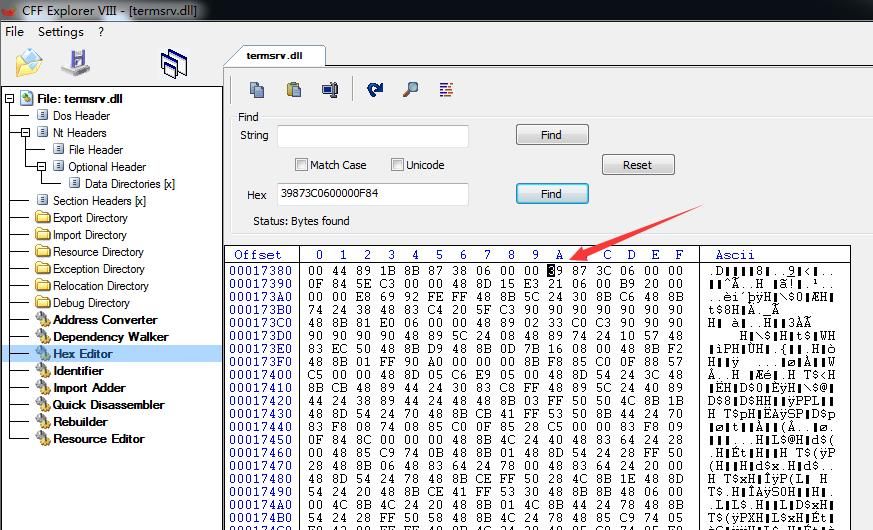
Starting from address 0x0001738A, select 12 bytes and replace them with C7873C060000FFFFFF7F9090
Save the dll
Note:
Remote Desktop Services must be stopped before replacing termsrv.dll
After replacing termsrv.dll, restart the TermService service
Attempt to connect remotely using different users, successful, verifying that this approach is correct
Complete steps are as follows:
1. Check the status of the Remote Desktop Services service
sc qc TermService |
2. If the service is running, stop it first
net stop TermService /y |
3. Delete the original termsrv.dll
del c:\windows\system32\termsrv.dll |
4. Replace the new termsrv.dll
5. Start the service
net start TermService |
6. Remote connection
Successfully implemented multi-user login
Supplement 1:
Win7 x86:
Find: 0x3B86200300000F84
Replace with: 0xC78620030000FFFFFF7F9090
Supplement 2
Common Windows system version numbers:
System | Version Number |
Win7 | 6.1.7600 |
Win7sp1 | 6.1.7601 |
Win8 | 6.2.9200 |
Win8.1 | 6.3.9600 |
3. Using the tool rdpwrap
Project address:
https://github.com/stascorp/rdpwrap
Tool address:
https://github.com/stascorp/rdpwrap/releases
Supports Win Vista - Win 10
Does not modify termsrv.dll, achieved by passing different parameters
Installation:
RDPWInst.exe -i is |
Test as shown in the figure below
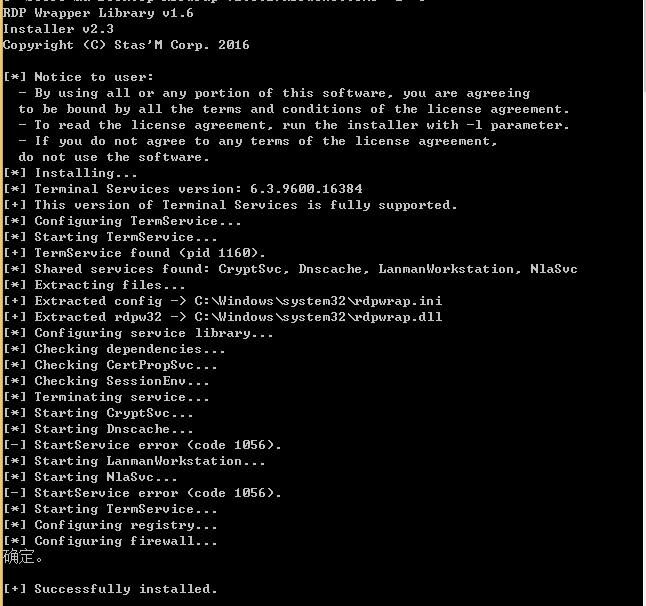
Release rdpwrap.dll and rdpwrap.ini to the System32 folder
rdpwrap.dll will be loaded into the same process as termsrv.dll
At this point, remote connections can be made using different users
Uninstall:
RDPWInst.exe -u |
0x05 Summary
---
This article introduces three methods to support multi-user remote desktop login, applicable under different conditions. For the termsrv.dll replacement method, different replacement locations must be used depending on the specific system version.


