
0x00 Introduction
---
The Exchange GlobalAddressList contains the email addresses of all mailbox users within the Exchange organization. By obtaining the credentials of any mailbox user in the Exchange organization, one can export the email addresses of other mailbox users through the GlobalAddressList.
This article will introduce common methods for obtaining the Exchange GlobalAddressList under different conditions during penetration testing, share details of program implementation, and finally discuss methods to disable the GlobalAddressList.
0x01 Overview
---
This article will cover the following topics:
- Methods to obtain the Exchange GlobalAddressList
- Program implementation
- Methods to disable the GlobalAddressList
0x02 Methods to Obtain the Exchange GlobalAddressList
---
1. Through Outlook Web Access (OWA)
Requires obtaining the plaintext password of a mail user. After logging into OWA, select Contacts -> All Users
2. Via Exchange Web Service (EWS)
For Exchange 2013 and later versions, the FindPeople operation can be used
Reference materials:
https://docs.microsoft.com/en-us/exchange/client-developer/web-service-reference/findpeople-operation?redirectedfrom=MSDN
It should be noted that search criteria must be specified when using the FindPeople operation; it cannot directly retrieve all results using wildcards
Alternative workaround:
Iterate through the 26 letters a-z as search criteria, which can cover all results
For Exchange 2010 and earlier versions, only the ResolveName operation can be used
Reference materials:
https://docs.microsoft.com/en-us/dotnet/api/microsoft.exchange.webservices.data.exchangeservice.resolvename?redirectedfrom=MSDN&view=exchange-ews-api
It should be noted that the ResolveName operation can only retrieve a maximum of 100 results at a time. If the number of mailbox users in the Global Address List exceeds 100, the complete results cannot be obtained directly
Alternative workaround:
When using the ResolveName operation, include search criteria to ensure each query returns fewer than 100 results, then cover all results through multiple searches
Commonly used method:
Use search criteria consisting of any combination of two letters, such as aa, ab, ac....zz, for a total of 26*26=676 searches, which generally covers all results
3. Protocols used through Outlook client (MAPI OVER HTTP and RPC over HTTP)
Log in as a user, select Contacts -> Address Book
Protocols commonly used by Outlook client are RPC, RPC over HTTP (also known as Outlook Anywhere), and MAPI over HTTP
Using ruler can read GlobalAddressList via MAPI OVER HTTP (RPC over HTTP is not currently supported)
Note:
MAPI over HTTP is a new transport protocol implemented in Exchange Server 2013 Service Pack 1 (SP1), used to replace RPC OVER HTTP (also known as Outlook Anywhere)
Exchange 2013 does not enable MAPI OVER HTTP by default, instead uses RPC OVER HTTP, requiring manual activation
Exchange 2016 enables MAPI OVER HTTP by default
Reading GlobalAddressList via RPC over HTTP can be done using ptswarm's Exchanger.py
Reference:
https://swarm.ptsecurity.com/attacking-ms-exchange-web-interfaces/
Process is as follows:
(1) List AddressList
Command example:
python exchanger.py 192.168.1.1/test1:[email protected] nspi list-tables |
The result is shown in the following figure
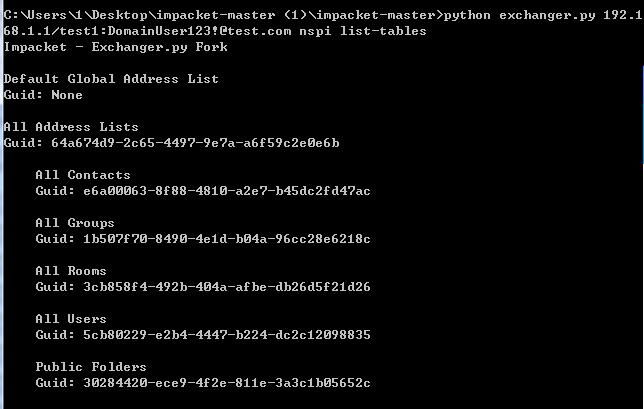
From the figure, it can be obtained that the guid corresponding to All Users is 5cb80229-e2b4-4447-b224-dc2c12098835
(2) Read AddressList
Command example:
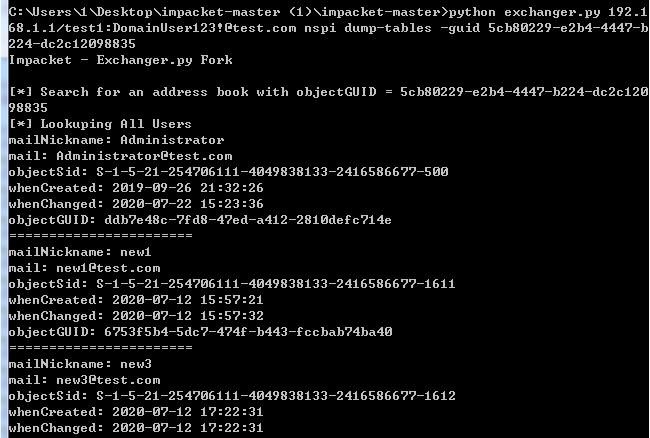
python exchanger.py 192.168.1.1/test1:[email protected] nspi dump-tables -guid 5cb80229-e2b4-4447-b224-dc2c12098835 |
The result is shown in the following figure
4. Via Offline Address Book (OAB)
The process is as follows:
(1) Read Autodiscover configuration information
URL to access: https://
Note:
A specific POST request needs to be sent. For details, refer to the article 'Penetration Basics—Using Exchange Autodiscover'
Obtain the OABUrl from the configuration information
(2) Read OAB file list
Accessed URL: OABUrl/oab.xml
The returned result includes a list of multiple OAB files, as shown in the figure below
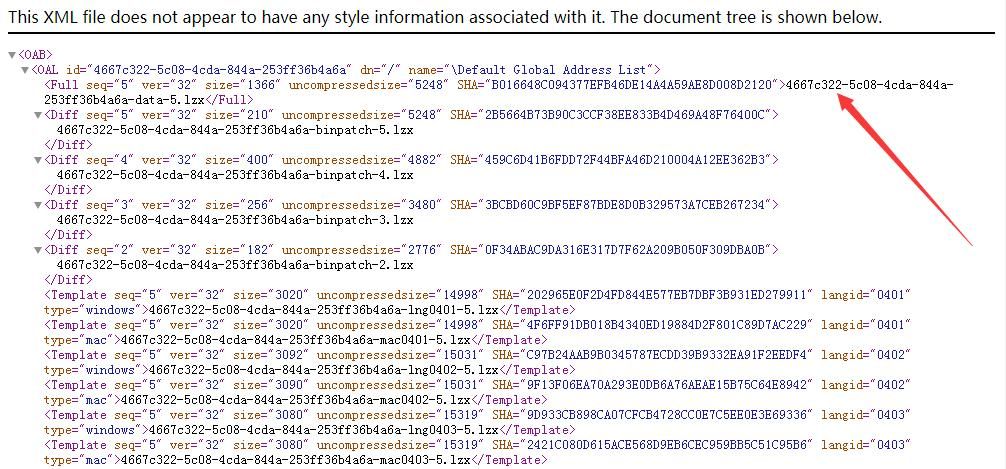
Find the lzx file name corresponding to the Default Global Address List. The lzx file name is 4667c322-5c08-4cda-844a-253ff36b4a6a-data-5.lzx
(3) Download the lzx file
Accessed URL: OABUrl/xx.lzx
Corresponding to the example above, the download URL for the lzx file is: https://192.168.1.1/OAB/9e3fa457-ebf1-40e4-b265-21d09a62872b/4667c322-5c08-4cda-844a-253ff36b4a6a-data-5.lzx
(4) Decode the lzx file to restore the Default Global Address List
The tool oabextract is required here
Download and installation are necessary
Download link for a pre-compiled version ready to use directly on Kali: http://x2100.icecube.wisc.edu/downloads/python/python2.6.Linux-x86_64.gcc-4.4.4/bin/oabextract
Example command to convert the lzx file to an oab file:
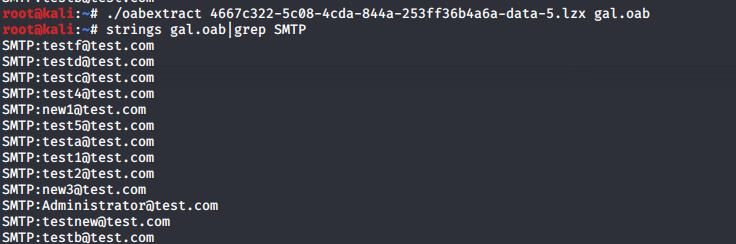
oabextract 4667c322-5c08-4cda-844a-253ff36b4a6a-data-5.lzx gal.oab |
Example command to extract the GAL:
strings gal.oab|grep SMTP |
The result is shown in the following figure
5. Via LDAP
Requires access to the domain controller's LDAP service (port 389)
Typically, there is a correspondence between Exchange mailbox users and domain users, so information about Exchange mailbox users can be obtained based on domain user information
(1) Querying from outside the domain
Requires obtaining the plaintext password of a domain user
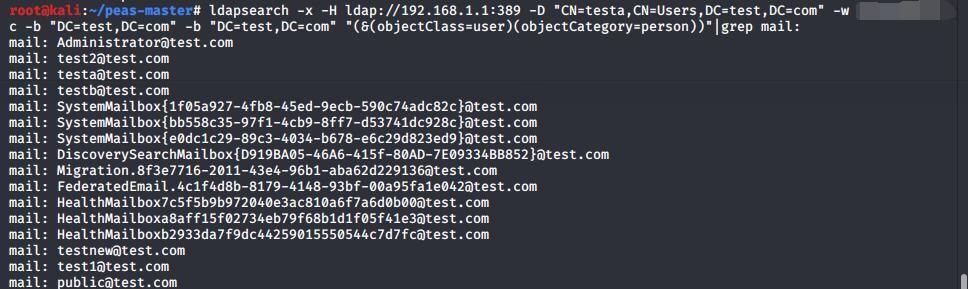
Example command for Kali system to retrieve all user email addresses using ldapsearch:
ldapsearch -x -H ldap://192.168.1.1:389 -D "CN=testa,CN=Users,DC=test,DC=com" -w DomainUser123! -b "DC=test,DC=com" |grep mail: |
As shown in the figure below
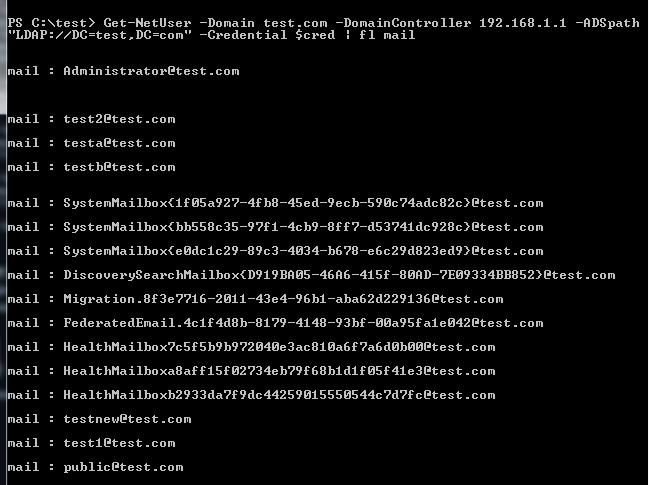
Example command for Windows system to retrieve all user email addresses using PowerView:
$uname="testa" |
As shown in the figure below
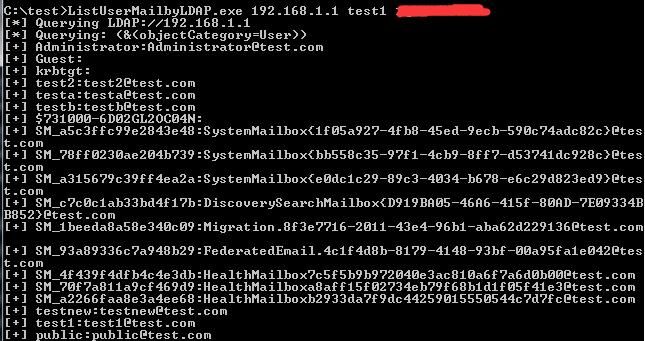
Windows system implementation via C#:
By invoking the namespace System.DirectoryServices, the same operation can be easily achieved. The code has been uploaded to GitHub, with the address as follows:
An open-source project
As shown in the figure below
(2) Querying from within the domain
All methods for querying from outside the domain are applicable, and domain user credentials are not required at this time
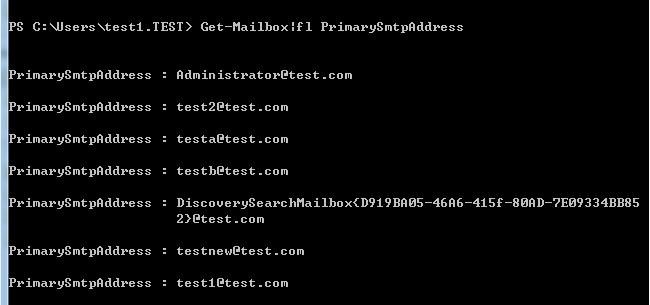
You can also query via Exchange Management Shell after connecting to the Exchange server using PSSession
Command example:
$User = "test\administrator" |
As shown in the figure below
0x03 Implementation code for obtaining GlobalAddressList via Exchange Web Service (EWS)
---
1. PowerShell
Requires plaintext password
https://github.com/dafthack/MailSniper
Requires PowerShell version 3.0
Supports FindPeople operation and ResolveName operation
Note:
The FindPeople operation is implemented via OWA
The ResolveName operation is implemented via EWS
2. Python
Requires plaintext password or NTLM hash
(1) FindPeople operation
Reference materials:
https://docs.microsoft.com/en-us/exchange/client-developer/web-service-reference/findpeople-operation?redirectedfrom=MSDN
Only available in Exchange Server 2013 or later versions
XML format example:
|
Search string test, specifying maximum query result count of 1000
To cover all results, the search string needs to iterate through 26 letters a-z, with deduplication applied after obtaining returned results
Complete code can refer to the findallpeople function I added in ewsManage
(2) ResolveName operation
XML format example:
|
Search string test, where the maximum number of query results returned is 100.
To cover all results, the search criteria are combinations of any two letters, such as aa, ab, ac....zz, totaling 26*26=676 searches. Generally, this can cover all results, and deduplication is performed after obtaining the returned results.
It is important to note that if the returned result for a search condition is 100, it indicates that the result for this condition may be incomplete (actual count greater than 100, only 100 obtained). Further subdivision is required, involving a third-level traversal. The returned results can be obtained by reading the TotalItemsInView item in the response content.
For the complete code, refer to the resolveallname feature I added in ewsManage.
0x04 Methods to Disable GlobalAddressList
---
You can choose to specify whether a user is hidden in the Global Address List.
1. Via Exchange Admin Center (EAC)
Log in to the Exchange Control Panel (ECP) using an Exchange administrator account.
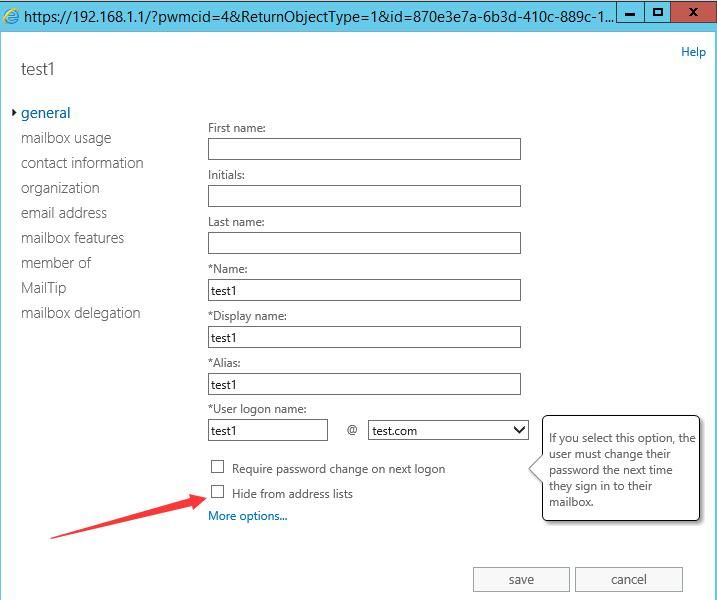
Select the specified user, choose General, check Hide from address lists, as shown in the figure below.
2. Via Exchange Management Shell
Command to hide a specified user:
Set-MailContact -HiddenFromAddressListsEnabled $true -Identity test1 |
Command to hide all users:
Get-MailContact | Set-MailContact -HiddenFromAddressListsEnabled $true |
0x05 Summary
---
This article introduces common methods for obtaining the Exchange Global Address List under different conditions, describes writing programs to export the Global Address List via EWS's FindPeople operation and ResolveName operation respectively, and finally explains how to disable the Global Address List.


