
0x00 Preface
---
In Windows systems, the clipboard is a common feature. What aspects of it can be exploited? This article will attempt to organize this content.
0x01 Introduction
---
This article will cover the following:
- Methods to write to the clipboard
- Methods to read from the clipboard
- Exploitation ideas
0x02 Clipboard Overview
---
The clipboard refers to a module provided by the Windows operating system for temporarily storing and sharing data, which can be understood as a data transfer station.
The content of the clipboard is stored in memory, so the saved data is lost after a system restart.
The XP system supports the clipboard viewer clipbrd.exe (removed after Win7), which can be used to view clipboard content.
The clipboard viewer clipbrd.exe does not require installation and can be used directly on other systems (e.g., Win7).
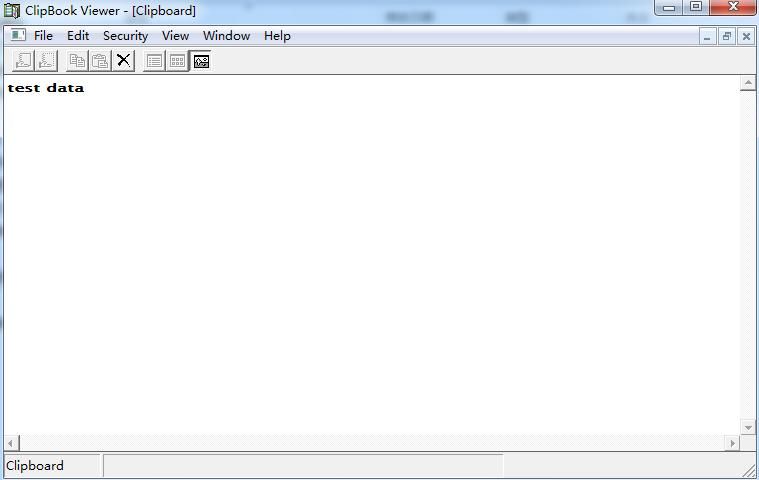
After copying data, the copied content is displayed in real-time in the clipboard viewer clipbrd.exe, as shown in the figure below.
0x03 Methods for writing to the clipboard
---
1. Ctrl+C
Copy data, or use the shortcut Ctrl+C to save data to the clipboard.
2. Methods in cmd
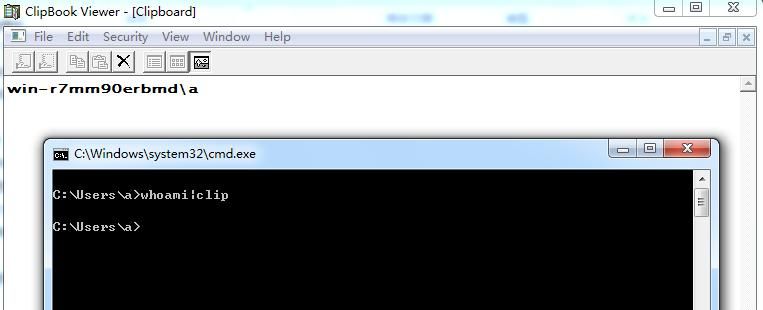
Copy the output of whoami to the clipboard:
whoami|clip |
As shown in the figure below
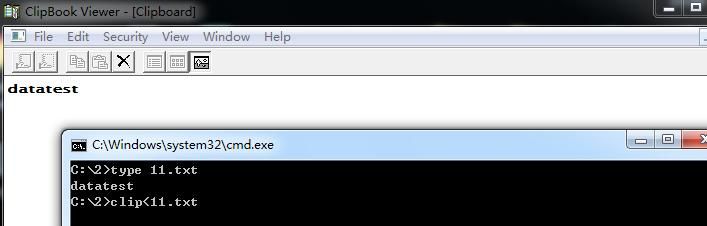
Copy the content of 11.txt to the clipboard:
clip<11.txt |
As shown in the figure below
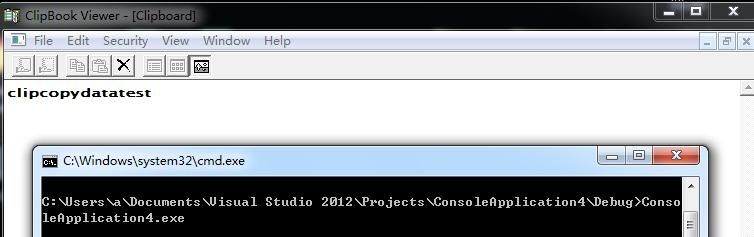
3. Program calls API to implement
C++ test code is as follows:
#include |
Execute as shown in the figure below
0x04 Reading Clipboard Content
---
1. Ctrl+V
Paste data, or use the shortcut Ctrl+V to read data saved in the clipboard.
2. Read Tool
Clipboard Viewer clipbrd.exe
3. Program Calling API Implementation
C++ test code is as follows:
#include |
Successfully read clipboard content, execute as shown in the figure below
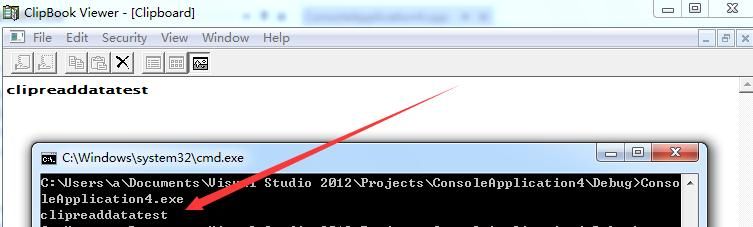
Note:
You can also simulate keyboard input Ctrl+V to obtain clipboard content
0x05 Exploitation Ideas
---
1. Real-time capture of clipboard content
During penetration testing, after gaining system control, attempts are made to read the user's clipboard content to obtain valuable information
In practical exploitation, it is best to capture clipboard content in real-time, combined with keylogging, to comprehensively monitor the user's login input
In program implementation, a loop check can be added; if the clipboard content changes, record it
(1) Using C++ to read the current system's clipboard information
Refer to the previous section for code, add loop checks and file writing functionality; code is omitted for now
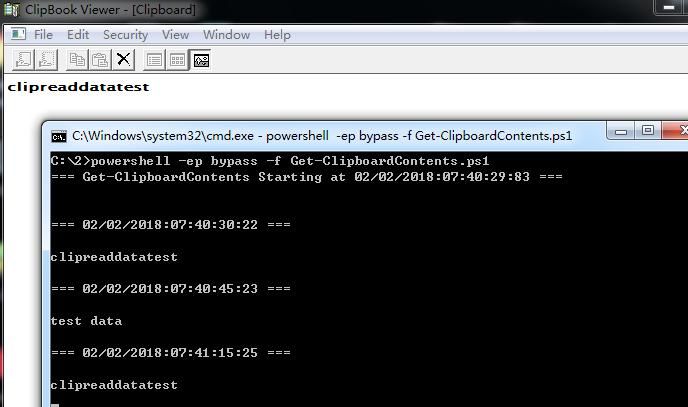
(2) Using PowerShell to read the current system's clipboard information
Reference address:
https://github.com/EmpireProject/Empire/blob/master/data/module_source/collection/Get-ClipboardContents.ps1
Test as shown in the figure below
2. Pastejacking
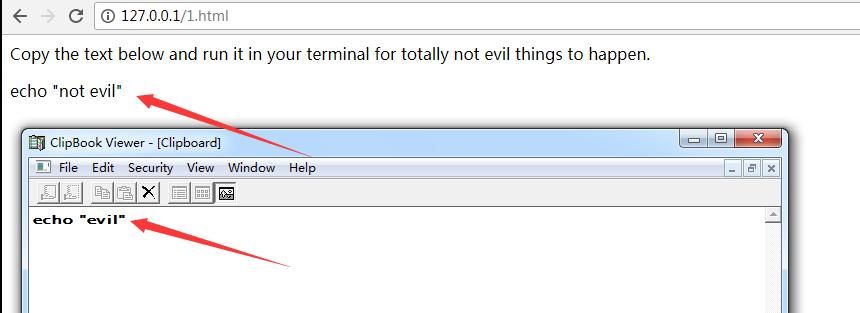
Used as a phishing site to deceive users into copying a segment of content from the URL, hijacking the copyTextToClipboard event, and adding malicious code to the copied content
Copied content: echo "not evil", actual clipboard content obtained: echo "evil"
Test as shown in the figure below
3. Modify configuration to allow IE browser to read clipboard content
Page content:
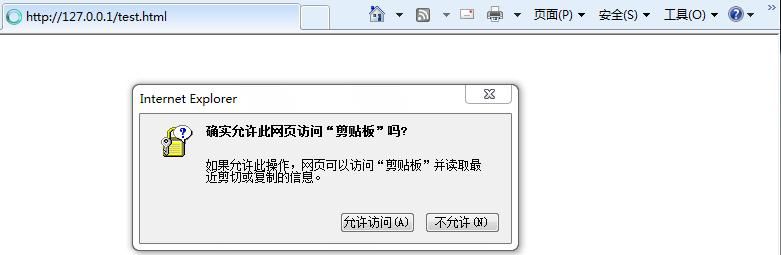
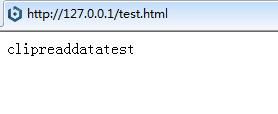
When users access via Internet Explorer, a dialog box will pop up by default asking whether to allow the webpage to access the clipboard
As shown in the figure below
After selecting 'Allow Access', the webpage obtains the clipboard content, as shown in the figure below
Note:
Chrome and Firefox browsers do not allow access to user clipboard content via getData
If system permissions are obtained, IE configuration can be modified to allow web pages to access the clipboard
The modification method is as follows:
Internet Options -> Security -> Custom Level
Settings -> Scripting -> Allow programmatic clipboard access -> Enable
As shown in the figure below
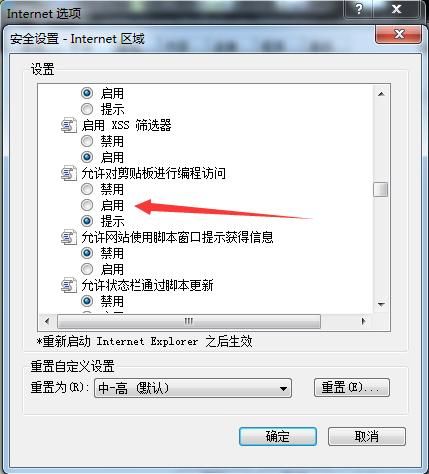
Corresponding registry key value 1407 under HKEY_CURRENT_USER\Software\Microsoft\Windows\CurrentVersion\Internet Settings\Zones\3
- 0 indicates allow
- 1 indicates prompt
- 3 indicates prohibit
The command to modify registry settings to allow clipboard access is:
REG ADD "HKCU\Software\Microsoft\Windows\CurrentVersion\Internet Settings\Zones\3" /v 1407 /t REG_DWORD /d 00000000 /f |
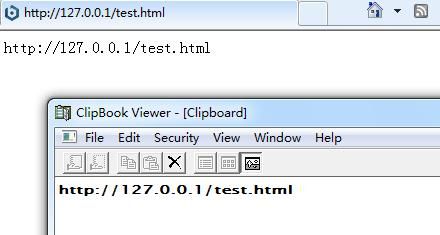
After restarting the IE browser, the configuration takes effect
Accessing the webpage automatically obtains clipboard content, as shown in the figure below
0x06 Summary
---
This article introduces the exploitation techniques related to the clipboard in penetration testing on Windows systems, demonstrating post-exploitation methods through examples.


