
0x00 Preface
---
From a penetration perspective, after gaining access to a Windows host, it is necessary to fully understand the information of this Windows host, and file execution records are an important part.
From a defense perspective, file execution records contain important system information, and it is necessary to specifically clear them.
Therefore, this article will attempt to organize the common locations of file execution records on Windows hosts (Win7 and above systems), try to acquire and clear individual records, analyze exploitation ideas, and summarize defense methods.
Reference links:
https://blog.1234n6.com/2018/10/available-artifacts-evidence-of.html?m=1
https://xz.aliyun.com/t/3067#toc-5
0x01 Introduction
---
This article will cover the following:
- Obtaining file execution records from logs
- Obtaining file execution records from the registry
- Obtaining file execution records from files
- Instance Testing
- Exploitation and Defense Strategies
0x02 Obtaining File Execution Records from Logs
---
1. Process Creation (ID: 4688)
Usage Conditions:
This feature is disabled by default in the system and requires manual configuration to enable
Policy location: Computer Configuration -> Policies -> Windows Settings -> Security Settings -> Advanced Audit Configuration -> Detailed Tracking
Policy Name: Audit Process Creation
Command line to retrieve log information:
wevtutil qe security /rd:true /f:text /q:"Event[System[(EventID=4688)]]" |
Methods to clear records:
For clearing individual log entries, refer to the previous article:
"Penetration Techniques – Deleting Single Windows Log Entries"
2. Microsoft-Windows-Application-Experience Program-Inventory
References:
http://journeyintoir.blogspot.com/2014/03/exploring-program-inventory-event-log.html
- 800 (summary of software activities)
- 903 & 904 (new application installation)
- 905 & 906 (updated application)
- 907 & 908 (removed application).
Command line to obtain log information:
wevtutil qe Microsoft-Windows-Application-Experience/Program-Inventory |
3、Microsoft-Windows-Application-Experience Program-Telemetry
Command line to obtain log information:
wevtutil qe Microsoft-Windows-Application-Experience/Program-Telemetry |
0x03 Obtain file execution records from the registry
---
1、ShimCache
References:
https://www.fireeye.com/blog/threat-research/2015/06/caching_out_the_val.html
Used to record compatibility issues generated during the execution of Windows system programs
Location:
HKEY_LOCAL_MACHINE\SYSTEM\CurrentControlSet\Control\Session Manager\AppCompatCache |
XP stores up to 96 records, Windows 7 and above store up to 1024 records
Records the following content:
- File path
- Last modified time
- Whether it was executed
Note:
ShimCache not only records the execution of exe files but also records files in the same directory as the exe file (if the file was not executed, the Executed attribute is no)
Data is saved in a fixed format, storage structure can be referenced at:
https://www.fireeye.com/content/dam/fireeye-www/services/freeware/shimcache-whitepaper.pdf
Parsing tools
(1)
Open source code (C#)
https://github.com/EricZimmerman/AppCompatCacheParser/
Usage example:
Read the current system's registry and output the results to a specified path:
AppCompatCacheParser.exe --csv c:\test |
Output results sorted by last modified time:
AppCompatCacheParser.exe --csv c:\test -t |
Read a specified System file and output the results to a specified path:
AppCompatCacheParser.exe --csv c:\test -h C:\Windows\System32\config\SYSTEM |
(2)
Open source code (Python)
If you want to first export the registry file and then obtain parsing results in another system, you can use a Python-implemented script:
https://github.com/mandiant/ShimCacheParser
Usage example:
reg export "HKLM\SYSTEM\CurrentControlSet\Control\Session Manager\AppCompatCache" ShimCache.reg |
Export results via System file:
ShimCacheParser.py -o out.csv -i C:\Windows\System32\config\SYSTEM -t |
Methods to clear records
ShimCache only updates after system reboot (logging off current user does not update it)
That is to say, there are two methods to clear ShimCache records from the current system startup to shutdown:
(1) Modify the registry
Backup current registry:
reg export "HKLM\SYSTEM\CurrentControlSet\Control\Session Manager\AppCompatCache" ShimCache.reg |
After system reboot, restore registry:
reg import ShimCache.reg |
(2) Abnormal shutdown
Skip the registry write operation, preventing recording of this system's startup-to-shutdown activity
(3) Modify memory
(Theoretically feasible)
2、UserAssist
Reference:
https://www.4n6k.com/2013/05/userassist-forensics-timelines.html
Can be used to record the number of executions and the last execution time of Windows system programs
Location:
Current User:
HKEY_CURRENT_USER\Software\Microsoft\Windows\CurrentVersion\Explorer\UserAssist |
All Users:
HKEY_USERS\ |
Subkey names are encrypted using ROT-13 (decryption is relatively simple)
Records update in real-time
Parsing Tools
(1)
Command-line parsing
https://www.nirsoft.net/utils/userassist_view.html
Usage example:
UserAssistView.exe /stext out.txt |
(2)
Open source code (C#)
https://blog.didierstevens.com/programs/userassist/
Method to clear records
Clear corresponding registry key values
3. MUICache
Reference materials:
http://what-when-how.com/windows-forensic-analysis/registry-analysis-windows-forensic-analysis-part-8/
Used to record the file names of exe files, storing the absolute path of exe files and the corresponding exe file names in the registry
Location:
Current user:
HKEY_CURRENT_USER\Software\Classes\Local Settings\Software\Microsoft\Windows\Shell\MuiCache |
All users:
HKEY_USERS\ |
Data not encrypted
Records updated in real-time
Parsing tool
(1)
Command-line parsing
http://www.nirsoft.net/utils/muicache_view.html
Usage example:
MUICacheView.exe /stext out.txt |
(2) Direct registry query
reg query "HKEY_CURRENT_USER\Software\Classes\Local Settings\Software\Microsoft\Windows\Shell\MuiCache" |
Method to clear records
Clear corresponding registry key values
4、RunMRU
Reference materials:
http://www.forensicfocus.com/a-forensic-analysis-of-the-windows-registry
Stores the history of programs launched via Win+U
Location:
Current User:
HKEY_CURRENT_USER\Software\Microsoft\Windows\CurrentVersion\Explorer\RunMRU |
All Users:
HKEY_USERS\ |
Data is not encrypted
Records update in real-time
Parsing tools
(1) Directly query the registry
reg query "HKEY_CURRENT_USER\Software\Microsoft\Windows\CurrentVersion\Explorer\RunMRU" |
Methods to clear records
Delete the corresponding registry key values
5. AppCompatFlags Registry Keys
References:
https://journeyintoir.blogspot.com/2013/12/revealing-program-compatibility.html
Save program execution records
Location:
HKLM\Software\Microsoft\Windows NT\CurrentVersion\AppCompatFlags\Layers |
Parsing tools
(1) Direct registry query
reg query "HKLM\Software\Microsoft\Windows NT\CurrentVersion\AppCompatFlags\Layers" |
Methods to clear records
Clear the corresponding registry key values
0x04 Obtain file execution records from files
---
1、Prefetch
Reference materials:
https://www.forensicmag.com/article/2010/12/decoding-prefetch-files-forensic-purposes-part-1
Prefetch folder, used to store prefetch information for files that the system has accessed, which can speed up system startup
Records the number of times a file has been run, last execution time, Hash, etc.
Check if this feature is enabled:
reg query "HKEY_LOCAL_MACHINE\SYSTEM\CurrentControlSet\Control\Session Manager\Memory Management\PrefetchParameters" /v EnablePrefetcher |
- 0 = Disabled
- 1 = Only Application launch prefetching enabled
- 2 = Only Boot prefetching enabled
- 3 = Both Application launch and Boot prefetching enabled
Location:
C:\Windows\Prefetch |
Data is saved in a fixed format with the extension .pf
Parsing tool
(1)
Command-line parsing
Open-source code (C#)
https://github.com/EricZimmerman/PECmd
Usage example:
PECmd.exe -d C:\Windows\Prefetch --csv c:\temp |
Generates two files: "time"_PECmd_Output.csv and "time"_PECmd_Output_Timeline.csv
"time"_PECmd_Output.csv stores detailed information
"time"_PECmd_Output_Timeline.csv only stores a list of file names
PECmd.exe -d C:\Windows\Prefetch --json c:\temp |
Generates multiple JSON files, each corresponding to one .pf file
Method to clear records
Delete the corresponding .pf file by filename
2. Amcache
References:
https://journeyintoir.blogspot.com/2013/12/revealing-recentfilecachebcf-file.html
http://www.swiftforensics.com/2013/12/amcachehve-in-windows-8-goldmine-for.html
Used to track application compatibility issues with different executable files
Data is saved in a fixed format
Location:
Windows 7:
C:\Windows\AppCompat\Programs\RecentFileCache.bcf |
Only records file names
Windows 8 and above:
C:\Windows\AppCompat\Programs\Amcache.hve |
Records creation time, last modification time, SHA1, and some PE file header information
Note:
After installing KB2952664 on Win7 systems, Amcache.hve will also be supported, meaning both RecentFileCache.bcf and Amcache.hve contain file execution records
Parsing tool (RecentFileCache.bcf)
(1)
Open source code (C#)
https://github.com/jwhwan9/dumpBCF
(2)
Open source code (Python)
https://github.com/prolsen/recentfilecache-parser
Usage example:
rfcparse.py -f C:\Windows\AppCompat\Programs\RecentFileCache.bcf |
Parsing tool (Amcache.hve)
(1)
Command-line parsing
Open source code (C#)
https://github.com/EricZimmerman/AmcacheParser
Usage example:
AmcacheParser.exe -f C:\Windows\AppCompat\Programs\Amcache.hve --csv c:\test |
Note:
In some cases, export may fail with a prompt that the system is occupying the file Amcache.hve
(2)
Open source code (python)
https://github.com/williballenthin/python-registry/blob/master/samples/amcache.py
(3)
Open source code (powershell)
https://github.com/yoda66/GetAmCache/blob/master/Get-Amcache.ps1
Method to clear records (RecentFileCache.bcf)
Modify file
Detailed method will be introduced in the next article 'Penetration Techniques – Clearing Single Records in RecentFileCache.bcf and Amcache.hve'
Method to clear records (Amcache.hve)
Modify file
The detailed method will be introduced in the next article 'Penetration Techniques – Clearing Single Records in RecentFileCache.bcf and Amcache.hve'
3. JumpLists
References:
https://articles.forensicfocus.com/2012/10/30/forensic-analysis-of-windows-7-jump-lists/
Used to record recently used documents and applications by the user, typically displayed in the taskbar
Location:
%APPDATA%\Microsoft\Windows\Recent |
Data is not encrypted
Records update in real-time
Parsing tools
(1)
Directly query the folder
dir %APPDATA%\Microsoft\Windows\Recent |
Methods to clear records
Clear files under the path
4. SRUM
Supported by Windows 8 and above systems
Reference materials:
https://www.sans.org/cyber-security-summit/archives/file/summit-archive-1492184583.pdf
Includes various information, including program execution time
Data encryption
Real-time update records
Parsing tools
(1)
Command-line parsing
Open-source code (Python)
https://github.com/MarkBaggett/srum-dump
Usage example:
Requires template file SRUM_TEMPLATE.xlsx
srum_dump.exe --SRUM_INFILE c:\Windows\system32\sru\SRUDB.dat |
Note:
During my testing, I found an issue with the command above; execution failed with the error: ESE File Not found: C:\Windows\System32\sru\SRUDB.dat
It is necessary to copy SRUDB.dat to another directory before parsing
srum_dump.exe --SRUM_INFILE SRUDB.dat |
Method to clear records
(To be introduced later)
0x05 Defense Recommendations
---
Different systems support different methods, as shown in the figure below:
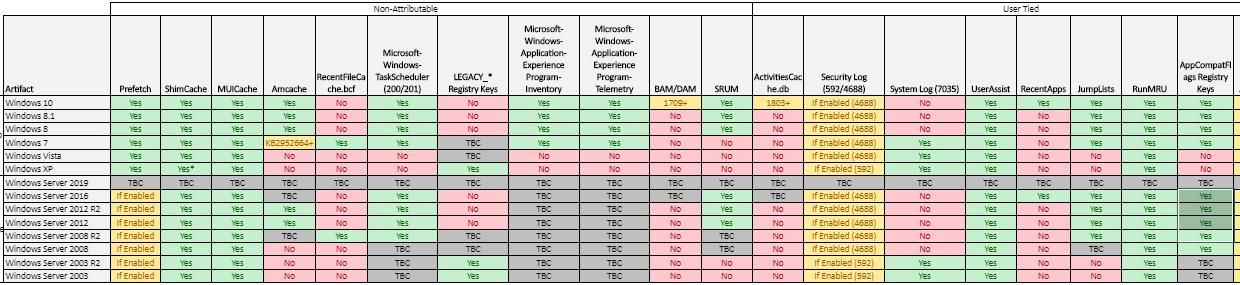
Image captured from https://1234n6-my.sharepoint.com/:x:/p/adam/EU3Fk3ec6NdPsSQx1eA1sfwB_R_fRa4tJ4c1FR6WJlWIEA?e=GRyu7r
From a defense perspective, you can choose to regularly clean up file execution records in the system
From a forensics perspective, attackers can modify and delete file execution records, so these records should not be blindly trusted
0x06 Summary
---
This article compiles the common locations of file execution records on Windows hosts (Windows 7 and above systems), verifies the content that Windows systems can record through practical testing, and analyzes methods for clearing some of these records.


