
0x00 Preface
---
Exchange ActiveSync is a Microsoft Exchange synchronization protocol used to synchronize mail resources between a mail server and mobile devices.
Adam Rutherford and David Chismon introduced a method for accessing internal file shares through Exchange ActiveSync in their article.
Article URL:
https://labs.f-secure.com/archive/accessing-internal-fileshares-through-exchange-activesync/
Based on their research, this article will detail accessing internal file shares via Exchange ActiveSync and document research insights.
0x01 Introduction
---
This article will cover the following:
- Authenticating user mailbox passwords via Exchange ActiveSync
- Testing Exchange ActiveSync open-source code
- Details of accessing internal file shares through Exchange ActiveSync
- Defense and detection
0x02 Basics
---
Exchange ActiveSync is a Microsoft Exchange synchronization protocol optimized for high-latency and low-bandwidth networks.
Based on HTTP and XML, this protocol enables mobile devices to access email, calendar, contacts, and tasks, and maintains access to this information while working offline.
Simply put, computer users access mail resources via OWA (Outlook Web Access), while mobile users access mail resources via EAS (Exchange ActiveSync).
0x03 Verifying User Mailbox Passwords via Exchange ActiveSync
---
Default corresponding URL: /Microsoft-Server-ActiveSync
Can be accessed directly through a browser, prompting for username and password
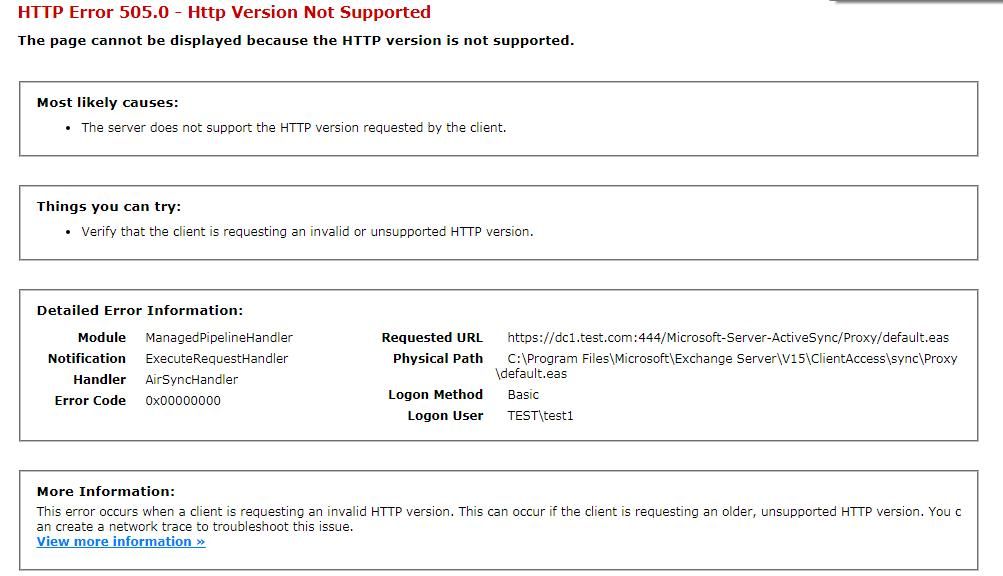
After entering the correct username and password, the returned content is as shown in the figure below
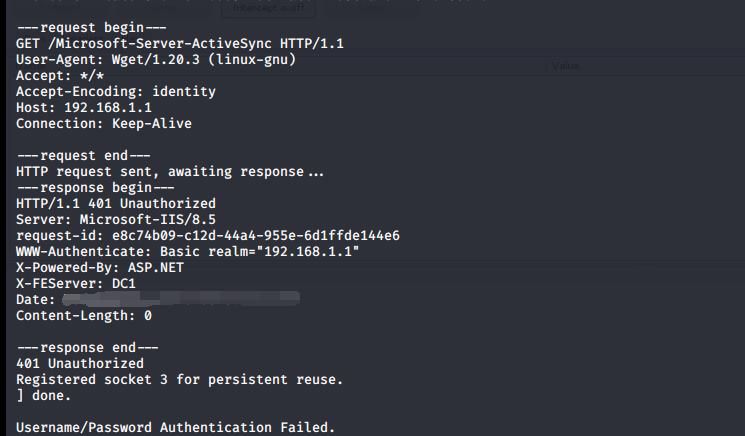
If no credentials are available, server information can be obtained directly via the wget command. Example command:
wget https://192.168.1.1/Microsoft-Server-ActiveSync --no-check-certificate --debug |
The returned result is as shown in the figure below
To enable password verification through scripts, the OPTIONS method must be used here. If the credentials are valid, status code 200 is returned.
Add HTTP Basic Authentication to the header section, with the format Authorization: Basic
The complete Python implementation code has been uploaded to GitHub at the following address:
An open-source project
0x04 Exchange ActiveSync Open Source Code Testing
---
1.https://github.com/solbirn/pyActiveSync
Requires Python2
To perform normal testing, the following settings are also required:
(1) Create a new file named proto_creds.py in the same directory
Content is as follows:
as_server='192.168.1.1' |
(2) Disable SSL certificate verification
Modify pyActiveSync\objects\MSASHTTP.py
Add import ssl
Replace httplib.HTTPSConnection(self.server, self.port)
with httplib.HTTPSConnection(self.server, self.port, context=ssl._create_unverified_context())
(3) Modify pyActiveSync/dev_playground.py
Remove code related to "Suggested Contacts"
Run dev_playground.py and misc_tests.py separately for different functions
2. https://github.com/FSecureLABS/peas
Requires Python2
Based on pyActiveSync, added features for exporting emails and accessing shared files
Common functions are as follows:
(1) Verify credentials
Code example:
import peas |
(2) Read emails
Code example for reading inbox emails:
import peas |
It should be noted that the returned email content has the body part in HTML format. My code extracts the body section and saves it as an HTML file, using the unique ConversationIndex as the filename.
To obtain information from the sent mail folder, modifications need to be made to py_activesync_helper.py. For details on the changes, refer to https://github.com/solbirn/pyActiveSync/blob/master/pyActiveSync/dev_playground.py#L150
(3) Accessing file shares
Code example for listing shared files:
import peas |
Code example for reading the content of a specified shared file:
import peas |
0x05 Details of accessing internal file shares via Exchange ActiveSync
---
1. List shared files
Example of accessed URL:
https://192.168.1.1/Microsoft-Server-ActiveSync?Cmd=Search&User=test1&DeviceId=123456&DeviceType=Python"
Parameter descriptions are as follows:
- Cmd=Search indicates the command type is Search
- User=test1 indicates the username is test1
- DeviceId=123456 indicates the device ID, which will be recorded by Exchange ActiveSync
- DeviceType=Python indicates the device type, which will be recorded by Exchange ActiveSync
The method is a POST request
Example of header content:
"Content-Type": "application/vnd.ms-sync.wbxml", |
Example of body content:
Need to convert XML format to WAP Binary XML (WBXML)
XML format example:
|
XML format reference:
https://docs.microsoft.com/en-us/openspecs/exchange_server_protocols/ms-asdoc/f8a23578-0ca4-4b36-aa07-3dcac5b83881
WAP Binary XML (WBXML) algorithm reference:
https://docs.microsoft.com/en-us/openspecs/exchange_server_protocols/ms-aswbxml/39973eb1-1e40-4eb5-ac74-42781c5a33bc
2. Read the content of a specified shared file
Example URL for access: https://192.168.1.1/Microsoft-Server-ActiveSync?Cmd=ItemOperations&User=test1&DeviceId=123456&DeviceType=Python"
Parameter descriptions are as follows:
- Cmd=ItemOperations, indicating the command type is ItemOperations
- User=test1, indicating the username is test1
- DeviceId=123456, indicating the device ID, which will be recorded by Exchange ActiveSync
- DeviceType=Python, indicating the device type, which will be recorded by Exchange ActiveSync
The method is a POST request
Header content example:
"Content-Type": "application/vnd.ms-sync.wbxml", |
Body content example:
Need to convert XML format to WAP Binary XML (WBXML)
XML format example:
|
XML format reference:
https://docs.microsoft.com/en-us/openspecs/exchange_server_protocols/ms-asdoc/e7a91040-42f1-475c-bac3-d83d7dd9652f
Based on the peas code, I extracted the shared file access functionality and created a portable version. The address is as follows:
An open-source project
The code supports two functions:
- List shared files
- Read the content of a specified shared file
Note:
When accessing the domain shared directory SYSVOL, the path must include the domain controller's computer name, not the domain name
Correct format:
\\dc1\SYSVOL\test.com\Policies\{6AC1786C-016F-11D2-945F-00C04fB984F9}\GPT.INI
Incorrect format:
\\test.com\SYSVOL\test.com\Policies\{6AC1786C-016F-11D2-945F-00C04fB984F9}\GPT.INI
If you have the domain controller's computer name, you can access files in the domain shared directory SYSVOL from the external network via Exchange ActiveSync
0x06 Defense Detection
---
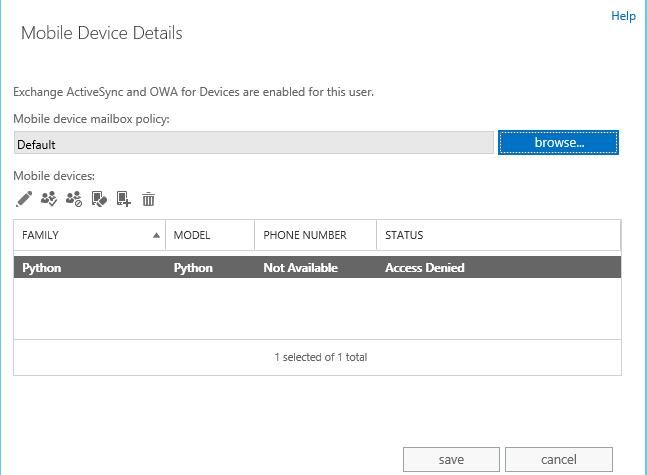
Reading emails and accessing shared directories via Exchange ActiveSync leaves device information. Code location for device information:
https://github.com/FSecureLABS/peas/blob/master/peas/pyActiveSync/objects/MSASHTTP.py#L25
Two methods to view device information
1. Log in to Exchange Admin Center
Select mailbox user -> View details under Mobile Devices, as shown below
2. Use Exchange Management Shell
Command as follows:
Get-ActiveSyncDevice|fl UserDisplayName,DeviceId,DeviceType,DeviceUserAgent |
Log location for accessing shared files via Exchange ActiveSync:
%ExchangeInstallPath%Logging\HttpProxy\Eas
Method to disable accessing shared files via Exchange ActiveSync:
Use Exchange Management Shell, command as follows:
Set-MobileDeviceMailboxPolicy -Identity:Default -UNCAccessEnabled:$false -WSSAccessEnabled:$false |
References:
https://docs.microsoft.com/en-us/powershell/module/exchange/set-mobiledevicemailboxpolicy?view=exchange-ps
Command to view configuration: Get-MobileDeviceMailboxPolicy |fl
0x07 Summary
---
This article details accessing internal file shares via Exchange ActiveSync, extracts the file-sharing access functionality based on peas code, generates a portable version, and provides defense recommendations along with exploitation approaches.


