
0x00 Preface
---
Windows Defender is an antivirus software program built into the Windows operating system. This article introduces penetration methods related to Windows Defender solely from a technical research perspective, analyzes exploitation approaches, and provides defense recommendations.
0x01 Introduction
---
This article will cover the following topics:
- Check Windows Defender Version
- View Existing Exclusion List
- Disable Windows Defender Real-time Protection
- Add Exclusion List
- Remove Token to Disable Windows Defender
- Restore Quarantined Files
0x02 Check Windows Defender Version
---
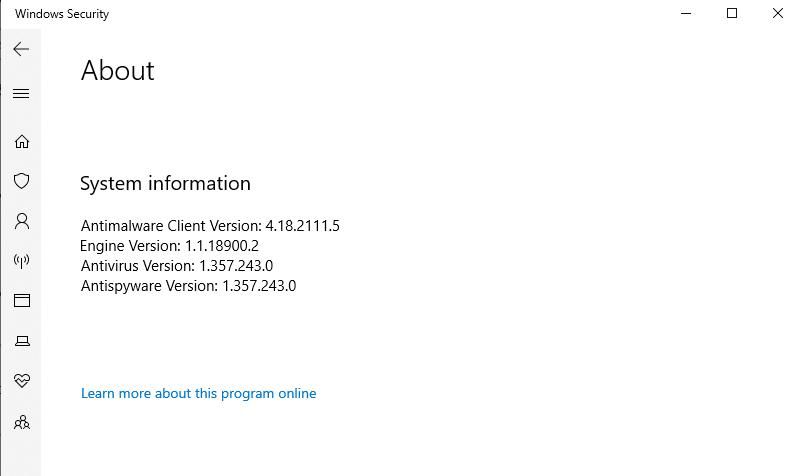
1. View via Panel
Navigate to Windows Security -> Settings -> About, where Antimalware Client Version indicates the Windows Defender version, as shown below
2. View via Command Line
dir "C:\ProgramData\Microsoft\Windows Defender\Platform\" /od /ad /b |
The larger number indicates the latest version
0x03 View Existing Exclusion List
---
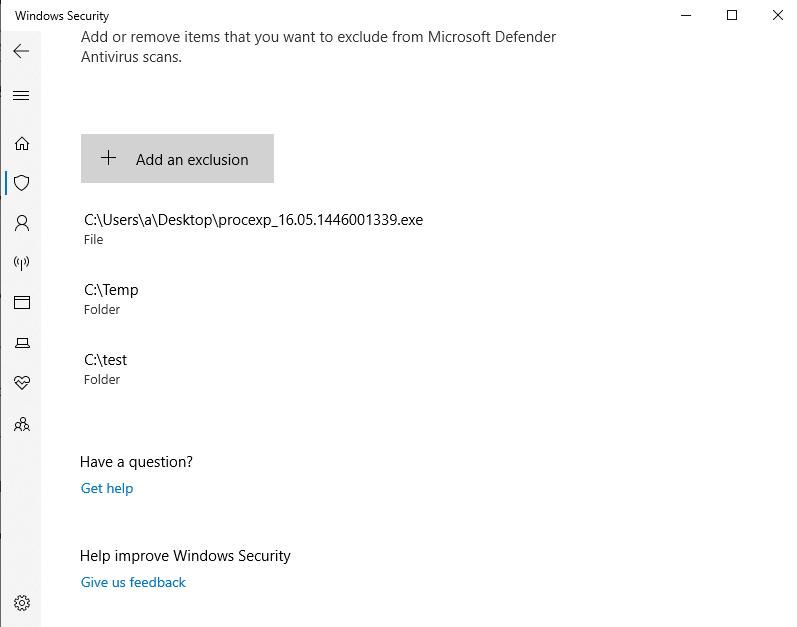
1. View via Panel
Navigate to Windows Security -> Virus & threat protection settings -> Add or remove exclusions, as shown below
2. View via Command Line
reg query "HKLM\SOFTWARE\Microsoft\Windows Defender\Exclusions" /s |
3. View via PowerShell
Get-MpPreference | select ExclusionPath |
0x04 Disable Windows Defender Real-time Protection
---
1. Disable via Control Panel
Navigate to Windows Security -> Virus & threat protection settings, turn off Real-time protection
2. Disable via Command Line
Prerequisites:
- Requires TrustedInstaller privileges
- Tamper Protection must be disabled
reg add "HKEY_LOCAL_MACHINE\SOFTWARE\Microsoft\Windows Defender\Real-Time Protection" /v "DisableRealtimeMonitoring" /d 1 /t REG_DWORD /f |
Note:
When successful, a notification will pop up in the bottom-right corner indicating Windows Defender has been disabled
Supplement 1: Enable Windows Defender Real-time Protection
Prerequisites:
- Requires TrustedInstaller privileges
- Tamper Protection must be disabled
reg delete "HKEY_LOCAL_MACHINE\SOFTWARE\Microsoft\Windows Defender\Real-Time Protection" /v "DisableRealtimeMonitoring" /f |
Supplement 2: Obtain TrustedInstaller privileges
Refer to the previous article "Penetration Techniques - Token Theft and Exploitation"
You can also use AdvancedRun, command example:
AdvancedRun.exe /EXEFilename "%windir%\system32\cmd.exe" /CommandLine '/c reg add "HKEY_LOCAL_MACHINE\SOFTWARE\Microsoft\Windows Defender\Real-Time Protection" /v "DisableRealtimeMonitoring" /d 1 /t REG_DWORD /f' /RunAs 8 /Run |
Supplement 3: Tamper Protection
Reference materials:
https://docs.microsoft.com/en-us/microsoft-365/security/defender-endpoint/prevent-changes-to-security-settings-with-tamper-protection?view=o365-worldwide
When Tamper Protection is enabled, users cannot modify Windows Defender configurations via registry, PowerShell, or group policy
Method to enable Tamper Protection:
Select Windows Security -> Virus & threat protection settings in sequence, then enable Tamper Protection
Corresponding cmd command for this operation: reg add "HKEY_LOCAL_MACHINE\SOFTWARE\Microsoft\Windows Defender\Features" /v "TamperProtection" /d 5 /t REG_DWORD /f
Method to disable Tamper Protection:
Select Windows Security -> Virus & threat protection settings in sequence, then disable Tamper Protection
Corresponding cmd command for this operation: reg add "HKEY_LOCAL_MACHINE\SOFTWARE\Microsoft\Windows Defender\Features" /v "TamperProtection" /d 4 /t REG_DWORD /f. However, we cannot set Tamper Protection by modifying the registry; it can only be changed through the panel
Check the status of Tamper Protection:
reg query "HKEY_LOCAL_MACHINE\SOFTWARE\Microsoft\Windows Defender\Features" /v "TamperProtection" |
In the returned result, a value of 5 indicates enabled, and a value of 4 indicates disabled
Supplement 4: Disable Windows Defender's Real-time protection via PowerShell
Set-MpPreference -DisableRealtimeMonitoring $true |
Note: This is no longer applicable in newer versions of Windows
Supplement 5: Disable Windows Defender's Real-time protection via Group Policy
Open gpedit.msc in sequence -> Computer Configuration -> Administrative Templates -> Windows Components -> Microsoft Defender Antivirus -> Real-time Protection, select Turn off real-time protection, and configure it as Enable
Note: This is no longer applicable in newer versions of Windows
0x05 Add Scan Exclusion List
---
1. Add via Panel
Select Windows Security -> Virus & threat protection settings -> Add or remove exclusions in sequence, choose Add an exclusion, and specify the type
This operation is equivalent to modifying the registry key values at HKLM\SOFTWARE\Microsoft\Windows Defender\Exclusions\, with specific locations as follows:
- Type File corresponds to the registry entry Paths
- The type Folder corresponds to the registry key Paths
- The type File type corresponds to the registry key Extensions
- The type Process corresponds to the registry key Processes
2. Adding via command line
Prerequisites:
- Requires TrustedInstaller permissions
Example cmd command:
reg add "HKEY_LOCAL_MACHINE\SOFTWARE\Microsoft\Windows Defender\Exclusions\Paths" /v "c:\test" /d 0 /t REG_DWORD /f |
3. Adding via PowerShell
Prerequisites:
- Requires administrator permissions
Reference materials:
https://docs.microsoft.com/en-us/powershell/module/defender/add-mppreference?view=windowsserver2022-ps
Example PowerShell command:
Add-MpPreference -ExclusionPath "C:\test" |
Note: Delete exclusion list
Remove-MpPreference -ExclusionPath "C:\test" |
0x06 Removing Token Causes Windows Defender to Fail
---
Learning address:
https://elastic.github.io/security-research/whitepapers/2022/02/02.sandboxing-antimalware-products-for-fun-and-profit/article/
Simple understanding:
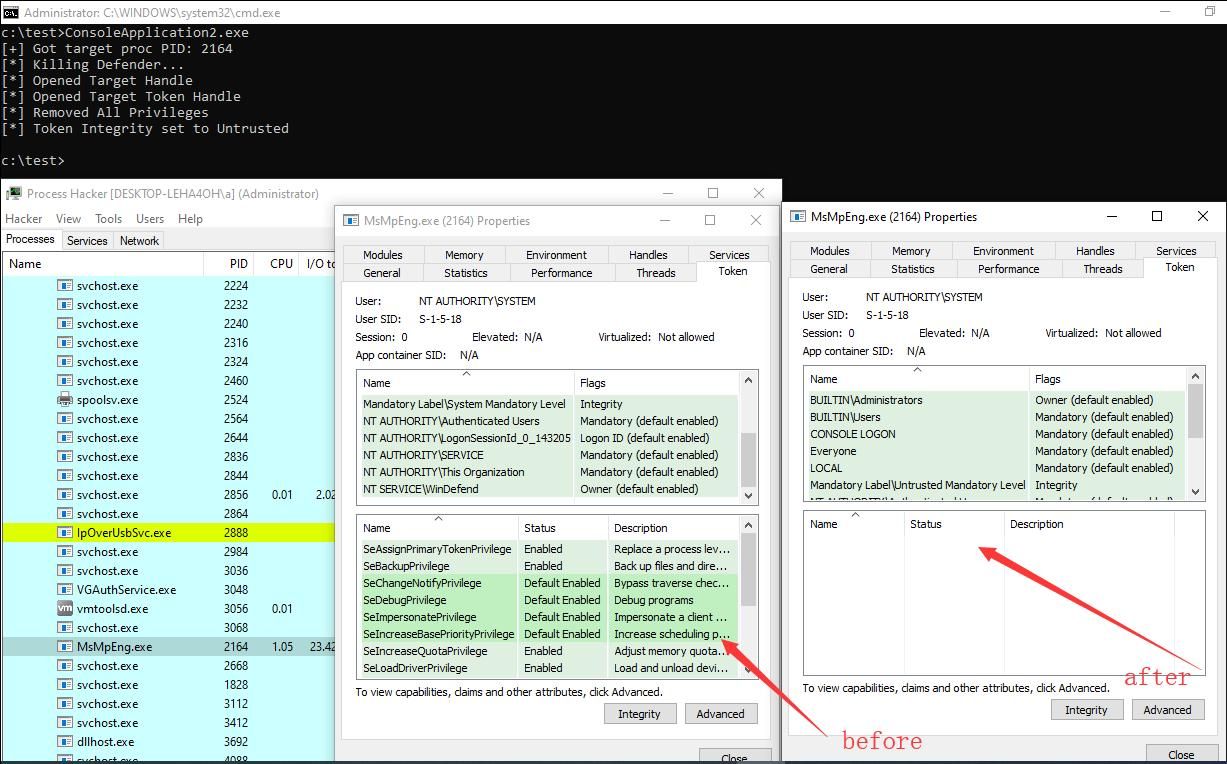
- The Windows Defender process is MsMpEng.exe
- MsMpEng.exe is a protected process (Protected Process Light, abbreviated as PPL)
- Non-PPL processes cannot obtain handles to PPL processes, preventing us from directly terminating the PPL process MsMpEng.exe
- However, we can modify the token of the process MsMpEng.exe using threads running with SYSTEM privileges
- After removing all tokens from the process MsMpEng.exe, the process cannot access resources of other processes, thus unable to detect whether other processes are malicious, ultimately causing Windows Defender to fail
POC address: https://github.com/pwn1sher/KillDefender
Exploitation conditions:
- Requires System privileges
Test as shown in the figure below
0x07 Restore Quarantined Files
---
References:
https://docs.microsoft.com/en-us/microsoft-365/security/defender-endpoint/command-line-arguments-microsoft-defender-antivirus?view=o365-worldwide
1. Locate MpCmdRun
dir "C:\ProgramData\Microsoft\Windows Defender\Platform\" /od /ad /b |
Obtain
Location of MpCmdRun: C:\ProgramData\Microsoft\Windows Defender\Platform\
2. Common Commands
View list of quarantined files:
MpCmdRun -Restore -ListAll |
Restore file with specified name to original directory:
MpCmdRun -Restore -FilePath C:\test\mimikatz_trunk.zip |
Restore all files to original directory:
MpCmdRun -Restore -All |
Check if specified path is in exclusion list:
MpCmdRun -CheckExclusion -path C:\test |
0x08 Defense Recommendations
---
Prevent command-line shutdown of Windows Defender: Enable Tamper Protection
Prevent Windows Defender failure via token removal: Block non-PPL processes from modifying token of PPL process MsMpEng.exe. Tool reference: https://github.com/elastic/PPLGuard
0x09 Summary
---
This article introduces Windows Defender-related penetration methods solely from a technical research perspective, analyzes exploitation approaches, and provides defense recommendations. The exploitation method causing Windows Defender failure via token removal may be resolved by default in future Windows versions.


