
0x00 Preface
---
WMI (Windows Management Instrumentation) is a management feature that provides a unified environment for accessing Windows system components, supporting both local and remote access. Previous articles such as "WMI Attacks," "WMI Backdoor," "WMI Defense," and "Study Notes of WMI Persistence using wmic.exe" have covered related content. This article will analyze common methods of wmic from the perspectives of information gathering and lateral movement, combining exploitation ideas to provide defense recommendations.
0x01 Introduction
---
This article will cover the following topics:
- Usage of wbemtest
- Querying host information via wmic
- Modifying the registry via wmic
- Executing programs via wmic
- Local and remote access to WMI services
0x02 Usage of wbemtest
---
Reference materials:
https://docs.microsoft.com/en-us/mem/configmgr/develop/core/understand/introduction-to-wbemtest
Installed by default on Windows systems, it can be used to connect to WMI namespaces and access WMI services.
With wbemtest, we can obtain complete functional details and usage methods of WMI.
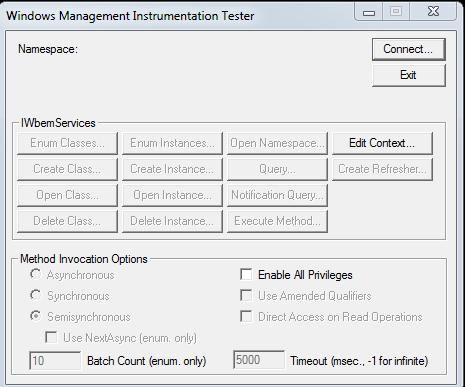
The interface is shown in the figure below.
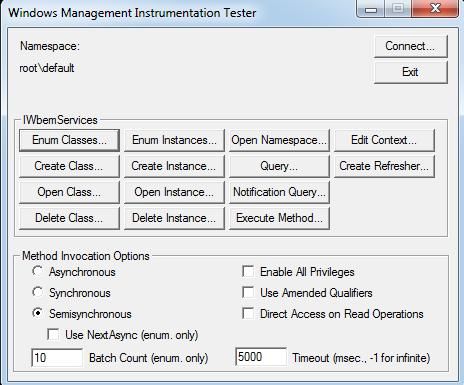
Click Connect..., enter the WMI namespace root\cimv2, and after connecting to root\cimv2, you can enter the main page, as shown below.
Common function examples are as follows:
(1) Enum Classes...
Enumerate classes, which can be used to enumerate all objects and query the definition of each class.
Here, taking the query of the Win32_Process object as an example:
Select Enum Classes... -> Recursive -> OK in sequence, select Win32_Process, double-click to enter the object editor, as shown below.
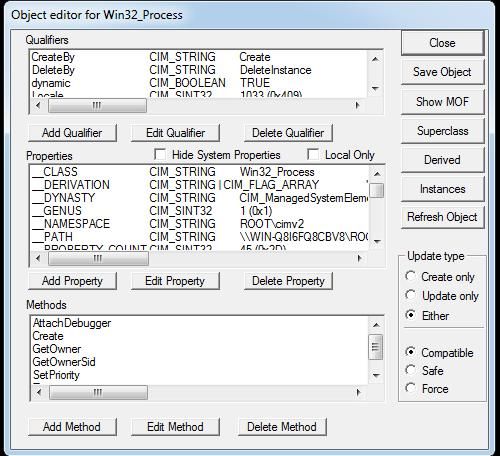
The Properties bar can be used to view properties, for example, here is Handle, which can be queried via Query... mentioned later.
The Methods bar can be used to view methods, for example, here is Create, which can be invoked via Execute Method... mentioned later.
(2)Query...
Query attributes, requires input of WMI Query Language (WQL)
Reference:
https://docs.microsoft.com/en-us/windows/win32/wmisdk/wql-sql-for-wmi
Syntax example:
SELECT Handle FROM Win32_Process |
Query result as shown in the figure below
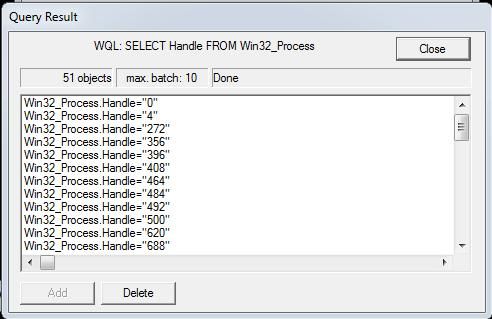
This query statement converted to wmic command is as follows:
wmic /namespace:"\\root\cimv2" PATH Win32_Process get Handle |
(3)Execute Method...
Invoke method, here taking the Create method of the Win32_Process object as an example
Set Object Path to Win32_Process, click OK
In the pop-up interface, set Method to Create
Click Edit in Parameters..., in the pop-up interface, sequentially select CommandLine -> Edit Property
Set Valve to calc, as shown in the figure below
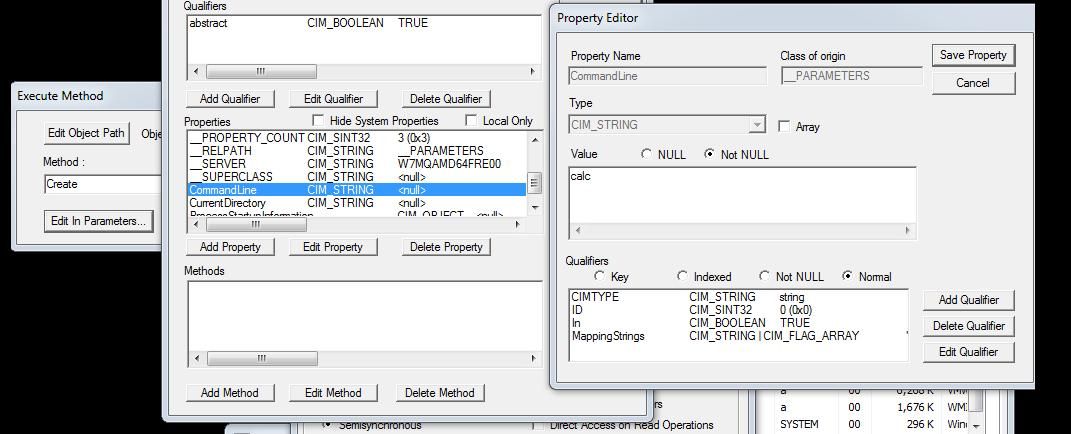
Click Save Object -> Execute! to pop up the calculator
The complete command replaced with wmic is as follows:
wmic /namespace:"\\root\cimv2" PATH Win32_Process call create "calc" |
The abbreviated command is as follows:
wmic process call create "calc" |
0x03 Local and Remote Access to WMI Services
---
1. Query Host Name
Local:
wmic /namespace:"\\root\cimv2" PATH Win32_ComputerSystem get Name |
Remote:
wmic /node:192.168.1.1 /user:"administrator" /password:"123456" /namespace:"\\root\cimv2" PATH Win32_ComputerSystem get Name |
2. Registry Operations
For specific details, please refer to "Study Notes of WMI Persistence using wmic.exe".
Here are several commonly used commands:
(1) Retrieve the remote desktop connection history of the current user
Enumerate the registry key value HKCU:\Software\Microsoft\Terminal Server Client\Servers, the command is as follows:
wmic /namespace:"\\root\cimv2" path stdregprov call EnumKey ^&h80000001,"Software\Microsoft\Terminal Server Client\Servers" |
(2) Remotely query and modify Restricted Admin Mode
For content related to Restricted Admin Mode, please refer to "Penetration Techniques – Pass the Hash with Remote Desktop (Restricted Admin mode)".
For C Sharp implementation of remotely querying and modifying Restricted Admin Mode, please refer to:
https://github.com/GhostPack/RestrictedAdmin
https://github.com/airzero24/WMIReg
The wmic command for remotely querying Restricted Admin Mode is as follows:
wmic /node:192.168.1.1 /user:"administrator" /password:"123456" /namespace:"\\root\cimv2" path stdregprov call GetDWORDValue ^&H80000002,"System\CurrentControlSet\Control\Lsa","DisableRestrictedAdmin" |
The wmic command for remotely enabling Restricted Admin Mode is as follows:
wmic /node:192.168.1.1 /user:"administrator" /password:"123456" /namespace:"\\root\cimv2" path stdregprov call SetDWORDValue ^&H80000002,"System\CurrentControlSet\Control\Lsa","DisableRestrictedAdmin","0" |
The wmic command for remotely disabling Restricted Admin Mode is as follows:
wmic /node:192.168.1.1 /user:"administrator" /password:"123456" /namespace:"\\root\cimv2" path stdregprov call SetDWORDValue ^&H80000002,"System\CurrentControlSet\Control\Lsa","DisableRestrictedAdmin","1" |
3. Execute Program
Local:
wmic process call create "calc" |
Remote:
wmic /node:192.168.1.1 /user:"administrator" /password:"123456" process call create "calc" |
4. Process Operations
Query all local processes:
wmic /namespace:"\\root\cimv2" PATH Win32_Process get name,processid,commandline /FORMAT:list |
Query all remote host processes:
wmic /node:192.168.1.1 /user:"administrator" /password:"123456" /namespace:"\\root\cimv2" PATH Win32_Process get name,processid,commandline /FORMAT:list |
Other usage can also refer to: https://docs.microsoft.com/en-us/archive/blogs/jhoward/wmic-samples
0x04 Defense Detection
---
It should be noted that WMI logging is minimal by default and cannot record command details of WMI.
WMI-Activity trace logs can record basic logs but cannot capture WMI command details. The enabling method is as follows:
Open Event Viewer, select View -> Show Analytic and Debug Logs
Navigate to Applications and Services Logs -> Microsoft -> Windows -> WMI-Activity -> Trace, then click Enable Log
When using the wmic command, the default process c:\windows\system32\wbem\wmic.exe is launched. Sysmon can be chosen here to record process creation details, allowing inspection of CommandLine to obtain WMI command specifics
For detailed log information, refer to: https://jpcertcc.github.io/ToolAnalysisResultSheet/details/wmic.htm
Alternatively, the open-source digital forensics tool Velociraptor can be used to record process creation details, including CommandLine
0x05 Summary
---
This article introduces fundamental knowledge of wmic, combines exploitation approaches, and provides defense recommendations.


