
0x00 Preface
---
In the previous article 'Penetration Basics - Obtaining Active Directory Information 2: Bypass AV', the method of using csvde to obtain Active Directory information was introduced. Its advantages include being built into Windows Server systems and exporting data in CSV format for easy viewing. However, this command is not supported by default on Windows 7 systems.
This article will introduce methods to run csvde on Windows 7, expanding its applicability.
0x01 Introduction
---
This article will cover the following:
- Background Knowledge
- Porting Approach
- Implementation Methods
0x02 Background Knowledge
---
Reference Materials:
https://docs.microsoft.com/en-us/previous-versions/orphan-topics/ws.10/cc772704(v=ws.10)?redirectedfrom=MSDN
https://docs.microsoft.com/en-us/previous-versions/windows/it-pro/windows-server-2012-r2-and-2012/cc732101(v=ws.11)
1. Dependencies of csvde
The following structure needs to be clarified:
- Windows Server 2003, supports csvde by default
- Windows Server 2008 and later versions, require enabling the Active Directory Domain Services (AD DS) or Active Directory Lightweight Directory Services (AD LDS) server role
- Windows XP Professional, requires installation of Active Directory Application Mode (ADAM)
- Windows 7 and later versions, require installation of Remote Server Administration Tools (RSAT)
2. Installing Remote Server Administration Tools (RSAT)
Remote Server Administration Tools for Windows 7: Microsoft no longer provides downloads
Remote Server Administration Tools for Windows 8 download link: https://www.microsoft.com/en-us/download/details.aspx?id=28972
Remote Server Administration Tools for Windows 10 download link: https://www.microsoft.com/en-us/download/details.aspx?id=45520
3. Installing Remote Server Administration Tools (RSAT) on Win7
(1) Download and install KB958830
Microsoft no longer provides manual downloads; you can choose to install Win7 automatic update patches
(2) Install the feature
Open Control Panel, select Turn Windows features on or off
In the Windows Features interface, you can find Remote Server Administration Tools, as shown in the figure below

To support csvde, you need to install AD DS Snap-ins and Command-line Tools, with the path as follows:
Remote Server Administration Tools -> Role Administration Tools -> AD DS and AD LDS Tools -> AD DS Tools -> AD DS Snap-ins and Command-line Tools, as shown in the figure below
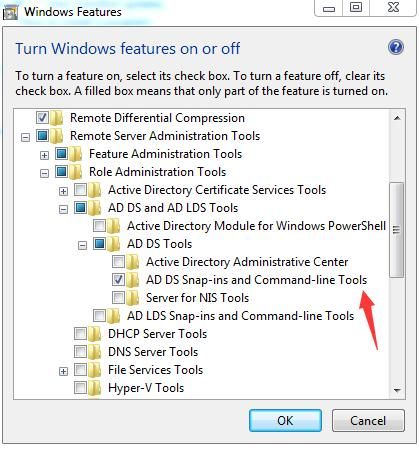
After successful installation, the current Win7 system supports the csvde command
0x03 Migration Approach
---
The default installation path for csvde is c:\windows\system32. You can use Process Monitor to monitor the startup process of csvde and locate the dependency files required by csvde, as shown in the figure below
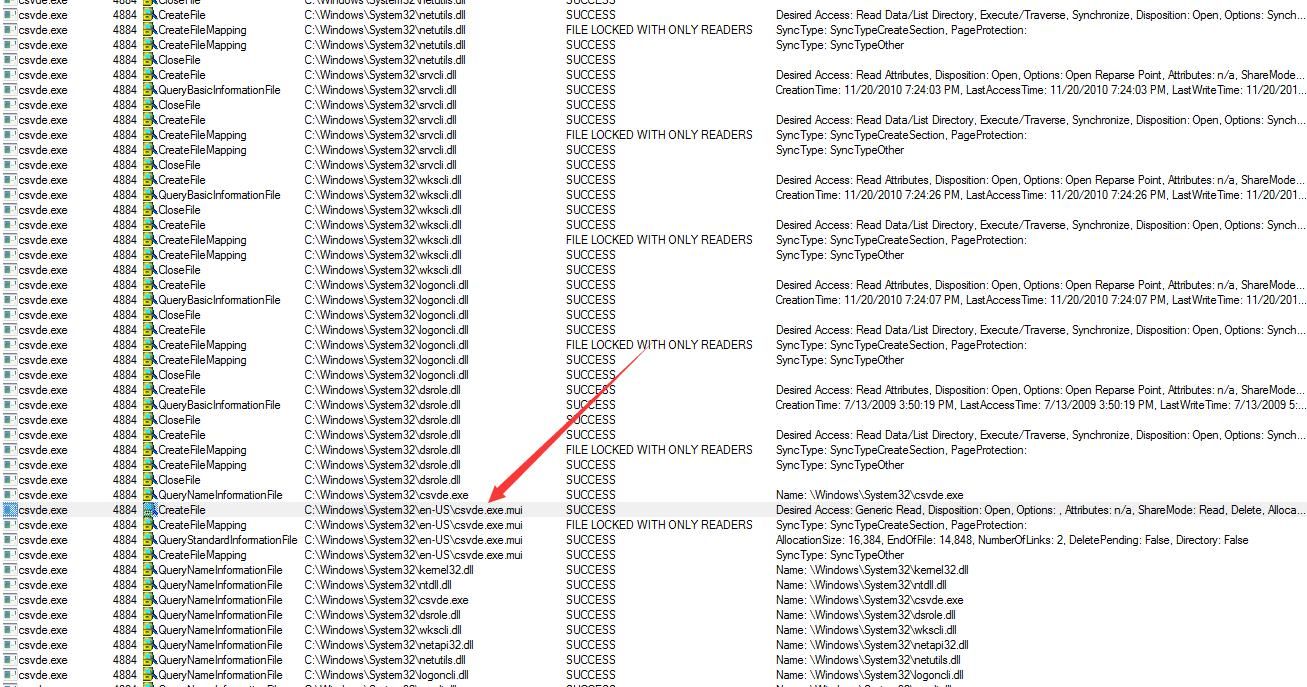
From the figure, it can be seen that csvde requires the dependency file C:\Windows\System32\en-US\csvde.exe.mui during startup
After a period of testing, the following migration approach was ultimately determined:
- Copy the file C:\Windows\System32\csvde.exe
- Copy the file C:\Windows\System32\en-US\csvde.exe.mui
0x04 Implementation Method
---
We know that creating files under C:\Windows\System32\ requires administrator privileges. To enable transplantation under standard user permissions, the relative path method can be adopted here:
- Copy csvde.exe to any path accessible with standard user permissions
- Create folder en-US in the same directory, copy csvde.exe.mui
For testing convenience, I have uploaded the csvde from my test system to GitHub at the following address:
An open-source project
0x05 Summary
---
This article introduces the method to run csvde under Win7, improving applicability. The same method can be applied to implement operation under Win8 and Win10 respectively.

