
0x00 Preface
---
Recently, I encountered an interesting issue: when trying to use WMI to obtain the list of installed programs on the current system, I couldn't get a complete list. So, I conducted further research, identified the cause of the error, changed my approach, and achieved the goal.
This article is an introductory piece on basic knowledge, aimed at solving fundamental problems.
0x01 Introduction
---
This article will cover the following topics:
- Obtaining the list of installed programs on the current system via WMI
- Reasons for incomplete WMI query results
- Implementation ideas for obtaining a complete program list
0x02 Obtaining the List of Installed Programs on the Current System
---
1. Using PowerShell to call WMI
The code is as follows:
Get-WmiObject -class Win32_Product |
Filter the output results to display only program names, the code is as follows:
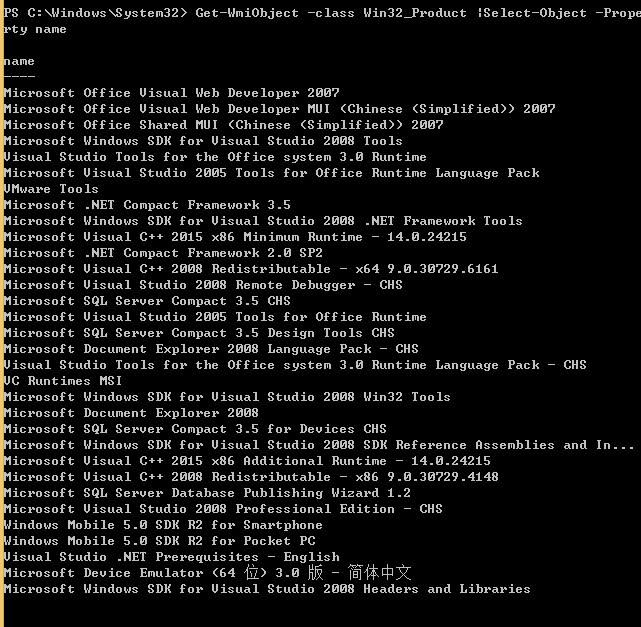
Get-WmiObject -class Win32_Product | Select-Object -Property name |
The obtained result is shown in the figure below
2. Using wmic to call WMI
The code is as follows:
wmic /NAMESPACE:"\\root\CIMV2" PATH Win32_Product |
Filter the output results to display only program names, the code is as follows:
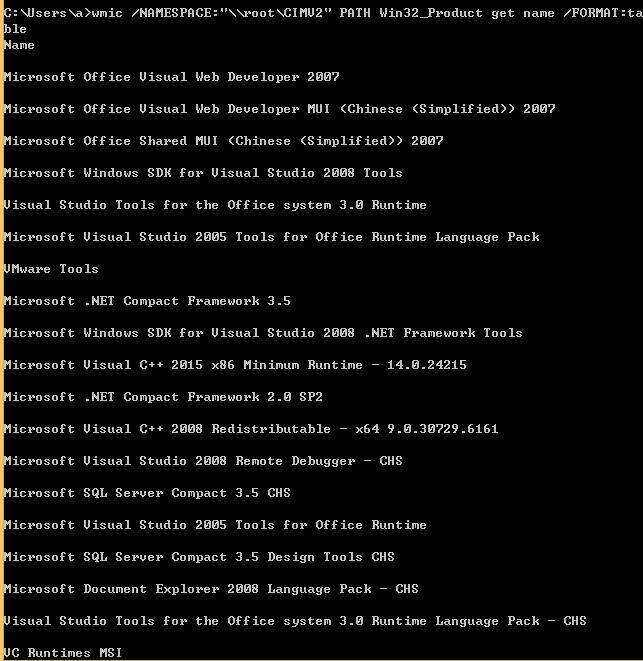
wmic /NAMESPACE:"\\root\CIMV2" PATH Win32_Product get name /FORMAT:table |
The obtained result is shown in the figure below
3. Using WMI Explorer to call WMI
Download address:
https://wmie.codeplex.com/releases/view/135794
A GUI-based WMI query tool that can be used to query WMI-supported classes, making it a great tool for studying WMI.
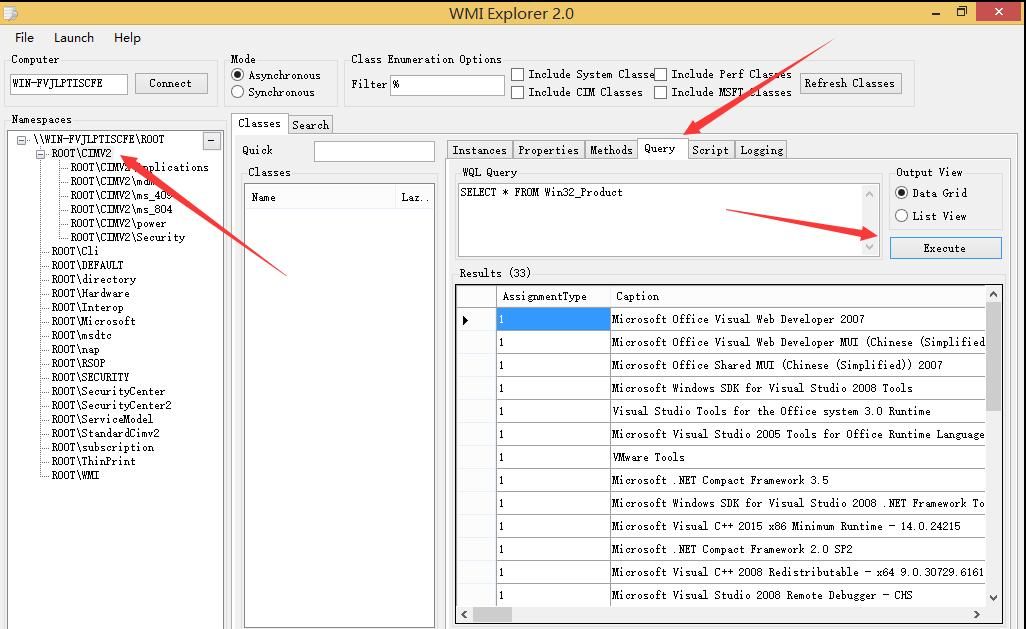
First, click Connect to connect to the local machine.
Select ROOT\CIMV2 -> Query.
Enter the query command:
SELECT * FROM Win32_Product |
The result is shown in the figure below.
4. Query installed programs via Control Panel
Control Panel -> Programs -> Programs and Features
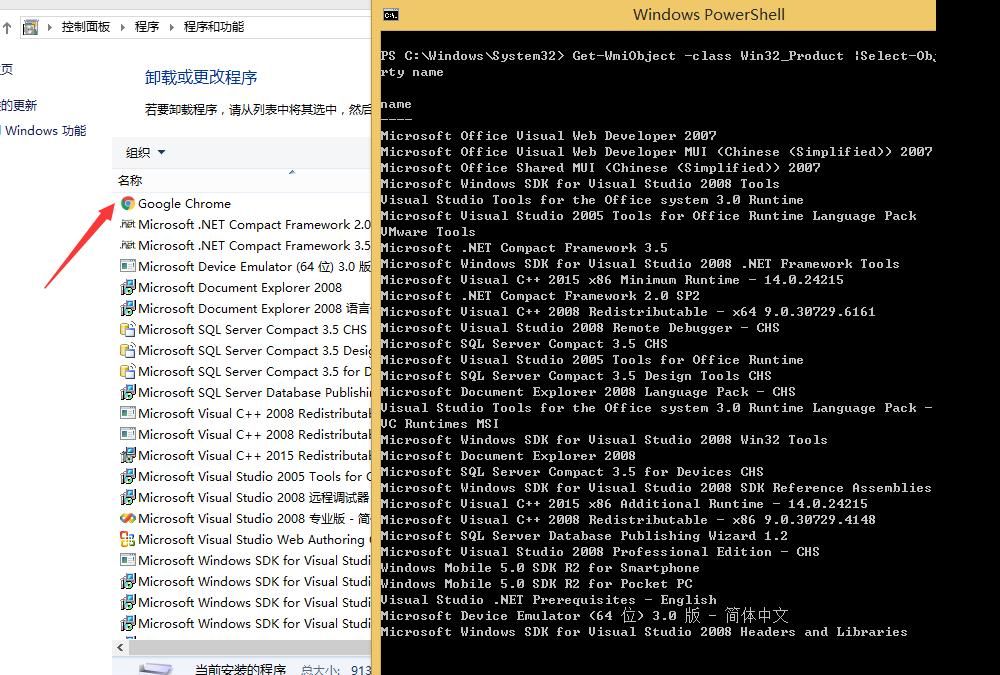
It is found that some programs cannot be obtained through WMI queries, such as Google Chrome. The comparison result is shown in the figure below.
0x03 Reasons for incomplete WMI query results
---
Querying Win32_Product via WMI can only retrieve a specific list of programs.
These programs share a common characteristic: their installation packages are created by Windows Installer, and the installation process invokes the Windows Installer service for installation.
Note:
Microsoft Windows Installer: A component of the Windows operating system, serving as the standard foundation for installing and uninstalling software.
Windows Installer Service: Adds, modifies, and removes applications provided as Windows Installer packages.
In addition to Microsoft Windows Installer, tools like EasySetup, Setup2Go, Advanced Installer, Qt installer framework, and WinRAR can also be used to create installation packages.
Chrome does not invoke the Microsoft Windows Installer component during its installation process, so it cannot be found by querying Win32_Product via WMI.
0x04 Implementation Approach for Obtaining a Complete Program List
---
We know that the program list obtained via Control Panel -> Programs -> Programs and Features is relatively complete. This list corresponds to the registry key:
HKEY_LOCAL_MACHINE\SOFTWARE\Microsoft\Windows\CurrentVersion\Uninstall\
Each subkey represents a program in the list.
Therefore, a complete program list can be obtained by enumerating registry keys.
It is worth noting that on 64-bit systems, registry redirection issues can also affect the display of the program list.
The 32-bit program list corresponds to the registry key HKEY_LOCAL_MACHINE\SOFTWARE\Wow6432Node\Microsoft\Windows\CurrentVersion\Uninstall\
The 64-bit program list corresponds to the registry key HKEY_LOCAL_MACHINE\SOFTWARE\Microsoft\Windows\CurrentVersion\Uninstall\
Note:
This issue was previously summarized in the article 'Notes on Redirection Issues When Running 32-bit Programs on 64-bit Systems'.
Write a PowerShell script to enumerate the registry and obtain a complete list of programs.
Key code:
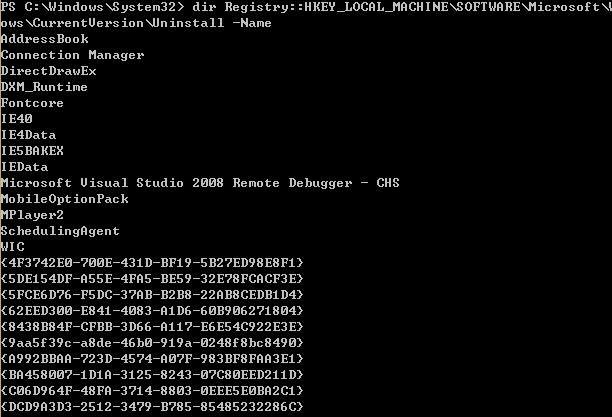
1. Enumerate subkeys under the specified registry key
dir Registry::HKEY_LOCAL_MACHINE\SOFTWARE\Microsoft\Windows\CurrentVersion\Uninstall -Name |
As shown in the figure below
2. Query the registry key values of the specified registry key
(Get-ItemProperty -Path "Registry::HKEY_LOCAL_MACHINE\SOFTWARE\Microsoft\Windows\CurrentVersion\Uninstall\{4F3742E0-700E-431D-BF19-5B27ED98E8F1}").DisplayName |
As shown in the figure below

3. Implement enumeration by adding a foreach loop
$RegPath = "Registry::HKEY_LOCAL_MACHINE\SOFTWARE\Microsoft\Windows\CurrentVersion\Uninstall\" |
4. Add system architecture detection to automatically determine registry redirection
Complete code can be referenced at the following address:
An open-source project
0x05 Supplement
---
Typically, installed programs create shortcuts, so attempting to enumerate shortcut files can also yield a complete program list
Get all shortcuts via wmic:
wmic PATH Win32_ShortcutFile get name /FORMAT:table |
0x06 Summary
---
This article explains why WMI cannot obtain a complete list of installed programs on the current system, and demonstrates writing a PowerShell script to achieve a complete program list by enumerating registry entries. As an introductory article on basic knowledge, it aims to provide inspiration for newcomers.


