
0x00 Preface
---
In domain penetration, obtaining Active Directory information is essential
This article will take obtaining all users, all computers, and all groups in Active Directory as examples to introduce common information acquisition methods
0x01 Introduction
---
This article will cover the following:
- Methods for obtaining Active Directory information from outside the domain
- Methods for obtaining Active Directory information from within the domain
- Methods for obtaining information using C++ to call ADSI interfaces
0x02 Basics
---
Domain environments use a directory database to store objects such as user accounts, computer accounts, and groups
LDAP (Lightweight Directory Access Protocol) is used to query and update the directory database
Common Abbreviations
- DN: Distinguished Name
- CN: Common Name
- OU: Organizational Unit
- DC: Domain Controller
A Distinguished Name (DN) consists of three attributes: CN, OU, and DC.
Simple Explanation:
The Domain Controller typically has port 389 open by default for LDAP services.
0x03 Methods for Obtaining Active Directory Information from Outside the Domain
---
1. Querying Data Using ldapsearch on Kali Linux
The test environment is shown in the figure below.
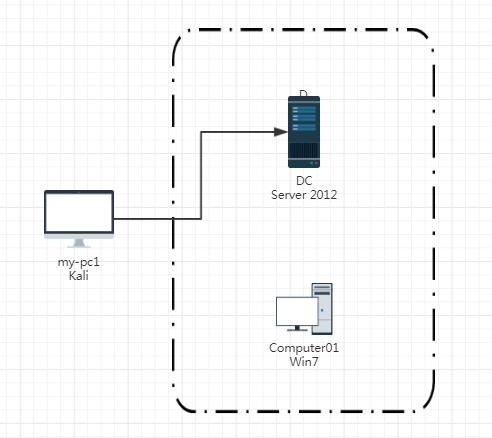
Prerequisite: We can access port 389 on the Domain Controller (DC), and we have obtained the credentials of at least one regular domain user.
In this test environment, we have obtained the password for the regular domain user 'testa' as DomainUser123!
The connection command is as follows:
ldapsearch -x -H ldap://192.168.1.1:389 -D "CN=testa,CN=Users,DC=test,DC=com" -w DomainUser123! -b "DC=test,DC=com" |
Parameter description:
- -x Perform simple authentication
- -H Server address
- -D DN used to bind to the server
- -w Password for binding DN
- -b Specify the root node to query
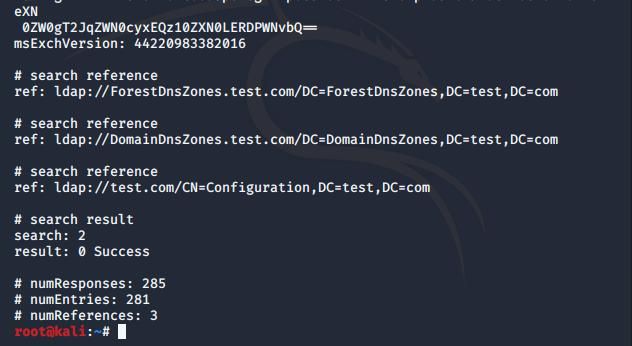
This command will display all information that can be queried, as shown in the figure below
Next, add search conditions to categorize the results
(1) Query all domain users
Add search condition: "(&(objectClass=user)(objectCategory=person))"
Complete command is as follows:
ldapsearch -x -H ldap://192.168.1.1:389 -D "CN=testa,CN=Users,DC=test,DC=com" -w DomainUser123! -b "DC=test,DC=com" -b "DC=test,DC=com" "(&(objectClass=user)(objectCategory=person))" |
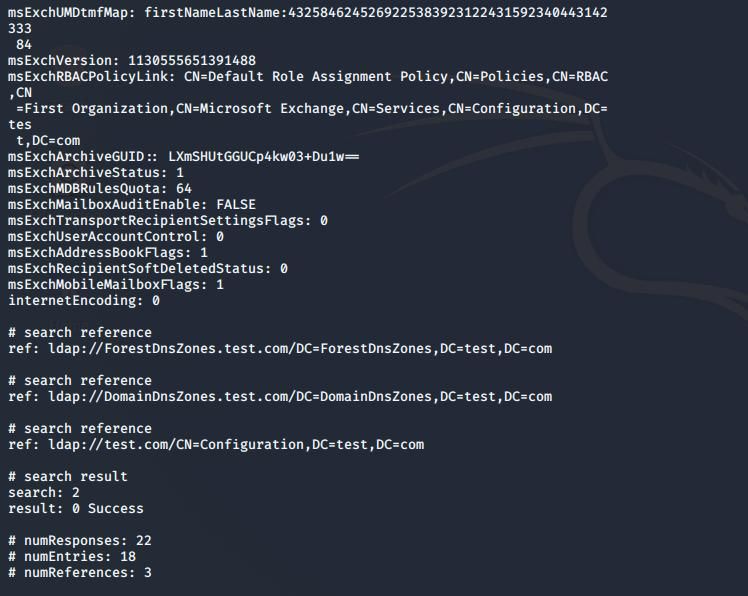
This command will output all attributes of all domain users, as shown in the figure below
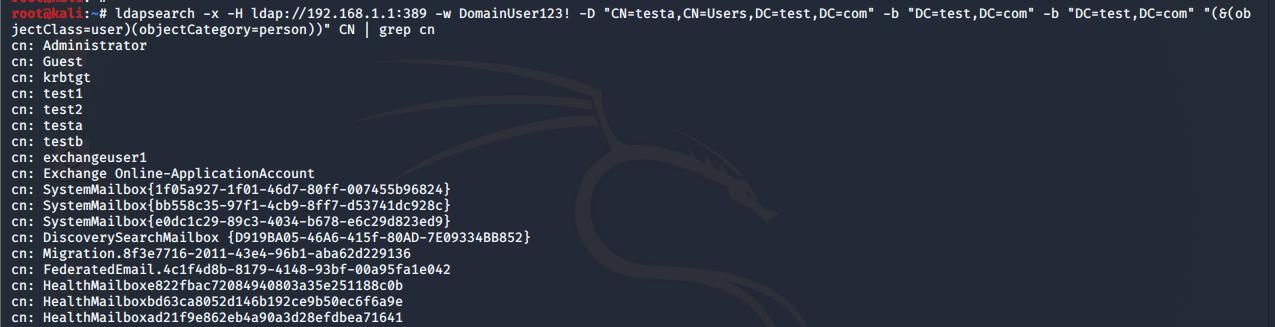
To facilitate name statistics, you can choose to list only CN (Common Name) and use the grep command to filter the output
The command is as follows:
ldapsearch -x -H ldap://192.168.1.1:389 -D "CN=testa,CN=Users,DC=test,DC=com" -w DomainUser123! -b "DC=test,DC=com" -b "DC=test,DC=com" "(&(objectClass=user)(objectCategory=person))" CN | grep cn |
The result output is shown in the figure below
(2) Query all computers
Add search condition: "(&(objectCategory=computer)(objectClass=computer))"
The command is as follows:
ldapsearch -x -H ldap://192.168.1.1:389 -D "CN=testa,CN=Users,DC=test,DC=com" -w DomainUser123! -b "DC=test,DC=com" -b "DC=test,DC=com" "(&(objectCategory=computer)(objectClass=computer))" CN | grep cn |
The result output is shown in the figure below

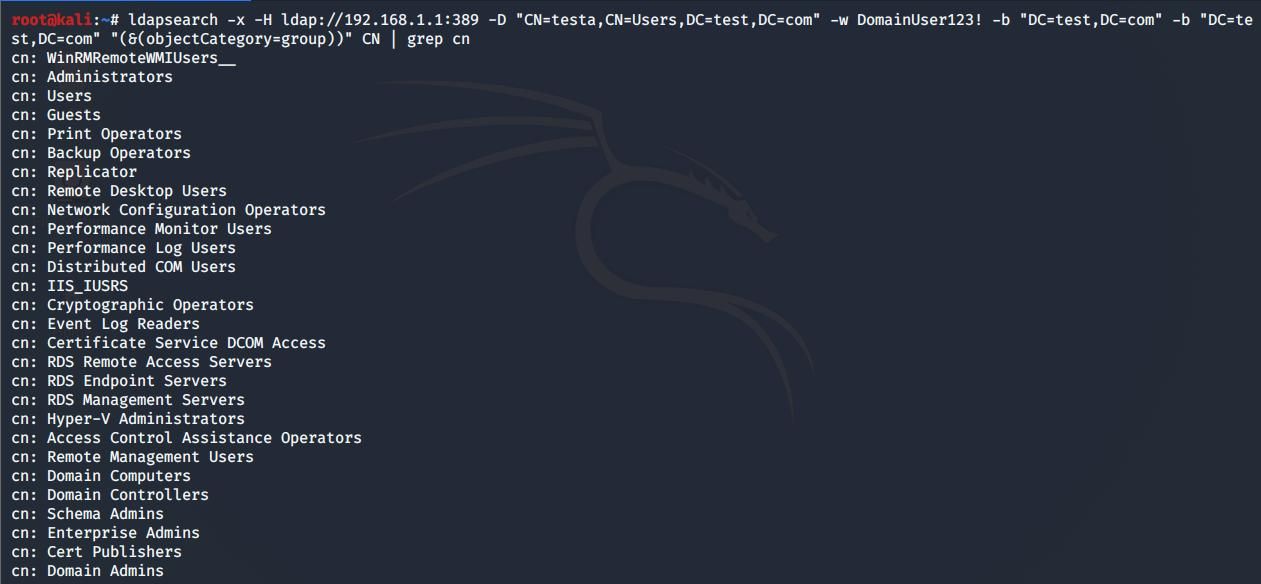
(3) Query all groups
Add search condition: "(&(objectCategory=group))"
The command is as follows:
ldapsearch -x -H ldap://192.168.1.1:389 -D "CN=testa,CN=Users,DC=test,DC=com" -w DomainUser123! -b "DC=test,DC=com" -b "DC=test,DC=com" "(&(objectCategory=group))" CN | grep cn |
The output result is shown in the figure below
2. Querying data through PowerView on Windows systems
The test environment is shown in the figure below
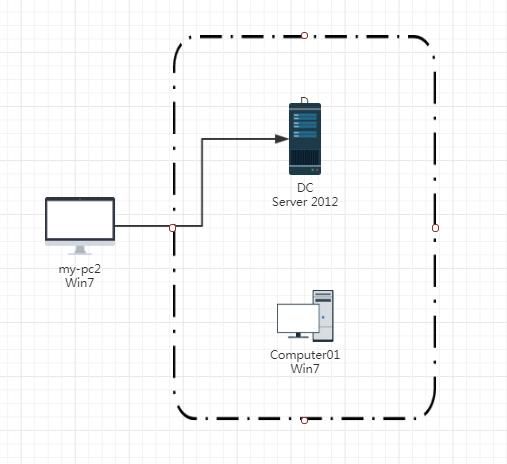
Prerequisite: We can access port 389 of the domain controller (DC), and we have obtained at least the password of one ordinary user within the domain
In this test environment, we have obtained the password for the ordinary domain user testa as DomainUser123!
PowerView address:
https://github.com/PowerShellMafia/PowerSploit/blob/master/Recon/PowerView.ps1
(1) Query all domain users
Credentials are required here, so the complete command is as follows:
$uname="testa" |
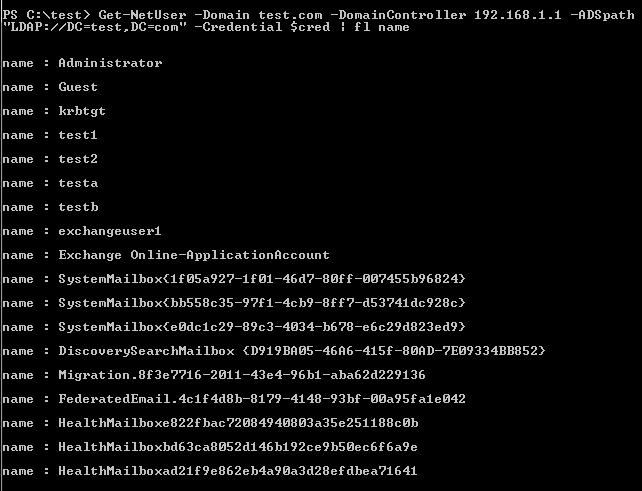
To facilitate name statistics, you can choose to list only the name field. The complete command is as follows:
$uname="testa" |
The output result is shown in the figure below
(2) Query all computers
$uname="testa" |
The output result is shown in the figure below

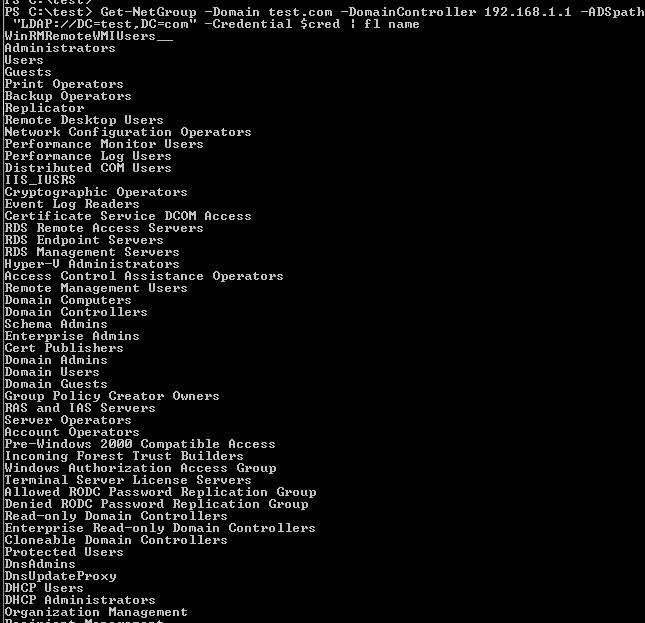
(3) Query all groups
$uname="testa" |
The output result is as shown in the figure below
0x04 Methods for obtaining Active Directory information within the domain
---
The prerequisite is that access to a host within the domain has already been obtained
The test environment is as shown in the figure below
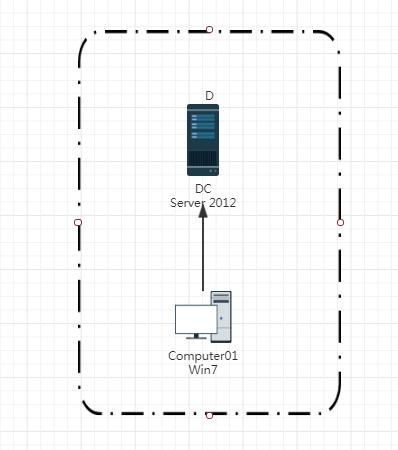
Principle: Perform LDAP queries through ADSI (Active Directory Services Interface) to obtain results
1. Implement using PowerShell
Referencing PowerView, URL:
https://github.com/PowerShellMafia/PowerSploit/blob/master/Recon/PowerView.ps1
2. Implemented in C#
Referencing SharpView, URL:
https://github.com/tevora-threat/SharpView
3. Implemented in C++
Reference URLs:
https://github.com/microsoft/Windows-classic-samples/tree/master/Samples/Win7Samples/netds/adsi/activedir/QueryUsers/vc
https://github.com/outflanknl/Recon-AD
Microsoft's code is in exe format, only introduces the QueryUser method, but supports query conditions (filtering specific users) and displays brief information (outputs only names for easy statistics)
Recon-AD's code is in dll format, includes multiple functions, but by default only displays detailed information
Therefore, I merged the code from both, and the code supports the following features:
- exe format
- includes multiple functions, supports querying users, computers, groups, etc.
- supports query conditions and displays brief information
Code has been uploaded to GitHub, address as follows:
An open-source project
The code can specify ADS path and search conditions, usage as follows:
(1) Query domain users
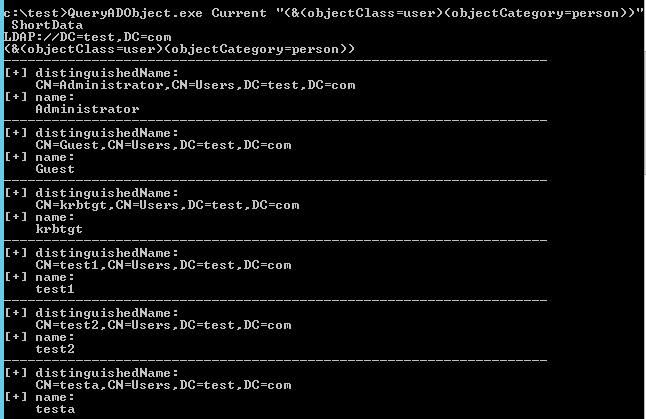
List all domain users, displaying only brief name information, command as follows:
QueryADObject.exe Current "(&(objectClass=user)(objectCategory=person))" ShortData |
Result output as shown in the figure below
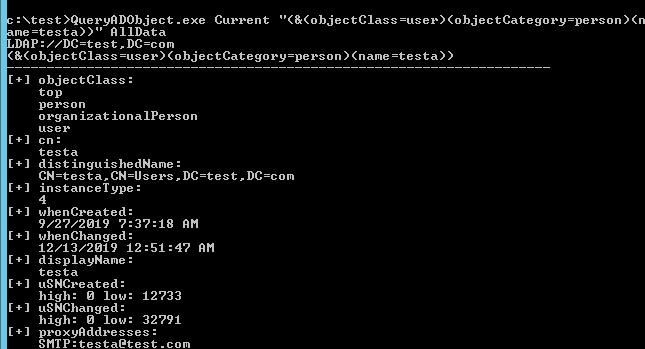
Query all information of a specified user, command as follows:
QueryADObject.exe Current "(&(objectClass=user)(objectCategory=person)(name=testa))" AllData |
Result output as shown in the figure below
(2) Query computers
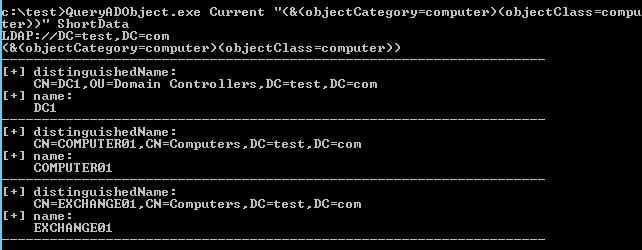
List all computer accounts, displaying only brief name information, command as follows:
QueryADObject.exe Current "(&(objectCategory=computer)(objectClass=computer))" ShortData |
The output is shown in the figure below
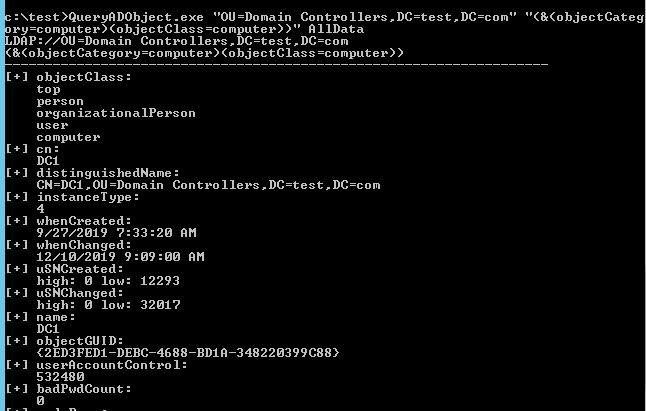
To query detailed information about domain controllers, you need to know the ADS path as "OU=Domain Controllers,DC=test,DC=com". The command is as follows:
QueryADObject.exe "OU=Domain Controllers,DC=test,DC=com" "(&(objectCategory=computer)(objectClass=computer))" AllData |
The output is shown in the figure below
(3) Query groups
List all groups, displaying only brief name information. The command is as follows:
QueryADObject.exe Current "(&(objectCategory=group))" ShortData |
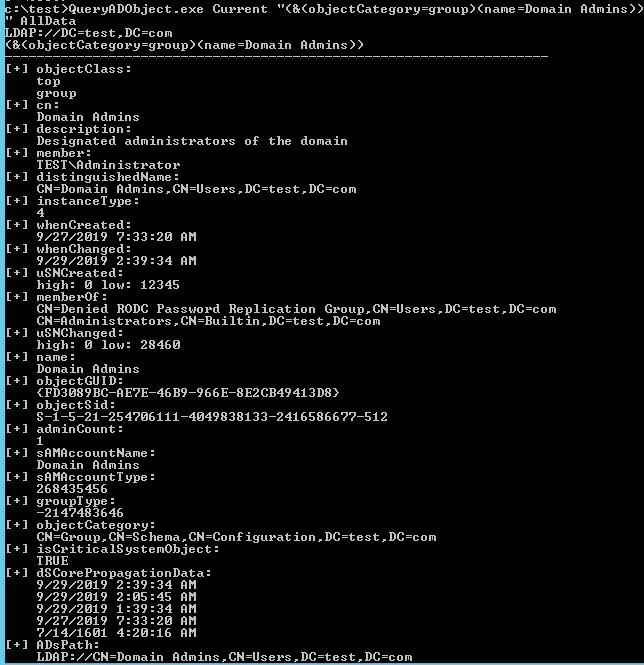
List detailed information of the administrator group. The command is as follows:
QueryADObject.exe Current "(&(objectCategory=group)(name=Domain Admins))" Alldata |
The output is shown in the figure below
(4) Query OUs
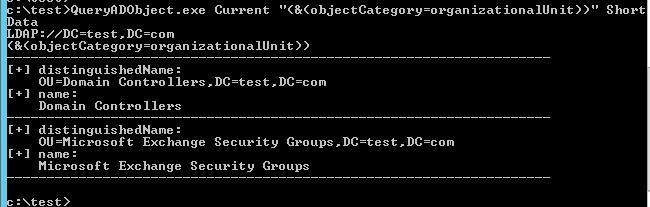
List all OUs, displaying only brief name information. The command is as follows:
QueryADObject.exe Current "(&(objectCategory=organizationalUnit))" ShortData |
The output result is shown in the following figure
0x05 Summary
---
This article takes obtaining all users, all computers, and all groups in Active Directory as examples, introducing methods for acquiring information from outside and inside the domain respectively.


