
0x00 Preface
---
When we obtain a user's password or hash, we can read that user's emails.
If the user changes their password, can we continue to read that user's emails without knowing the new password?
From a defensive perspective, when a mail user's password is leaked, what additional steps should we take after changing the password to ensure the security of email data?
0x01 Introduction
---
This article will cover the following topics:
- Method to continuously obtain Exchange user inbox emails by adding forwarding rules
- Method to continuously obtain Exchange user inbox emails by adding access permissions
- Method to continuously obtain Exchange user inbox emails by adding mail functions
- Method to continuously obtain Exchange user emails by adding user permissions
- Open-source code
- Defense and detection
0x02 Method to Continuously Obtain Exchange User Inbox Emails by Adding Forwarding Rules
---
1. Adding forwarding rules via ECP
Requires access to Exchange Control Panel (ECP)
Log in as user test1, select organize email -> inbox rules, as shown below
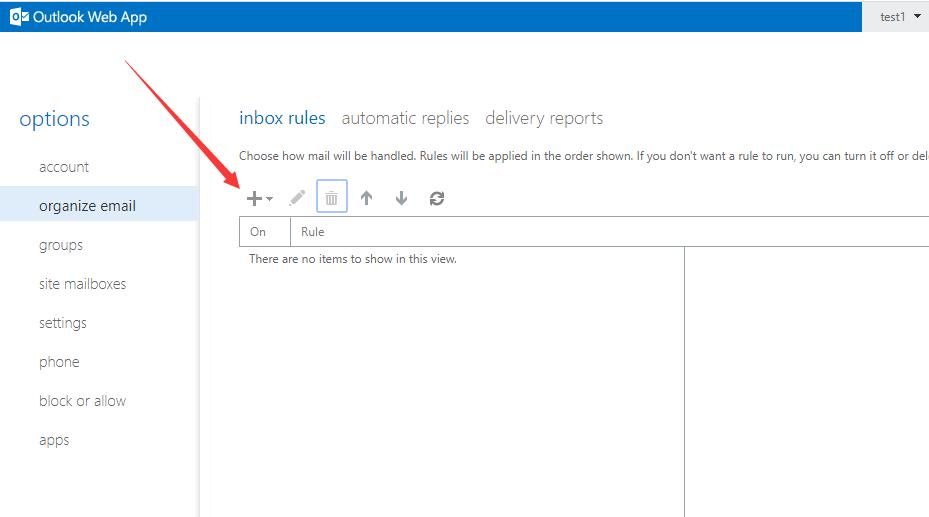
Select Create a new rule for arriving messages...
Set Name as the rule name, here set to Forwardtest
Configure sequentially as [Apply to all messages], Forward the message to..., select target user test2, as shown below
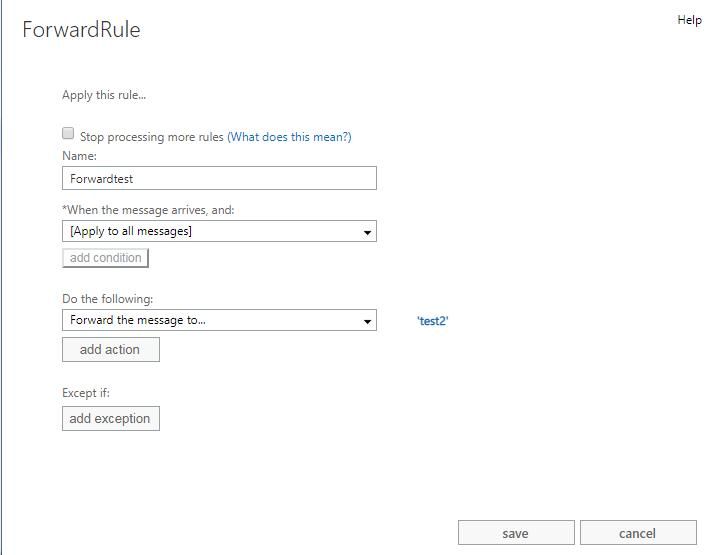
At this point, the rule is successfully added
Whenever user test1 receives an email, the email will also be sent to user test2's inbox
Note:
If test1 deletes the email from the inbox, test2 is not affected
2. Implementation via SOAP XML message
SOAP format reference:
https://docs.microsoft.com/en-us/exchange/client-developer/web-service-reference/updateinboxrules-operation
Create and delete rules using UpdateInboxRules
Format for creating a rule to forward emails to user test2:
|
Reading rules uses GetInboxRules
The format for reading rule information for user test1 is as follows:
The RuleID corresponding to the rule can be obtained from the returned result.
The format for deleting a specified rule is as follows:
|
AQAAAAAADPg is the RuleId, which can be obtained via GetInboxRules
Note:
The latter part of this article will introduce the complete implementation code
0x03 Method to Add Access Permissions for Persistent Access to Exchange User Inbox Emails
---
Note:
Supports inbox, does not support outbox
1. Add inbox access permissions via OWA
Requires access to Outlook Web Access (OWA)
Log in as user test1, select Inbox -> permissions..., as shown in the figure below
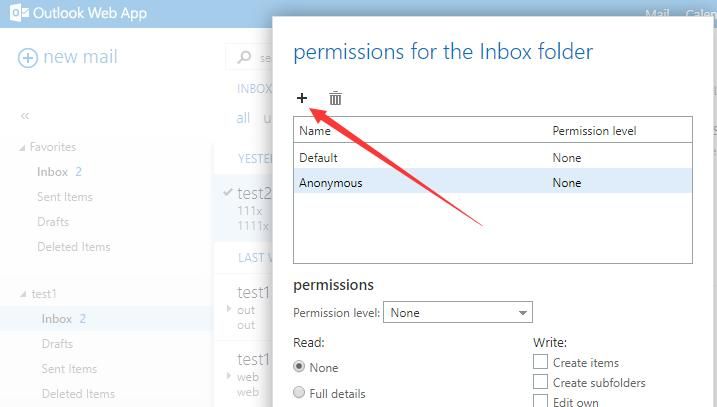
Add user test2 with edit permissions
- Read: Full details
- Write: Edit all
- Delete access: None
- Other: Folder visible
Alternatively, directly set the Permission level to Editor, as shown below
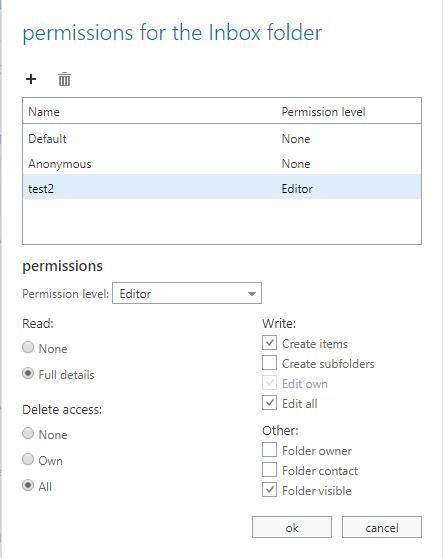
At this point, permission setup is complete
Log in as user test2, select add shared folder..., enter username test1 to obtain access to user test1's inbox
Note:
If test1 deletes emails from the inbox, test2 cannot read the deleted emails
2. Implement via SOAP XML message
Add access permissions using AddDelegate or UpdateFolder
1. AddDelegate
SOAP format reference:
https://docs.microsoft.com/en-us/exchange/client-developer/web-service-reference/adddelegate-operation
Note:
AddDelegate supports the following folders:
- CalendarFolderPermissionLevel
- TasksFolderPermissionLevel
- InboxFolderPermissionLevel
- ContactsFolderPermissionLevel
- NotesFolderPermissionLevel
- JournalFolderPermissionLevel
To view the access permissions for user test1's inbox, use the following format:
Grant user test2 full access permissions to user test1's inbox, in the following format:
|
Modify access permissions using UpdateDelegate
SOAP format reference:
https://docs.microsoft.com/en-us/exchange/client-developer/web-service-reference/updatedelegate-operation
Set full access permissions for user test2 to user test1's inbox, format as follows:
|
Remove access permissions using RemoveDelegate
SOAP format reference:
https://docs.microsoft.com/en-us/exchange/client-developer/web-service-reference/removedelegate-operation
Remove user test2's access permissions to user test1's inbox, format as follows:
2.UpdateFolder
References:
https://docs.microsoft.com/en-us/exchange/client-developer/exchange-web-services/how-to-set-folder-permissions-for-another-user-by-using-ews-in-exchange
Check the access permissions for user test1's inbox, formatted as follows:
|
Grant user test2 full access permission to user test1's inbox, formatted as follows:
|
It is important to note that the UpdateFolder operation will overwrite existing settings, so a delete operation is equivalent to restoring the permission configuration information.
Remove user test2's access permissions to user test1's inbox, formatted as follows:
|
Note:
The latter part of this article will introduce the complete implementation code.
3. Implementation via PowerShell
Commands for managing mailboxes need to be executed on the Exchange server.
First, you need to add the dependency package:
Add-PSSnapin Microsoft.Exchange.Management.PowerShell.SnapIn; |
Note:
The management snap-in names vary for different Exchange versions:
- Exchange 2007: Add-PSSnapin Microsoft.Exchange.Management.PowerShell.Admin;
- Exchange 2010: Add-PSSnapin Microsoft.Exchange.Management.PowerShell.E2010;
- Exchange 2013 & 2016: Add-PSSnapin Microsoft.Exchange.Management.PowerShell.SnapIn;
View the access permissions for user test2's inbox:
Get-MailboxFolderPermission -Identity [email protected]:\Inbox|fl |
Add read permission for user test2 to user test1's inbox:
Add-MailboxFolderPermission -Identity [email protected]:\Inbox -User [email protected] -AccessRights Owner |
Remove user test2's read permission for user test1's inbox:
Remove-MailboxFolderPermission -Identity [email protected]:\Inbox -User [email protected] -Confirm:$false |
0x04 Method to Continuously Obtain Exchange User Inbox Emails by Adding Mail Functionality
---
1. Add forwarding functionality via EAC
Reference:
https://docs.microsoft.com/en-us/exchange/recipients/user-mailboxes/email-forwarding?view=exchserver-2016
Requires access to Exchange Admin Center (EAC), i.e., Exchange administrator permissions and access to Exchange Control Panel (ECP)
Log in to ECP using Exchange administrator credentials
Locate user test1 and edit, as shown below
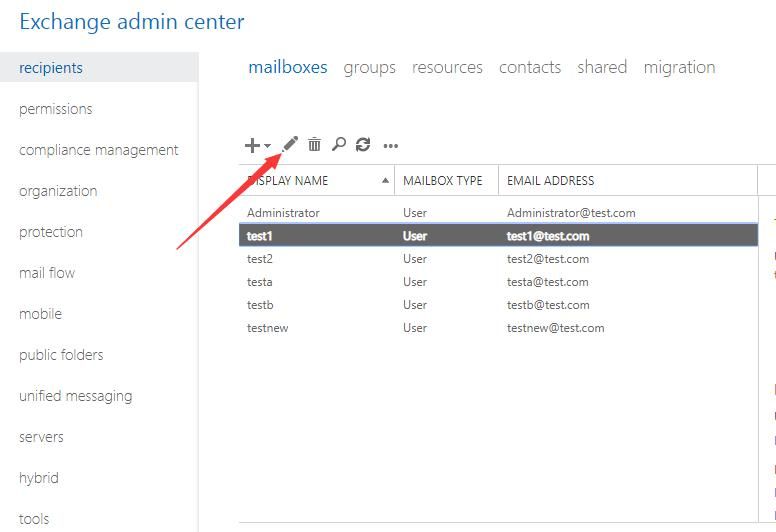
Select Mailbox Features -> Mail Flow -> select View details
Select Enable forwarding, add user, choose Deliver message to both forwarding address and mailbox, as shown below
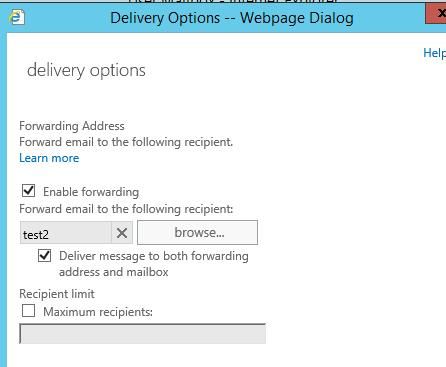
At this point, the forwarding function setup is complete
Whenever user test1 receives an email, the message will also be sent to user test2's inbox
Note:
If test1 deletes the email from the inbox, test2 is not affected
2. Implement via Exchange Management Shell
Exchange Management Shell can be launched in the following three ways:
(1) Run Exchange Management Shell directly on the Exchange Server
(2) Start PowerShell on the Exchange Server and enter the command Add-PSSnapin Microsoft.Exchange.Management.PowerShell.SnapIn;
(3) Connect to the Exchange server using PSSession
For detailed methods, refer to the previous article 'Penetration Basics – Searching and Exporting Emails from Exchange Servers'
The PowerShell command to add forwarding of emails from user test1's inbox to user test2 is as follows:
Set-Mailbox -Identity "test1" -ForwardingAddress "test2" -DeliverToMailboxAndForward $true |
Note:
If forwarding emails to an unverified external email address, replace ForwardingAddress with ForwardingSmtpAddress
0x05 Method to Add User Permissions for Persistent Access to Exchange User Emails
---
References:
https://docs.microsoft.com/en-us/powershell/module/exchange/add-mailboxpermission?view=exchange-ps
The PowerShell command to add full access permissions for user test1 to user test2's mailbox is as follows:
Add-MailboxPermission -Identity "test2" -User "test1" -AccessRights FullAccess -InheritanceType All |
The PowerShell command to view the mailbox access permissions for user test2 is as follows:
Get-MailboxPermission -Identity test2 |
The PowerShell command to remove user test1's full access permissions to user test2's mailbox is as follows:
Remove-MailboxPermission -Identity "test2" -User "test1" -AccessRights FullAccess -Confirm:$false |
Note:
Add-RecipientPermission can only be used in cloud-based services. Reference:
https://docs.microsoft.com/en-us/powershell/module/exchange/add-recipientpermission?view=exchange-ps
0x06 Open Source Code
---
In practical use, if only the hash of a mail user is available, it is not possible to add mail forwarding rules via OWA and ECP.
However, we can first log in to EWS using the hash, then send SOAP messages through a program to achieve this.
Here, using the previously open-source program ewsManage.py as a template, the following features have been added:
- getdelegateofinbox
- adddelegateofinbox
- updatedelegateofinbox
- removedelegateofinbox
- getdelegateofsentitems
- updatedelegateofsentitems
- restoredelegateofsentitems
- getinboxrules
- updateinboxrules
- removeinboxrules
GitHub code has been updated, address as follows:
An open-source project
0x07 Defense Detection
---
1. View forwarding rules for a single mail user
Access Exchange Control Panel (ECP)
Log in, view organize email -> inbox rules
2. View access permissions for a single mail user
Access Outlook Web Access (OWA)
Log in, view Inbox->permissions...
3. Check the inbox forwarding function for all mail users
Run Exchange Management Shell, view the command as follows:
Get-Mailbox|Select-Object UserPrincipalName,ForwardingAddress,ForwardingSmtpAddress |
0x08 Summary
---
This article introduces four methods to continuously obtain Exchange user inbox emails, provides open-source implementation code via SOAP XML messages, supports usage under hash-only conditions, and offers defense recommendations combined with exploitation approaches.


