
0x00 Preface
---
This article documents the details of setting up a Password Manager Pro vulnerability debugging environment from scratch.
0x01 Introduction
---
This article will cover the following:
- Password Manager Pro Installation
- Password Manager Pro Vulnerability Debugging Environment Configuration
- Database Connection
0x02 Password Manager Pro Installation
---
1. Download
Latest version download link: https://www.manageengine.com/products/passwordmanagerpro/download.html
Older versions download link: https://archives2.manageengine.com/passwordmanagerpro/
The latest version offers a 30-day free trial by default, while older versions require a valid License for use.
Note:
During my testing, I concluded that without a valid License, older versions can only be launched once; a second launch will prompt that there is no valid License.
2. Installation
System Requirements: https://www.manageengine.com/products/passwordmanagerpro/system-requirements.html
For Windows systems, Windows 7 or above is required; Windows 7 is not supported.
Default installation path: C:\Program Files\ManageEngine\PMP
3. Testing
After successful installation, select Start PMP Service.
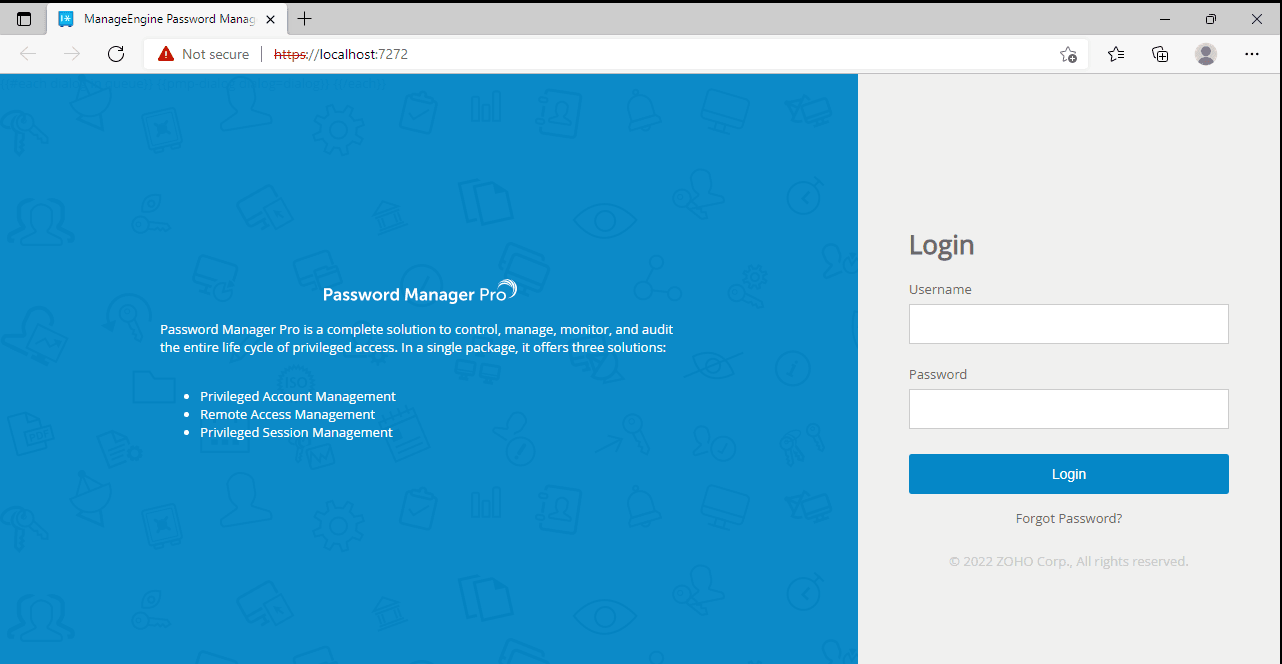
Access https://localhost:7272
Default login username: admin
Default login password: admin
As shown in the figure below
0x03 Password Manager Pro Vulnerability Debugging Environment Configuration
---
This article uses the Windows environment as an example.
1. Password Manager Pro Setup
View the related processes after the service starts, as shown in the figure below.

Java process startup parameters:
"..\jre\bin\java" -Dcatalina.home=.. -Dserver.home=.. -Dserver.stats=1000 -Djava.util.logging.manager=org.apache.juli.ClassLoaderLogManager -Djava.util.logging.config.file=../conf/logging.properties -Djava.util.logging.config.class=com.adventnet.logging.LoggingScanner -Dlog.dir=.. -Ddb.home=../pgsql -Ddatabaseparams.file=./../conf/database_params.conf -Dstart.webclient=false -Dgen.db.password=true -Dsplashscreen.progress.color=7515939 -Dsplashscreen.fontforeground.color=7515939 -Dsplashscreen.fontbackground.color=-1 -Dsplash.filename=../images/passtrix_splash.png -Dsplashscreen.font.color=black -Djava.io.tmpdir=../logs -DcontextDIR=PassTrix -Dcli.debug=false -DADUserNameSyntax=domain.backslash.username -Duser.home=../logs/ -Dnet.phonefactor.pfsdk.debug=false -server -Dfile.encoding=UTF8 -Duser.language=en -Xms50m -Xmx512m -Djava.library.path="../lib/native" -classpath "../lib/wrapper.jar;../lib/tomcat/tomcat-juli.jar;run.jar;../tools.jar;../lib/AdventNetNPrevalent.jar;../lib/;../lib/AdventNetUpdateManagerInstaller.jar;../lib/conf.jar" -Dwrapper.key="7ofvurNLTVkDioN9w9Efmug_bEFaMg-M" -Dwrapper.port=32000 -Dwrapper.jvm.port.min=31000 -Dwrapper.jvm.port.max=31999 -Dwrapper.pid=2744 -Dwrapper.version="3.5.25-pro" -Dwrapper.native_library="wrapper" -Dwrapper.arch="x86" -Dwrapper.service="TRUE" -Dwrapper.cpu.timeout="10" -Dwrapper.jvmid=1 -Dwrapper.lang.domain=wrapper -Dwrapper.lang.folder=../lang org.tanukisoftware.wrapper.WrapperSimpleApp com.adventnet.mfw.Starter |
The parent process of the Java process is wrapper.exe, with startup parameters:
"C:\Program Files\ManageEngine\PMP\bin\wrapper.exe" -s "C:\Program Files\ManageEngine\PMP\conf\wrapper.conf" |
Check the file C:\Program Files\ManageEngine\PAM360\conf\wrapper.conf to locate where debugging is enabled:
#uncomment the following to enable JPDA debugging |
After uncommenting, the content is as follows:
wrapper.java.additional.27=-Xdebug |
Note:
Do not set the Address configuration as address=*:8787, as it will cause ERROR: transport error 202: gethostbyname: unknown host. Setting address=8787 will enable remote debugging functionality.
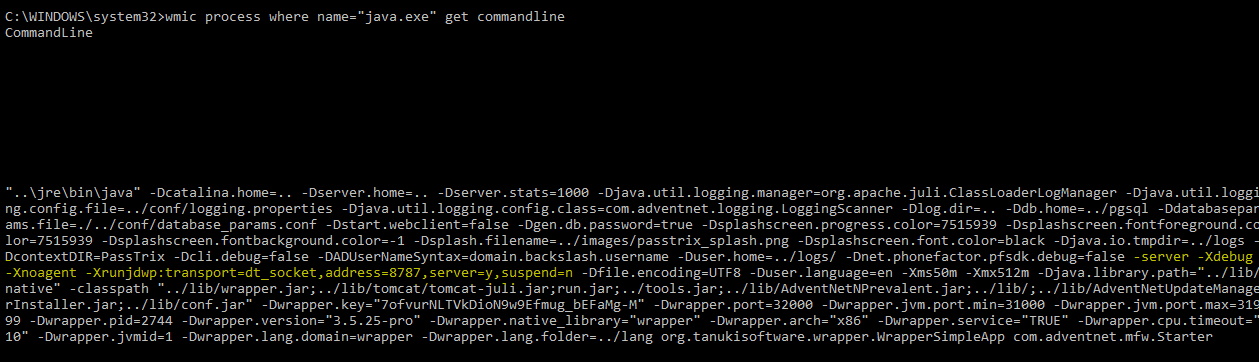
Restart the service and check the Java process parameters again: wmic process where name="java.exe" get commandline
Configuration modified successfully, as shown in the figure below
2. Common JAR Package Locations
Path: C:\Program Files\ManageEngine\PMP\lib
The implementation file for web functionality is AdventNetPassTrix.jar
3. IDEA Settings
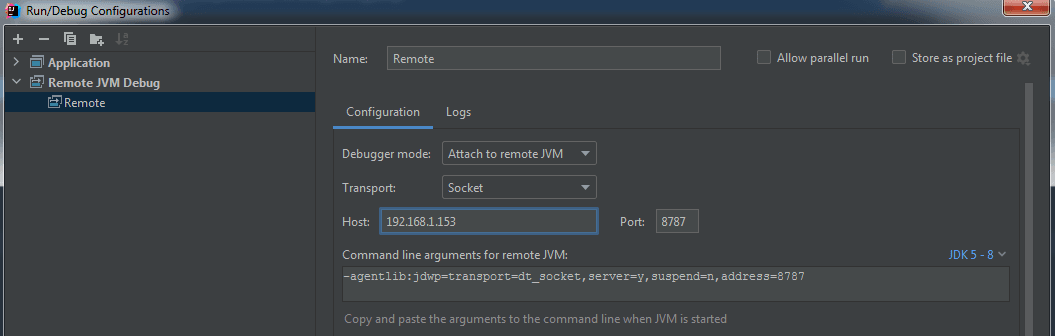
Remote debugging settings are shown in the figure below
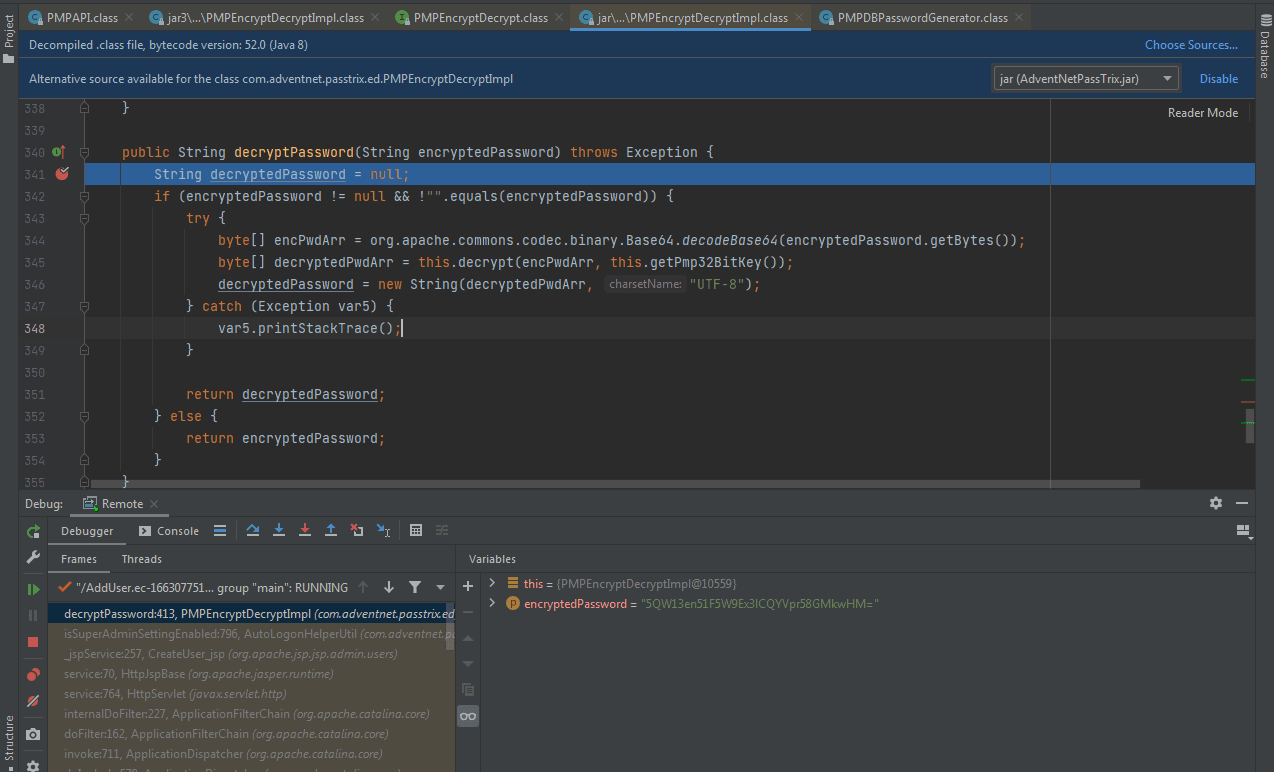
Remote debugging successful, as shown in the figure below
0x04 Database Connection
---
By default, Password Manager Pro uses PostgreSQL to store data
Configuration file path: C:\Program Files\ManageEngine\PMP\conf\database_params.conf
Example content:
# $Id$ |
1. Password Cracking
The database connection password is encrypted. The encryption/decryption algorithm is located in com.adventnet.passtrix.ed.PMPEncryptDecryptImpl.class within C:\Program Files\ManageEngine\PMP\lib\AdventNetPassTrix.jar
The fixed key is stored in com.adventnet.passtrix.db.PMPDBPasswordGenerator.class, with the content @dv3n7n3tP@55Tri*
We can quickly write a decryption program based on the content in PMPEncryptDecryptImpl.class.
For the decryption program, refer to: https://www.shielder.com/blog/2022/09/how-to-decrypt-manage-engine-pmp-passwords-for-fun-and-domain-admin-a-red-teaming-tale/
Note:
The decryption of database passwords in the article is correct, but there is a bug in the Master Key decryption. The solution will be introduced in a later article.
The decrypted connection password is Eq5XZiQpHv.
2. Database Connection
Construct the database connection command based on the configuration file.
(1) Failed command
"C:\Program Files\ManageEngine\PMP\pgsql\bin\psql" "host=localhost port=2345 dbname=PassTrix user=pmpuser password=Eq5XZiQpHv" |
Connection failed with error: psql: FATAL: no pg_hba.conf entry for host "::1", user "pmpuser", database "PassTrix", SSL on
(2) Successful command
Replace localhost with 127.0.0.1 to connect successfully. The complete command is:
"C:\Program Files\ManageEngine\PMP\pgsql\bin\psql" "host=127.0.0.1 port=2345 dbname=PassTrix user=pmpuser password=Eq5XZiQpHv" |
(3) A single command to connect to the database and perform database operations
Format: psql --command="SELECT * FROM table;" postgresql://
Example command:
"C:\Program Files\ManageEngine\PMP\pgsql\bin\psql" --command="select * from DBCredentialsAudit;" postgresql://pmpuser:[email protected]:2345/PassTrix |
Output as follows:
username | password | last_modified_time |
Found that the password data content is encrypted
0x05 Summary
---
After setting up the Password Manager Pro vulnerability debugging environment, we can proceed to study the vulnerability.


