
0x00 Preface
---
Outlook MAPI provides a set of interfaces for accessing Outlook, used to extend the development of Outlook applications. This article will introduce the basic usage of Outlook MAPI and open-source an implementation code of Outlook MAPI called mapi_tool to facilitate subsequent secondary development.
0x01 Introduction
---
This article will cover the following topics:
- Basic Knowledge
- Using Outlook MAPI to Access Outlook Resources
- Open-Source Code mapi_tool
- Features of mapi_tool
- Exploitation Ideas in Various Environments
0x02 Basic Knowledge
---
References:
https://docs.microsoft.com/en-us/office/client-developer/outlook/mapi/outlook-mapi-reference
Prerequisites for using Outlook MAPI: Requires installation of the Outlook client
Differences between Outlook MAPI and EWS:
- Outlook MAPI is used to access resources within the Outlook client
- EWS is used to access resources within the Exchange server
For usage of EWS, refer to the previous article 'Exchange Web Service (EWS) Development Guide'
User emails in the Outlook client are stored in files with the .ost extension, synchronized with the database in the Exchange server
Default save location for .ost files: %LOCALAPPDATA%\Microsoft\Outlook\
MAPI mainly includes the following three functions:
- Address Books, setting parameters such as E-mail type and protocol
- Transport, sending and receiving files
- Message Store, handling sending, receiving, and other information
0x03 Accessing Outlook Resources Using Outlook MAPI
---
1. Install the Outlook client and configure parameters
2. Launch the Outlook client for user login
3. Develop a program using C Sharp to implement the functionality of reading inbox emails
Reference materials:
https://docs.microsoft.com/en-us/dotnet/api/microsoft.office.interop.outlook?view=outlook-pia
https://docs.microsoft.com/en-us/office/vba/api/outlook.namespace
Development environment: VS2015
Create a new project, select Console Application, reference file: Microsoft.Office.Interop.Outlook.dll
Note:
After installing the Outlook client, Microsoft.Office.Interop.Outlook.dll can be obtained under C:\Windows\assembly\GAC_MSIL\Microsoft.Office.Interop.Outlook\
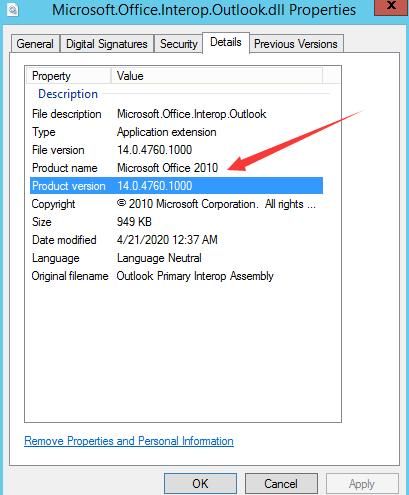
Microsoft.Office.Interop.Outlook.dll must match the version of Outlook
In the file properties of Microsoft.Office.Interop.Outlook.dll - Details - Product name corresponds to the supported Outlook version, Product version corresponds to the specific Outlook version, as shown in the figure below
For the specific Outlook version corresponding to Product version, refer to:
https://docs.microsoft.com/en-us/Exchange/new-features/build-numbers-and-release-dates?redirectedfrom=MSDN&view=exchserver-2019
C Sharp code example:
using System; |
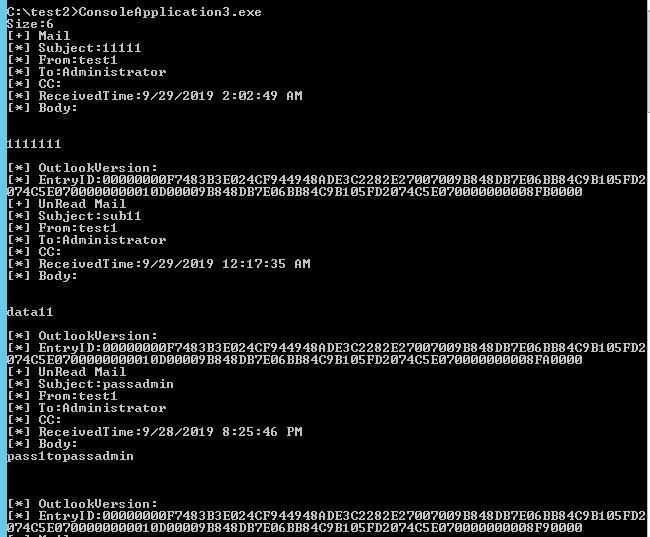
After code execution, it will enumerate emails in the inbox and output the following content:
- Number of inbox emails
- Read status
- Subject
- Sender
- Recipient
- CC
- Receipt time
- Attachment name
- Body content
- Outlook version
- EntryID
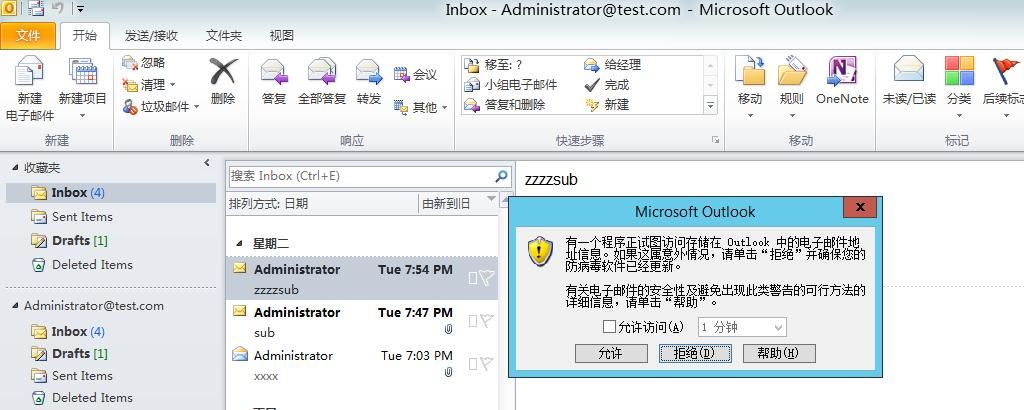
After code execution, the Outlook client will display a warning as shown below
After selecting 'Allow', inbox information is successfully obtained as shown below
Reason for the pop-up warning: The antivirus software on the current system is inactive or expired.
Reference:
https://support.microsoft.com/en-us/help/3189806/a-program-is-trying-to-send-an-e-mail-message-on-your-behalf-warning-i
Two methods to disable the warning:
1. Enable and update the antivirus software
2. Modify the registry to disable the warning
Registry location: HKEY_LOCAL_MACHINE\SOFTWARE\Microsoft\Office\
Registry location for 32-bit Office installed on a 64-bit operating system: HKEY_LOCAL_MACHINE\SOFTWARE\Wow6432Node\Microsoft\Office\
Registry entry: ObjectModelGuard, Type: REG_DWORD, Value: 2
Details to note when using:
1. The referenced Microsoft.Exchange.WebServices.dll must match the version of the Outlook client
2. Under default configuration, some operations will not trigger a warning
For example:
- List the number of emails in the inbox
- List email subjects
- List email receipt times
- List email attachment names
3. If the Outlook client is not running in the background
The program can read resources from the current Outlook client, but after obtaining resources, a prompt box will appear requesting credentials, as shown in the figure below
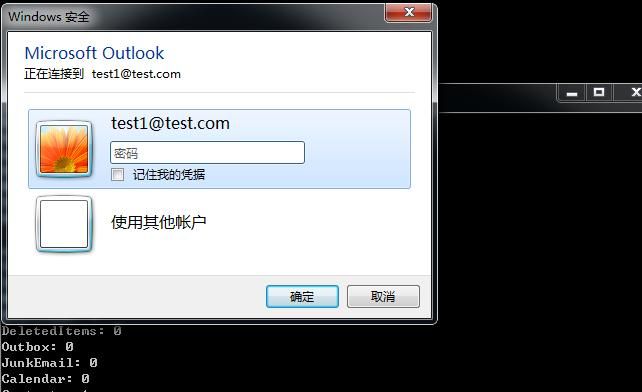
If 'Remember credentials' is selected, subsequent operations will not require credential input. For usage of credentials, refer to the previous article 'Penetration Techniques - Obtaining Information from Credential Manager in Windows'
0x04 Open-source implementation code mapi_tool
---
Code repository: An open-source project
Regarding compilation, to increase versatility, the code supports compilation using csc.exe
Supports .Net 3.5 or higher versions. Compilation command:
C:\Windows\Microsoft.NET\Framework64\v3.5\csc.exe mapi_tool.cs /r:Microsoft.Office.Interop.Outlook.dll |
For testing purposes, I have uploaded Microsoft.Office.Interop.Outlook.dll from Office 2010 and Microsoft.Office.Interop.Outlook.dll from Office 2013.
In terms of functionality implementation, a distinction is made regarding whether security prompts are displayed.
Features that do not trigger security prompts:
- Retrieve the length of emails in all folders.
- Retrieve configuration information, including CurrentProfileName, ExchangeMailboxServerName, ExchangeMailboxServerVersion.
- List emails at a specified location, including email subject, receipt time, file names of attachments, and EntryID.
- List unread emails at a specified location, including email subject, receipt time, file names of attachments, and EntryID.
Features that trigger security prompts:
- Retrieve configuration information, including Account-DisplayName, Account-SmtpAddress, Account-AutoDiscoverXml, Account-AccountType.
- Retrieve contact information.
- Retrieve GlobalAddress.
- List emails at a specified location, including email subject, sender, recipient, CC, receipt time, file names of attachments, body content, Outlook version, and EntryID.
- List unread emails at a specified location, including email subject, sender, recipient, CC, receipt time, file names of attachments, body content, Outlook version, and EntryID.
- Save attachments from a specified email.
In code development, the following details need to be noted:
- Absolute path must be used when saving attachments
- When obtaining the contact list, the array starting position is 1, not 0
- When obtaining configuration information, the array starting position is 1, not 0
0x05 Exploitation Approaches in Multiple Environments
---
1. Running Outlook Client
mapi_tool can access resources of the Outlook client; certain operations may trigger security prompts
Two methods to disable security prompts:
- Enable and update antivirus software
- Modify registry to disable warnings
Method to export all email information from Outlook client:
(1) Obtain ost file
Default save location for ost files: %LOCALAPPDATA%\Microsoft\Outlook\
Cannot copy directly; prompted that file is in use
Can use Joe Bialek's NinjaCopy to copy files that are in use
(2) Convert ost file to pst file
There are many tools, here is one: Advanced Exchange Recovery
(3) Import pst file into Outlook client
2. Outlook client is not started
mapi_tool can be used to access resources of the Outlook client, certain operations may trigger security prompts
If performing operations that require interaction with the server, such as obtaining configuration information, a prompt will appear requesting credentials. If the credential manager already stores the corresponding credentials, no prompt will appear
Command to view saved credentials:
cmdkey /list |
Method to export all email information from Outlook client:
(1) Obtain ost file
Can directly copy the ost file
(2) Convert ost file to pst file
Same method as above
(3) Import pst file into Outlook client
Same method as above
0x06 Summary
---
This article introduces the method of accessing Outlook resources using Outlook MAPI, along with the open-source code mapi_tool, facilitating subsequent secondary development.


