
0x00 Preface
---
This article documents the details of building an F5 BIG-IP vulnerability debugging environment from scratch.
0x01 Introduction
---
This article will cover the following:
- F5 BIG-IP Installation
- F5 BIG-IP Vulnerability Debugging Environment Configuration
- Common Knowledge
0x02 F5 BIG-IP Installation
---
1. Download the OVA file
Download page: https://downloads.f5.com/esd/productlines.jsp
Before downloading, you need to register a user and apply for an activation code. Application address: http://www.f5.com/trial
2. Installation
(1) Import OVA file in VMware Workstation
(2) Set username and password
After importing the virtual machine, enter the default username (root) and default password (default), then reset the passwords for the root user and admin user
(3) Configuration
Obtain IP via ifconfig, access https://
Enter activation code on the configuration page
Enable SSH on the configuration page to allow SSH login
0x03 F5 BIG-IP Vulnerability Debugging Environment Configuration
---
Configuration file location reference: 'CVE-2022-1388 F5 BIG-IP iControl REST Process Analysis and Authentication Bypass Vulnerability Reproduction'
1. Locate Java process
Check processes:
ps aux |grep java |
As shown in the figure below
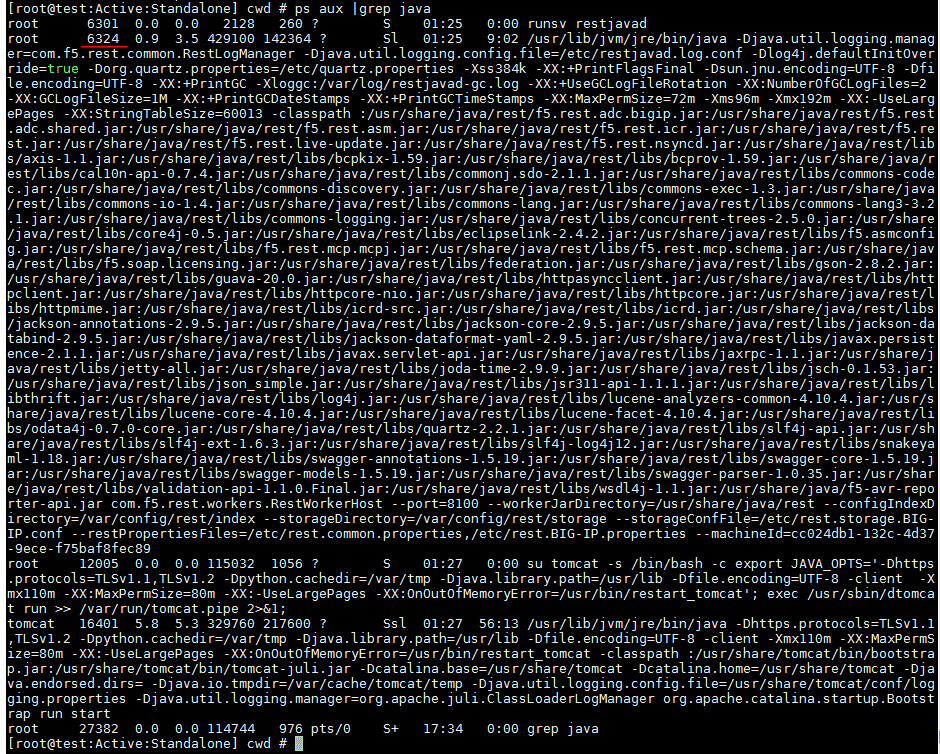
Locate process pid 6324, jar path /usr/share/java/rest
View process information for pid 6324:
cd /proc/6324/cwd |
As shown in the figure below

Locate file /etc/bigstart/scripts/restjavad
Modify JVM_OPTIONS, add debug parameter -agentlib:jdwp=transport=dt_socket,server=y,suspend=n,address=8000
2. Locate service
Check status of all services:
systemctl status |
Find service name corresponding to pid 6324: runit.service
After adding debug parameter, restart service:
service runit.service restart |
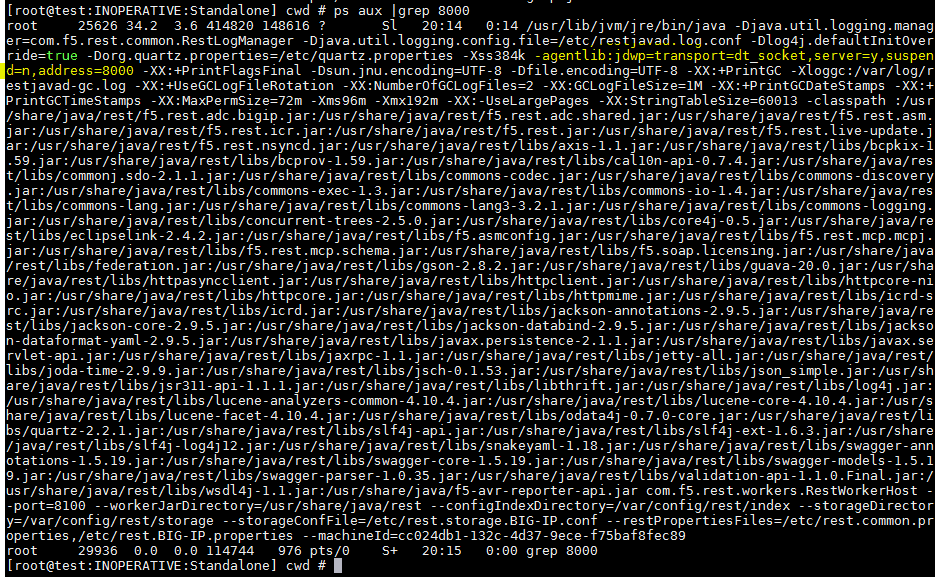
Check if parameters have been modified:
ps aux |grep 8000 |
As shown in the figure below
3. Enable firewall
In the Web management panel, navigate to System -> Platform -> Security
Add rules as shown below

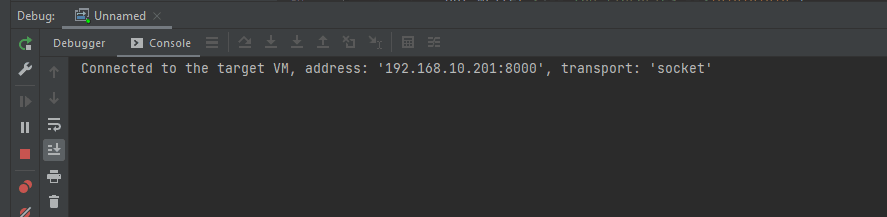
Remote debugging successful, as shown below
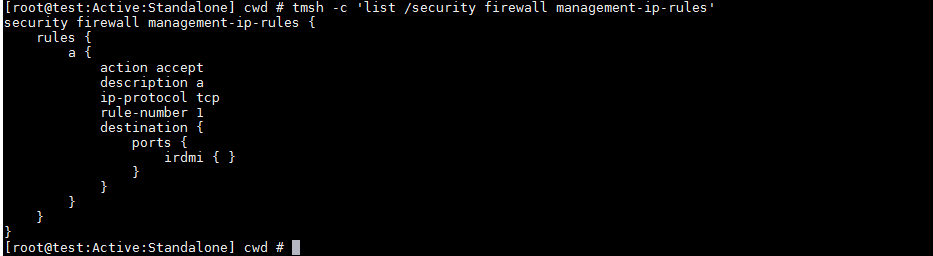
Use tmsh to view firewall rules, refer to
https://clouddocs.f5.com/cli/tmsh-reference/v15/modules/security/security_firewall_management-ip-rules.html
Command as follows:
tmsh -c 'list /security firewall management-ip-rules' |
Result as shown below
4. Common JAR Package Locations
- /usr/local/www/tmui/WEB-INF/lib/
- /usr/share/java/rest
0x04 Common Knowledge
---
1. tmsh Usage
Reference Materials:
https://clouddocs.f5.com/api/tmsh/
https://clouddocs.f5.com/cli/tmsh-reference/latest/
(1) Check Version
tmsh show /sys version |
(2) View All Configurations
Step-by-step Operations:
tmsh |
One-click operation:
echo y | tmsh -c 'list all-properties' |
(3) View user information
Step-by-step operation:
tmsh |
One-click operation:
tmsh -c 'list auth' |
(4) Create administrator user (web and SSH login)
Reference: https://clouddocs.f5.com/cli/tmsh-reference/v15/modules/auth/auth_user.html
Step-by-step operation:
tmsh |
Note that passwords must not contain special characters.
One-click operation:
tmsh -c 'create auth user user123 password aaaaaaa1234 description "Admin User" shell bash partition-access add { all-partitions { role admin } }' |
(5) Delete user
Step-by-step operation:
tmsh |
One-click operation:
tmsh -c 'delete auth user test1' |
2. Execute commands using REST API
Administrator username and password required
Access https://
Can execute bash commands and obtain return results
Code has been uploaded to GitHub, address as follows:
An open-source project
3. Log-related
(1) Search logs with specified keywords
grep -iR aaaaaaaa /var/log/ |
(2) Correspondence between web management backend and log files
Audit logs, located at System -> Logs -> audit, corresponding file /var/log/audit
User login history, located at Logins -> History, corresponding file /var/log/secure
(3) Other log locations
- /var/log/restjavad-audit.0.log
- /var/log/auditd/audit.log
- /var/log/btmp
- /var/log/wtmp
- /var/log/lastlog
(4) View web access logs
journalctl /usr/bin/logger |
Clear all:
rm -rf /var/log/journal/* |
0x05 Summary
---
After setting up the F5 BIG-IP vulnerability debugging environment, we can proceed to study the vulnerability.


