
0x00 Preface
---
The previous article "Domain Penetration - Remote Execution via Scheduled Tasks in GPO" introduced methods for remote execution using scheduled tasks in GPO, analyzed exploitation approaches, and demonstrated the creation, modification, and deletion of GPOs and scheduled tasks via command line.
This article will provide a detailed explanation of the command-line implementation principles and script development details, documenting the process of identifying and resolving issues.
0x01 Introduction
---
This article will cover the following topics:
- Issue Identification
- Solution Approach
- Script Implementation Details
0x02 Issue Identification
---
Test Environment: Windows Server 2008 R2
Domain: test.com
Test1
Create a GPO via Group Policy Management Console (GPMC) and add a scheduled task (Immediate Task)
Successfully achieved remote execution of the scheduled task
Test2:
Use command line to create a GPO and add a scheduled task (Immediate Task), steps as follows:
1. Create a GPO
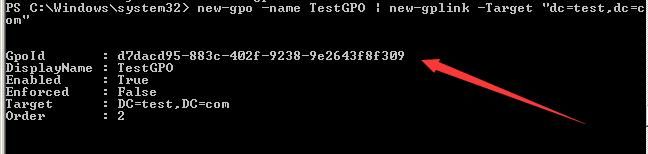
new-gpo -name TestGPO1 | new-gplink -Target "dc=test,dc=com" |
GpoId is d7dacd95-883c-402f-9238-9e2643f8f309, as shown below
2. Create the configuration file ScheduledTasks.xml for the scheduled task
Path is: \\test.com\SYSVOL\test.com\Policies\{D7DACD95-883C-402F-9238-9E2643F8F309}\User\Preferences\ScheduledTasks
The content of ScheduledTasks.xml is as follows:
3. View GPO configuration via Group Policy Management Console (GPMC)
As shown in the figure below
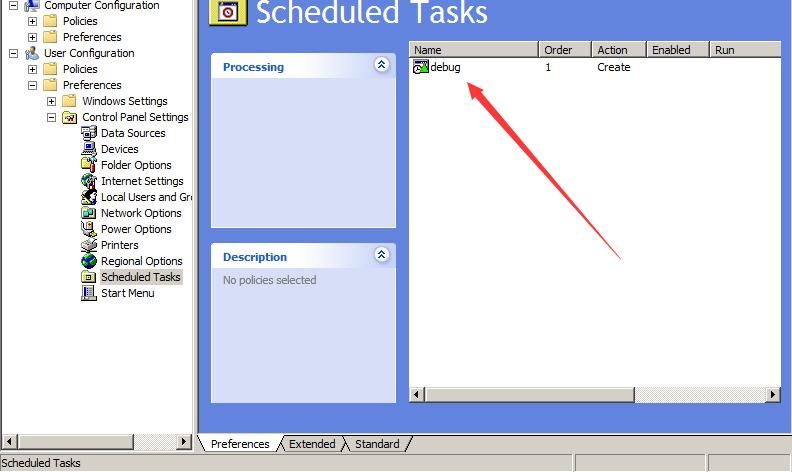
It can be found that by creating the file ScheduledTasks.xml, the added scheduled task will be displayed in the Scheduled Tasks section of the Group Policy Management Console (GPMC)
However, remote execution of the scheduled task cannot be achieved at this point
The following operations demonstrate that the registration of the scheduled task is still missing:
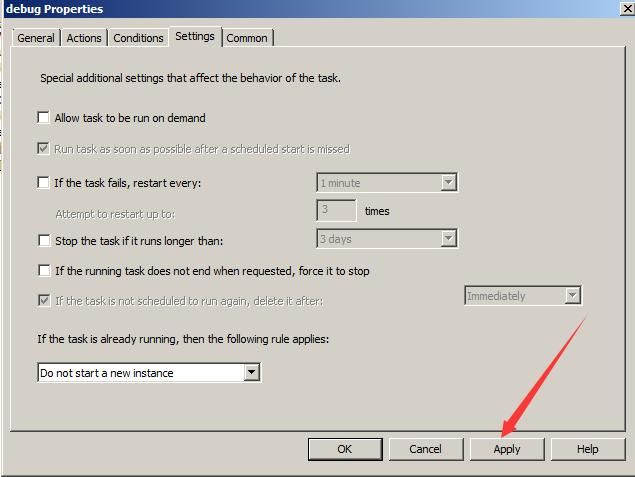
Navigate to Scheduled Tasks in the Group Policy Management Console (GPMC)
Modify any configuration item
Select Apply
As shown in the figure below
Testing again reveals that the created scheduled task can now be executed remotely
Conclusion:
After creating the ScheduledTasks.xml configuration file for scheduled tasks, registration operations are still required to make the newly added Scheduled Tasks take effect.
0x03 Solution Approach
---
The commands supported by GPO are as follows:
https://docs.microsoft.com/en-us/powershell/module/grouppolicy/?view=win10-ps
Currently, I have not found a method for registering scheduled tasks.
But I have some speculations:
Does backing up GPO save registration information? If so, could we first back up the GPO, add registration information to the backup file, and then restore the GPO to indirectly achieve GPO registration?
Proceed with the following tests:
1. Back up GPO
Backup-Gpo -Name TestGPO1 -Path C:\test |
As shown in the figure below
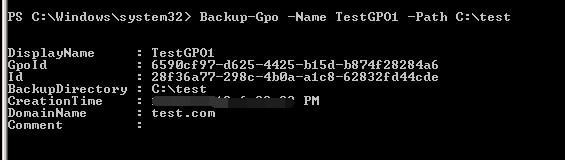
The Id is 28f36a77-298c-4b0a-a1c8-62832fd44cde, and the corresponding folder is {28f36a77-298c-4b0a-a1c8-62832fd44cde}
The contents of the folder are as shown in the figure below
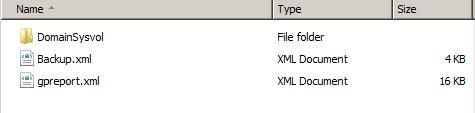
The contents of the folder DomainSysvol are consistent with those in \\test.com\SYSVOL\test.com\Policies\{D7DACD95-883C-402F-9238-9E2643F8F309}
It is speculated that Backup.xml and gpreport.xml store the registration information of scheduled tasks
Back up the GPOs of Test 1 and Test 2 respectively, and compare the files Backup.xml and gpreport.xml
2. Compare files
The files have differences; the differing parts are the registration information of scheduled tasks
For Backup.xml, the differing locations are as shown in the figure below
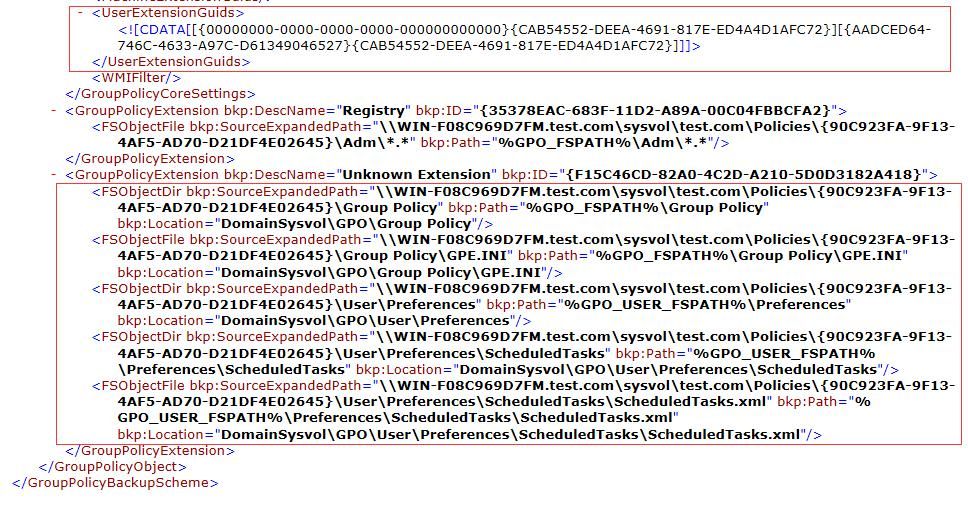
The highlighted parts are the registration information of scheduled tasks
For gpreport.xml, the differing locations are as shown in the figure below

The
|
Next, verify the hypothesis through testing
Test 3
1. Create a GPO
new-gpo -name TestGPO1 | new-gplink -Target "dc=test,dc=com" |
2. Backup GPO
Backup-Gpo -Name TestGPO1 -Path C:\test |
3. Modify files Backup.xml and gpreport.xml
Location: C:\test\{
Add registration information
4. Create ScheduledTasks.xml
Location: C:\test\{
5. Restore GPO
Import-GPO -Name TestGPO1 -Path C:\test |
Test successful, achieved remote execution of scheduled tasks
0x04 Script Implementation
---
Process as follows:
- Backup GPO
- Modify files Backup.xml and gpreport.xml
- Create ScheduledTasks.xml
- Restore GPO
Implemented using PowerShell, the creation of ScheduledTasks.xml referenced harmj0y's code:
https://github.com/PowerShellMafia/PowerSploit/blob/26a0757612e5654b4f792b012ab8f10f95d391c9/Recon/PowerView.ps1#L5907-L6122
I added the functionality to backup GPO, modify the files Backup.xml and gpreport.xml, and restore GPO
Details to note:
1. Command line results when backing up GPO
Id corresponds to the saved folder name, GpoId will be used in Backup.xml
2. Method for modifying Backup.xml and gpreport.xml files
Due to the large amount of content added, I did not follow the XML format for additions
I used the replace method multiple times here
First define a string to save the registration information template, then use the replace method to substitute the corresponding attribute values
3. The tag in Backup.xml
After adding the scheduled task, the tag value is as follows:
All GUIDs in this context are fixed values
4. Storage location of ScheduledTasks.xml
My script uses the location \\GPO\\User\\Preferences\\ScheduledTasks
Alternatively, the location GPO\\Machine\\Preferences\\ScheduledTasks can be used
5. Specifying the Id during GPO restoration
This prevents restoration failures caused by multiple backup files in the current folder
6. Script functionality
Currently, the script only supports adding Immediate Tasks; more features can be supported by referencing this script's template
7. Support for Server 2008
Server 2008 defaults to PowerShell version 2.0
The following operations are not supported:
$content = Get-Content 'C:\\test\\1.txt' |
Solution:
$content = [IO.file]::ReadAllText('C:\\test\\1.txt') |
0x05 Summary
---
This article details the process of identifying and resolving issues, introduces the specifics of script development, and facilitates readers in making new improvements to the script.


