
0x00 Introduction
---
In a previous article, "Penetration Basics - Using Scheduled Tasks in Windows," the usage of scheduled tasks was introduced. In a domain environment, remote execution of scheduled tasks can also be achieved through Group Policy Objects (GPO). This article will introduce this method and analyze exploitation approaches.
0x01 Overview
---
This article will cover the following topics:
- Introduction to Scheduled Tasks in GPO
- Remote Execution of Scheduled Tasks via Group Policy Management Console (GPMC)
- Remote Execution of Scheduled Tasks via Command Line
- Creating a New GPO for Remote Execution
- Modifying an Existing GPO for Remote Execution
- Common Operations on GPO
0x02 Overview
---
Recommended reading materials:
http://www.harmj0y.net/blog/redteaming/abusing-gpo-permissions/
https://adsecurity.org/?p=2716
http://www.sicherheitsforschung-magdeburg.de/uploads/journal/MJS_052_Willi_GPO.pdf
GPO stands for Group Policy Objects, used to store policies in Active Directory.
Starting from Windows Server 2008, GPO began supporting scheduled tasks, facilitating the management of computers and users in the domain.
By default, group policies for domain users are updated every 90 minutes with a random offset of 0-30 minutes, while group policies for domain controllers are updated every 5 minutes.
Note:
Group policies can be forced to update via command.
Default group policy storage location: \\
Note:
A previous article, 'Domain Penetration - Restoring Passwords Saved in Group Policies via SYSVOL', introduced this file location.
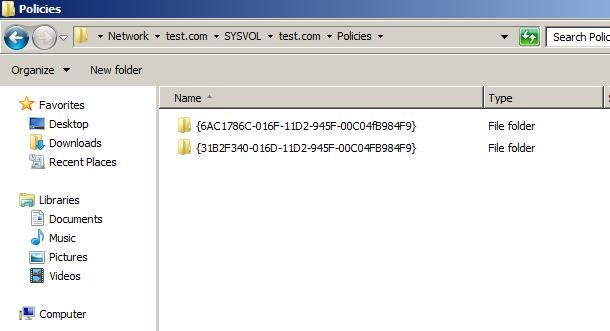
There are two default group policies, each corresponding to a folder:
{6AC1786C-016F-11D2-945F-00C04fB984F9} corresponds to Default Domain Controllers Policy
{31B2F340-016D-11D2-945F-00C04FB984F9} corresponds to Default Domain Policy
As shown in the figure below
0x03 Remote Execution of Scheduled Tasks via Group Policy Management Console (GPMC)
---
On the domain controller, location: Administrative Tools -> Group Policy Management
As shown in the figure below
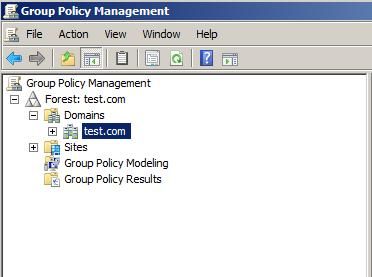
Select the domain test.local, right-click, select the first option, create a GPO, as shown in the figure below
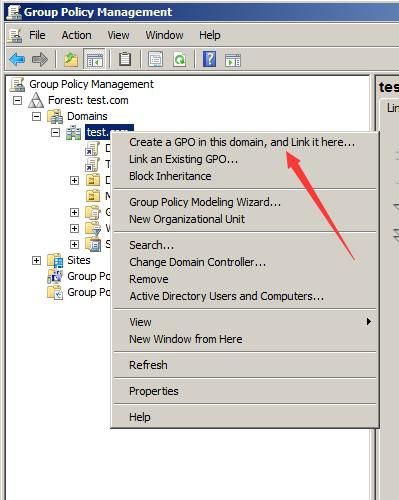
Enter the name TestGPO1, which creates a global GPO that applies to all domain users
Select TestGPO1, right-click, Edit...
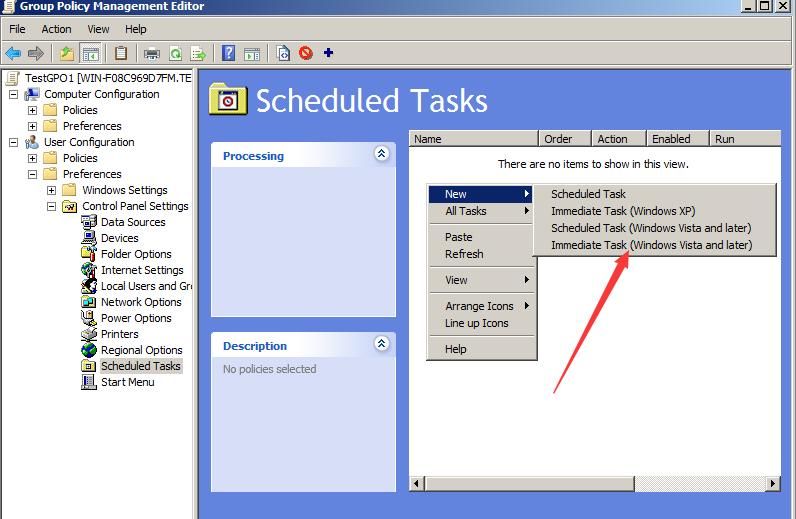
User Configuration -> Preferences -> Control Panel Settings -> Scheduled Tasks
New -> Immediate Task (Windows Vista and later), as shown in the figure below
Note:
Immediate Tasks are executed each time Group Policy refreshes.
For differences between the four types of scheduled tasks, refer to the official documentation:
https://docs.microsoft.com/en-us/previous-versions/windows/it-pro/windows-server-2008-R2-and-2008/cc770904(v%3dws.11)
Note:
You can also navigate to Computer Configuration -> Preferences -> Control Panel Settings -> Scheduled Tasks
Next, set up the scheduled task according to the prompts.
For testing convenience, the action performed outputs the execution result to a file, as shown below.
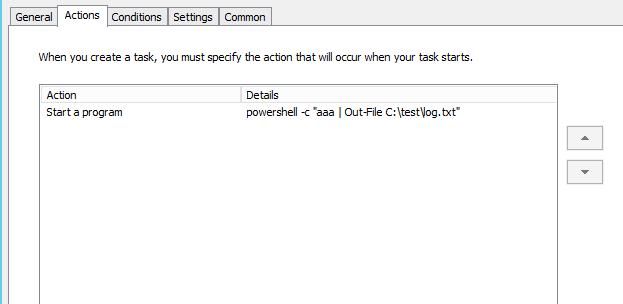
The Group Policy Object (GPO) corresponding to this has the ID {7D85A2EF-F525-4D8C-B12D-F2825F3A1224}. The configuration information for the scheduled tasks is stored in the file ScheduledTasks.xml located at \\test.com\SYSVOL\test.com\Policies\{7D85A2EF-F525-4D8C-B12D-F2825F3A1224}\User\Preferences\ScheduledTasks.
For domain-joined hosts, you can wait 90 minutes for Group Policy to update automatically, or execute the following command on the client to force a Group Policy refresh:
gpupdate /force |
The default method for clients to update Group Policy:
Reads the version of the Group Policy from the domain shared directory at \\
Each time Group Policy is modified, the Version in \\
If the domain controller forces a client to refresh Group Policy, it will not compare the version from the domain shared directory.
0x04 Remote execution of scheduled tasks via command line
---
Domain Controller System: Windows Server 2012 R2 x64
Domain Name: test.com
1. Create a GPO
New-GPO -Name TestGPO1 |
2. Link the GPO to the domain test.com
New-GPLink -Name TestGPO1 -Target "dc=test,dc=com" |
Note:
The two commands can be abbreviated as one command:
new-gpo -name TestGPO1 | new-gplink -Target "dc=test,dc=com" |
Obtain the ID 0bfd3f0c-21a1-4eca-8a5e-1f0bd4dc64dc via command line echo
3. Create a scheduled task
Scheduled tasks created via Group Policy Management Console (GPMC) are automatically registered
Currently, I have not found an interface to register scheduled tasks, so I can only look for a workaround
Fortunately, I eventually found a workaround solution, with the steps as follows:
(1) Export the GPO
Backup-Gpo -Name TestGPO1 -Path C:\test |
(2) Create the configuration file for the scheduled task, ScheduledTasks.xml
Path is \\
(3) Modify Backup.xml and gpreport.xml
Add the configuration information for the scheduled task
(4) Restore the GPO
Import-GPO -BackupId |
The complete implementation code has been open-sourced, download address is as follows:
An open-source project
Note:
The next article will detail the principles and script implementation specifics
Script command example:
New-GPOImmediateTask -TaskName Debugging -GPODisplayName TestGPO -SysPath '\\dc.test.com\sysvol\test.com' -CommandArguments '-c "123 | Out-File C:\test\debug.txt"' |
The script automatically performs the following operations:
- Back up TestGPO to the current directory
- Modify Backup.xml and gpreport.xml in the backup folder
- Generate the file ScheduledTasks.xml in the backup folder
- Restore TestGPO
4. Force client to refresh group policy
Invoke-GPUpdate -Computer "TEST\COMPUTER-01" |
Note:
Windows Server 2008 R2 does not support this command by default, Windows Server 2012 supports it
The client's firewall needs to allow the following connections:
- Remote Scheduled Tasks Management (RPC)
- Remote Scheduled Tasks Management (RPC-ERMAP)
- Windows Management Instrumentation (WMI-IN)
Official documentation:
https://docs.microsoft.com/en-us/powershell/module/grouppolicy/invoke-gpupdate?view=win10-ps
5. Delete GPO
Remove-GPO -Name TestGPO1 |
Note:
Deleting GPO via right-click in Group Policy Management Console (GPMC) does not remove the corresponding folder, while Remove-GPO does
0x05 Exploitation Approach
---
Prerequisite: Obtained domain administrator privileges or edit permissions for a specific Group Policy
General operations are as follows:
Load the GroupPolicy module:
Import-Module GroupPolicy –verbose |
Retrieve contents of all GPOs:
Get-GPO -All |
Export all GPOs as a single HTML report:
Get-GPOReport -All -ReportType html -Path C:\GposReport\GposReport.html |
Export each GPO as a separate HTML report:
Get-GPO -All | %{ |
View the permission settings for a specified GPO:
Get-GPPermission -Name "TestGPO1" -All |
Back up a specified GPO:
Backup-Gpo -Name TestGPO1 -Path C:\GpoBackups |
Back up all GPOs:
Backup-Gpo -All -Path "c:\GpoBackups" |
Restore a specified GPO:
Restore-GPO -Name TestGPO1 -Path C:\GpoBackups |
Restore all GPOs:
Restore-GPO -All -Path "c:\GpoBackups" |
Depending on the situation, there are two exploitation approaches:
1. Create a new Group Policy and set up a scheduled task to achieve remote execution
- Create a new GPO
- Backup GPO
- Modify Backup.xml and gpreport.xml
- Create ScheduledTasks.xml
- Restore GPO
- Force client policy refresh
- Clean up operational traces
2. Modify existing Group Policy, replace scheduled tasks
If the domain controller already has policies configured with scheduled tasks
No need to register, just modify ScheduledTasks.xml
0x06 Common GPO Operations
---
Create OU:
New-ADOrganizationalUnit -Name OUTest1 -Path "dc=test,dc=com" |
View all computers in the current domain:
dsquery computer |
Obtain result "CN=Computer1,CN=Computers,DC=test,DC=com"
Add this computer to OU=OUTest1:
dsmove "CN=Computer1,CN=Computers,DC=test,DC=com" -newparent OU=OUTest1,dc=test,dc=com |
Query computers in OU=OUTest1:
dsquery computer OU=OUTest1,dc=test,dc=com |
Create GPO and link:
new-gpo -name TestGPO | new-gplink -Target "OU=OUTest1,dc=test,dc=com" |
Restore:
Remove computer Computer1 from OU=OUTest1
dsmove "CN=Computer1,OU=OUTest1,DC=test,DC=com" -newparent CN=Computers,dc=test,dc=com |
Delete OU=OUTest1:
set-ADOrganizationalUnit -Identity "OU=OUTest1,dc=test,dc=com" -ProtectedFromAccidentalDeletion $false |
0x07 Summary
---
This article introduces methods for remote execution using scheduled tasks in GPO, analyzes exploitation approaches, and demonstrates the creation, modification, and deletion of GPO and scheduled tasks via command line.
0x08 Supplement
I noticed that harmj0y's blog mentioned situations where his script might not work:
http://www.harmj0y.net/blog/redteaming/abusing-gpo-permissions/
Personally, I believe this is because the created scheduled tasks were not registered. Using my modified script should resolve this issue. If readers have new suggestions, feedback is welcome.


