
0x00 Preface
---
On November 9, 2017, WikiLeaks released a document codenamed Vault8, containing the source code and development documentation for the server remote control tool Hive. The framework diagram in the development documentation shows that Hive supports traffic distribution functionality: if the traffic is valid, it is forwarded to the Honeycomb server; if there are issues with the traffic, it is forwarded to the Cover Server.
This article, solely from a technical research perspective, attempts to use Apache's mod_rewrite module to achieve HTTP traffic distribution and accomplish the same objective.
The marked framework diagram is as follows:

Previous analysis article:
"CIA Hive Testing Guide - Source Code Acquisition and Brief Analysis"
0x01 Introduction
---
This article will cover the following topics:
- Installing and configuring Apache mod_rewrite on Windows systems
- Installing and configuring Apache mod_rewrite on Ubuntu systems
- Rule configuration techniques and examples
- Implement HTTP traffic distribution based on judgment conditions
0x02 Install and configure Apache mod_rewrite on Windows system
---
1. Download Apache
Address:
http://httpd.apache.org/download.cgi
Select the required version, test version Apache 2.4.33, download address:
https://www.apachehaus.com/cgi-bin/download.plx?dli=wUWZ1allWW00kej9iUG5UeJVlUGRVYRdnWzQmW
2. Installation
After extraction, install via command line:
cd \Apace24\bin |
3. Enable mod_rewrite module
Edit file: \Apace24\conf\httpd.conf
Find #LoadModule rewrite_module modules/mod_rewrite.so and remove the #
4. Enable support for .htaccess files
Edit the file: \Apace24\conf\httpd.conf
Locate the following section:
DocumentRoot "${SRVROOT}/htdocs" |
Change AllowOverride None to AllowOverride All
5. Write .htaccess file and configure rules
Save path: \Apace24\htdocs\
Test rule: redirect 1.html to 2.html, specific content as follows:
|
Open with Notepad, save as a file with filename ".htaccess"
Note:
Filename includes quotes ", as shown below
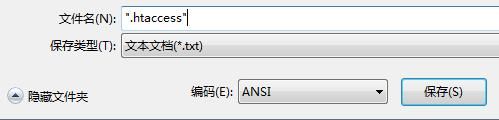
2.html is saved in \Apace24\htdocs\, content as follows:
|
6. Start Apache service
httpd.exe -k start |
7. Test
Access http://127.0.0.1/1.html
Return content True page, indicating the webpage has been redirected to 2.html
8. Supplement
Apache log path is \Apache24\logs
mod_rewrite logs are saved in error.log
File \Apache24\conf\httpd.conf can specify log recording level
0x03 Install and configure Apache mod_rewrite on Ubuntu system
---
1. Download and install
sudo apt-get install apache2 |
2. Enable the mod_rewrite module
sudo a2enmod rewrite |
3. Enable support for .htaccess files
Edit the file: /etc/apache2/apache2.conf
Locate the following section:
|
Change AllowOverride None to AllowOverride All
4. Write the .htaccess file and configure the rules
Save the path as \var\www\html\
The test rule is to redirect 1.html to 2.html, with the specific content as follows:
|
2.html is saved in \var\www\html\, with the following content:
|
5. Start the Apache service
sudo /etc/init.d/apache2 restart |
6. Test
Visit http:/IP/1.html
The returned content 'True page' indicates that the webpage has been redirected to 2.html
7. Supplement
The log path for Apache is /var/log/apache2/
mod_rewrite logs are saved in error.log
The file /etc/apache2/apache2.conf can specify the log level
0x04 Rule Configuration Tips and Examples
---
1. Redirect all web pages to https://www.baidu.com
The content of the .htaccess file is as follows:
|
2. Filter Request Header
(1) User Agent
Redirect only requests with specific User Agents
Example:
Access 1.html using Safari on Mac and redirect it to 2.html
The content of the .htaccess file is as follows:
|
Parameter description:
RewriteCond "%{HTTP_USER_AGENT}" "Macintosh; Intel Mac OS X 10_9_3" [NC] represents the condition, checking whether HTTP_USER_AGENT contains the string "Macintosh; Intel Mac OS X 10_9_3" (case-insensitive)
NC: Character comparison, case-insensitive
For detailed parameter descriptions, refer to:
https://httpd.apache.org/docs/current/mod/mod_rewrite.html#rewritecond
1. Testing with curl
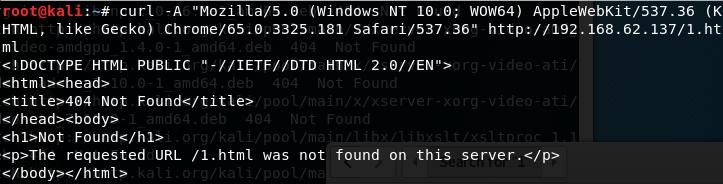
Simulating Chrome browser:
curl -A "Mozilla/5.0 (Windows NT 10.0; WOW64) AppleWebKit/537.36 (KHTML, like Gecko) Chrome/65.0.3325.181 Safari/537.36" http://192.168.62.137/1.html |
No redirection occurred, as shown in the figure below
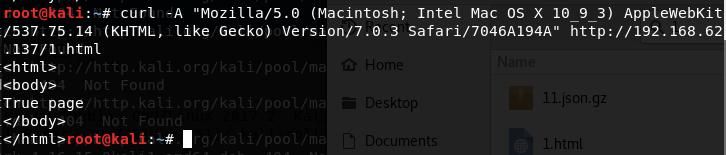
Simulating Mac Safari browser:
curl -A "Mozilla/5.0 (Macintosh; Intel Mac OS X 10_9_3) AppleWebKit/537.75.14 (KHTML, like Gecko) Version/7.0.3 Safari/7046A194A" http://192.168.62.137/1.html |
Web page redirection, obtaining the content of 2.html, as shown in the figure below
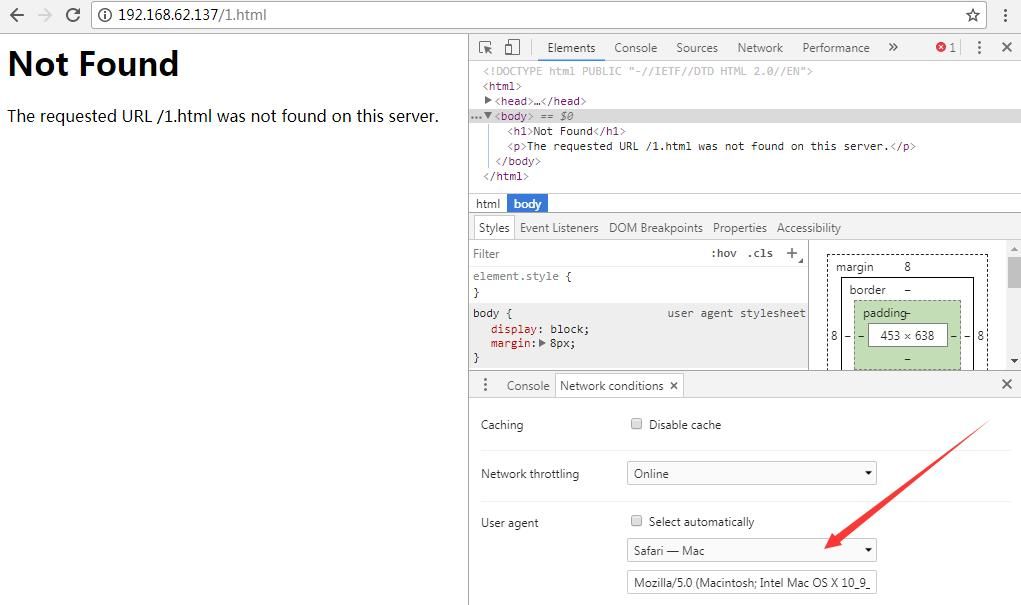
2. Method for modifying User Agent in Chrome browser
Access the page, F12 -> More tools -> Network conditions, select User agent as Safari — Mac
As shown in the figure below
(2) Referer
Redirect only requests from specific sources
Example:
If the source is test.com, redirect to 2.html when accessing 1.html
|
Testing with curl:
curl -e "test.com" http://192.168.62.137/1.html |
(3) Other available filtering conditions
As shown in the figure below
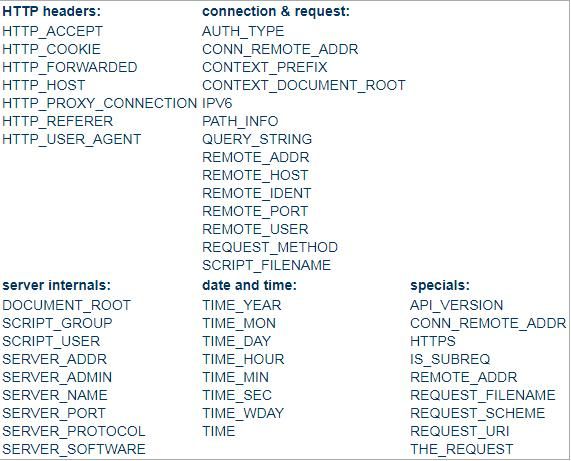
Note:
Image source: https://httpd.apache.org/docs/current/mod/mod_rewrite.html#rewritecond
Additional note:
Jeff Dimmock shared insights on configuring rules with mod_rewrite on his blog, which is worth learning. The address is as follows:
https://bluescreenofjeff.com/tags
0x05 Summary
---
This article introduces the methods for installing and configuring Apache mod_rewrite on Windows and Ubuntu systems, shares configuration tips and examples, and achieves HTTP traffic distribution based on request conditions from a technical research perspective.
The next article will cover the implementation of HTTPS traffic distribution.


