0x00 Introduction
---
Important files in Windows systems are often digitally signed to prevent tampering, and some whitelist rule determinations are also based on digital signatures.
As foundational content for the digital signature research series, this article introduces two methods for adding digital signatures, analyzes the characteristics of CAT file digital signatures, and corrects a reader's response to my article, available at:
"Loading DLLs Using xwizard.exe"
Based on my testing, I believe: After moving locations, the digital signature of a CAT file does not become invalid.
0x01 Overview
---
This article will cover the following:
- Methods for generating certificates
- Method for appending digital signatures to the end of files (Authenticode)
- Method for storing digital signatures in CAT files (catalog)
- Characteristics of files using CAT digital signatures
0x02 Method for Appending Digital Signatures to the End of Files (Authenticode)
---
In the series of articles on steganography techniques, methods for hiding payloads in digital signatures have been studied. The address is as follows:
"Steganography Techniques - Hiding Payloads in Digital Certificates of PE Files"
The certificate format was introduced in the article and will not be repeated here.
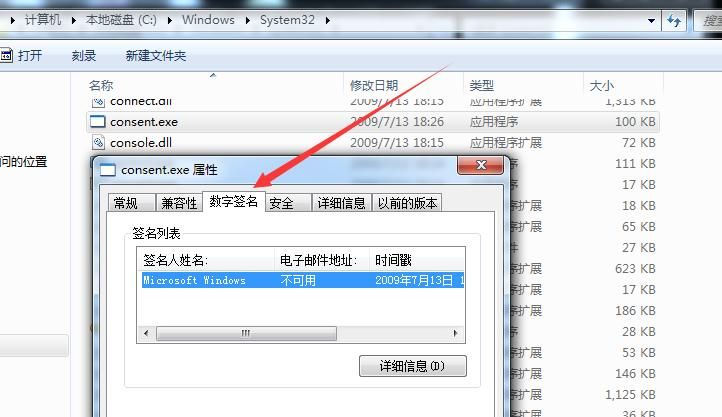
After adding a digital signature to the end of a file, it can be viewed through the file properties.
Example:
C:\Windows\System32\consent.exe
Comes with a Microsoft digital signature, as shown in the figure below.
Digital signatures can be verified via PowerShell:
Get-AuthenticodeSignature .\mimikatz.exe |
Tools can also be used to view digital signatures via the command line.
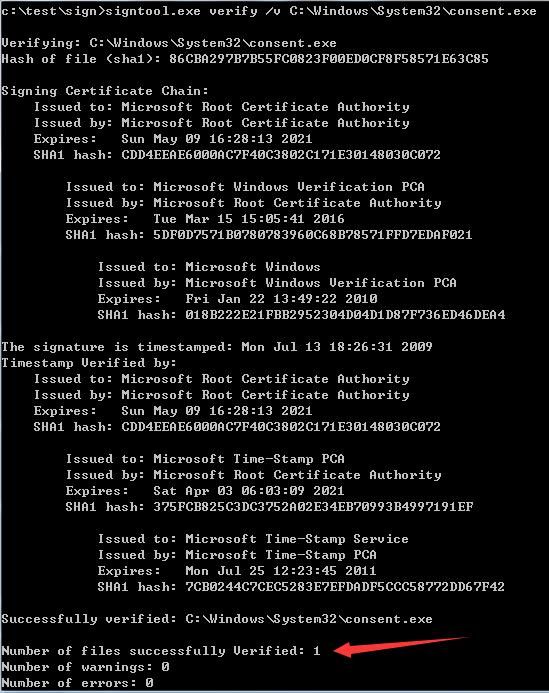
Using signtool.exe to view:
signtool.exe verify /v C:\Windows\System32\consent.exe |
As shown in the figure below.
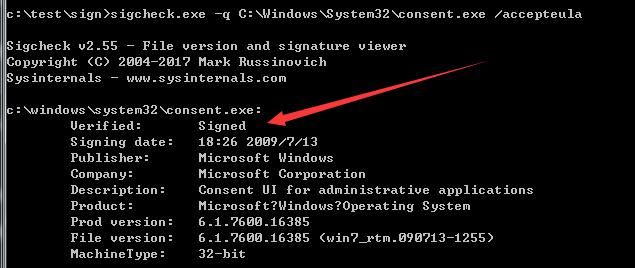
Using sigcheck.exe to view:
sigcheck.exe -q C:\Windows\System32\consent.exe /accepteula |
As shown in the figure below
Note:
signtool.exe:
Can be used to view digital signatures of files
After installing Visual Studio, the SDK includes signtool.exe, located at C:\Program Files\Microsoft SDKs\Windows\
Entering the developer tools command prompt allows direct invocation of signtool.exe
Windows 7 SDK download link:
https://www.microsoft.com/en-us/download/details.aspx?id=8279
sigcheck.exe:
Can be used to view digital signatures of files
Download link:
https://docs.microsoft.com/en-us/sysinternals/downloads/sigcheck
The relevant files for this article have been uploaded to GitHub at the following address:
An open-source project
The command to generate a test certificate is as follows:
makecert -n "CN=Microsoft Windows Test" -r -sv Root.pvk Root.cer |
Certificate registration:
(Administrator privileges)
certmgr.exe -add -c Root.cer -s -r localmachine root |
Note:
For details, refer to the previous article 'A dirty way of tricking users to bypass UAC'
Sign mimikatz.exe:
signtool sign /f Root.pfx /p 123456 mimikatz.exe |
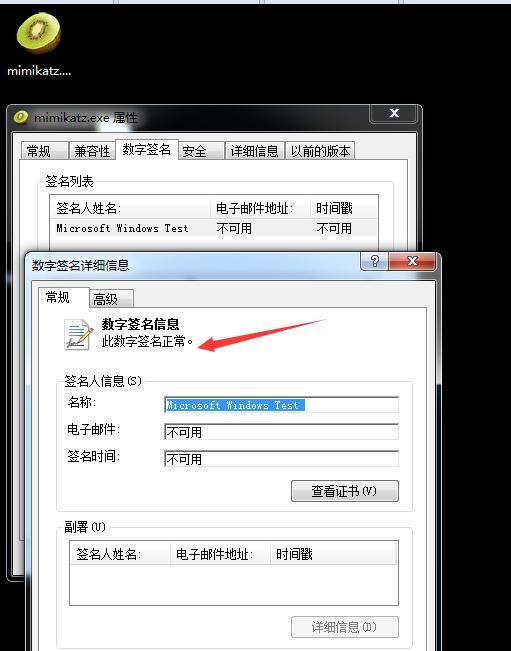
The digital signature appears normal, as shown in the figure below
0x03 Method for Storing Digital Signatures in CAT Files (catalog)
---
In Windows systems, some files cannot obtain digital signature information through file properties, but these files also contain digital signatures. The digital signatures here refer to CAT (security catalog) file digital signatures (catalog signing)
Reference materials:
https://docs.microsoft.com/en-us/windows-hardware/drivers/install/catalog-files
Intuitive understanding of the signing process:
- Save the hash value obtained by SHA1 encryption of the file in a CAT file (one CAT file can store multiple file hashes)
- Add a digital signature to this CAT file
- Add the CAT file to the system's security catalog database
- These files then have digital signatures
Example:
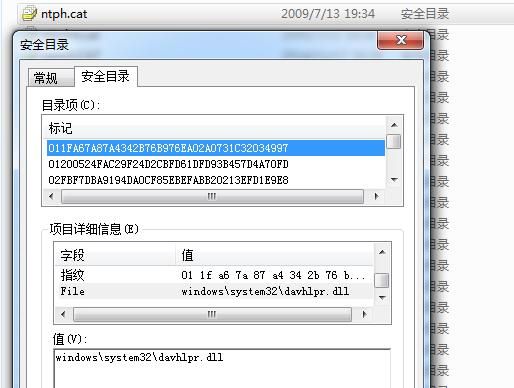
C:\Windows\System32\catroot\{F750E6C3-38EE-11D1-85E5-00C04FC295EE}\ntph.cat
Properties - Security Catalog - Item Details - File, you can find the file corresponding to the Hash value
As shown in the figure below
CAT digital signatures cannot be viewed through file properties
.cat files are saved in ASN.1 format and cannot be viewed directly via Notepad; decryption is required. The online website is as follows:
https://lapo.it/asn1js/
After selecting the .cat file, it can be decrypted to display the complete format
For format parsing, refer to:
https://support.microsoft.com/en-us/help/287547/object-ids-associated-with-microsoft-cryptography
Example:
C:\Windows\System32\xwizard.exe
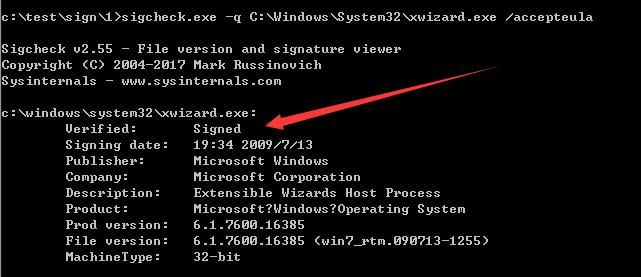
Includes a CAT format digital signature, which cannot be viewed through file properties
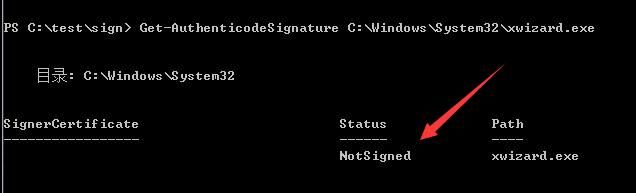
Using PowerShell cannot retrieve the CAT file digital signature:
Get-AuthenticodeSignature C:\Windows\System32\xwizard.exe |
As shown in the figure below
Note:
Windows 10 can obtain CAT file digital signatures, while Windows 7 cannot.
However, you can use signtool.exe and sigcheck.exe to view digital signatures.
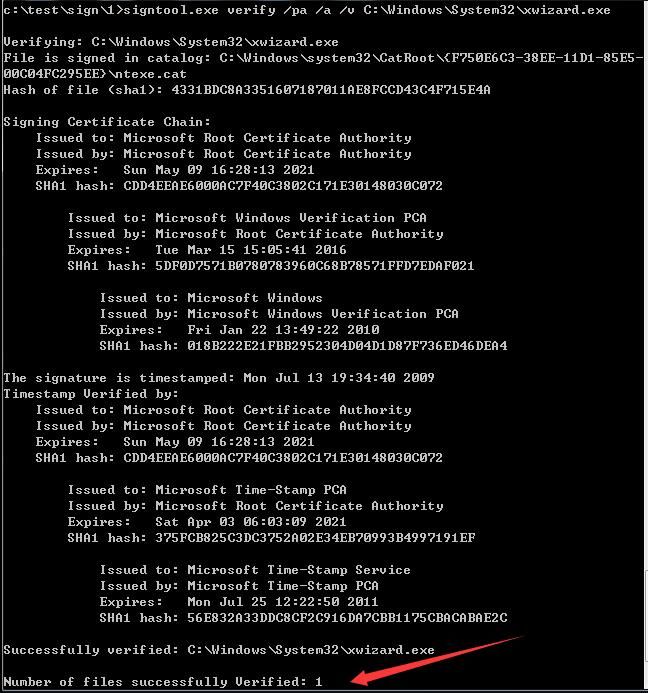
Using signtool.exe to view:
signtool.exe verify /pa /a /v C:\Windows\System32\xwizard.exe |
As shown in the figure below
Using sigcheck.exe to view:
sigcheck.exe -q C:\Windows\System32\xwizard.exe /accepteula |
As shown in the figure below
The following describes how to use CAT file digital signatures
1. Generate a CAT file
Create a new text document cat.txt with the following content:
[CatalogHeader] |
Note:
A blank line is required at the end of the txt file; otherwise, subsequent operations will report an error indicating the file cannot be found.
As shown below
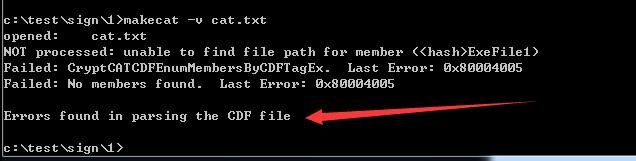
Generate a cat file using makecat.exe:
makecat -v cat.txt |
2. Sign the CAT file with a certificate
signtool sign /f Root.pfx /p 123456 makecat1.cat |
Note:
The certificate used here is Root.pfx generated in step 0x02.
3. Add the cat file to the system's security catalog database
(Administrator privileges required)
signtool catdb -v makecat1.cat |
Note:
Delete using the -r parameter: signtool catdb -r makecat1.cat
If not added to the system's security catalog database, the signature status is unsigned, as shown in the figure below
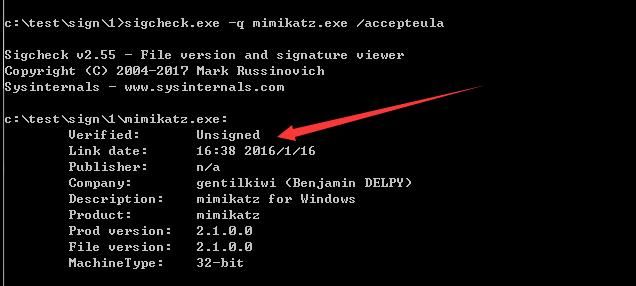
Adding to the system's security catalog database is equivalent to adding the file makecat1.cat to the directory C:\Windows\System32\catroot\{F750E6C3-38EE-11D1-85E5-00C04FC295EE}
Deletion is equivalent to removing the corresponding CAT file makecat1.cat from the directory C:\Windows\System32\catroot\{F750E6C3-38EE-11D1-85E5-00C04FC295EE}
Using signtool.exe to obtain digital signatures:
signtool.exe verify /pa /a mimikatz.exe |
Using sigcheck.exe to obtain digital signatures:
sigcheck.exe -q mimikatz.exe /accepteula |
After moving the location, the signature remains valid
As shown in the figure below
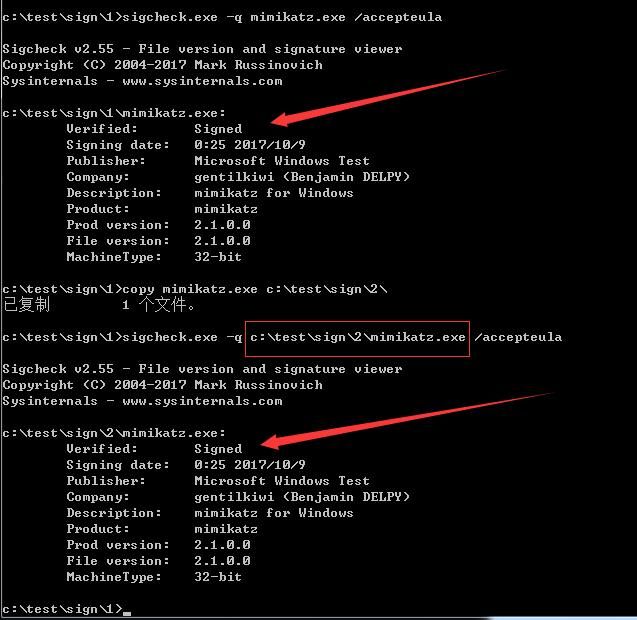
Verification conclusion:After moving the location, the CAT file digital signature does not become invalid
Of course, using xwizard.exe with a CAT file digital signature to load a DLL can, to some extent, bypass application whitelist blocking.
0x04 Summary
---
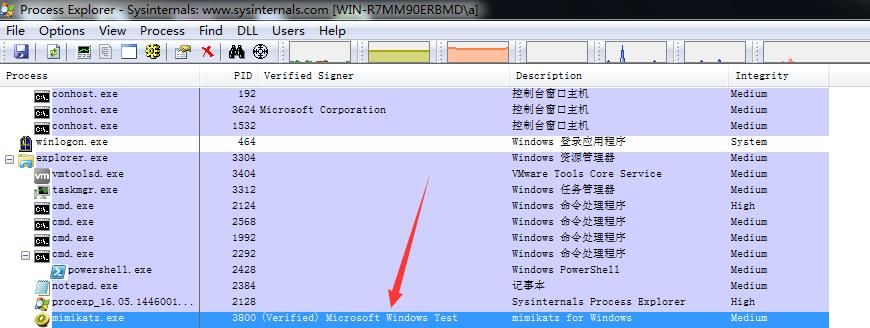
This article introduces two methods for adding digital signatures, analyzes the characteristics of CAT file digital signatures, and for executable files, verifies two different digital signatures using Process Explorer.
As shown in the figure below