
0x00 Preface
---
SharpSniper is used to locate the IP address of a specified domain user in a domain environment, requiring permissions to read domain controller logs. Address: https://github.com/HunnicCyber/SharpSniper
This article will analyze the implementation principles of SharpSniper, explore extended usage methods, and respectively introduce how to achieve the same functionality using wevtutil.exe and PowerShell scripts, sharing key details to note.
0x01 Introduction
---
This article will cover the following topics:
- SharpSniper Implementation Principles
- Implementation Using wevtutil
- Implementation Using PowerShell
0x02 SharpSniper Implementation Principles
---
By querying user login logs (Event ID: 4624) on the domain controller, obtain the IP addresses used by domain users.
The specific implementation is as follows:
1. Obtain IP addresses used by domain users by querying logs
XPath query condition (taking user testb as an example):
"Event[System[(EventID=4624)] and EventData[Data[@Name='TargetUserName']='testb']]" |
Corresponding code location:
https://github.com/HunnicCyber/SharpSniper/blob/master/QueryDC.cs#L16
2. Filter out IP addresses used by domain users through regular expressions
Regular expression:
"\b\d{1,3}\.\d{1,3}\.\d{1,3}\.\d{1,3}\b" |
- \b indicates a word boundary before or after
- \d{1,3} indicates the character count is between 1 and 3 digits
- \. indicates matching the character "."
Corresponding code location:
https://github.com/HunnicCyber/SharpSniper/blob/master/Program.cs#L54
0x03 Implementation using wevtutil
---
1. Query login logs for a specified user (taking user testb as an example)
The cmd command is as follows:
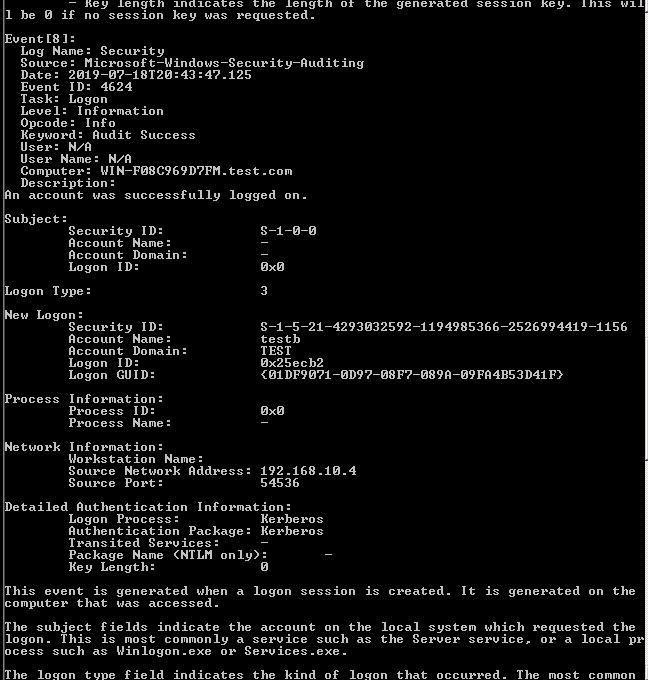
wevtutil qe security /format:text /q:"Event[System[(EventID=4624)] and EventData[Data[@Name='TargetUserName']='testb']]" |
Includes detailed information for each log entry, as shown in the figure below
2. Extract IP addresses from the detailed information
The find command can be used here for filtering
The cmd command is as follows:
wevtutil qe security /format:text /q:"Event[System[(EventID=4624)] and EventData[Data[@Name='TargetUserName']='testb']]"|find "Source Network Address" |
The filtered results are shown in the figure below
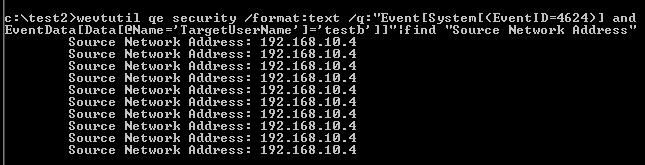
Extract all IP addresses used by user testb from the logs
Supplement: Writing XPath query conditions
Event Viewer can be used to automatically generate the required XPath statements
1. Open Event Viewer
Command execution: eventvwr.msc
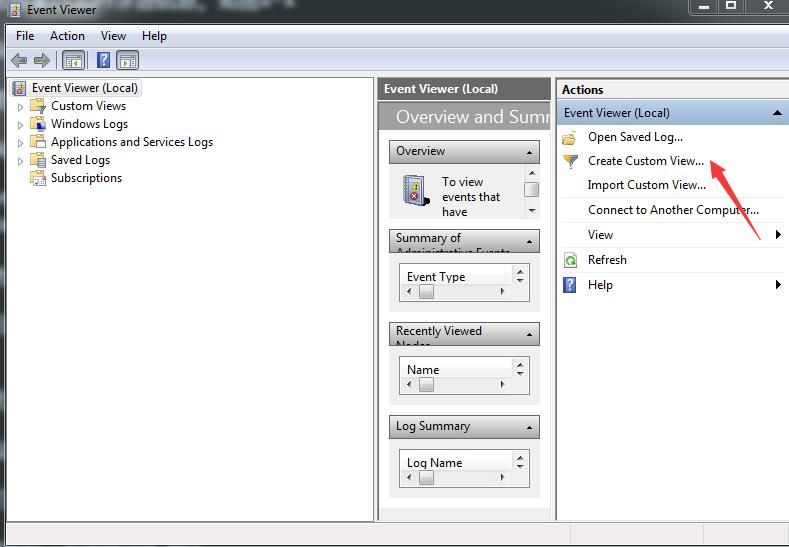
2. Select Create Custom View...
As shown in the figure below
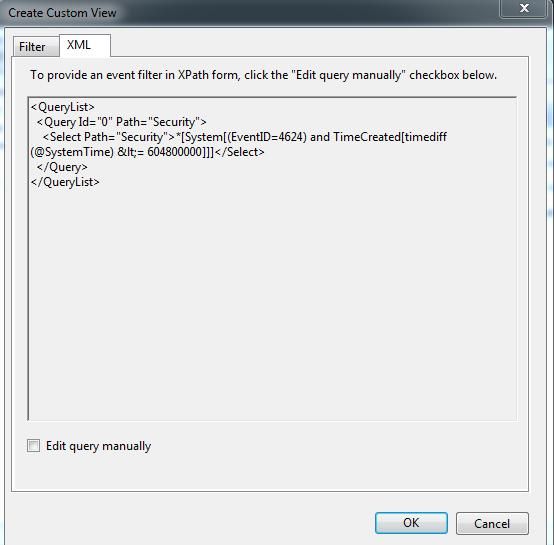
3. After setting query conditions, select the XML tab
As shown in the figure below
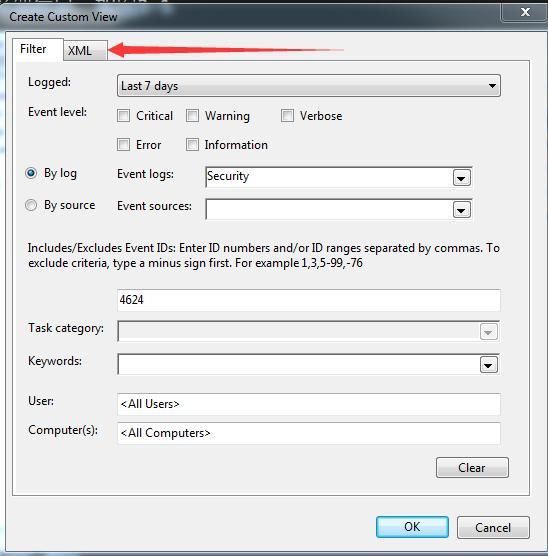
Automatically generate the required XPath statement, as shown below
4. Two methods for using wevtutil to call query statements
(1) Modify according to the format of the /q parameter
Extract the content within the Select tag from the automatically generated XPath statement
(2) Call the query by reading a file
Directly use the automatically generated XPath statement
Save the query statement from step 3 to a file, e.g., custom1.xml
The command to read file call query is as follows:
wevtutil qe custom1.xml /sq:true /rd:true /f:text |
0x04 Implementation using PowerShell
---
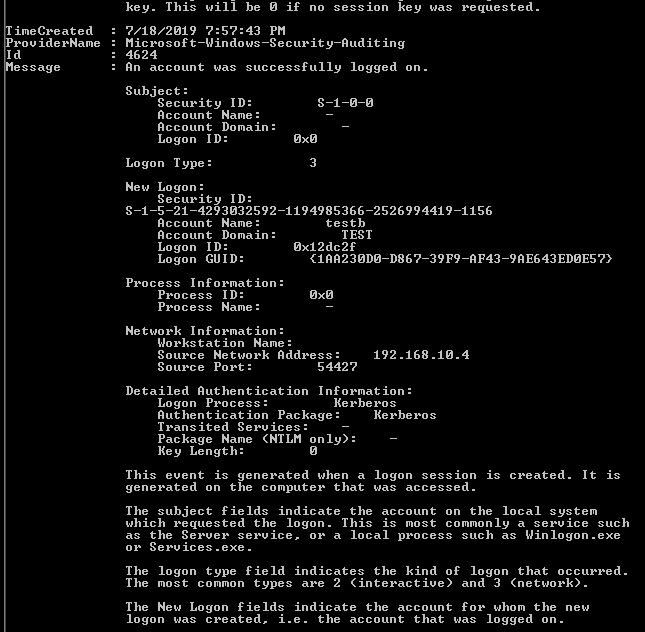
1. Query login logs for a specified user (taking user testb as an example)
Get-WinEvent -LogName "security" -FilterXPath "Event[System[(EventID=4624)] and EventData[Data[@Name='TargetUserName']='testb']]"|Format-List |
Including detailed information for each log entry, as shown in the figure below
2. Three methods to extract IP addresses from detailed information
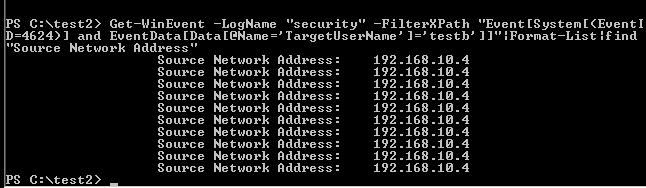
(1) Using the find command
Get-WinEvent -LogName "security" -FilterXPath "Event[System[(EventID=4624)] and EventData[Data[@Name='TargetUserName']='testb']]"|Format-List|find "Source Network Address" |
Result as shown in the figure below
(2) Filtering through regular expressions
First implementation method:
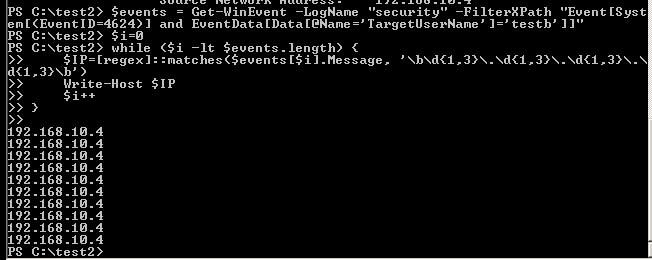
Using the regular expression in SharpSniper, the corresponding PowerShell command is as follows:
$events = Get-WinEvent -LogName "security" -FilterXPath "Event[System[(EventID=4624)] and EventData[Data[@Name='TargetUserName']='testb']]" |
The result is shown in the figure below
The second implementation method:
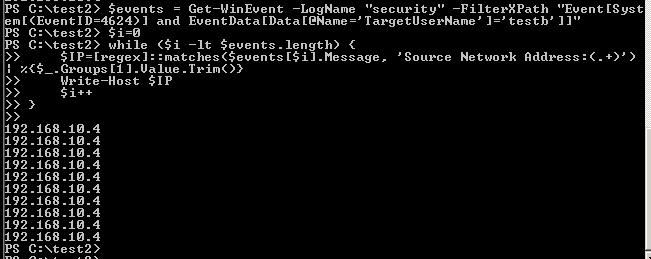
Search for the keyword "Source Network Address:", the corresponding PowerShell command is as follows:
$events = Get-WinEvent -LogName "security" -FilterXPath "Event[System[(EventID=4624)] and EventData[Data[@Name='TargetUserName']='testb']]" |
Result as shown below
(3) First convert to XML format, then filter
When outputting, only the Message column is available, cannot selectively output only the content of "Source Network Address"
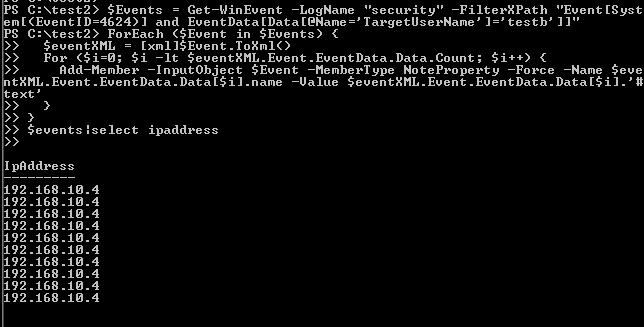
If converting the output content to XML format here, the column corresponding to "Source Network Address" is ipaddress
Reference materials:
https://blog.51cto.com/beanxyz/1695288
The corresponding PowerShell commands are as follows:
$Events = Get-WinEvent -LogName "security" -FilterXPath "Event[System[(EventID=4624)] and EventData[Data[@Name='TargetUserName']='testb']]" |
The result is shown in the following figure
Supplement: Using PowerShell to invoke automatically generated XPath query conditions
Referring to the content in 0x03, use Event Viewer to automatically generate the required XPath statements
Directly save in the variable $xml and invoke it, the corresponding PowerShell command is as follows:
$xml = @' |
0x05 Summary
---
This article analyzes the implementation principles and extended usage of SharpSniper, introducing how to achieve the same functionality using wevtutil.exe and PowerShell scripts, which can be used to obtain IP addresses used by key users in a domain environment.


