
0x00 Preface
---
Recently I came across an article titled 'Bypassing Windows Attachment Manager' by rvrsh3ll@424f424f, which introduced his approach to bypassing Windows Attachment Manager in a very interesting way.
Coincidentally, I have conducted research on the utilization of ADS and lnk files mentioned in the article. Therefore, this article will combine some of my insights to provide an extended introduction to this bypass method and share an interesting issue I discovered during actual testing.
The related article addresses are as follows:
'Bypassing Windows Attachment Manager':
http://www.rvrsh3ll.net/blog/informational/bypassing-windows-attachment-manager/
Some of my previous research insights:
'Penetration Techniques – Parameter Hiding Techniques in Shortcut Files'
'Advanced Exploitation Techniques for Hidden Alternative Data Streams'
0x01 Introduction
---
This article will cover the following topics:
- The role of Windows Attachment Manager
- Implementation of Windows Attachment Manager
- Bypass Techniques for Windows Attachment Manager
- Construction of Special Files
- Interesting Issues Discovered During Actual Testing
0x02 Windows Attachment Manager
---
Introduction
- A new feature introduced by Microsoft since Windows XP SP2
- Designed to prevent files downloaded from untrusted sources from being executed directly
- Untrusted sources include email and internet downloads
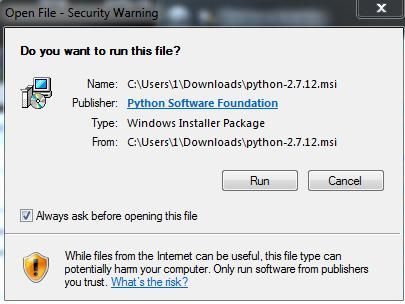
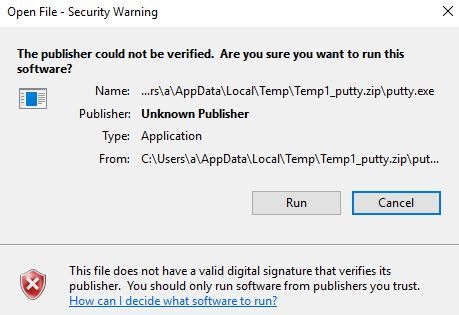
If a file is found to originate from an untrusted source, a dialog box will prompt the user upon opening, requiring user confirmation before execution, as shown in the figure
File formats marked as High-risk are as follows:
.ade, .adp, .app, .asp, .bas, .bat, .cer, .chm, .cmd, .com, .cpl, .crt, .csh, .exe, .fxp, .hlp, .hta, .inf, .ins, .isp, .its, .js, .jse, .ksh, .lnk, .mad, .maf, .mag, .mam, .maq, .mar, .mas, .mat, .mau, .mav, .maw, .mda, .mdb, .mde, .mdt, .mdw, .mdz, .msc, .msi, .msp, .mst, .ops, .pcd, .pif, .prf, .prg, .pst, .reg, .scf, .scr, .sct, .shb, .shs, .tmp, .url, .vb, .vbe, .vbs, .vsmacros, .vss, .vst, .vsw, .ws, .wsc, .wsf, .wsh
For detailed information, please refer to:
https://support.microsoft.com/en-us/help/883260/information-about-the-attachment-manager-in-microsoft-windows
Implementation Method
Untrusted files are tagged with ADS:Zone.Identifier:$DATA upon download
Detailed content of ADS is as follows:
[ZoneTransfer] |
That is, as long as a file contains ADS:Zone.Identifier:$DATA, a prompt will appear when opening it, requiring user confirmation to proceed
Bypass Approach
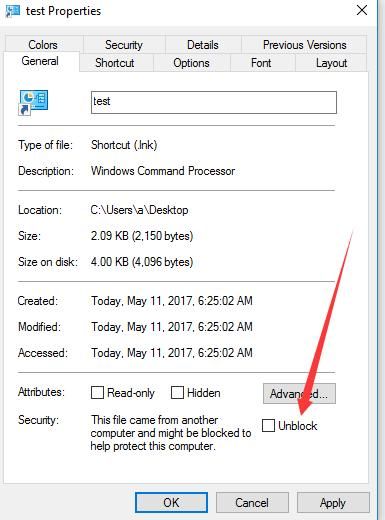
1. Remove the file's ADS, so no prompt will appear when opening the file
For small files, you can use the default Windows command 'more'
For large files, you can use the tool 'Streams'
Note:
For details, refer to 'Advanced Techniques for Utilizing Hidden Alternative Data Streams'
Alternatively, you can perform the operation via the interface, as shown in the figure below, select 'Unblock'
2. Changing the Transmission Path
If a file is copied to another operating system, the original file's ADS will not be preserved.
That is to say, if a previously downloaded untrusted file is copied to another operating system via a trusted method, the file will not be marked as "untrusted" in the new system.
For example:
A file downloaded from the internet, python-2.7.12.msi, is by default added with ADS:Zone.Identifier:$DATA, and a prompt will appear when opening it.
Now, drag this file into a virtual machine (this operation is considered a trusted method and will not add ADS), and the original ADS will not be preserved, so no prompt will appear when opening the file.
0x03 Construction of Special Files
---
Since untrusted files are added with ADS:Zone.Identifier:$DATA upon download, what about compressed files? Will they still contain ADS after decompression?
Test system: Win10x64
HTTP server: Kali Linux
Enable HTTP server functionality:
python -m SimpleHTTPServer 80
1. Attempt .exe + .rar
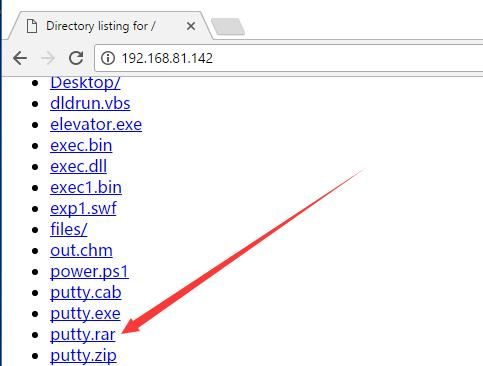
Use WinRAR to compress putty.exe into putty.rar, then upload it to the HTTP server.
Note:
Windows 10 systems cannot decompress .rar files by default; WinRAR must be manually installed.
The test system downloads putty.rar via Chrome, as shown in the figure.
Decompress and open the file using WinRAR, no dialog box pops up.
Conclusion 1:
.rar compressed files will not have ADS added.
2. Attempt .lnk + .rar
When compressing .lnk files, the source file pointed to by the .lnk is compressed directly; the .lnk file itself cannot be compressed. Test failed.
3. Attempt .exe + zip
Use WinRAR to compress putty.exe into putty.zip and upload it to the HTTP server.
The test system downloads putty.zip via Chrome.
Open the zip file via Windows Explorer, as shown below.
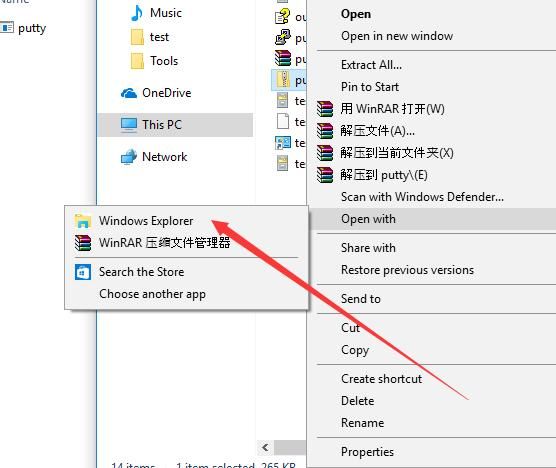
After opening, a dialog box pops up, prompting the user, as shown below.
When using WinRAR to decompress and open the file, no dialog box appeared
Conclusion 2:
Windows Attachment Manager does not support third-party software like WinRAR
4. Attempt .exe+cab
There is no need to test compression formats that require third-party software; we should continue searching for formats natively supported by the Windows system
For example, .cab files
Note:
CAB files can be generated using makecab.exe, which is included by default in the system
Compression types include: none, mszip, lzx
Use makecab to compress putty.exe into putty.cab, selecting lzx as the compression type, with the following command:
makecab /d compressiontype=lzx putty.exe putty.cab
As shown in the figure

Upload to HTTP server
Test system downloads via Chrome
Unzip, save file, open, dialog box pops up
Drag file to any path, open, no dialog box
Complete testing process as shown in the figure
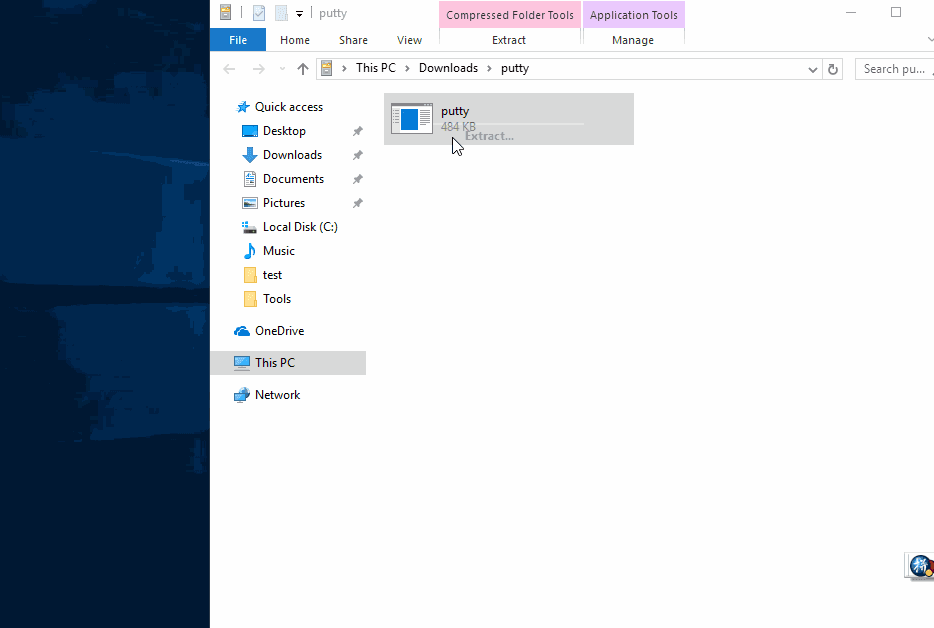
GIF online address:
https://raw.githubusercontent.com/3gstudent/BlogPic/master/2017-5-10/2.gif
Monitor both operations using Procmon, differences shown below, further research and more testing required here
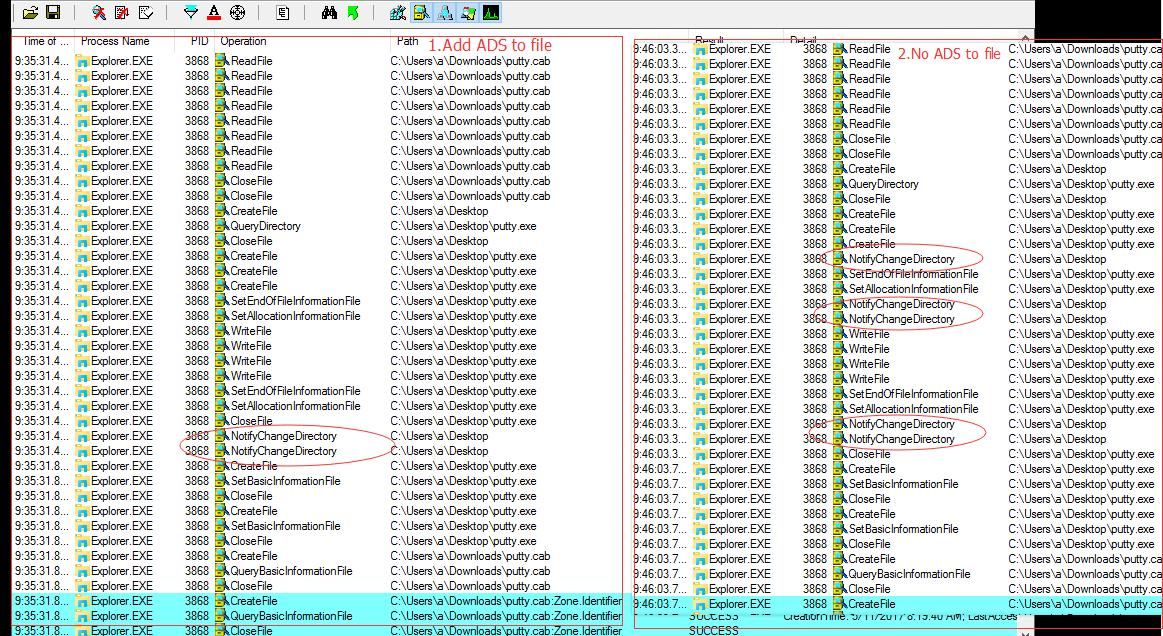
Note:
This issue exists in Win10 Build 14393(1607) and earlier versions, fixed in Win10 Build 15063(1703)
Conclusion 3:
Using cab compressed files, then dragging and saving files can bypass Windows Attachment Manager
5、Try .lnk+cab
Note:
This method originates from rvrsh3ll@424f424f's article, but I discovered another interesting issue during testing.
Use makecab to compress test.lnk into test.cab, selecting lzx compression type, with the following command:
makecab /d compressiontype=lzx test.lnk test.cab
Note:
The cab file can compress the lnk file itself. To increase obfuscation, you can use the following test code:
Write the following content in test.txt:
/c start calc.exe
PowerShell code:
$file = Get-Content "c:\test\test.txt" |
The parameters of the generated lnk file are padded with space characters, and the actual payload is hidden, as shown in the figure below
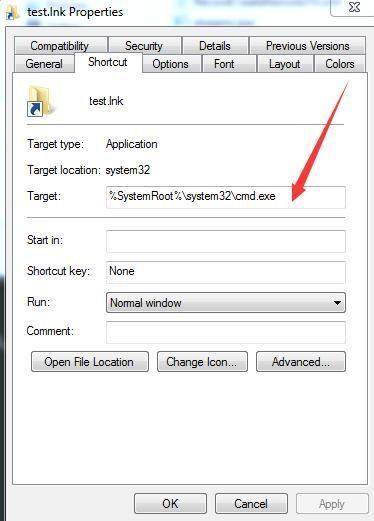
For more details, refer to:
《Penetration Techniques – Parameter Hiding Techniques in Shortcut Files》
Upload test.cab to the HTTP server
The test system downloads it via Chrome
Extract, save the file, open it, and a dialog box appears (same as test 4)
Drag the file to any path, open it, no dialog box appears (same as test 4)
An interesting question:
Extract the lnk file, save the file, open it, and a dialog box appears
Then right-click to view the properties of the lnk file, open the lnk file again, no dialog box appears, and ADS is cleared
The complete testing process is shown in the figure
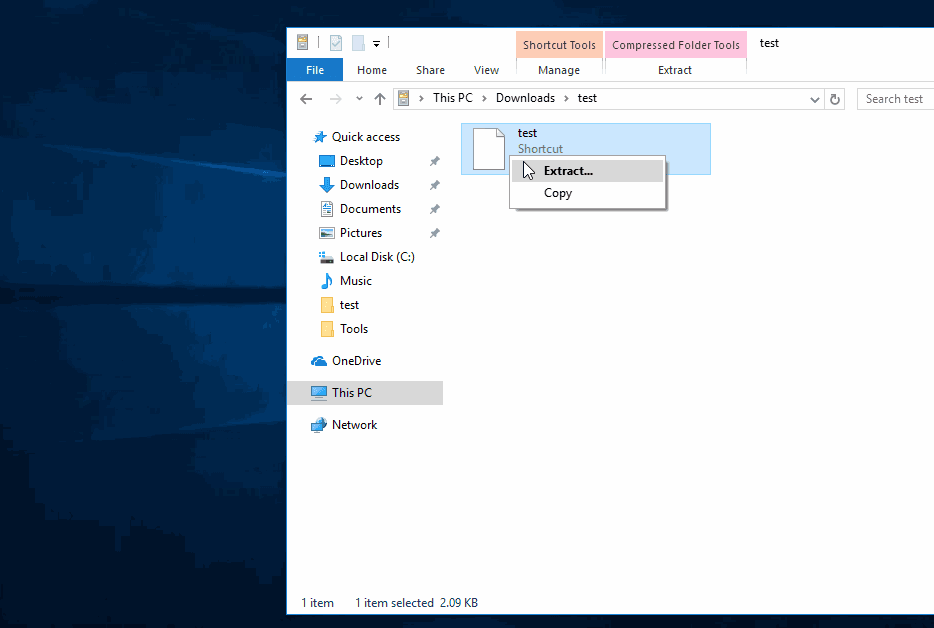
GIF online address:
https://raw.githubusercontent.com/3gstudent/BlogPic/master/2017-5-10/1.gif
Conclusion 4:
Under certain special circumstances (versions before Win10 Build 14393 (1607)), ADS will be cleared, allowing bypass of Windows Attachment Manager
Note:
Win10 Build 10586 has this issue, Win10 Build 14393 (1607) fixed this issue
0x04 Supplement
---
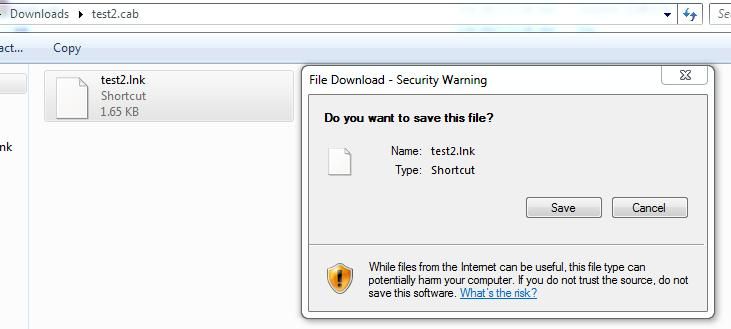
Win7 systems do not have the above issues, reason:
After opening a cab file, a prompt box will appear when saving the file (this feature does not exist in Win10)
As shown in the figure
0x05 Summary
---
- Untrusted files will have ADS:Zone.Identifier:$DATA added during download
- If the file is copied to another operating system, the original file's ADS will not be preserved
- Compared to rar and zip formats, using cab format to compress lnk files is more appropriate
- lnk files are more deceptive
- Win10 Build 15063 (1703) has fixed the above bugs


