
0x00 Preface
---
In penetration testing, ADS (Alternative Data Stream) is commonly used to hide payloads within files. The greatest advantage of this method is that it does not affect the file size, making it difficult for ordinary users to detect.
To address this, Microsoft provides the "dir /r" command to view ADS in files. Additionally, systems after Windows XP prohibit users from directly executing programs from ADS, limiting its exploitation.
However, through some special methods and techniques, we can better hide ADS and even execute programs directly from ADS :)
Note:
The original intention of writing this article was inspired by an interesting piece I came across, authored by lex Inführ, available at the following address:
http://insert-script.blogspot.co.at/2012/11/hidden-alternative-data-streams.html
That article introduces some techniques to bypass ADS detection tools and provides a method to execute ADS via WMI.
This article will expand on the exploitation techniques of ADS based on lex Inführ's work, incorporating my research insights, and share how to clean up these special ADS to help enhance everyone's understanding of ADS.
0x01 Introduction
---
This article will cover the following topics:
- Conventional Exploitation Methods for ADS
- ADS Regular Detection Tools
- Bypassing Detection Tools with Special ADS
- Clearing Special ADS
- Defense Recommendations
0x02 Regular Exploitation
---
ADS:
Applicable to NTFS file system. Basic knowledge can be referenced in the following article:
http://www.freebuf.com/articles/73270.html
Creating ADS:
For files, command line:
echo test1 > test.txt:ThisIsAnADS
After successful creation, the file size of test.txt remains unchanged
For folders, command line:
echo test1 > c:\test\ads\1:ThisIsAnADS
Note:
Absolute path required
View ADS in files:
Command line:
dir /r
As shown in the figure
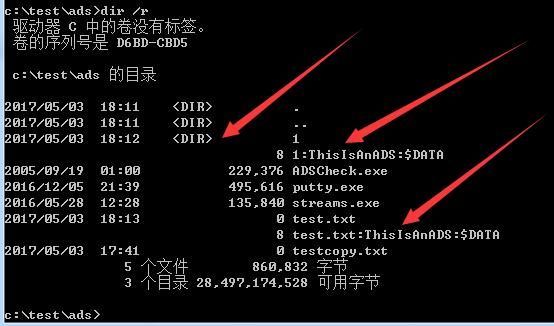
Can obtain ADS information contained in folders and files
View ADS content:
Command line:
more < test.txt:ThisIsAnADS
As shown in the figure below, obtain the specific content of ADS

Delete ADS:
Command line:
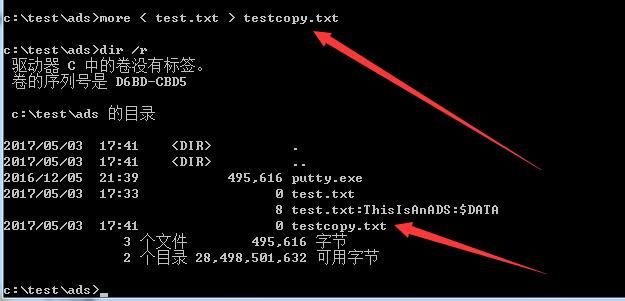
more < test.txt > testcopy.txt
Using the more command to view the main data stream of a file and outputting it can indirectly achieve ADS deletion.
As shown below, testcopy.txt does not contain extra ADS.
Note:
The more command truncates and displays output screen by screen when showing long data, which contains a bug: if the file is too large, causing the more command to require pagination, it can lead to incomplete data display and file generation failure.
0x03 ADS Execution
---
1. Via WMI
Command line:
type putty.exe > test.txt:putty.exe
wmic process call create c:\test\test.txt:putty.exe
As shown in the figure
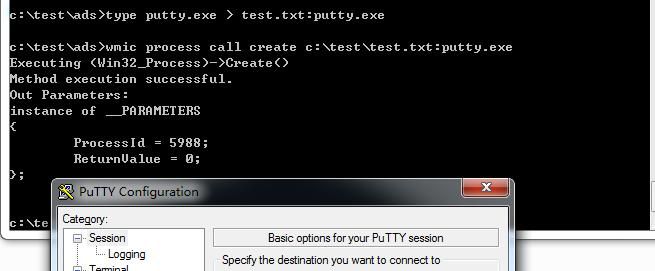
After program execution, the process name is test.txt:putty.exe
2. Via PowerShell
Code as follows:
$ps = new-object System.Diagnostics.Process |
0x04 Conventional Detection Tools
---
1. ADSCheck.exe
Download link:
https://sourceforge.net/projects/adscheck/
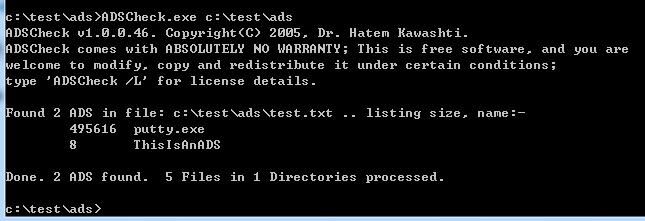
View ADS:
Can view all files under the specified folder
Command:
ADSCheck.exe c:\test\ads
As shown in the figure
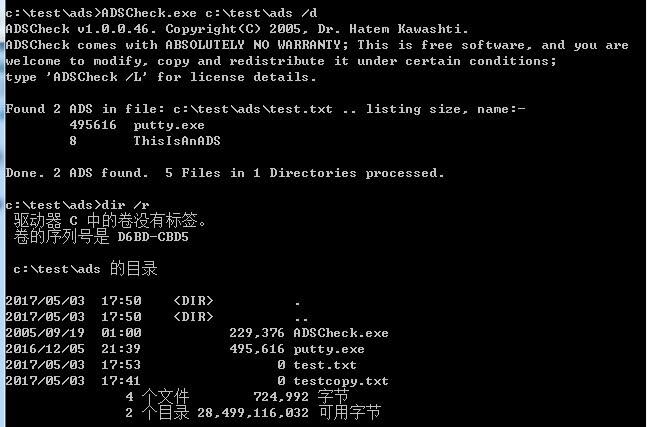
Delete ADS:
All ADS under the specified path can be deleted
Command:
ADSCheck.exe c:\test\ads /d
As shown in the figure
2、Streams.exe
Download address:
https://technet.microsoft.com/en-us/sysinternals/streams.aspx
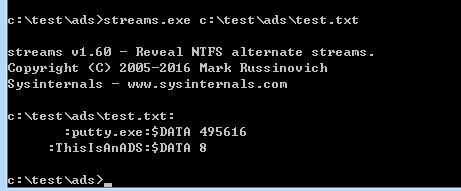
View ADS:
View a single file
Command:
streams.exe c:\test\ads\test.txt
As shown in the figure
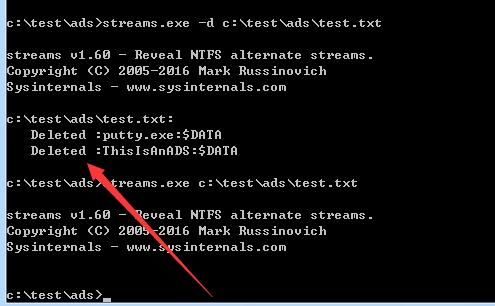
Delete ADS:
Delete ADS for a single file
Command:
streams.exe -d c:\test\ads\test.txt
As shown in the figure
Example test:
When opening a file downloaded by the browser, a prompt dialog appears
As shown in the figure
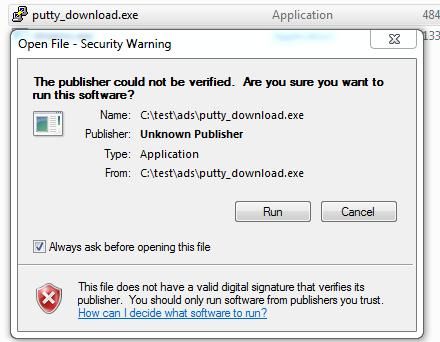
Reason:
Downloaded files are automatically added with adsZone.Identifier:$DATA
Verification:
View ADS:
more < putty_download.exe:Zone.Identifier:$DATA
Content obtained as follows:
[ZoneTransfer] |
Remove ADS:
Cannot use the more command because putty_download.exe is too large, requiring paged display, causing file generation to fail
Can use streams.exe
After removing ADS, opening the file no longer prompts with a dialog box
0x05 Special ADS
---
1. ...file
Create special file...
Command as follows:
type putty.exe > ...:putty.exe
wmic process call create c:\test\ads\...:putty.exe
putty.exe executed successfully, process name is ...:putty.exe
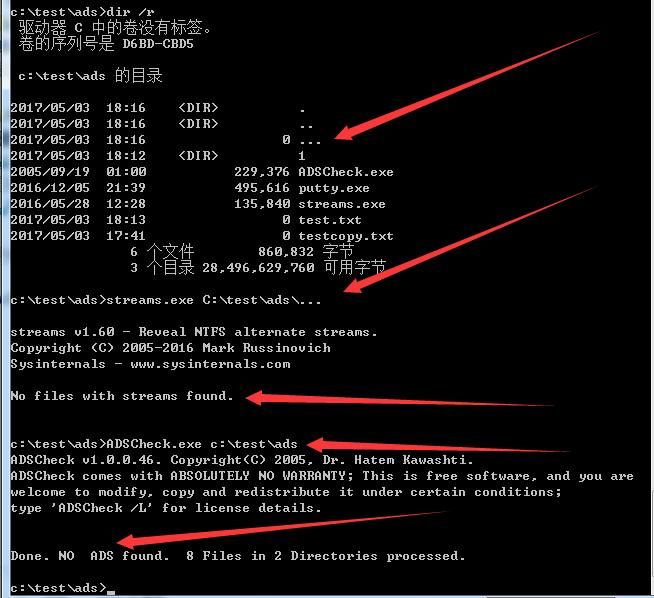
Special features:
(1) ADS is hidden
- dir /r cannot query it
- Tools ADSCheck.exe and streams.exe show no ADS exists
As shown in the figure
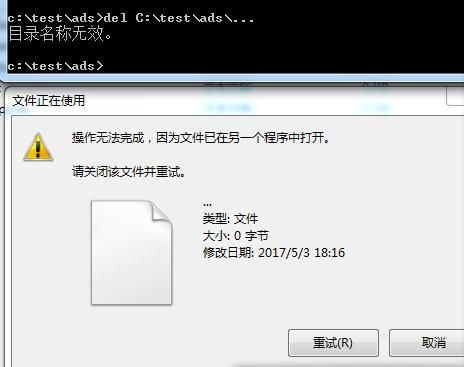
(2) The file cannot be deleted
Various methods attempted, unable to delete, as shown in the figure
2. Special COM file
Create a special name file COM1
Note:
After testing, the system currently supports file names from COM1 to COM9
The prefix \\.\ must be included, otherwise the system will prompt that the specified file cannot be found
Supplement 1:
The special name nul has the same effect, this method was tested and confirmed by Evi1cg
Supplement 2:
Other special file formats can also hide ADS, including the following suffix formats:
CON, AUX, PRN, LPT1, LPT2, LPT3, LPT4, LPT5, LPT6, LPT7, LPT8, LPT9
eg:
type putty.exe > \\.\C:\test\ads\LPT4:putty.exe
Note:
For more special file names, refer to:
https://docs.microsoft.com/en-us/windows/desktop/FileIO/naming-a-file#naming-conventions
Supplement 3:
The prefix \\?\ can also be used, with the same effect
Command as follows:
type putty.exe > \\.\C:\test\ads\COM1:putty.exe
wmic process call create \\.\C:\test\ads\COM1:putty.exe
Note:
*Executing wmic process call create c:\test\ads\COM1:putty.exe does not run the program*
putty.exe successfully executed, process name is COM1:putty.exe
Special aspects:
(1) ADS is hidden
- dir /r cannot query it
- Tools ADSCheck.exe and streams.exe show no ADS exists
(2) Cannot be directly deleted
3. Disk root directory
Administrator privileges
type putty.exe >C:\:putty.exe
wmic process call create C:\:putty.exe
putty.exe successfully executed, process name is :putty.exe
Special features:
(1) ADS is hidden
- dir /r cannot find it
- Use streams.exe to view
(2) Cannot be directly deleted
0x06 Clearing special ADS
---
1、...file
Method 1:
Delete all files in the directory:
del *.*
But not practical
Method 2:
Use short filenames
dir /x
As shown in the figure
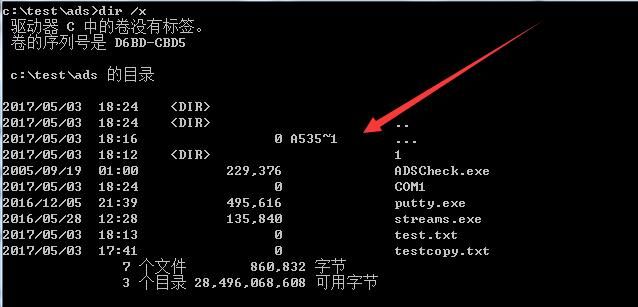
Find the short file name corresponding to the ... file as A535~1
Command line:
del A535~1
Successfully deleted
2. Special COM file
Command line:
del \\.\C:\test\ads\COM1
3. Disk root directory
Using streams.exe
Administrator privileges:
streams.exe -d C:\
0x07 Defense Recommendations
---
For users, if they discover files with special names in the system that cannot be deleted, they should be vigilant, as these may contain payloads.
Referencing this article, the special files and their removal methods are as follows:
(1) ...
Delete using short filenames.
(2) COM1-COM9
del \\.\C:\test\ads\COM1
(3) Disk root directory
View and delete using streams.exe.
0x08 Summary
---
This article introduces advanced techniques for hiding ADS, shares specific removal methods and defense recommendations in combination with attack methods, hoping to assist everyone.


